$209.99
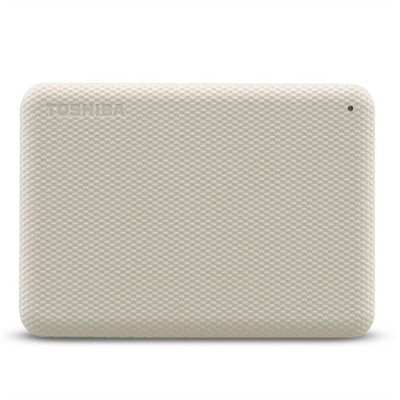
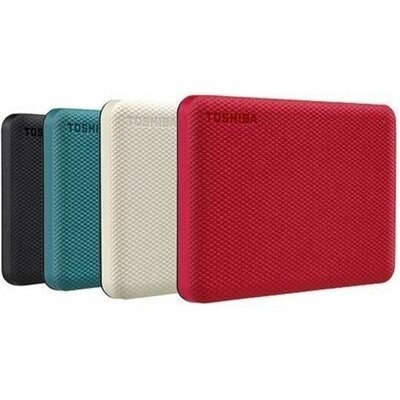
A green, textured 4TB portable external hard drive with automatic backups and password-protected data security.
External hard drives for Time Machine offer a reliable and convenient solution for safeguarding your important files and memories. Designed to work seamlessly with macOS, these storage devices provide an easy way to back up your data and ensure peace of mind. Whether you need additional space for photos, documents, or creative projects, exploring external hard drives for Time Machine can help keep your information secure and accessible whenever you need it. Find the ideal option to complement your backup routine and support your digital lifestyle.
A green, textured 4TB portable external hard drive with automatic backups and password-protected data security.
External hard drives for Time Machine provide a practical way to create an automatic copy of the files, applications, settings and system information stored on a Mac computer. Time Machine is designed to preserve a history of backups, allowing you to recover a recently deleted document, restore an earlier version of a presentation or bring back files after a hardware problem. Instead of relying on a single copy of important photos, schoolwork, creative projects or business records, you can connect an external drive and let routine backups happen in the background. A suitable drive can be especially helpful for people who work from home, manage a growing photo library, edit video, study remotely or use a Mac for personal records. It may also be a thoughtful gift for a graduate, photographer, freelancer or family member who has recently purchased a computer and wants a simple way to protect the files that matter most. For shoppers comparing storage options, capacity is one of the most important considerations. A drive with at least twice the capacity of the Mac’s internal storage gives Time Machine room to retain a deeper history of changes, rather than quickly replacing older backups as the drive fills. Someone with a computer containing 512GB of internal storage may therefore benefit from a drive with 1TB or more, while a computer holding several terabytes of photos, media or project files may call for a larger-capacity option. Extra space is useful because a backup drive needs room for both the first complete backup and the ongoing snapshots created as files change over time.
The choice between a solid-state drive and a traditional mechanical hard drive often comes down to speed, portability, capacity and budget. Solid-state drives use flash memory, so they can provide faster file recovery, quick transfers and quiet operation without moving internal parts. Their compact design makes them a natural fit for people who carry a laptop between a home office, classroom, studio or shared workspace. A mechanical desktop drive can be a practical choice when high capacity is the priority, particularly for a stationary Mac that remains in one location and contains extensive photo, video or music collections. Consider the connection available on the computer, including the type of USB port and the transfer speed it supports, and select a compatible cable or adapter when necessary. A drive that is easy to connect is more likely to remain part of a dependable routine. Physical design matters as well: a portable model should be light enough to pack alongside a laptop, while a desktop-oriented model may include a larger enclosure and a separate power connection. Look for features such as password protection, hardware-based encryption or compatibility with the security settings used on the computer if sensitive documents are part of the backup. It is also wise to think about where the drive will be kept. A backup device sitting beside the computer protects against accidental deletion and many software problems, but it may not protect against theft, fire or other damage affecting the whole workspace. Some households connect the drive regularly and store it in a secure location when it is not in use, while others keep a dedicated backup drive connected for automatic coverage. For additional options organized around broader computer protection needs, explore External Hard Drives For System Backup.
Setting up an external drive for Time Machine is straightforward, but preparation helps prevent avoidable data loss. Before beginning, copy any files on the new drive to another location if they are important, because Time Machine may need to erase and reformat the external device during setup. Once connected, open System Settings, select General and then Time Machine, choose Add Backup Disk and select the external drive. Follow the prompts to allow the computer to prepare the disk, then enable automatic backups. The initial backup can take some time because it may include the entire contents of the Mac, especially when the computer contains a large photo library or years of work. Keeping the computer connected to power and leaving the drive attached during that first process can help it finish without interruption. Afterward, Time Machine generally backs up new and changed files at regular intervals, which means later backups are usually much faster. A useful routine is to check occasionally that the drive is connected, has available capacity and is reporting successful backups. If the drive is unplugged during travel, reconnect it when returning to the workspace so the backup history can continue. When choosing from external hard drives for Time Machine, focus on enough capacity for long-term file history, a connection that matches the computer, a form factor suited to the way the drive will be used and performance that fits the importance of quick recovery. With the right combination, an external drive can quietly preserve years of photographs, financial documents, creative work and personal memories, offering reassurance during everyday computing and a dependable path back to familiar files when something goes wrong.
Add the products you would like to compare, and quickly determine which is best for your needs.