$199.99
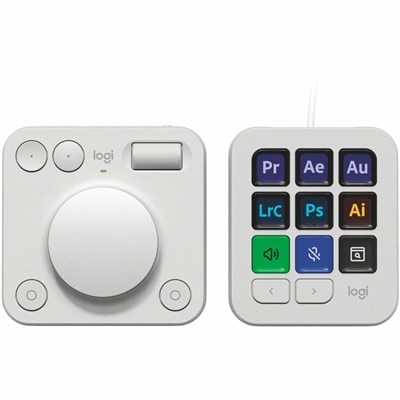
A pale grey console with nine customizable LCD keys and an aluminum dial for streamlined workflows.
Explore macro pads and creative control dials for quick access to shortcuts and hands-on control of creative workflows. Compare programmable keypads and dial-based controllers by software compatibility, customization options, and desk footprint to find a setup that fits the way you work.
A pale grey console with nine customizable LCD keys and an aluminum dial for streamlined workflows.
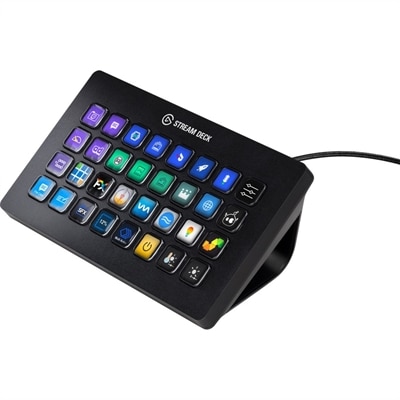
A customizable streaming control pad with 32 LCD keys, dynamic icons, tactile commands, and workflow integrations.
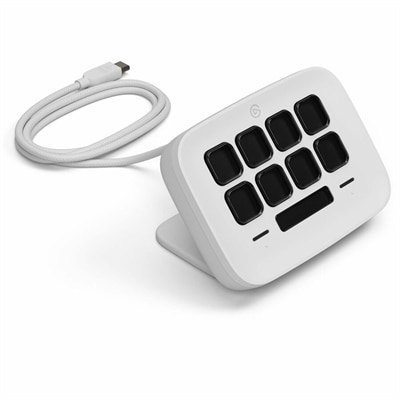
An eight-key USB controller with customizable shortcuts, real-time Infobar, Touch Points, and Windows or Mac compatibility.
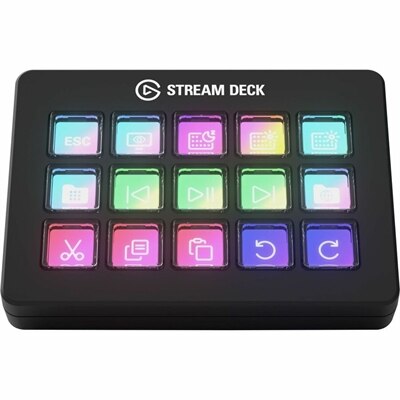
A customizable control pad with precise scissor-switch keys for apps, platforms, devices, plugins and personalized icons.
Macro pads and creative control dials bring frequently used commands within easy reach, giving digital work a more tactile rhythm. A macro pad is a compact input device with programmable keys that can trigger shortcuts, enter repeated text, or perform a sequence of actions when supported by its software. A creative control dial adds rotary input, allowing compatible applications to respond to a turn, press, or combination of gestures. Together, these accessories can complement a keyboard and mouse without replacing either one. Their appeal is especially clear during tasks that involve repeated adjustments: moving through a video timeline, changing brush size in an illustration, adjusting an audio level, or shifting between tools while editing photographs. Instead of breaking concentration to search through menus, a familiar button or dial can keep a commonly used function close at hand. Different layouts emphasize different working styles. A small bank of keys can suit someone who needs just a few dependable shortcuts, while a larger surface can accommodate separate groups of commands for editing, navigation, and everyday desktop tasks. Some designs use printed labels or removable keycaps; others may offer illuminated keys or small displays that help distinguish assignments. Rotary controls also vary in feel. A dial with defined steps provides noticeable feedback as it turns, while a smoother control may feel more natural for continuous adjustments, depending on the application. These differences matter when the same motion is repeated throughout a session. A photographer refining a series of portraits may value a consistent adjustment feel, while an animator moving between frames may prefer distinct increments. The usefulness of any control ultimately depends on the connection between its physical design, its configuration options, and the software being used. Application-specific profiles, supported shortcuts, and adjustable dial sensitivity can make the difference between an accessory that simply adds buttons and one that becomes a familiar part of the creative process. Clear separation between controls can also help distinguish neighboring commands by touch, particularly when attention stays on the screen rather than the desk.
The physical fit of a macro pad or control dial deserves as much attention as its programmable functions. These accessories occupy the same working area as a keyboard, mouse, drawing tablet, notebook, or microphone, so footprint and placement shape how comfortably they fit into a desktop setup. A compact pad can sit beside a laptop without taking over a small table, while a broader control surface may feel more at home on a dedicated creative desk. Housing height, key spacing, dial diameter, and button resistance all influence the experience of reaching for a command. Controls that feel comfortable during a brief task may feel different across a long editing session, particularly if they require an awkward wrist angle or a reach across another device. Weight and nonslip feet can help a unit remain steady during repeated presses or turns, and a detachable cable can simplify packing or rearranging the workspace. Wired connections may suit a stationary setup, while wireless designs introduce considerations such as battery care, charging access, and connection requirements. Port type, operating system support, and any required configuration software remain important parts of compatibility. Materials contribute to both feel and upkeep. Plastic housings can keep an accessory lightweight, while metal construction may add heft and a firmer impression on the desk. Textured finishes can provide grip, though grooves and seams may collect dust. Key legends, surface coatings, and rotary mechanisms also face regular wear, especially when a handful of controls receive most of the attention. Durability depends on construction and usage rather than appearance alone. For everyday care, a soft, dry cloth can remove dust and fingerprints, with cleaning methods kept consistent with the manufacturer’s directions. Liquids, abrasive cleaners, and forceful handling can damage finishes or mechanisms. When an accessory travels between a home workspace and a studio, a protective pouch or fitted case can help keep keys, dials, and cable connectors from being pressed or bent inside a bag. Accessible cable routing also keeps the control area easier to rearrange without pulling against a connector.
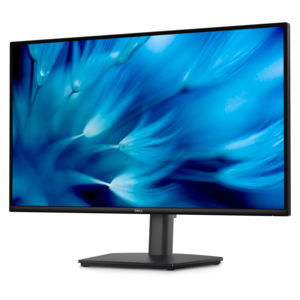
Customization gives these accessories their character, but the strongest setups often feel straightforward rather than crowded. A small collection of memorable commands can be more useful than a dense layout filled with actions that rarely get used. Consistent placement helps establish a familiar pattern: navigation controls in one area, editing tools in another, and a clearly separated button for a command that changes a document or ends a recording. Where supported, profiles can change assignments between applications, allowing the same dial to adjust brush size in one workspace and move along a timeline in another. That flexibility is valuable, although automatic profile switching and background application behavior vary by device and software. Some actions rely on standard keyboard shortcuts, while others require dedicated integrations, so compatibility involves more than simply connecting a cable. Visual labels, sensible naming, and recognizable icons can make a customized layout easier to return to after a break. For creators whose work depends on seeing fine detail alongside these hands-on adjustments, Professional Displays for Creative Workflows complement a workspace centered on careful visual judgment. A dial can make an adjustment easier to control, but it does not replace the need to evaluate the result on screen or listen closely to an audio change. That balance makes macro pads and creative control dials relevant to a wide range of people, including illustrators, video editors, musicians, photographers, and professionals who repeat the same desktop actions throughout the day. Students developing creative skills and hobbyists refining a home workspace may also appreciate having familiar tools grouped within reach. As a gift for a graduation, birthday, or career milestone, this category is particularly thoughtful when the recipient’s preferred applications, computer connections, and desk space are known. The attraction is not simply the presence of extra buttons. It is the opportunity to shape a working surface around real habits, whether that means navigating a lengthy project, making small tonal adjustments, or keeping essential commands close during a focused afternoon of creative work.
Add the products you would like to compare, and quickly determine which is best for your needs.