$649.99
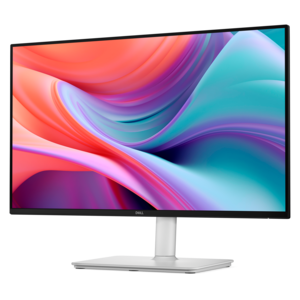
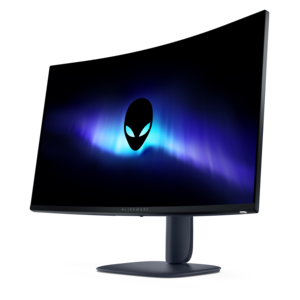
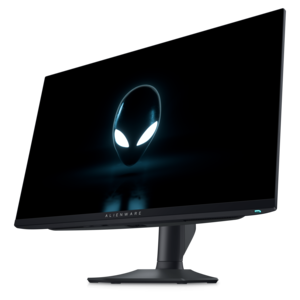
A QHD QD-OLED gaming monitor delivering 360Hz refresh rates and VESA DisplayHDR True Black 400 visuals.
Browse technology monitors for work, study, and everyday computing. Compare screen size, resolution, and connection options to narrow your choices, keeping your desk space, daily tasks, and computer’s ports in mind.
A QHD QD-OLED gaming monitor delivering 360Hz refresh rates and VESA DisplayHDR True Black 400 visuals.
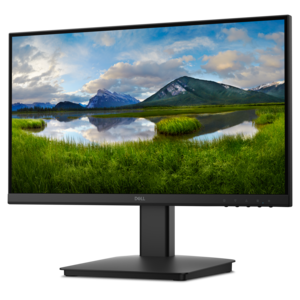
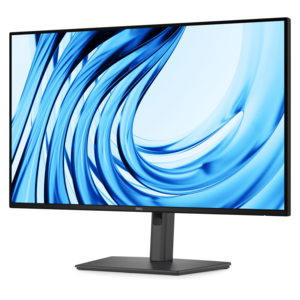
A crisp FHD monitor with smooth 144Hz visuals, built-in speakers, and TÜV 4-star eye comfort certification.
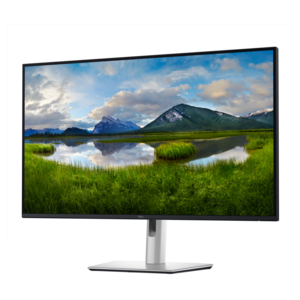
A smooth 100Hz monitor with TÜV Rheinland 3-star eye comfort certification for everyday productivity.
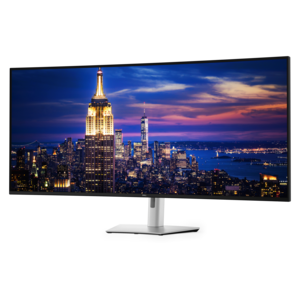
A 6K ultrawide monitor with Thunderbolt hub connectivity, exceptional clarity, seamless multitasking, and all-day eye comfort.
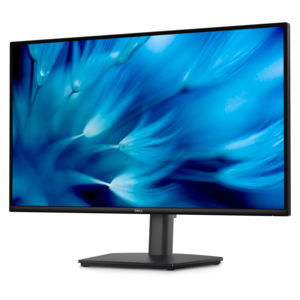
A height-adjustable QHD monitor certified by TÜV Rheinland for 3-star eye comfort and productive work.
A Full HD productivity monitor with extensive connectivity, high refresh rate, and TÜV-certified four-star eye comfort.
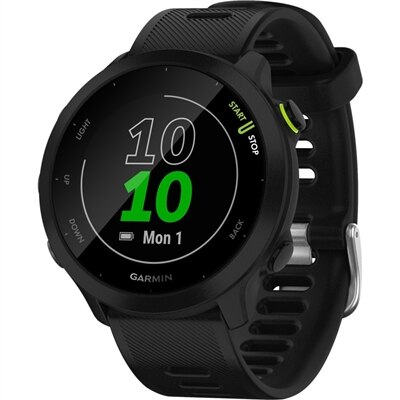
A lightweight GPS smartwatch with silicone band, heart-rate monitoring, adaptive training, and two-week battery life.
Modern computer monitors bring together display technology, screen resolution, and connectivity to support everything from everyday productivity to immersive entertainment. Choosing the right monitor starts with how you use your laptop or desktop: multitasking benefits from generous screen space, creative work calls for careful attention to color accuracy, and fast-paced gaming makes refresh rate and response time important considerations. Full HD, QHD, and 4K monitors offer different levels of detail, so compare resolution alongside screen size to find a balance between image sharpness, readable text, and available desk space. Panel technology also influences the viewing experience. IPS panels are often chosen for wide viewing angles and consistent color, while VA panels typically emphasize contrast. Ultrawide monitors can provide room for multiple windows side by side, and curved monitors offer a different viewing experience that may suit a larger display. Consider your preferred applications and seating position rather than choosing by specifications alone. Monitor connectivity and adjustability are equally important for building a practical computer setup. Before pairing a display with a Dell laptop or desktop, check the connections available on both devices and confirm support for your preferred resolution and refresh rate. HDMI, DisplayPort, and USB-C monitors serve different connection needs, but capabilities vary by model, port, and cable. If you want a USB-C monitor that carries video and charges a compatible laptop through one cable, verify video support and power delivery specifications before choosing. For a dual-monitor setup, review your computer’s external display support and measure your workspace to accommodate both screens comfortably. Adjustable height, tilt, swivel, and pivot options can help you position a monitor for your preferred working posture, while compatible mounting options offer additional setup flexibility. Comparing these features alongside display quality helps you choose a productivity monitor, gaming monitor, or home office monitor that fits your routine.
Add the products you would like to compare, and quickly determine which is best for your needs.