$449.99
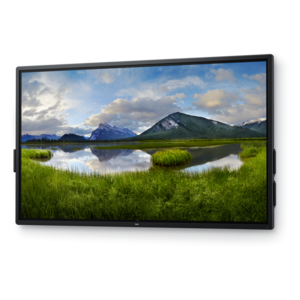
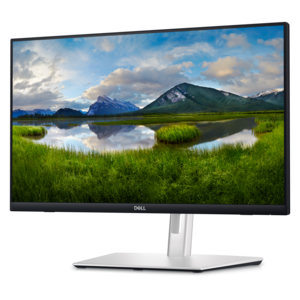
A touch-enabled productivity monitor with USB-C hub connectivity and an articulating stand.
Elevate your digital experience with touch displays, where innovation meets interaction. These versatile screens transform how you engage with technology, offering a seamless blend of functionality and style. Whether you're enhancing productivity in the office or enjoying immersive entertainment at home, touch displays provide an intuitive interface that responds to your every command. Explore a range of options designed to fit diverse needs, from creative professionals seeking precision to everyday users looking for convenience. Discover the future of display technology today, and see how touch displays can revolutionize your world.
A touch-enabled productivity monitor with USB-C hub connectivity and an articulating stand.
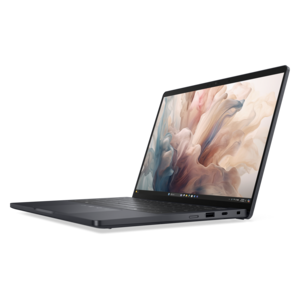
An AI-powered tablet with optional keyboard, active pen, advanced thermals, HDR cameras, and Intel Core Ultra.
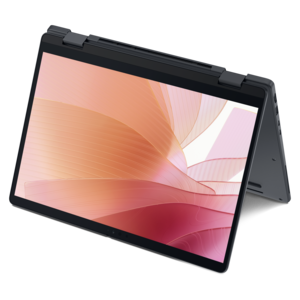
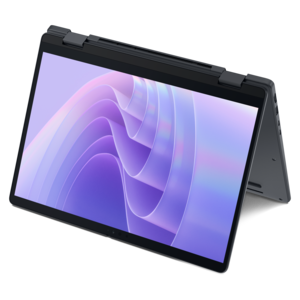
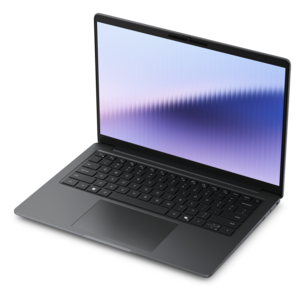
A thin 2-in-1 laptop powered by AMD Ryzen AI PRO 400 Series processors for versatile performance.
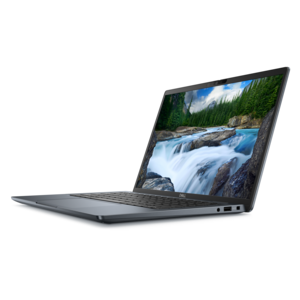
A remarkably thin 2-in-1 laptop combining versatile portability with performance powered by advanced Core Ultra processors.
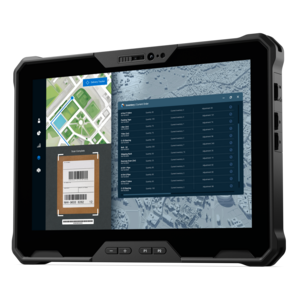
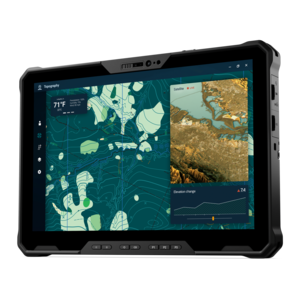
A lightweight rugged tablet with improved battery life, Copilot+ PC, and Intel Core Ultra 200V processors.
A fully rugged tablet with Copilot+ features, designed for all-day productivity and extended battery life.
Touch displays combine a visual screen with a touch-sensitive input layer, allowing you to interact directly with what appears on the panel. Instead of reaching for a separate mouse or keyboard for every command, you can tap an icon, swipe through a page, drag an object, pinch to zoom, or use a stylus to write and sketch. Most modern touch displays use capacitive sensing. Transparent conductive layers form a fine grid beneath the surface, and the display detects the small change in electrical charge created when a finger or compatible pen approaches the panel. The system then translates that contact into a precise position on the screen. Many models support multi-touch input, which makes familiar gestures such as two-finger scrolling, rotating, and zooming feel natural. A touch display may serve as the primary screen for a computer, a second display for shortcuts and reference material, or a compact interface for a custom project, depending on its size, connections, and operating-system support. Learning more about the underlying components, input methods, and everyday applications through Touchscreen Technology can make it easier to compare displays with confidence.
The right touch display depends first on the way you plan to use it. For office work, schoolwork, and shared household tasks, a larger panel with sharp text, comfortable viewing angles, and an adjustable stand can make a noticeable difference during long sessions. A wide workspace is useful when documents, spreadsheets, video calls, and reference pages need to remain visible together, while a smaller companion display can keep music controls, chat windows, system information, or creative tools within easy reach. For drawing, annotation, and handwritten notes, look for accurate touch tracking, smooth stylus response, palm rejection, and a surface that feels controlled rather than slippery. Artists and designers may also prefer a screen with strong color coverage, consistent brightness, and a resolution that keeps fine lines and small details clear. In a classroom, kitchen, workshop, or reception area, a bright display with a sturdy stand and a simple connection layout may matter more than the highest refresh rate. Anyone using a touch display for interactive entertainment or fast-moving content should consider refresh rate, response time, and motion clarity. Check the computer or device that will be connected before purchasing, including available USB, HDMI, DisplayPort, or USB-C connections, power requirements, and support for touch input. A video cable may carry the picture while a separate USB connection carries touch data, although some USB-C connections can handle video, data, and power through one cable when both devices support the necessary standards.
Physical comfort and everyday practicality deserve just as much attention as technical specifications. A display that tilts, swivels, or folds toward a nearly flat position can be easier to use for handwriting, drawing, demonstrations, and collaborative work. If you expect to tap the screen frequently, a stable base and a firm hinge help prevent the panel from shifting across the desk. Consider the viewing environment as well: a brighter panel can be helpful in a sunlit room, while an anti-glare surface may reduce reflections near windows and overhead lighting. Screen size should match the available workspace and the distance from which it will be viewed, and a thin bezel can be useful when placing multiple displays side by side. Built-in speakers, a headphone connection, integrated cameras, and USB ports can reduce desktop clutter, though they should be weighed against the connections already available on your computer. Touch displays can be especially useful for students who annotate lessons, professionals who mark up documents, home cooks following recipes, creative users sketching ideas, and families sharing maps, photos, games, or schedules. They can also make a thoughtful gift for someone setting up a first home office, exploring digital art, building a hands-on project, or looking for a more direct way to interact with a computer. Before choosing, consider whether the recipient prefers finger input, a stylus, or both; whether the display will remain in one location or move between rooms; and whether the operating system supports the intended gestures and applications. A well-matched touch display should feel immediate and comfortable, turning ordinary taps and swipes into a practical part of the workday, study routine, creative process, or shared time at home.
Add the products you would like to compare, and quickly determine which is best for your needs.