$629.99
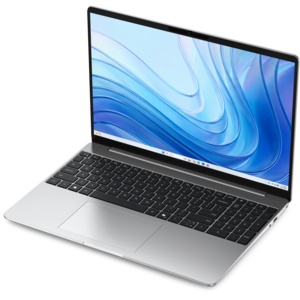
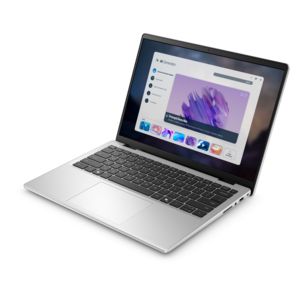
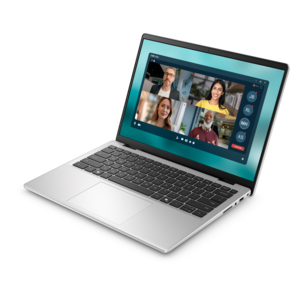
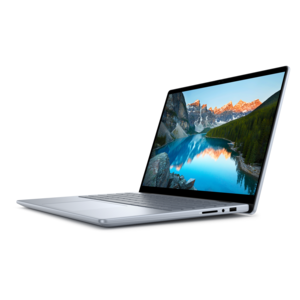
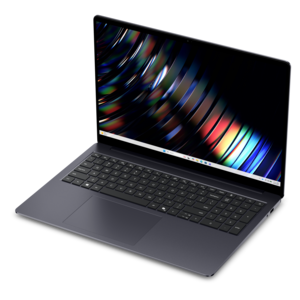
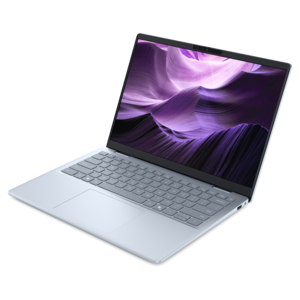
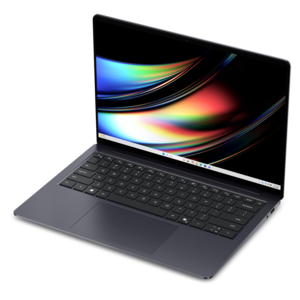
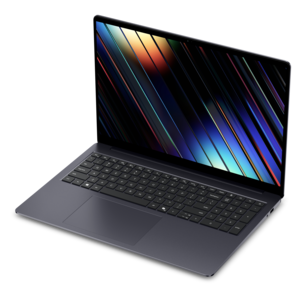
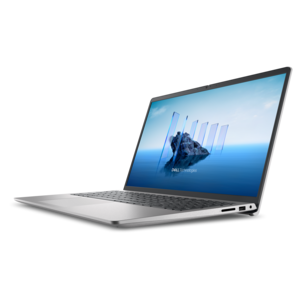
A laptop featuring an FHD camera, enlarged ergonomic keyboard, and AMD Ryzen™ processing.
Touchpad laptops offer a streamlined and intuitive way to interact with your device, making everyday tasks smoother and more efficient. Whether you’re working on the go, studying, or enjoying entertainment, these laptops are designed for convenience and flexibility. Explore a wide selection of touchpad laptops that combine performance and portability to meet your needs at home, in the office, or anywhere in between.
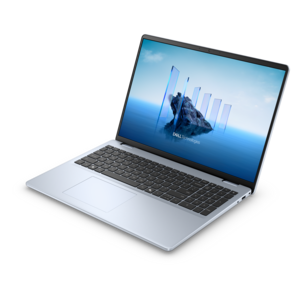
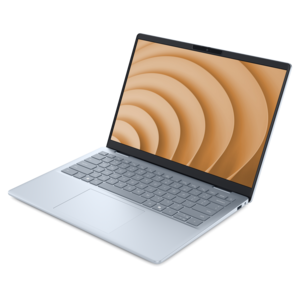
A laptop featuring an FHD camera, enlarged ergonomic keyboard, and AMD Ryzen™ processing.
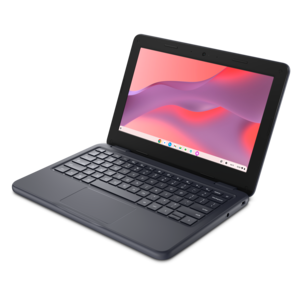
A durable, serviceable laptop or 2-in-1 designed specifically for K-12 learning environments.
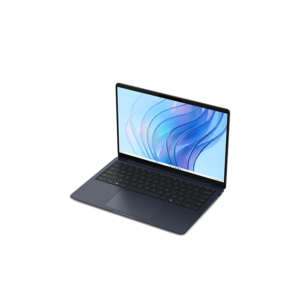
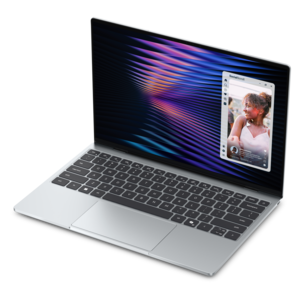
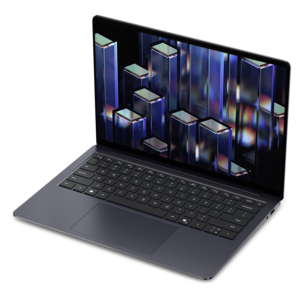
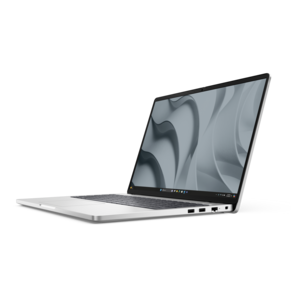
A thin, lightweight laptop crafted from eco-friendly materials with Series 3 Intel Core processors for productivity.
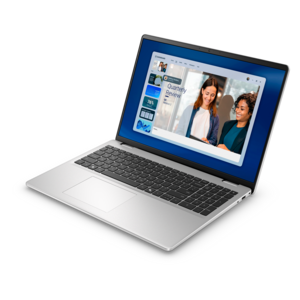
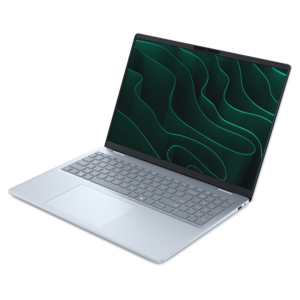
A laptop featuring an FHD camera, enlarged ergonomic keyboard, and Intel 13th Gen processors.
A portable laptop with a sleek design, 16:10 display, and AI PC options for productivity anywhere.
A remarkably thin, lightweight laptop designed for ultimate mobility.
A sleek, portable laptop with an expansive 16:10 display for reliable productivity anywhere.
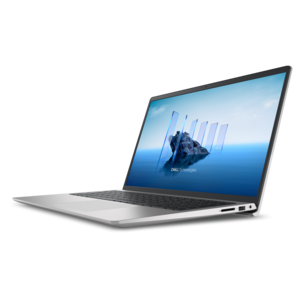
A modern laptop with AMD Ryzen™ processors delivers effortless productivity and captivating entertainment.
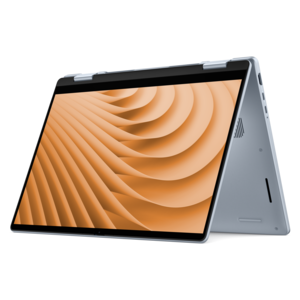
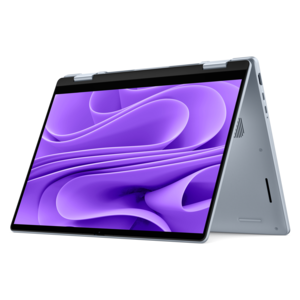
A versatile 2-in-1 laptop with multiple modes, Intel Core processors, and DDR5 memory for mobile creativity.
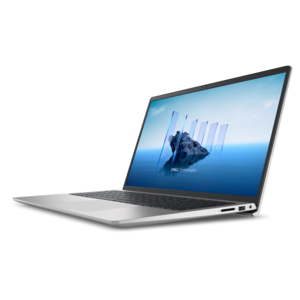
A modern laptop with Intel® Core™ processors and graphics for effortless productivity and captivating entertainment.
A sleek laptop with a stylish design, delivering powerful performance for modern multitasking.
A stylish laptop with built-in AI and a spacious display for creators and developers.
A sleek laptop powered by the latest AMD Ryzen™ AI 400 Series processors for demanding users.
A versatile 2-in-1 laptop designed for AI experiences and seamless multitasking on the go.
A versatile 2-in-1 laptop with AI experiences, all-day battery life, and seamless multitasking.
A durable productivity laptop featuring an expansive 16:10 display and convenient numeric keypad.
A lightweight AI-powered laptop with Intel Arc graphics, ideal for creative professionals and small businesses.
A stylish, lightweight AI-powered laptop designed to boost productivity for creatives and small businesses.
A durable modular laptop with a 16:10 display, numeric keypad, robust security, and built-in AI options.
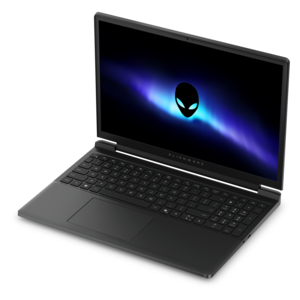
A gaming laptop powered by Intel Core Series 2 processors and NVIDIA GeForce RTX graphics.
A sleek laptop powered by AMD Ryzen™ AI 400, designed for powerful performance and modern multitasking.
A sleek laptop delivering smooth AI experiences and accelerated creative workflows for demanding high-performance users.
A durable, modular laptop with robust security, numeric keypad, spacious 16:10 display, and built-in AI.
Touchpad laptops bring navigation, productivity and portability together in a single compact design. Nearly every modern laptop includes a built-in touchpad, but the experience can vary considerably depending on its size, surface, driver support and click mechanism. A well-designed touchpad should let a fingertip glide smoothly and track accurately, making it easy to move a pointer across a document, select text, adjust a photo or move between open windows without reaching for a separate mouse. For many people, this makes a laptop especially convenient in places where desk space is limited, such as a kitchen counter, classroom table, coffee shop or living-room chair. Touchpad laptops can suit students writing papers, professionals reviewing spreadsheets, travelers working from a compact workspace, and families who want one computer for browsing, streaming, communication and everyday tasks. They can also be a practical gift for someone beginning a new course, setting up a home office or replacing an older computer. When comparing options, consider the touchpad as carefully as the screen, keyboard and battery rather than treating it as an afterthought. A larger touchpad gives fingers more room for precise movement and makes two-finger scrolling feel more natural, while a centered design can reduce accidental contact when typing. Palm rejection is equally important: it helps distinguish an intentional fingertip gesture from the heel of a hand resting near the keyboard. This small detail can prevent an unexpected cursor jump in the middle of an email or a misplaced line in a school assignment. The best touchpad laptops also support multi-finger gestures, including two-finger scrolling, pinch-to-zoom and three- or four-finger swipes for switching applications or displaying the desktop. Gesture support may depend on the operating system and drivers, so checking the manufacturer’s specifications for precision touchpad compatibility can help you choose a more consistent experience.
The touchpad’s surface and click design influence how it feels during long sessions. Glass surfaces generally provide a smooth, low-friction glide, which can make detailed pointer movement feel controlled and comfortable. Textured plastic surfaces can still perform well and may be found on more affordable configurations, but the amount of resistance and the consistency of tracking are worth considering if you spend hours navigating documents, editing images or managing a busy set of browser tabs. Mechanical touchpads use a physical hinge, so the click may feel more pronounced near the lower portion of the pad and less uniform toward the top. Haptic touchpads use vibration or simulated feedback instead of requiring the entire surface to move, allowing a click to feel more even across a broader area. Neither approach is automatically right for every user; some people prefer the reassuring travel of a physical click, while others appreciate the quiet, consistent response of haptic feedback. Pay attention to whether the touchpad registers light taps, firm clicks and secondary clicks reliably, since a responsive surface can reduce hand strain and make routine actions feel effortless. Precision drivers are another important consideration. On compatible Windows laptops, Windows Precision Touchpad drivers are designed to provide smooth tracking, dependable palm rejection and standardized multi-finger gestures across applications. Driver support can also affect how easily settings such as cursor speed, scrolling direction and gesture behavior are adjusted. If you frequently connect an external mouse, check whether the laptop allows the touchpad to remain active or turn off automatically when a mouse is detected. For travel or shared spaces, pairing a touchpad laptop with Mouse Pads For Laptops can create a more comfortable surface when you do use a separate mouse, while the built-in touchpad remains ready for quick navigation away from a desk.
Choosing among touchpad laptops ultimately comes down to how and where the computer will be used. For schoolwork and office tasks, prioritize accurate tracking, comfortable palm rejection, a spacious touchpad and a keyboard that supports extended typing. Someone who spends the day moving between video calls, notes and spreadsheets may benefit from quiet clicks and dependable gestures that make it easy to change windows without interrupting a conversation. For creative work, a smooth surface and fine pointer control can help with selecting small interface controls, arranging layouts or making careful adjustments, although demanding creative applications may also benefit from a touchscreen, stylus or external mouse. For entertainment and general home use, a responsive touchpad makes it simple to browse, control playback and manage everyday communication from a sofa or dining table. Gamers often pair a laptop with a dedicated mouse for faster, more precise control, but a reliable touchpad still matters for browsing, settings and travel. Portability should be evaluated alongside touchpad comfort: a thin, lightweight laptop is easy to carry during cooler months and through changing daily routines, but an extremely compact design may leave less room for a spacious palm rest and touchpad. Battery life, display size, keyboard layout, storage, memory and available ports also deserve attention because they shape the complete experience. Before choosing, think about whether the laptop will spend most of its time on a desk, move between rooms or accompany you on commutes and trips. A touchpad laptop that matches your hand position, software needs and typical workspace can make ordinary tasks feel more fluid, from reviewing a document with a morning coffee to organizing photos on a quiet evening. When the touchpad tracks accurately, clicks consistently and supports the gestures you use most, it becomes a natural extension of the laptop rather than simply a substitute for a mouse.
Add the products you would like to compare, and quickly determine which is best for your needs.