Windows Server: Broadcom 1G OOB driver installation on PowerEdge servers with Broadcom 1GbE network devices results in stop error
Summary: This article provides information about a stop error or blue screen that may occur when installing the Intel Chipset Drivers or Broadcom 1 GbE out-of-the-box drivers.
This article applies to
This article does not apply to
This article is not tied to any specific product.
Not all product versions are identified in this article.
Symptoms
The Windows Server 2019 chipset driver for Dell EMC PowerEdge current model servers that are equipped with Intel C62x or C240 Series Chipset Drivers or Broadcom 1 GbE out-of-the-box drivers is causing Windows Server 2019 to produce a stop error or blue screen on a PowerEdge server that is configured with Broadcom 1 GbE LOM. This issue occurs during installation of the chipset drivers or Broadcom 1 GbE out-of-the-box drivers through following two methods:
- Manually on a Dell EMC PowerEdge server running the Windows Server 2019 operating system
Note: The PowerEdge server boots back into operating system after the stop error, but the Intel Chipset Drivers are not successfully installed.
- During the installation of Windows Server 2019 leveraging Dell EMC Lifecycle Controller Deployment Wizard
Cause
The Broadcom out-of-the-box drivers must be installed before Intel Chipset driver when a Broadcom 1 Gb adapter is present on the server.
Resolution
Use one of the following options to successfully install chipset drivers on affected servers.
Option 1:
Download and install Broadcom out-of-the-box drivers before installing Intel C62x Chipset drivers.
Option 2:
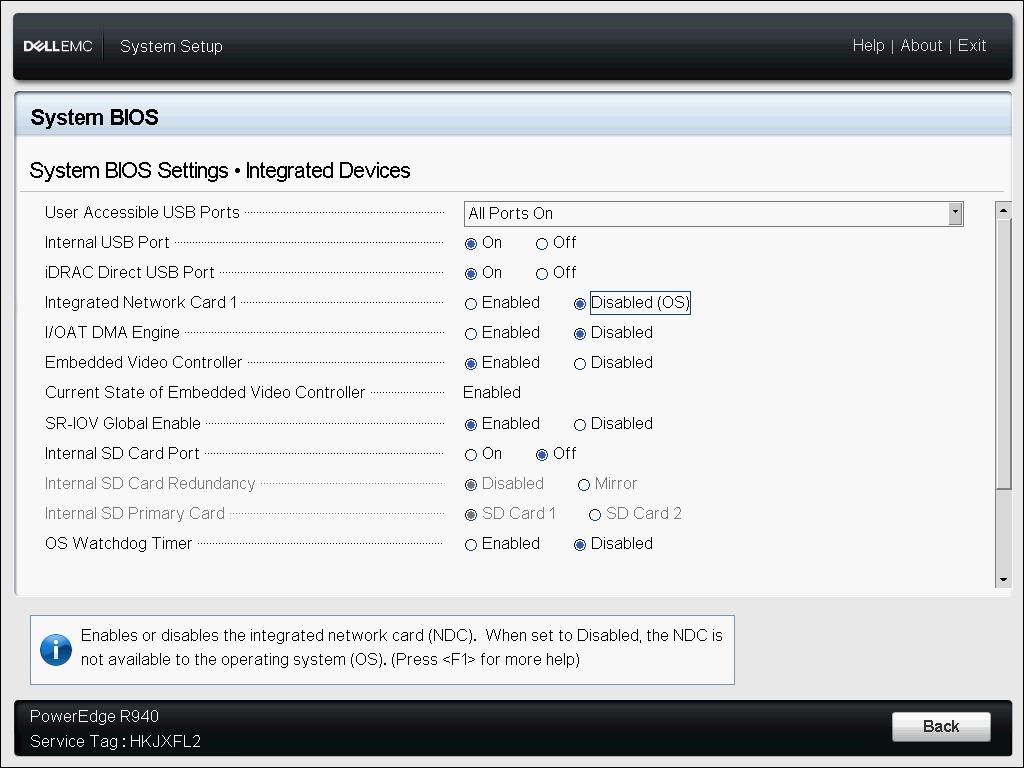
Disable Broadcom 1 GbE ports in operating system or Disable Integrated Network Card 1 in the BIOS. This option must be performed after installing Windows Server 2019 on Dell EMC PowerEdge servers, but before installing chipset drivers.
- To disable Integrated Network Card 1, go to System BIOS Settings > Integrated Devices > Integrated Network Card 1.
- Select Disable (OS)
-
Boot into Windows Server 2019, install the chipset and Broadcom 1 Gig out-of-the-box drivers by clicking Dell Update Package installers.
-
Once the chipset drivers are installed successfully, click Restart Computer to restart Windows.
-
Check Device Manager and verify that there are no Yellow Bangs on any devices.
-
Once confirmed, go to System BIOS Settings > Integrated Devices > Integrated Network Card 1 and select Enable option.
Affected Products
Microsoft Windows Server 2019Products
PowerEdge FC640, PowerEdge M640, PowerEdge M640 (for PE VRTX), PowerEdge MX740C, PowerEdge MX750c, PowerEdge MX760c, PowerEdge MX840C, PowerEdge R240, PowerEdge R250, PowerEdge R260, PowerEdge R340, PowerEdge R350, PowerEdge R360, PowerEdge R440
, PowerEdge R450, PowerEdge R540, PowerEdge R550, PowerEdge R640, PowerEdge R6415, PowerEdge R650, PowerEdge R650xs, PowerEdge R6515, PowerEdge R6525, PowerEdge R660, PowerEdge R660xs, PowerEdge R6615, PowerEdge R6625, PowerEdge R740, PowerEdge R740XD, PowerEdge R740XD2, PowerEdge R7415, PowerEdge R7425, PowerEdge R750, PowerEdge R750XA, PowerEdge R750xs, PowerEdge R7515, PowerEdge R7525, PowerEdge R760, PowerEdge R760XA, PowerEdge R760xd2, PowerEdge R760xs, PowerEdge R7615, PowerEdge R7625, PowerEdge R840, PowerEdge R860, PowerEdge R940, PowerEdge R940xa, PowerEdge R960, PowerEdge T140, PowerEdge T150, PowerEdge T160, PowerEdge T340, PowerEdge T350, PowerEdge T360, PowerEdge T440, PowerEdge T550, PowerEdge T560, PowerEdge T640
...
Article Properties
Article Number: 000133043
Article Type: Solution
Last Modified: 11 Dec 2024
Version: 6
Find answers to your questions from other Dell users
Support Services
Check if your device is covered by Support Services.