Certain Dell AMD Laptops Do Not Enter Sleep, Hibernate, or Shut Down
Summary: The following article provides information about an issue with the power options on certain Dell AMD laptops. The laptop does not enter sleep, hibernate, or shut down when pressing the power button. The Out Of Box Experience (OOBE) reboots instead of shutting down. ...
This article applies to
This article does not apply to
This article is not tied to any specific product.
Not all product versions are identified in this article.
Symptoms
Scenario One: OOBE cannot turn the laptop off when it first runs
The OOBE cannot shut down the laptop after being run at when the laptop is turned on for the first time. The following products reboot back into the operating system instead.
Note: The issue is resolved and goes away after the laptop reboots.
Scenario Two: Pressing the Power Button does not work
There is no response on any of the following products pressing the power button to enter sleep, hibernate, or turn the laptop off.

Note: This occurs when sleep, hibernate, or shut down has been set for the 'When I press the power button' power option in the control panel.
Affected Platforms:
- Dell 15 DC15255
- Dell Pro 15 Essential PV15255
- Inspiron 15 3535
- Vostro 14 3435
- Vostro 15 3535
Affected Operating System:
- Windows 10
- Windows 11
Cause
There is a new variable update for the Advance Configuration and Power Interface (ACPI) Power Button Method (APBM) in the BIOS.
Scenario One:
However, the first shutdown becomes a reboot because the fixed register does not initialize properly. The shut-down (S5) command is misread as Reset.
Scenario Two:
However, the default value does not initialize the variable so it does not define the power button.
Resolution
Scenario Two Workarounds:
- Configure the 'When I close the lid' power option to enter sleep, hibernate, or shut down instead.

- Use the 'shut down or sign out' option in the start menu to select enter sleep, hibernate, or shut down instead.
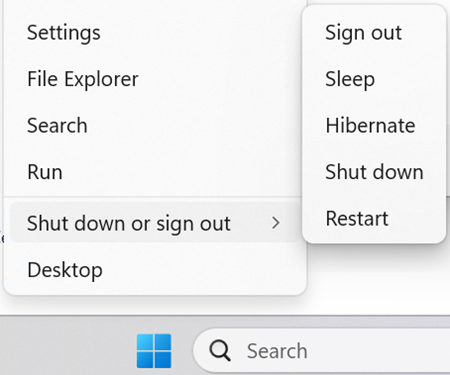
Long-Term Resolution:
Note: Before starting the update, perform the following:
- Back up all personal data. For more information, refer to: Back Up and Recovery
- Connect the AC adapter.
Update the Dell 15 DC15255 BIOS:
Updating the Dell 15 DC15255 System BIOS version 1.6.1 or later on the laptop resolves the issue. To download and install the Dell_DC15255_1.6.1.exe file, refer to the: BIOS Update Guide
Update the Dell Pro 15 Essential PV15255 BIOS:
Updating the Dell Pro 15 Essential PV15255 System BIOS version 1.5.1 or later on the laptop resolves the issue. To download and install the Dell_Pro_Essential_PV15255_1.5.1.exe file, refer to the: BIOS Update Guide
Update the Inspiron 15 3535, Vostro 14 3435, and Vostro 15 3535 BIOS:
Updating the Dell Inspiron 15 3535, Vostro 14 3435, and Vostro 15 3535 System BIOS version 1.27.0 or later on the laptop resolves the issue. To download and install the Inspiron_3535_1.27.0.exe file, refer to the: BIOS Update Guide
Affected Products
Dell 15 DC15255, Dell Pro 15 Essential PV15255, Inspiron 15 3535, Vostro 14 3435, Vostro 15 3535Article Properties
Article Number: 000435733
Article Type: Solution
Last Modified: 24 May 2026
Version: 3
Find answers to your questions from other Dell users
Support Services
Check if your device is covered by Support Services.