How to clean install ONIE, Firmware updater, SSD firmware, and OS10 on S4100 switches
Summary: This article documents the procedure to perform a clean install for ONIE, Firmware updater, SSD firmware, and OS10 from USB This would be helpful when you are upgrading the switches from a Factory-installed firmware or an old firmware. You must uninstall OS10 and do a clean installation of the switch is running on 10.4.2.x or earlier release, as per the Dell SmartFabric OS10 Installation, Upgrade, and Downgrade Guide. ...
This article applies to
This article does not apply to
This article is not tied to any specific product.
Not all product versions are identified in this article.
Instructions
- Format the USB Pen drive in FAT32 format and move all the necessary files to the root the USB Folder
- Take a backup of the Switch (
show running-configuration). Usually, startup.xml restoration would not work if the xml backup taken on an old firmware. You can copy/paste the output from the command into a notepad. - Power cycle or reboot the switch, select ONIE and then Uninstall OS


4. The switch uninstalls the existing OS and Power-cycle. Choose "Update ONIE" from the ONIE menu to update the ONIE software.

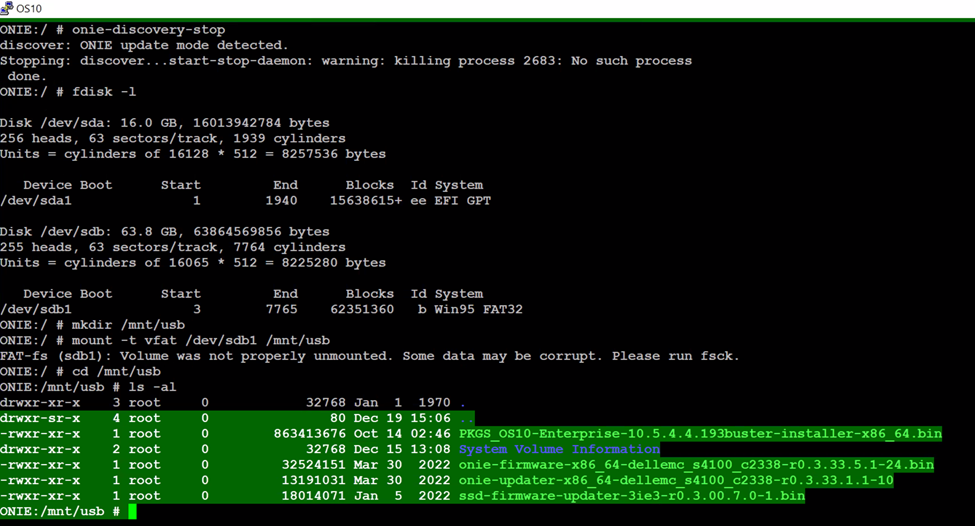
5. Once it boots to ONIE Prompt, follow the below procedure
onie-discovery-stop  <------------------------- stop discovery messages
fdisk -l                     <------------------------- See the list of partitions
mkdir /mnt/usb    <------------------------- Create a directory for the USB to mount to
mount -t vfat /dev/sdb1 /mnt/usb  <------------------------- Mount the USB to the newly created directory
cd /mnt/usb             <------------------------- Navigate to the directory that we just mounted the USB drive
ls -al                             <------------------------- list the contents of USB
6. Issue the command "onie-self-update <onie filename>"
onie-self-update onie-updater-x86_64-dellemc_s4100_c2338-r0.3.33.1.1-10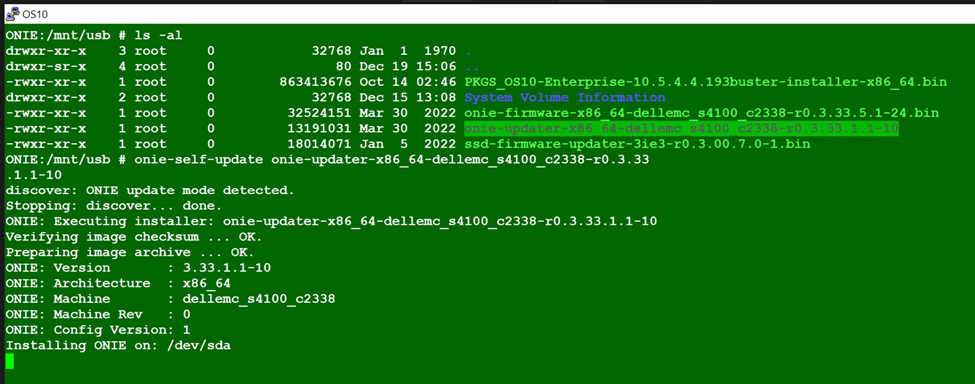
7. The switch updates ONIE software and Power-cycle. Choose ONIE-Rescue from the ONIE menu.

8. Perform STEP 5 again. Once you see the ONIE Prompt and run


9. Switch Power-cycles. Choose ONIE-Rescue from the ONIE menu and Perform STEP 5 again.
onie-self-update <firmware updater file >
10. Run command

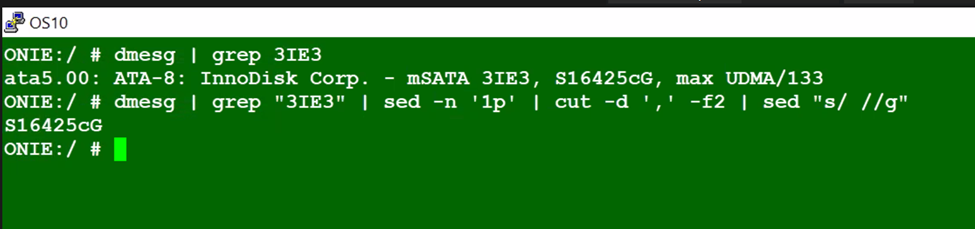
11. Switch Power-Cycles. Choose ONIE-Rescue again and ensure that the SSD firmware is updated, using the below two commands.
 onie-self-update <ssd firmware>
example :  onie-self-update ssd-firmware-updater-3ie3-r0.3.00.7.0-1.bin
dmesg | grep "3IE3" | sed -n '1p' | cut -d ',' -f2 | sed "s/ //g"
dmesg | grep 3IE3

onie-nos-install <OS10 file>
example :onie-nos-install PKGS_OS10-Enterprise-10.5.6.1.100buster-installer-x86_64.bin

14. Restore the configuration in segments from the backup taken earlier and save it.
15. Compare old and new configuration.
15. Compare old and new configuration.
Affected Products
Operating Systems, Switches, SmartFabric OS10 SoftwareArticle Properties
Article Number: 000206589
Article Type: How To
Last Modified: 09 Jun 2025
Version: 4
Find answers to your questions from other Dell users
Support Services
Check if your device is covered by Support Services.