How to disable Wi-Fi Sense in Windows 10
Summary: This article provides the information on "How to disable Wi-Fi Sense in Windows 10".
This article applies to
This article does not apply to
This article is not tied to any specific product.
Not all product versions are identified in this article.
Instructions
Wi-Fi Sense
Wi-Fi Sense is a Windows 10 feature that is ENABLED BY DEFAULT that will share your Wi-Fi network password (via an encrypted server process) with any contacts you may have listed in Outlook and Skype Optionally, you can also include your Facebook friends in this process.
To work, you must be signed into you Microsoft Account. When your system connects to a new Wi-Fi network, Wi-Fi Sense will ask if you want to share this new network with others.
NOTE: Any network you have connected to prior to your Windows 10 upgrade will not get this sharing prompt.
How to disable Wi-Fi Sense in Windows 10
To disable Wi-Fi Sense, complete the steps below:
- Right click on the Start Button, then click "Settings".
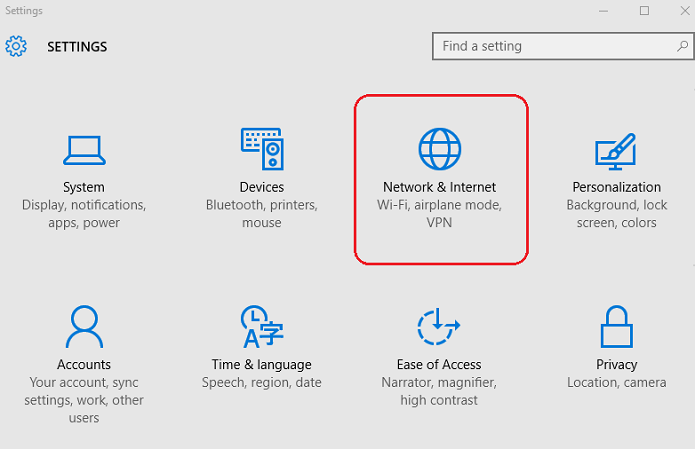
Figure 1. - Settings, Network and Internet - Click on "Network & Internet" settings (See figure 1.)
- In the left pane, click Wi-Fi, then click "Manage known networks" (See Figure 2)
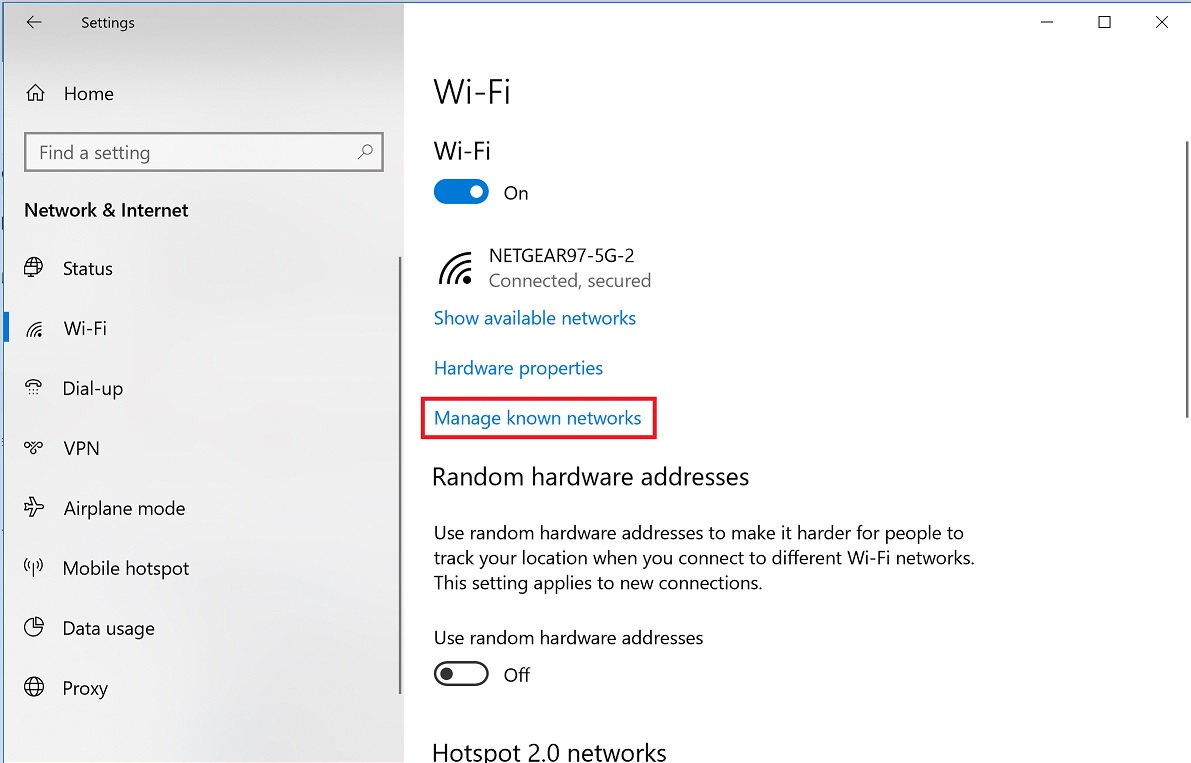
Figure 2. Manage known networks
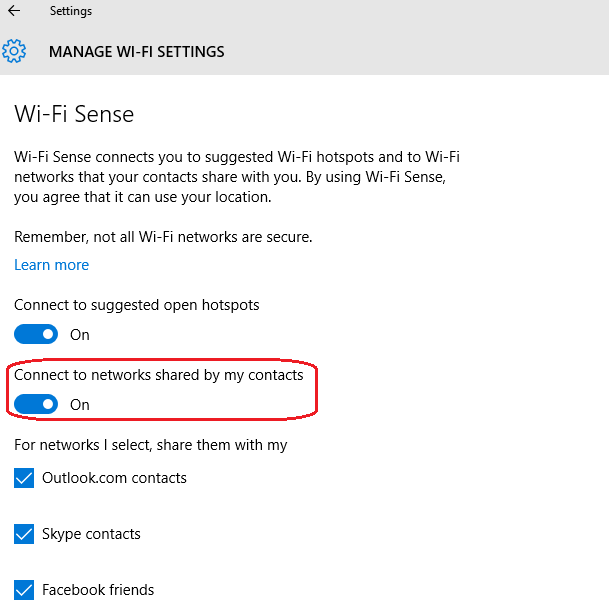
Figure 3. - WiFi Sense enabled - Turn off second option toggle "Wi-Fi Sense" (See Figures 3 & 4)
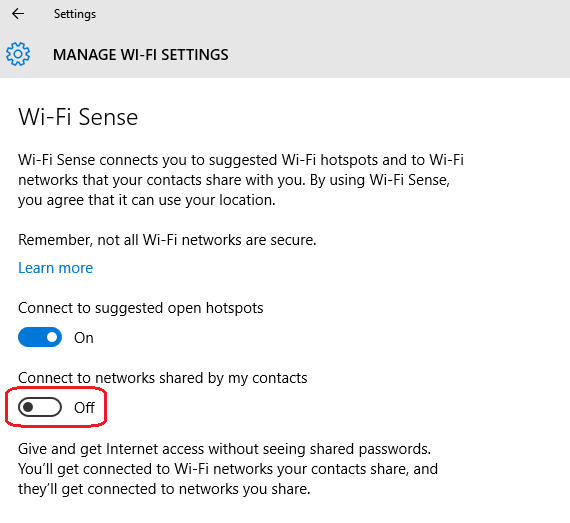
Figure 4. - WiFi sense Disabled
NOTE: Wi-Fi sense can also be disabled during the Windows 10 setup as well using the customize settings option during setup:

Note: If the Windows 10 system is able to connect to Wi-Fi but the connection keeps disconnecting while other devices remain connected to the same Wi-Fi network, this could be due to Advanced Settings options available with Windows 10. To check the settings, follow theses steps:
Select Settings in the Start Menu > select Network and Internet > select WiFi in the left pane menu > and disable the options below as they may cause the network to refresh automatically and result in intermittent Wi-Fi disconnects:
Select Settings in the Start Menu > select Network and Internet > select WiFi in the left pane menu > and disable the options below as they may cause the network to refresh automatically and result in intermittent Wi-Fi disconnects:
- Wi-Fi Sense (connects to suggested Wi-Fi Hotspots)
- Hotspot 2.0 Network (connects to Mobile Hotspots)

More information and support for your Windows operating systems can be found on our Windows Support webpage.
 Our Network and Wireless support page provides additional information and resources.
Article Properties
Article Number: 000113365
Article Type: How To
Last Modified: 10 May 2024
Version: 6
Find answers to your questions from other Dell users
Support Services
Check if your device is covered by Support Services.