Solve NVIDIA Card Not Detected or Yellow Bang Issue
Summary: Resolve NVIDIA graphics card problems when your device disappears or displays a yellow bang in Device Manager.
This article applies to
This article does not apply to
This article is not tied to any specific product.
Not all product versions are identified in this article.
Symptoms
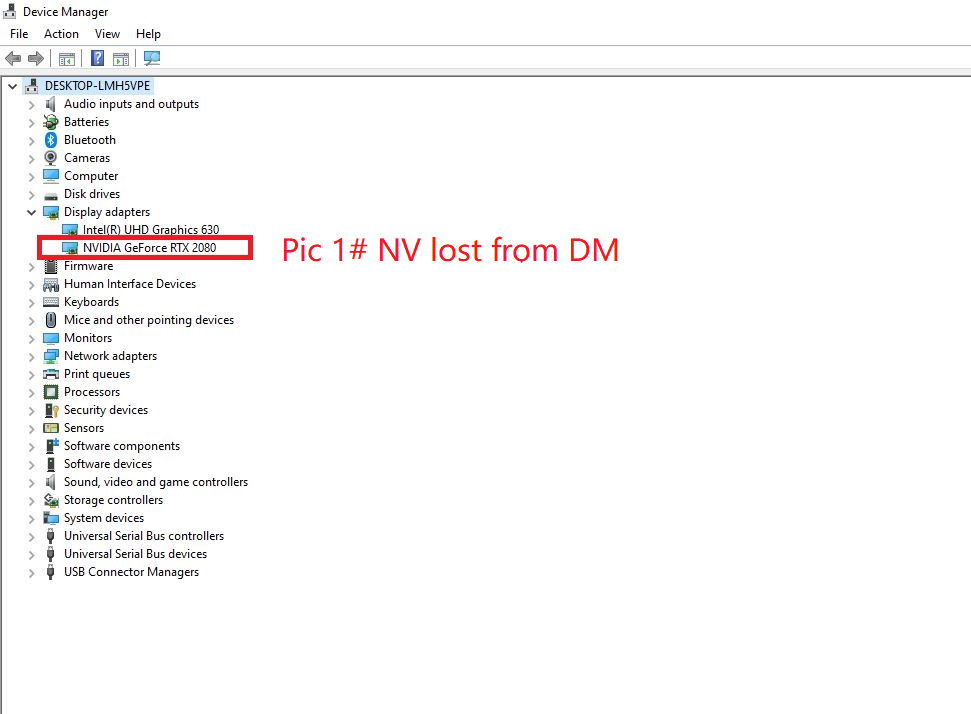
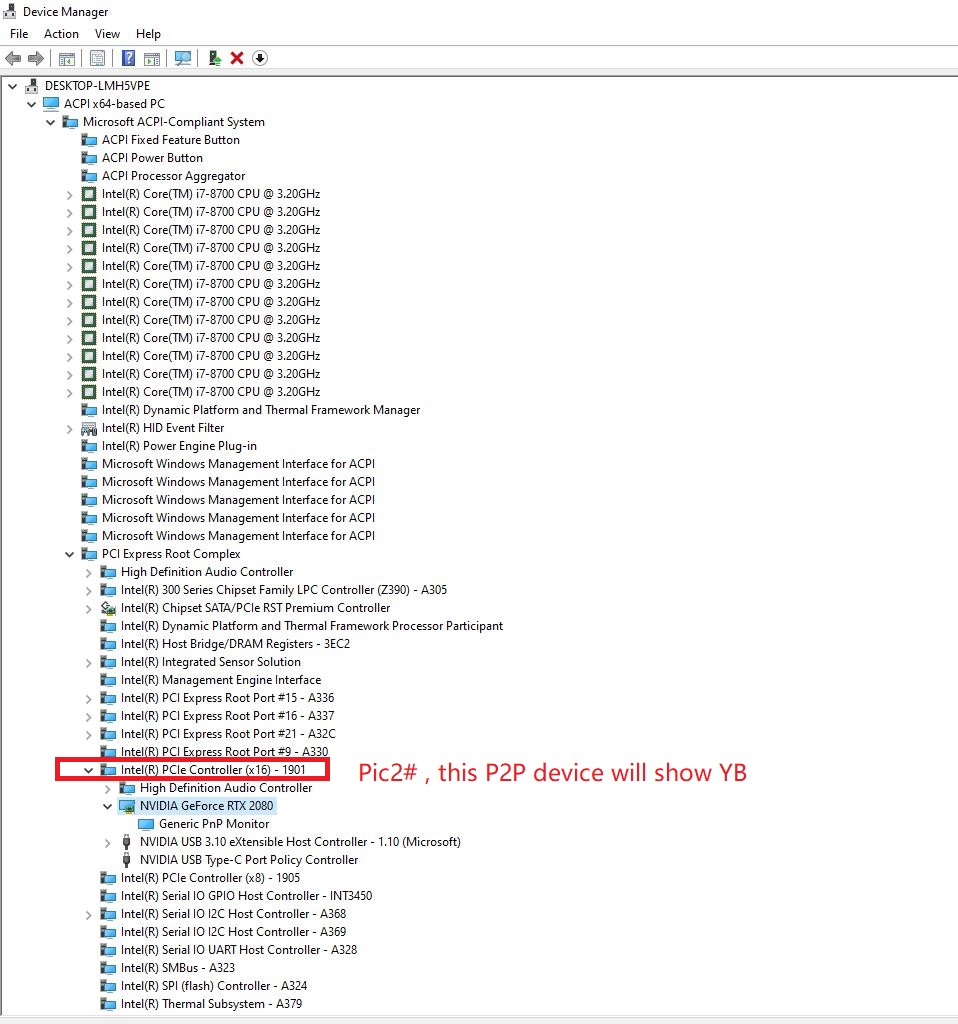
You may notice that the NVIDIA graphics device is missing under Display adapters in Device Manager, and/or the Intel PCIe root port controller shows yellow bang after switching the view to show the hidden devices. When the issue occurs, the NVIDIA graphics device is still visible in BIOS setup menu.
Due to the device's missing condition, you may experience FPS drops and stuttering when playing high-CPU-loading games. Also, you might not be able to install/update the new graphics driver or GeForce experience application; the system might report an error like "not compatible with this version of Windows," and the installation would fail.
Affected platforms:
- Alienware m17 R2
- Alienware m15 R2
- Alienware m15
Symptom 1: The graphics device is missing in the Device manager
Symptom 2: yellow bang in the Device manager
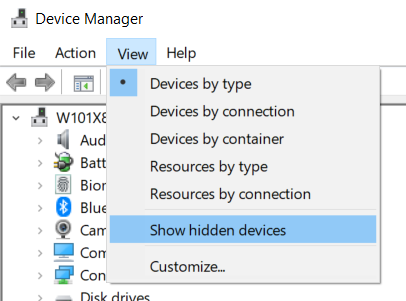
How to display the hidden devices in the Device manager
Cause
Not applicable.
Resolution
Follow the procedure below to recover the issue:
- Launch Device Manager, and click Show the hidden device in the View tab.
- Select Devices by connection in the View tab.
- Locate the device node: ACPI x64-based PC → MSFT ACPI-Compliant System → PCI Express Root Complex → Intel PCIe Controller – xxxx < NVIDIA GeForce RTX XXXX
- Right-click the device, select Disable device, and then Enable the device
- If the issue remains, double-click the NVIDIA device to open the device properties, switch to the Driver tab, and click Update Driver. When updating the driver, select Search automatically for updated driver software in the internet environment
- After the NVIDIA graphics device is fully recovered, download and install the latest NVIDIA Graphics Driver from the Dell support site.
Affected Products
Alienware M15, Alienware M15 R2, Alienware M17 R2Article Properties
Article Number: 000135154
Article Type: Solution
Last Modified: 03 Aug 2026
Version: 8
Find answers to your questions from other Dell users
Support Services
Check if your device is covered by Support Services.