NetWorker Recovery with Cyber Recovery Fails Due to BAD_DATA Error
Summary: Performing a NetWorker Recovery with Cyber Recovery fails with Error Failed to run task recoverapp. Unable to get NW devices. NetWorker Error is Unable to decrypt data: BAD_DATA
This article applies to
This article does not apply to
This article is not tied to any specific product.
Not all product versions are identified in this article.
Symptoms
When a user performs a NetWorker recovery through Cyber Recovery, the task fails with the following error:
Failed to run task recoverapp. Unable to get NW devices. NetWorker Error is Unable to decrypt data: BAD_DATA

This error is also reflected in the NetWorker daemon log.
Location: C:\Program Files\EMC NetWorker\nsr\logs.daemon.raw
NetWorker: How to use nsr_render_log to render .raw log files
When accessing the NetWorker Management Console (NMC) UI, a pop-up with the "BAD_DATA" error appears when attempting to navigate through the UI tabs.
Cause
This issue occurs when the source NetWorker server is a physical Windows machine, while the target NetWorker server inside the vault is a virtual machine. The problem lies with the NetWorker lockbox. On the source NetWorker server, a Datazone passphrase is being used, which is not correctly restored during the Cyber Recovery process.
Resolution
Workaround: The Datazone passphrase must be updated manually in NetWorker after completing the Recover job in Cyber Recovery. The steps to fix the lockbox and Datazone passphrase issue are outlined below:
-
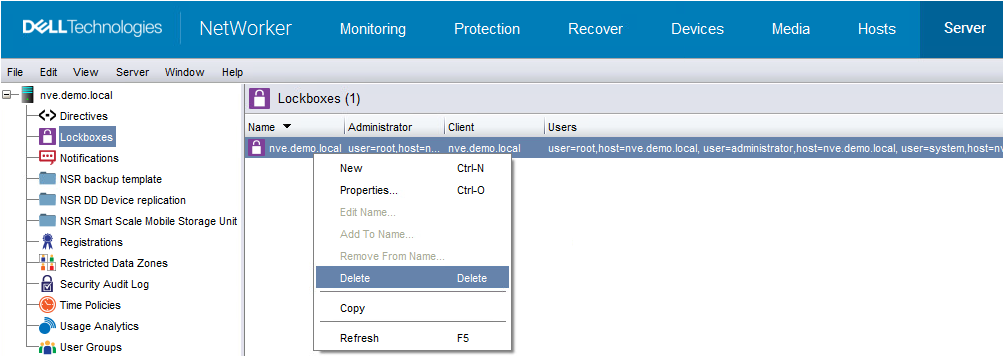
Delete the Recovered Lockbox: Remove the lockbox that was recovered as part of the Cyber Recovery process.
-
Create a New Lockbox: Manually create a new lockbox for the target NetWorker server inside the vault.

-
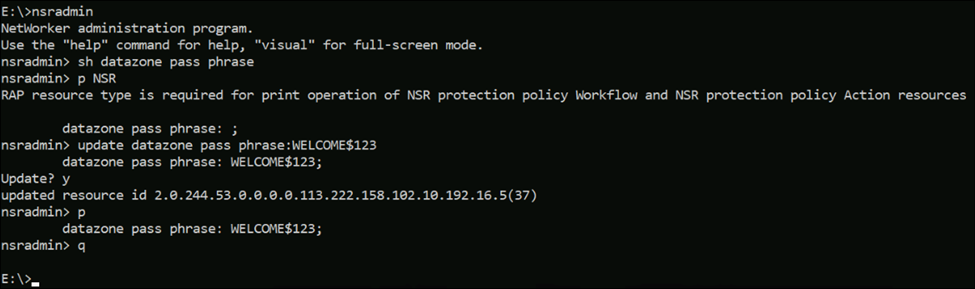
Update the Datazone Passphrase: Use the
nsradmincommand to update the Datazone passphrase. Ensure that the passphrase is the same as the one used on the production (source) NetWorker server.
-
Restart NetWorker Services: After updating the passphrase, restart the NetWorker services on the target server by running the following commands:
net stop nsrexecd
net start nsrd
net start gstd
-
Validate: Log in to the NMC UI and check if the "BAD_DATA" pop-up error is resolved. Navigate through the tabs to confirm that the issue no longer appears.
Affected Products
NetWorkerArticle Properties
Article Number: 000228407
Article Type: Solution
Last Modified: 26 Sep 2024
Version: 2
Find answers to your questions from other Dell users
Support Services
Check if your device is covered by Support Services.