Windows 10 Command Line Driver Install for Dell Media Missing NVMe Driver
Sommaire: Steps on how to use the command line feature to install Windows 10 drivers.
Cet article s’applique à
Cet article ne s’applique pas à
Cet article n’est lié à aucun produit spécifique.
Toutes les versions de produits ne sont pas identifiées dans cet article.
Symptômes
Win10 Command Line Driver Install
Dell is working on an issue with our installation media for Windows 10 as our media does not include drivers for NVMe drives. This issue is worsened by the new Windows 10 installation media layout, which no longer includes the drive selection screen for loading drivers before OS setup.
A symptom is the system freezing at 16% or 17% during installation, whether choosing 'Back up Files' or 'Remove Everything". This can be remedied by loading the NVMe drivers.
Dell media includes basic RAID drivers, so if the RAID is deleted and partitions cleared, Windows 10 can be reinstalled without extra drivers.
Confusion due to the layout of Dell media, as the only options when booting to the Windows 10 media are "Reset your personal computer" and "Recover from a drive." The instructions for using the Windows 10 media can be found in the following article (How to install Windows 10 from the Dell ISO ) as the Recover option takes place of the old Install options. This is exactly the same if using a USB that has been created from the ISO on our website.
An article to note if NVMe drives are in a RAID array:
- To Install Windows 10 using Dell media when NVMe AND SATA drive present see Frequently Asked Questions Regarding NVMe Solid-State Drives (SSDs)
Manual Driver Load from PE Command Prompt
 Note: Before starting the installation of the driver, use a utility like 7zip to extract the installation files from the .exe driver file downloaded from the Dell support site. Extract to a folder on a USB stick separate from the Windows 10 install media and ensure that the USB is plugged in to the system needing drivers.
Using the IRST driver in the images below for this example.
- Boot to Dell Windows 10 media and select languages to get to the home screen (Figure 1, English only).
Windows 10 media option screen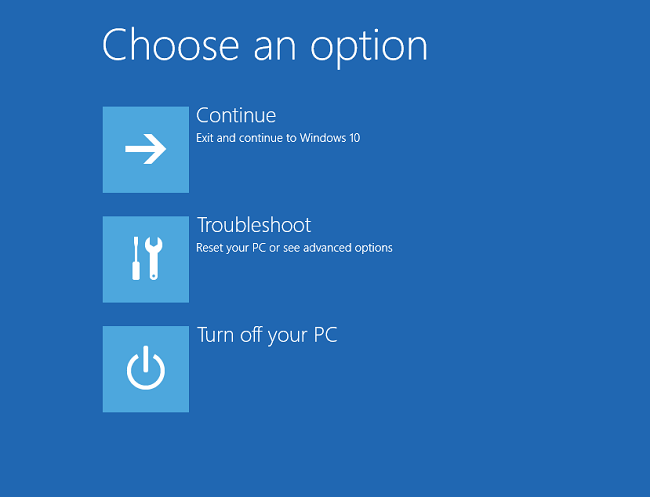
Figure 1
- Select Troubleshoot > Advanced Options > Command Prompt (Figure 2, English only).
Windows 10 advanced options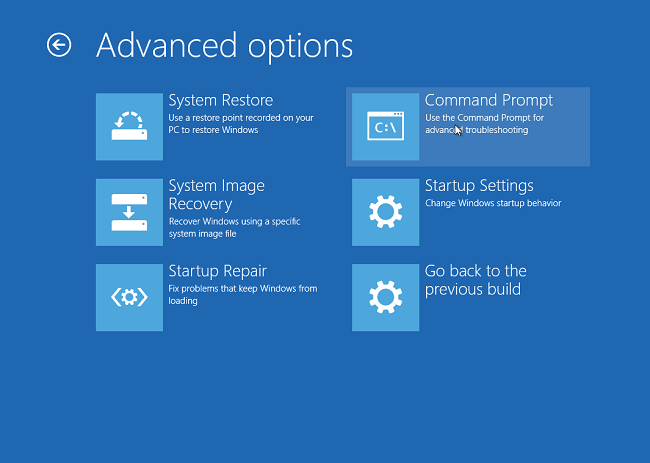
Figure 2
- Navigate to the drive that contains the driver needed, using the "dir" command to view the drive contents (Figure 3, English only).
Usually the D:, E:, or F: drive.
Windows 10 Command Line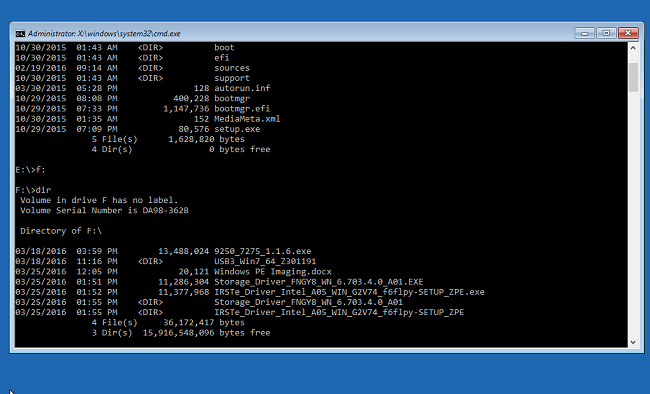
Figure 3
- Use the "cd" command to navigate through folders to the *.inf driver location. Use "dir" as necessary to see the contents of each folder (Figure 4, English only).
Windows 10 CD Command in Command line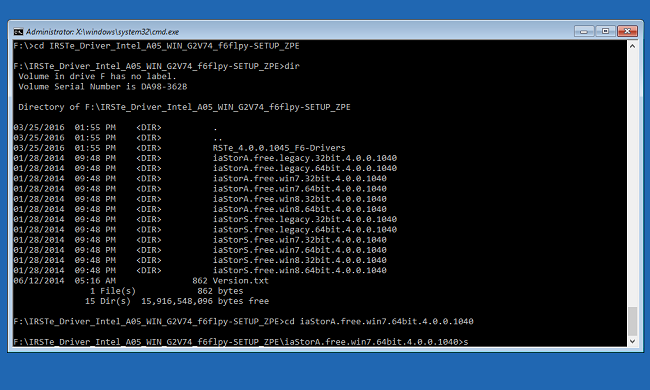
Figure 4
- Find the .inf file needed for the device being installed in order to load Windows (Figure 5, English Only).
Windows 10 Command Line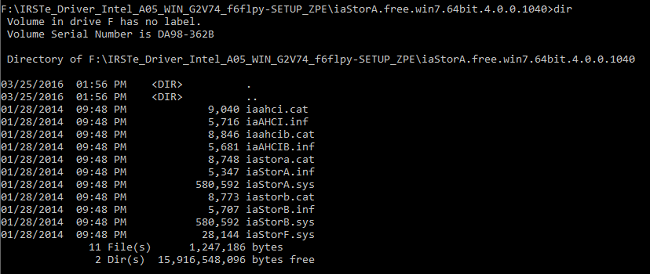
Figure 5
- Use the following command to load the appropriate driver needed to the system and press Enter:
- Drvload.exe [.inf path/filename] (Figure 6, English only)
Windows 10 Command Line
Figure 6
- The Command Prompt should acknowledge when the driver has successfully loaded to the system (Figure 7, English only).
Windows 10 Command Line
Figure 7
- Exit the Command Prompt and install Windows 10 using the steps provided in How to install Windows 10 from the Dell ISO.
If you have further questions about this solution, please contact Dell Technical Support.
Cause
N/A
Résolution
N/A
Produits touchés
Alienware, Inspiron, Legacy Desktop Models, OptiPlex, Vostro, XPS, G Series, G Series, Alienware, Inspiron, Latitude, Vostro, XPS, Legacy Laptop Models, Fixed Workstations, Mobile WorkstationsPropriétés de l’article
Numéro d’article: 000146119
Type d’article: Solution
Dernière modification: 03 nov. 2025
Version: 7
Obtenez des réponses à vos questions auprès d’autre utilisateurs de Dell
Services de soutien
Vérifiez si votre appareil est couvert par les services de soutien.