Driver Detection Not Available Message During Automated Driver Scan
Sommaire: Learn about the Driver Detection not Available message that appears on the Dell support driver download page.
Cet article s’applique à
Cet article ne s’applique pas à
Cet article n’est lié à aucun produit spécifique.
Toutes les versions de produits ne sont pas identifiées dans cet article.
Symptômes
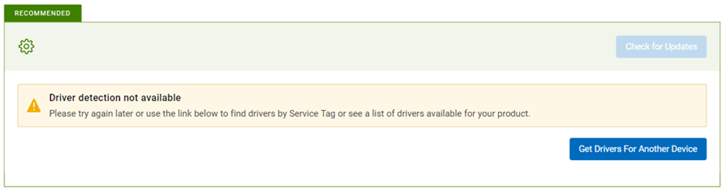
When you click the Click for Updates button on the Dell Driver and Download page, the message "Driver Detection not Available" appears: "Please try again later or use the link below to find drivers by Service Tag or see a list of drivers for your product."
Cause
Service is stopped or not available.
Résolution
- Keep your personal computer up to date with the latest SupportAssist version. See system requirements.
- Ensure you are logged in as Administrator.
- Open Task Manager, switch to the Services tab and check if 'SupportAssistAgent' and 'DellClientManagementService' services are in 'Running' status. Both of these services should be in running status for the driver scan to work.
If the system has been powered-on or restarted, please wait for at-least 5 minutes before revisiting the support website to Check for Updates.
This allows for the two services to be fully running to allow driver scan functionality. After waiting for 5 minutes, if status still shows as 'Stopped' for any or both services, right-click and choose 'Start'.
If both the services are showing as 'Running', go to step 3.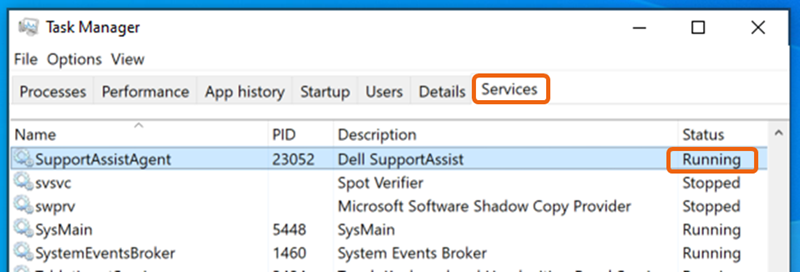
- Reload or refresh the webpage and try Check for Updates again.
- Restart the system and wait for at-least 5 minutes before revisiting the support website to Check for Updates.
- Check if driver scan functionality is working within the SupportAssist Application.
- Ensure that a Firewall or anti-virus application is not blocking the SupportAssist application.
- Set the SupportAssist Application to automatically run regularly to keep the service up to date on any changes needed to keep auto scans running smoothly. SupportAssist Application > Settings >Automate scans and optimizations > Update drivers and software: Weekly Check for updates in real time by setting the scan to run immediately.
- If following all the previous steps does not resolve the issue, Uninstall the SupportAssist Application and Re-Install.
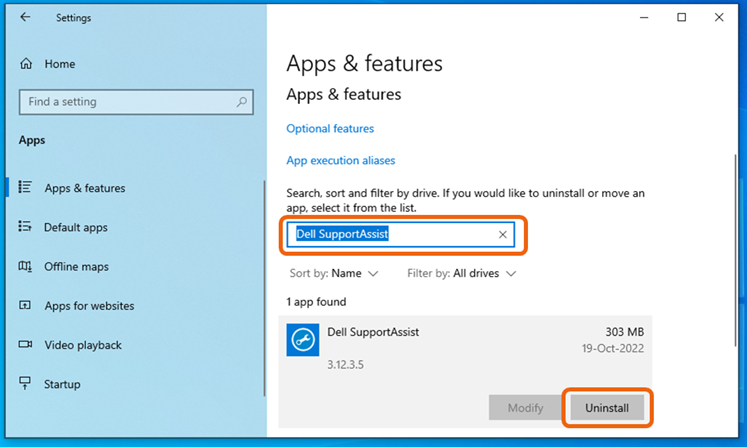
- On Windows 10: Go to Start > Settings > Apps, search for "Dell SupportAssist" under 'Apps & features', select and click Uninstall.
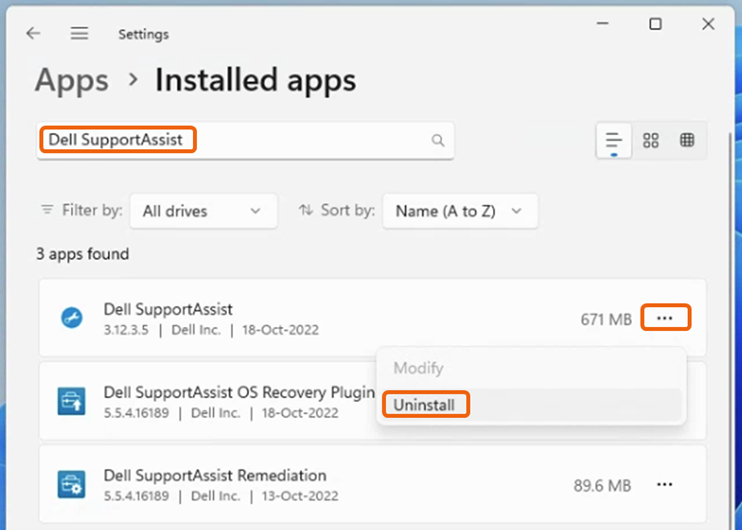
- On Windows 11: Go to Start > Settings > Apps > Installed apps, search for "Dell SupportAssist," Click the three dots (…) on the right and select Uninstall Note: Dell SupportAssist OS recovery Plugin and Dell SupportAssist Remediation are not required to be uninstalled.
- Reboot the system once SupportAssist uninstallation is completed.
- Revisit the support website and trigger Check for Updates, this triggers fresh installation of SupportAssist.
- On Windows 10: Go to Start > Settings > Apps, search for "Dell SupportAssist" under 'Apps & features', select and click Uninstall.
Produits touchés
Alienware, Dell Pro All-in-One, Dell Pro Max Micro, Dell Pro Max Slim, Dell Pro Max Tower, Dell Pro Micro, Dell Pro Slim, Dell Pro Tower, Dell Slim, Dell Tower, Inspiron, OptiPlex, Vostro, XPS, G Series, G Series, Alienware, Dell Plus, Dell Pro
, Dell Pro Max, Dell Pro Plus, Dell Pro Premium, Inspiron, Latitude, Dell Pro Rugged, Vostro, XPS, Fixed Workstations, Mobile Workstations, Surface Pro 4
...
Propriétés de l’article
Numéro d’article: 000200106
Type d’article: Solution
Dernière modification: 11 juill. 2025
Version: 16
Obtenez des réponses à vos questions auprès d’autre utilisateurs de Dell
Services de soutien
Vérifiez si votre appareil est couvert par les services de soutien.