$59.99
A sweatproof IP66 earbuds with hybrid ANC, spatial audio, 60+ hours battery, multipoint connectivity, and wireless charging.
Elevate your audio and connectivity experience with our extensive range of Bluetooth devices, designed to seamlessly integrate into your everyday life. Whether you're looking to enhance your home entertainment setup, boost productivity with wireless peripherals, or enjoy on-the-go convenience, Bluetooth technology offers versatile solutions for every need. Explore our selection to discover cutting-edge innovations that provide reliable connectivity, freedom from wires, and exceptional performance across various applications. Dive into the world of Bluetooth devices and unlock a new level of convenience and functionality in your digital lifestyle.
A sweatproof IP66 earbuds with hybrid ANC, spatial audio, 60+ hours battery, multipoint connectivity, and wireless charging.
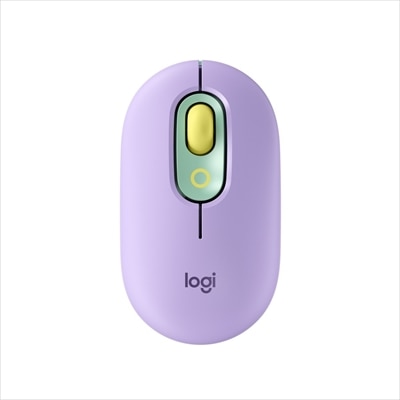
A lilac wireless Bluetooth mouse with quiet clicks, programmable emoji buttons, SmartWheel scrolling, and three-device connectivity.
A mulberry portable speaker with 10W audio, deep bass, app-controlled lighting, IP56 waterproofing, and multi-speaker syncing.
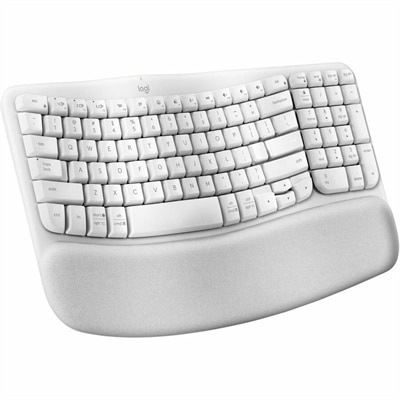
An off-white wireless ergonomic keyboard with memory-foam wrist support, Bluetooth, Logi Bolt, and recycled plastic.
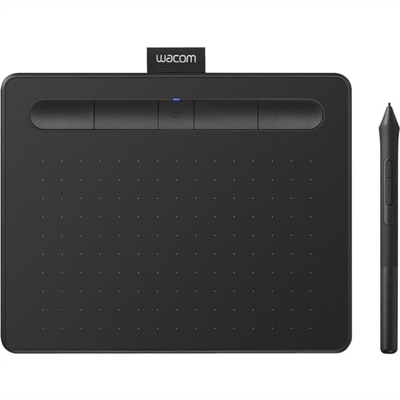
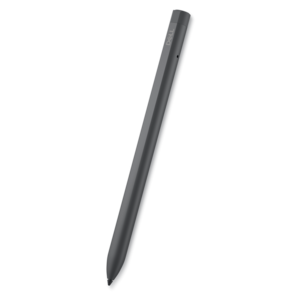
A wireless black graphics tablet with pressure-sensitive pen, Bluetooth, USB connectivity, and creative software for artistry.
A portable wireless speakerphone with versatile connectivity and AI-based dual-directional noise-canceling microphones for clear audio anywhere.
Bluetooth devices make it easier to connect everyday technology without adding another cable to a desk, room, or travel bag. Using short-range radio waves, these accessories can communicate with compatible laptops, desktops, tablets, phones, monitors, and other electronics over a wireless connection. Common uses include listening to audio, joining calls, controlling compatible games, entering text, sharing sound across a room, and adding convenient controls to a workspace. Because Bluetooth is designed for nearby connections, it works especially well when a device stays within the same room or close at hand. Standard Bluetooth connections typically reach about 33 feet, or 10 meters, in open indoor conditions, although walls, furniture, metal surfaces, nearby wireless activity, and the transmitting device can reduce that distance. Bluetooth Low Energy, often called BLE, is built for efficient communication and may reach farther in open spaces depending on the hardware and connection class. Range is only one part of the experience, so it is also helpful to consider comfort, controls, battery life, charging method, microphone performance, and the size of the device when choosing from a list of Bluetooth devices. A compact accessory may slip easily into a laptop bag for work or study, while a larger option may be more comfortable for extended use at home. People who move between a home office and a shared workspace often appreciate the freedom to keep a desk tidy, and travelers can benefit from accessories that pair quickly and take up little room. These devices can also make thoughtful gifts for students, remote workers, commuters, frequent travelers, and anyone who enjoys a more flexible setup during the cooler months, when more time may be spent indoors.
Connecting a Bluetooth accessory is generally straightforward, though the exact wording and menu placement can vary by operating system. First, turn on the accessory and place it in pairing mode, usually by pressing and holding a pairing button until an indicator flashes or an audible signal confirms that it is ready. On a Windows computer, open Start, select Settings, choose Bluetooth & devices, turn Bluetooth on, and select Add device. On an iPhone or iPad, open Settings, select Bluetooth, turn it on, and choose the accessory from the list of available devices. On an Android phone or tablet, open the quick settings panel, touch and hold Bluetooth, choose Pair new device, and select the accessory when it appears. Keeping the accessory close to the computer or mobile device during initial pairing can help prevent interruptions. If it does not appear, confirm that it has power, make sure it is not already connected to another nearby device, and switch Bluetooth off and on before trying again. Many accessories remember previously paired devices, allowing them to reconnect automatically the next time they are powered on. Some can maintain connections with more than one device, a feature often called multipoint, which may allow a person to move between a computer and a phone without repeating the full setup. Bluetooth 5.0 and later versions can theoretically support several active connections, sometimes up to seven, but practical limits depend on the operating system, accessory design, available memory, and how much wireless traffic is present. Stable performance may be lower than the theoretical maximum, particularly when multiple accessories are active at once. For an organized workspace, it helps to give each paired accessory a recognizable name and remove old connections that are no longer used. A person who wants a more hands-on way to interact with compatible games or computers can also explore Bluetooth Controllers as part of a broader wireless setup.
The best choice depends on how the device will be used from morning through evening. For audio, look for a comfortable fit, clear sound, dependable microphone pickup, simple volume controls, and enough battery life for a full commute or workday. For an office or study area, low-profile accessories can reduce cable clutter and leave more room for notebooks, a monitor stand, or a cup of coffee. For shared spaces, consider controls that are easy to reach and a connection that remains dependable when the user shifts between a desk, sofa, and nearby charging area. Battery capacity matters because a device that needs frequent recharging can be inconvenient, especially when its charging cable is left in another room. Check whether the accessory uses a common charging connection, includes a charging cable, or can be used while charging when selecting between similar options. Compatibility is equally important: confirm that the computer or mobile device supports Bluetooth and review the operating system requirements before purchase. Newer Bluetooth versions may improve efficiency, reliability, and connection management, but the experience is also shaped by the older device on the other side of the connection. Walls and appliances can affect performance, and placing a computer behind dense furniture or inside a closed cabinet may weaken the signal. For privacy and security, pair accessories in a familiar location, use the manufacturer’s recommended software or firmware updates when available, and avoid accepting unexpected pairing requests. A little preparation can turn wireless accessories into quiet, dependable additions to daily routines, whether they help make a home office more comfortable, simplify entertainment, support learning, or give a recipient a practical gift they can enjoy well beyond the season.
Add the products you would like to compare, and quickly determine which is best for your needs.