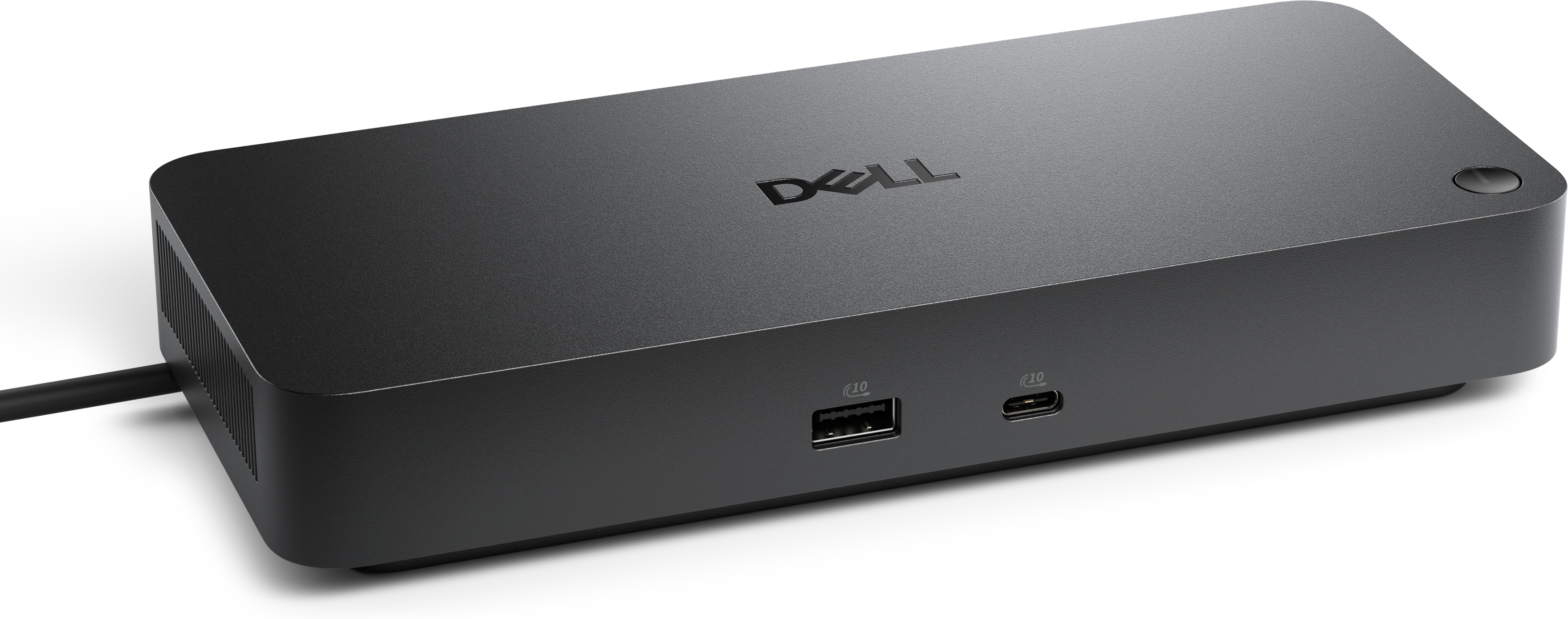
$534.99
A powerful Thunderbolt 5 dock delivering up to 300W power for demanding workloads.
Explore the world of USB 3.0 ports, where speed meets versatility in connecting your devices with ease. These advanced ports are designed to enhance data transfer rates, ensuring that your files move swiftly between devices for seamless productivity. Whether you're upgrading your computer setup or expanding connectivity options for peripherals, USB 3.0 ports offer a reliable solution for modern tech needs. Discover a range of options tailored to support various devices and elevate your digital experience with the efficiency and convenience that USB 3.0 technology brings to the table.
A powerful Thunderbolt 5 dock delivering up to 300W power for demanding workloads.
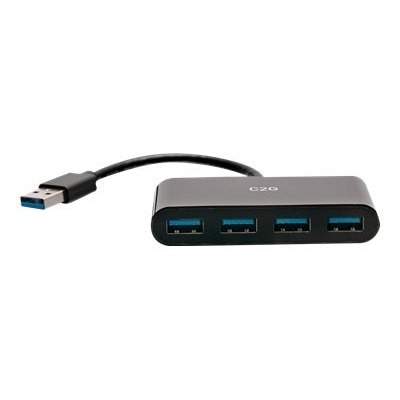
USB 3.0 ports provide a practical way to connect computers with external devices that need responsive data movement. Also known as USB 3.0 or USB 3.2 Gen 1 in newer specifications, this connection supports theoretical transfer speeds of up to 5 Gbps, although real-world performance depends on the computer, connected device, cable, storage technology, file sizes, and other activity taking place on the system. Compared with USB 2.0, USB 3.0 can move compatible files much faster, making it useful for transferring photographs, videos, documents, music libraries, and project folders. It is also well suited to peripherals that need a steady connection, including external storage, card readers, input devices, printers, webcams, and other everyday accessories. Many USB 3.0 ports have a blue or teal insert, and some display an “SS” or “SuperSpeed” symbol, but color and markings are not universal, so they should be treated as helpful clues rather than absolute proof. On a Windows computer, the port standard can often be checked through Device Manager by expanding “Universal Serial Bus controllers” and looking for references to USB 3.0, USB 3.1, USB 3.2, or SuperSpeed. The physical connector also contains nine internal contacts rather than the four used by USB 2.0, although examining the inside of a port is not always convenient or recommended. USB 3.0 is backward compatible with many older USB 2.0 and USB 1.1 devices and cables, but a connection will operate at the capabilities of its slowest component. For example, a USB 3.0 computer port paired with a USB 2.0 accessory will continue to work, but transfer speeds will be limited to the older standard. The same principle applies when a faster accessory is connected through an older port. Checking the computer’s available ports, the accessory’s connector type, cable length, and stated speed can help create a setup that feels dependable rather than improvised. For computers with limited connectivity, USB Docks can provide a convenient way to expand access to compatible peripherals while helping keep a workspace organized.
When choosing products related to USB 3.0 ports, consider how the connection will be used from one ordinary day to the next. Someone moving large photo libraries or video projects may value higher sustained performance and a short, well-made cable, while a student or home office user may be more focused on dependable access for a keyboard, mouse, printer, or portable drive. A person working between rooms or carrying a laptop through a home, office, or campus may appreciate a compact accessory with a sturdy housing and a cable that stores easily in a computer bag. For a desktop workspace, port placement matters: front-facing access can make it easier to connect removable storage or a camera, while rear ports may be better for accessories that remain attached. If several devices will be connected at once, look at the number of ports, spacing between them, and whether the accessory requires its own power source. Bus-powered devices draw energy from the computer, which is convenient for low-power peripherals, but multiple high-demand accessories can place limits on available power. A powered hub or dock may be more suitable when several devices must operate together, particularly if they include external storage, optical equipment, audio hardware, or other accessories that draw more energy. Port shape is equally important. Standard USB-A connections are common on many computers and accessories, while USB-C connections use a smaller, reversible design; an adapter may be needed when the computer and accessory use different connector types. A USB-C connector does not automatically guarantee USB 3.0 performance, so review the listed transfer standard rather than relying on the connector’s appearance. Cable quality, shielding, flexibility, and length can affect convenience and reliability, especially when a cable runs behind a desk or beside other power cords. USB 3.0 products can be useful gifts for a remote worker setting up a more comfortable workstation, a student organizing school files, a photographer handling memory cards, or a family member trying to simplify connections around a shared computer. They can also help refresh an older setup without replacing every existing accessory, since compatible legacy devices can generally continue to function. During the cooler months, when more time may be spent working, studying, creating, or relaxing indoors, a thoughtfully arranged USB 3.0 setup can reduce cable swapping and make routine tasks feel smoother. Look for clear specifications, compatibility information, power requirements, warranty coverage, and a design that matches the way the computer will actually be used.
Add the products you would like to compare, and quickly determine which is best for your needs.