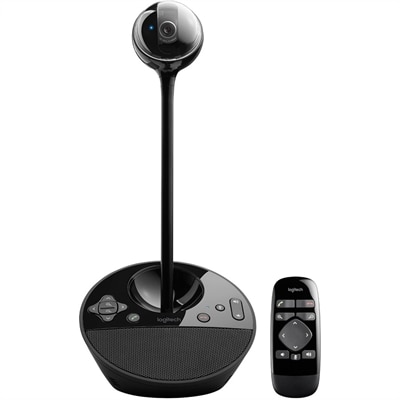
Webcams With Privacy Shutters for Video Interviews
Shop webcams with privacy shutters for video interviews, with options designed to help you manage camera access when you’re not on a call. Compare available models by features such as video resolution, microphone capabilities, compatibility, and mounting options to find a webcam suited to your workspace and interview setup.
This product is not available
Check out the following recommendations.
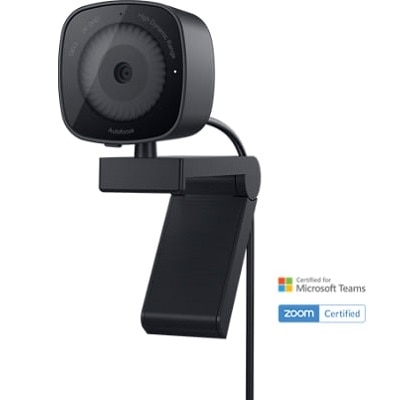
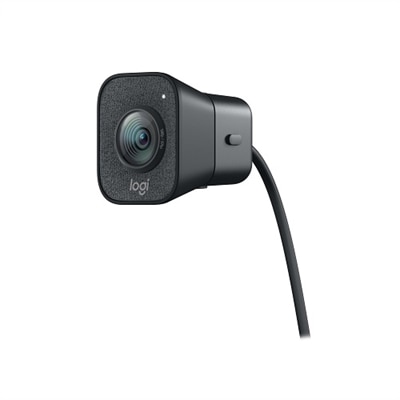
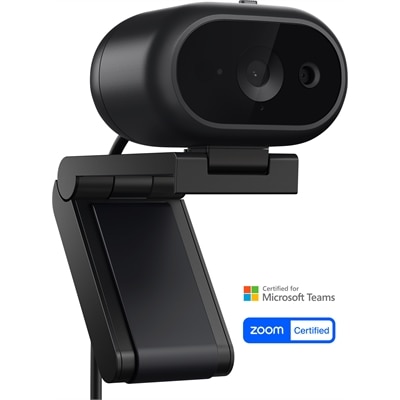
Webcams With Privacy Shutters For Video Interviews
Webcams with privacy shutters for video interviews offer a practical combination of polished image quality and dependable control over when the camera is active. A physical shutter creates an opaque barrier over the lens, so the view remains blocked before and after an interview and cannot be exposed through an accidental click, an application setting, or a software issue. That simple piece of hardware can make a noticeable difference in a home office, shared workspace, dorm room, or temporary work area where the camera may remain connected to a laptop throughout the day. When it is time to join a call, slide or rotate the shutter open and begin with a clear, intentional view; when the conversation ends, close it again without relying on an on-screen indicator. These webcams are well suited to job candidates meeting with hiring teams, professionals attending client conversations, students completing remote interviews, and anyone who wants a more controlled setup for video calls. They can also be a thoughtful practical gift for a new graduate, remote worker, freelancer, or family member preparing for virtual meetings. For additional options designed around flexible home and office setups, explore Logitech Webcams for Remote Work.
Image resolution is one of the first specifications to review when choosing a webcam for interviews. Full HD 1080p can produce a sharper, more defined image than basic 720p cameras, helping facial details, clothing, and gestures appear natural on the other side of the call. A frame rate of 30 frames per second is generally well suited to interview conversations, providing smooth movement without making setup unnecessarily complicated. Autofocus can keep the speaker looking clear when leaning toward the camera, referring to notes, or adjusting position, while fixed-focus models may be appropriate for a consistent desk arrangement where the face stays at a predictable distance. A wide field of view can include more of a room or allow two people to sit together in the frame, but a narrower view may be preferable when the goal is to emphasize the speaker and minimize background distractions. Consider the placement of the camera as carefully as the specifications. A clip that attaches securely to a laptop display is convenient for mobile work, while a threaded mounting option can support a tripod or monitor arm for a more deliberate eye-level position. The best angle usually places the lens near the top of the display and close to eye height, reducing the downward perspective that can result when a camera rests on a desk. A compact design is useful for people who move between rooms, and a flexible cable can make it easier to position the camera without pulling against the computer port.
Audio quality also deserves attention because a strong interview depends on being heard as clearly as being seen. Built-in microphones with noise reduction or noise-canceling technology can help limit the sound of keyboard taps, air movement, household activity, or nearby conversations, although the effectiveness of any microphone depends on room acoustics and distance. In a quiet room, a webcam microphone may provide a clean and convenient setup; in a busier environment, a headset or separate microphone can offer greater control. Lighting remains equally important. Face a window or place a soft lamp behind the webcam so light reaches the front of the face rather than shining directly into the lens. Avoid sitting with a bright window behind you, which can leave the subject in shadow, and check for reflections in glasses before the interview begins. A neutral background, tidy desk, and comfortable eye-level position can make the frame feel more composed without requiring a dedicated studio. Check operating system compatibility, USB connection type, meeting platform support, and any required permissions before the call. If the webcam includes facial recognition support, verify that the feature works with the computer and operating system being used. During the cooler months, when more conversations take place indoors and natural daylight can change quickly, a quick camera preview helps confirm that the shutter is open, the image is bright enough, the microphone is selected, and the background looks appropriate. A reliable routine is to open the interview application, confirm the preview, adjust the camera angle, close unrelated windows, and keep the shutter closed again as soon as the session is finished. That combination of clear video, intelligible audio, thoughtful placement, and a physical privacy barrier helps create a professional experience while preserving peace of mind between calls.
FAQs:
A privacy shutter is a built-in cover that slides or flips over a webcam lens when the camera is not in use. It provides a simple way to cover the lens without disconnecting the webcam.
A privacy shutter helps you keep the webcam covered before and after an interview while allowing you to uncover it quickly when joining a video call.
Open the shutter before joining the interview so the camera can capture video. After the interview, close the shutter to cover the lens.
Many external webcams with privacy shutters connect to laptops and desktops through USB. Check the webcam's compatibility details and your computer's available port before choosing one.
Consider features such as an integrated microphone, adjustable mounting options, autofocus, automatic light adjustment, a flexible stand, and compatibility with your preferred video conferencing applications.