Identifying HEVC Codec Limitations Affecting 4K Video Playback
Summary: Identify why some Dell computers are unable to play or stream 4K video High-Efficiency Video Coding (HEVC) content. Learn to determine whether the issue is related to the HEVC codec.
Symptoms
One or more of the following behaviors may be seen while playing or streaming 4K video encoded with the HEVC codec:
- A Windows message appears indicating that an HEVC codec is required to play the video
- Local HEVC video files cannot be opened using the default Windows media player
- Streaming services are playing successfully but are limited to an High-Definition (HD) resolution instead of 4K
- The 4K playback option is unavailable on supported streaming services or external displays
The following three scenarios illustrate the differences.
Scenario One: (Local HEVC video playback)
Windows may display the following message when opening a local HEVC video file: (The options are to get the extension or to decline using not now.)
You need a new codec to play this item.
Codecs help the app read and play different files.
'[2160p] 4K-HD.Club-2013-Taipei 101 Fireworks Trailer' requires the 'HEVC Video Extension' codec pack,
available from the Microsoft Store.
HEVC Video Extensions
$0.99
Get                        Not now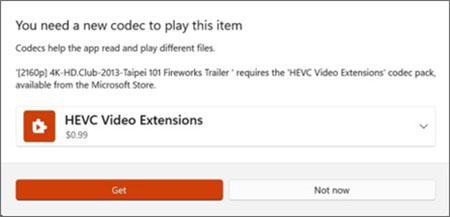
Scenario Two: (Steaming service playback)
Video playback functions normally but may be limited to HD resolution rather than 4K. This is seen when accessing a streaming service through a web browser or application.
Scenario Three: (External 4K display usage)
Certain computers may not offer a 4K playback option for HEVC content while connected to an external 4K-capable display. Playback is being limited to lower resolutions.
Cause
Microsoft has changed how HEVC codec support is delivered within the Windows operating system. Certain earlier Windows 10 releases include HEVC support by default. However, the HEVC Video Extensions codec is no longer included as a standard Windows component in Windows 10 version 1709 and continuing through Windows 11. It is now distributed separately through the Microsoft Store.
The availability of 4K HEVC playback can vary based on the following factors:
- The graphics configuration
- The display configuration
- Any factory-installed software packages
- The media and entertainment features selected at point of purchase
- The availability of the HEVC Video Extensions codec within the Windows operating systems
Resolution
The availability of HEVC (H.265) support varies depending on the computers system configuration.
Steps to determine if HEVC support is available on the computer:
-
Review the original system configuration the computer shipped with using its Service Tag in the: Dell Support site
-
Verify whether it includes features commonly associated with HEVC support, such as:
-
Discrete graphics
-
4K integrated display
-
Dolby Vision
-
CyberLink Blu-ray software
-
-
Verify whether the HEVC Video Extensions codec is installed if Windows displays a message indicating that the HEVC codec is required.
-
Obtain and install the codec from the Microsoft Store if it is not installed. (Microsoft may require an additional purchase to install the codec depending on the system configuration and licensing.)
-
Retest the affected local media file or streaming application after installing the codec.