DPA: How to gather historical data
Summary: There are gaps or missing data in DPA reports. This procedure helps to gather historical data in DPA UI
This article applies to
This article does not apply to
This article is not tied to any specific product.
Not all product versions are identified in this article.
Instructions
Gaps or missing data in DPA reports
Procedure to gather historical data in DPA UI:
Historical data collection is available for the following backup applications:
Avamar, BackupExec, DB2, HP DataProtector, NetWorker, NetBackup, Oracle RMAN, SAP HANA, and TSM
Historical data collection is limited to the Job Monitor function only. No other functions are supported.
Classic UI:
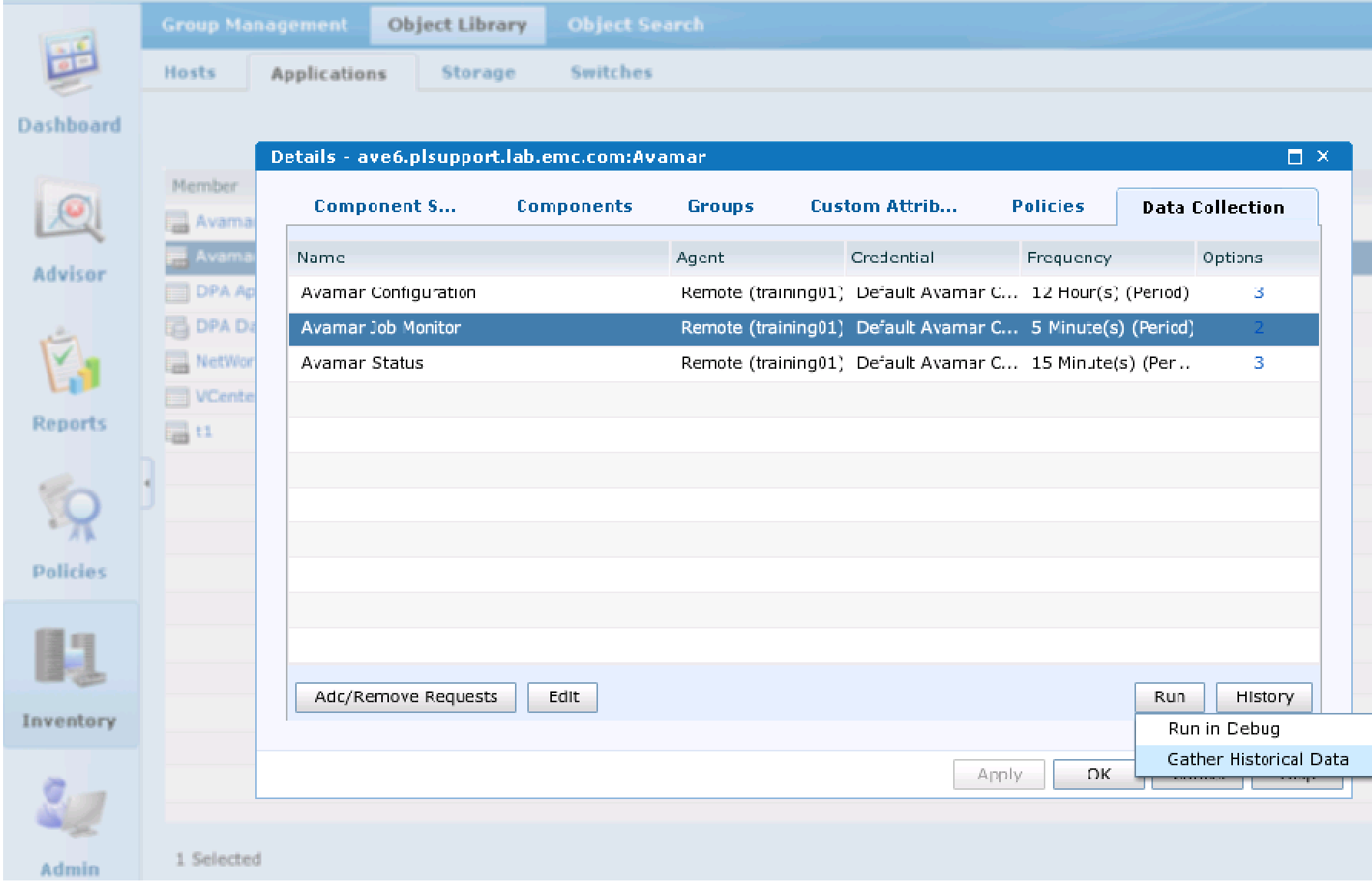
From the DPA UI> Inventory> Object Library> Applications> select the Backup Server with missing data> select Data Collection tab> highlight Job Monitor request> right-click the "Run" button> select Gather Historical Data
From the Gather Historical Data window> select the time period for missing data.
DPA Support suggests to NOT run more than 3-5 days worth of historical data collection at a time.
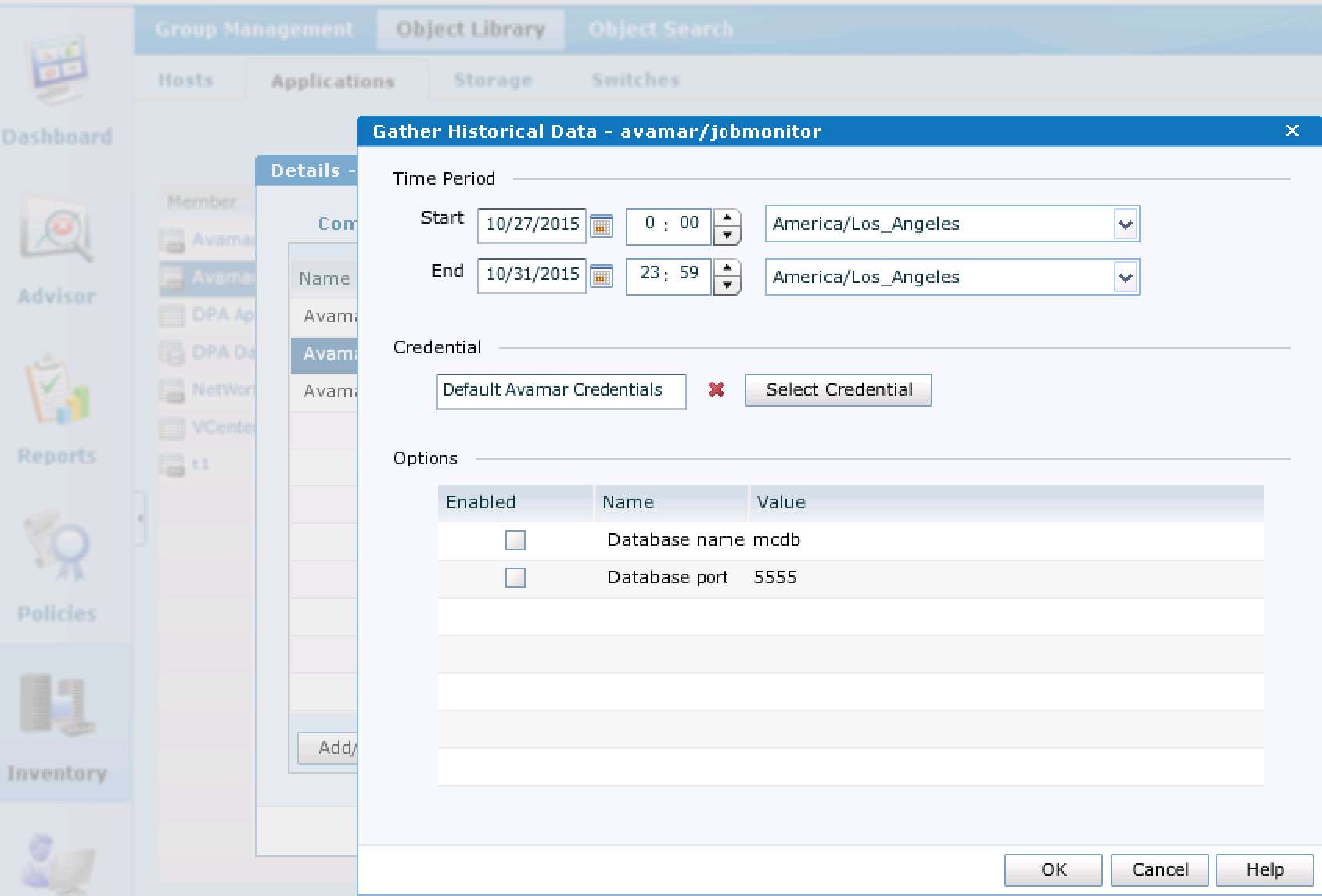
Click OK.
To check status of data collection click the History button.
Allow data collection to run for a period of time.
To check if historical data collection has processed, run the DPA Report Card.
White cells indicate no data was collected for that particular day.
Green cells indicate successful backup.
Red cells indicate failed backup.
Procedure to gather historical data in DPA UI:
Historical data collection is available for the following backup applications:
Avamar, BackupExec, DB2, HP DataProtector, NetWorker, NetBackup, Oracle RMAN, SAP HANA, and TSM
Historical data collection is limited to the Job Monitor function only. No other functions are supported.
Classic UI:
From the DPA UI> Inventory> Object Library> Applications> select the Backup Server with missing data> select Data Collection tab> highlight Job Monitor request> right-click the "Run" button> select Gather Historical Data
From the Gather Historical Data window> select the time period for missing data.
DPA Support suggests to NOT run more than 3-5 days worth of historical data collection at a time.
Click OK.
To check status of data collection click the History button.
Allow data collection to run for a period of time.
To check if historical data collection has processed, run the DPA Report Card.
White cells indicate no data was collected for that particular day.
Green cells indicate successful backup.
Red cells indicate failed backup.
Affected Products
Data Protection AdvisorProducts
Data Protection AdvisorArticle Properties
Article Number: 000022929
Article Type: How To
Last Modified: 17 Apr 2026
Version: 5
Find answers to your questions from other Dell users
Support Services
Check if your device is covered by Support Services.