Driver Installation Guide for Dell Docking Station WD15
Summary: Find information about how to download and install device drivers for the Dell Docking Station WD15 on a PC. Installing or updating the drivers to the latest version ensures optimal performance of the docking station. ...
This article applies to
This article does not apply to
This article is not tied to any specific product.
Not all product versions are identified in this article.
Symptoms
No symptom information is available.
Cause
No cause information is available.
Resolution
The Dell Docking Station WD15 is a device that links all your electronic devices to your PC using a USB-C cable interface. Connecting the PC to the docking station allows you to access all peripherals (mouse, keyboard, stereo speakers, external hard drive, and large-screen displays) without having to plug each into the PC.
Note: The Dell Docking Station WD15 only works with DisplayPort over USB-C or Thunderbolt protocols and is not compatible with all USB-C ports.
Note: PCs that require more than 130 W power input must also be connected to their own power adapter for charging and operating at full performance.
Dell Technologies recommends installing the following BIOS, firmware, and drivers step by step in the prescribed order to ensure optimal performance.
Search for the model name or enter the Service Tag of your PC on the Dell Drivers & Downloads page. Select the Operating System to view all available updates for your PC.
- Flash the latest Basic Input/Output PC (BIOS) available for the PC. This is posted under the "BIOS" section.
- Restart the PC.
- Install the Intel Thunderbolt Controller Driver available for the PC. This is posted under the "Chipset" section.
Note: This applies to the PC that has a Thunderbolt 3 (USB-C) port.
- Install the Intel Thunderbolt 3 Firmware Update available for the PC. This is posted under the "Chipset" section.
Note: This applies to the PC that has a Thunderbolt 3 (USB-C) port.
- Install the Intel HD Graphics Driver available for the PC. This is posted under the "Video" section.
- Install the RealTek USB GBE Ethernet Controller Driver available for the PC. This is posted under the "Docks & Stands" section.
- Install the RealTek USB Audio Driver for the Dell Thunderbolt™ Dock and Dell Dock available for the PC. This is posted under the "Docks & Stands" section.
- Restart the PC.
- After the software update process completes, connect the AC adapter to the WD15 dock first, and then attach the USB-C cable to the PC and update the Dell Dock firmware before using the docking station.
Dell highly recommends the following applications to automate the installation of BIOS, driver, and critical updates specific to your PC and docking station. These applications are available to download on the Dell Drivers & Downloads page.
- The Dell Update application is supported on Dell XPS laptops and Dell Venue
- The Dell Command | Update application is supported on Dell Precision, XPS, and Latitude laptops.
Note: The WD15 dock firmware must be updated manually as it is not delivered using these applications.
Note: If your PC has a third party antivirus software running, it is suggested that you disable the antivirus before running DCU and ensure it is not reactivated during the update process.
Caution: Ensure that your PC has the MOST CURRENT BIOS REVISION installed BEFORE Installing the Dock Firmware update. (If you are unsure, see driver update information below.)
Note: Ensure that the Dell Docking Station WD15 is connected to your PC to update firmware of the docking station.
Dell Docking Station WD15 setup requirement: First, connect the AC adapter to your Dell Docking Station WD15 and then attach the USB-C cable to your PC.
Note: Do not disconnect the dock from your PC or remove the AC power from your dock during the firmware update procedure.
- Download the Dell-Wired Dock (WD15) Firmware Update Utility under the "Docks & Stands" section to your local drive and run the .exe file as administrator. You must clear the box "Show all Drivers for Service Tag XXXXXXX" in order to see the firmware.
- Click the OK to complete the component update in Windows and the PC reboots into a preboot environment to update the rest firmware components. (See Figures 1 - 6)
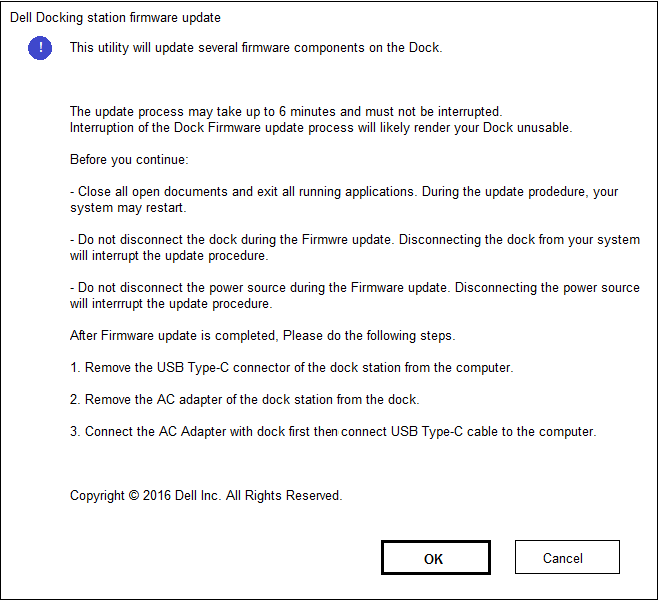
Figure 1: - Dock Firmware update setup screen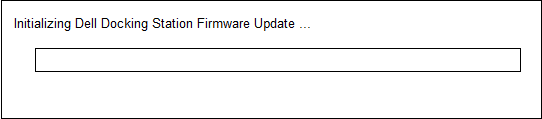
Figure 2: - Dock Firmware Initialization
Figure 3: - Dock Firmware update in progress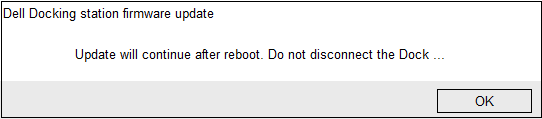
Figure 4: - Dock Firmware PC reboot notification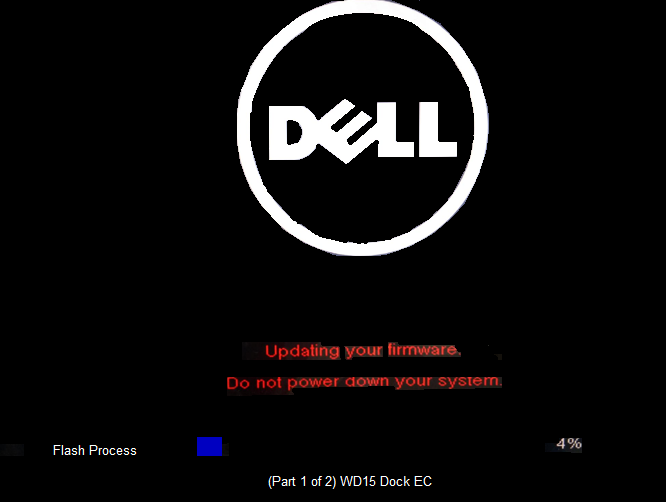
Figure 5: - Dock Firmware progress after first reboot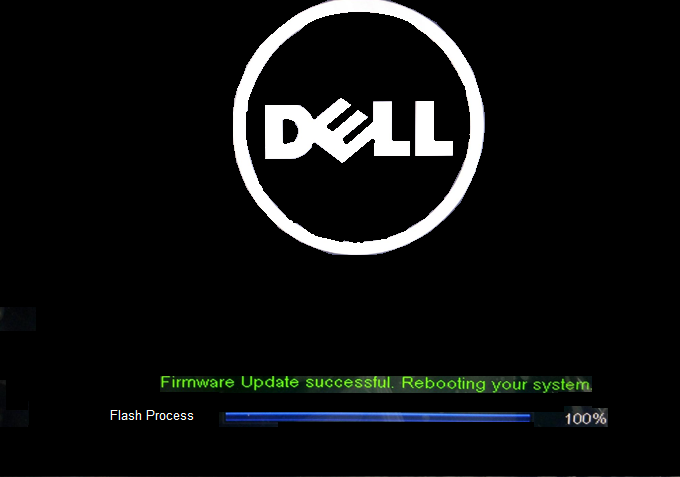
Figure 6: - Dock Firmware update had completed. - After all the firmware components are updated, your PC will reboot to Windows OS.
- Disconnect your Dell Docking Station WD15 from the PC and remove AC adapter from the docking station.
- Connect the AC adapter back to your Dell Docking Station WD15 and then attach the USB-C cable to your PC.
Affected Products
Dell Dock WD15, Latitude 5280/5288, Latitude 5285 2-in-1, Latitude 5289 2-in-1, Latitude 5290 2-in-1, Latitude 5290, Latitude 7200 2-in-1, Latitude 7220 Rugged Extreme Tablet, Latitude 7280, Latitude 7285 2-in-1, Latitude 7290
, Latitude 13 3379 2-in-1, Latitude 3390 2-in-1, Latitude 5300 2-in-1, Latitude 5300, Latitude 7300, Latitude 7380, Latitude 7389 2-in-1, Latitude 7390 2-in-1, Latitude 7390, Latitude 3400, Latitude 3490, Latitude 5400, Latitude 5401, Latitude 5420 Rugged, Latitude 5424 Rugged, Latitude 5480/5488, Latitude 5490, Latitude 5491, Latitude 5495, Latitude 7400 2-in-1, Latitude 7400, Latitude 7424 Rugged Extreme, Latitude 7480, Latitude 7490, Latitude 3500, Latitude 3590, Latitude 5500, Latitude 5501, Latitude 5580, Latitude 5590, Latitude 5591, Precision 3520, Precision 3530, Precision 5520, Precision 5530, Precision 7520, Precision 7720, Wyse 5470, XPS 13 7390 2-in-1, XPS 13 9300, XPS 13 9360, XPS 13 9365 2-in-1, XPS 13 9370, XPS 13 9380, XPS 15 7590, XPS 15 9560, XPS 15 9570, XPS 15 9575 2-in-1
...
Article Properties
Article Number: 000138560
Article Type: Solution
Last Modified: 03 Jul 2025
Version: 6
Find answers to your questions from other Dell users
Support Services
Check if your device is covered by Support Services.