Dell Storage: SC180 Replacing Cooling Fan Modules
Summary: Dell Storage: SC180 Replacing Cooling Fan Modules
This article applies to
This article does not apply to
This article is not tied to any specific product.
Not all product versions are identified in this article.
Symptoms
The SC180 expansion enclosure supports five cooling fan modules. If one cooling fan module fails, the remaining fan modules continue to cool the expansion enclosure.
NOTE: When a cooling fan module fails, the fan speed in the remaining modules increases significantly to provide adequate cooling. The fan speed decreases gradually when a new cooling fan module is installed.
Table of Content
Identifying the Failed Cooling Fan Module
To determine which cooling fan module failed, use the Dell Storage Client.Click the Hardware tab.- Click the Hardware tab.
- In the Hardware tab navigation pane, select the Storage Center.
- In the Hardware Alerts area, find the hardware alert that identifies the enclosure with the failed cooling fan.
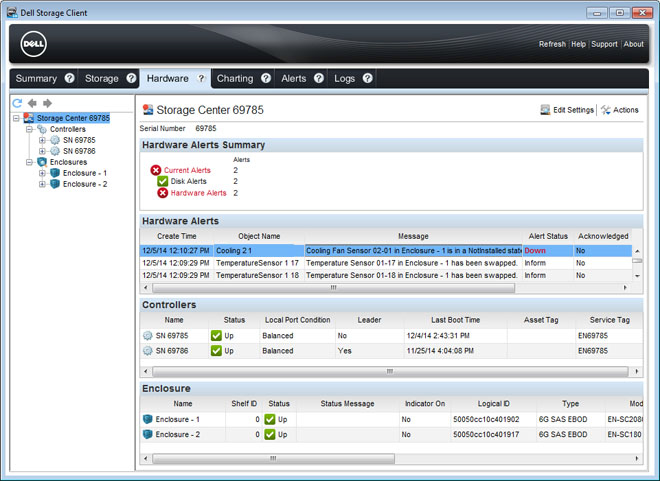
Figure 1: Hardware Alert Identifying the Enclosure with the Failed Cooling Fan
- In the Hardware tab navigation pane, expand the enclosure identified in the previous step.
- Select Cooling Fans. The status of each cooling fan is displayed in the Cooling Fans tab.
- Select the failed cooling fan. The location of the failed cooling fan module is displayed in the Fan View tab.
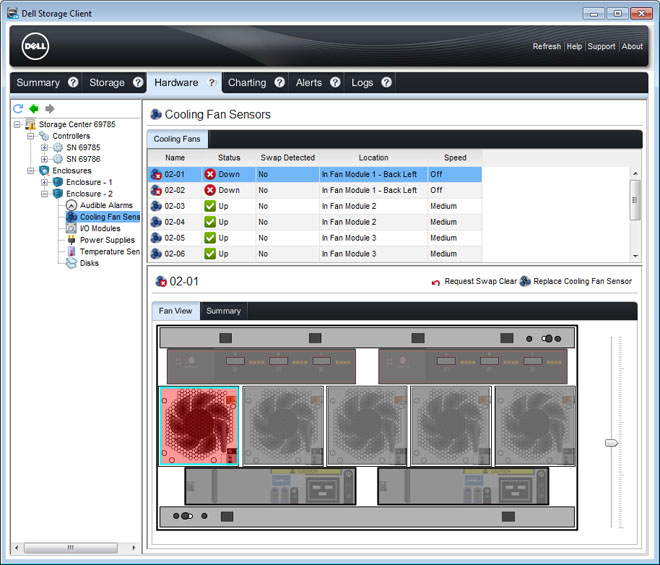
Figure 2: Rear View of the Enclosure Showing the Failed Cooling Fan Module
Replacing a Cooling Fan Module
Use this procedure to replace a failed cooling fan module.Prerequisites
- Use SupportAssist to send diagnostic data to Dell Technical Support Services.
- Contact Dell Technical Support Services to let them know that you are performing a repair.
About this Task
You can replace cooling fan modules one at a time without shutting down the expansion enclosure.Steps
- Press the release tab and pull the fan module out of the chassis using the handle.
CAUTION: The fan modules are heavy. To avoid injury, use both hands while removing the module.
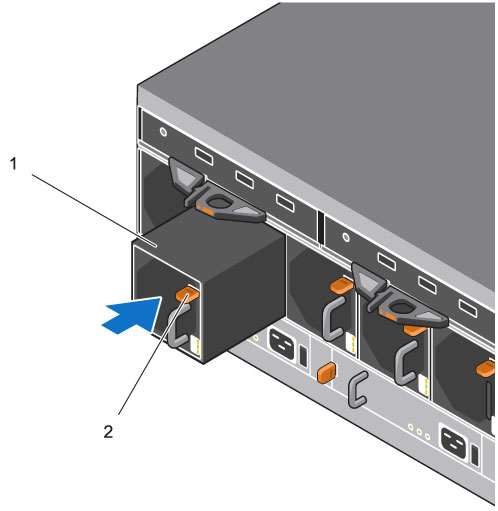
Figure 3: Removing a Fan Module
1. Fan Module
2. Release tab
- Rotate the replacement fan module so that the release tab and handle are on the right side.
- Slide the replacement fan module into the chassis until it is fully seated and the release tab clicks into place.
NOTE: Allow several seconds for the enclosure to recognize the fan module and determine its status. When functioning properly, the fan module’s Module OK LED turns green and the Battery fault and Fan fault LEDs are off. In addition, the cooling fan status indicator turns green in the Dell Storage Client.
- In the Dell Storage Client, make sure that the replacement fan module is recognized and shown as up and running.
Next Steps
- Use SupportAssist to send diagnostic data to Dell Technical Support Services.
- Contact Dell Technical Support Services to let them know that you completed a repair.
Cause
.
Resolution
.
Affected Products
Dell Storage SC180Article Properties
Article Number: 000141415
Article Type: Solution
Last Modified: 29 Jul 2025
Version: 5
Find answers to your questions from other Dell users
Support Services
Check if your device is covered by Support Services.