Error Message Appears at Audit Mode During Deployment of Windows S-Mode and SE for Education
Summary: This article provides information about an error message that appears at the Audit Mode during deployment of Windows 10 S-mode, Windows 11 S-mode, and Windows 11 SE for education.
This article applies to
This article does not apply to
This article is not tied to any specific product.
Not all product versions are identified in this article.
Symptoms
Affected Platforms:
- Latitude 3120
- Latitude 3140
- Latitude 3190
- Inspiron 3880
- Inspiron 3891
- Inspiron 3910
- Inspiron 5301
- Inspiron 5402/5409
- Inspiron 5405
- Inspiron 5502/5509
- Inspiron 5505
- Inspiron 13 5310
- Inspiron 13 5320
- Inspiron 14 5410/5418
- Inspiron 14 5415
- Inspiron 14 5420
- Inspiron 14 5425
- Inspiron 14 5406 2-in-1
- Inspiron 14 5410 2-in-1
- Inspiron 14 7415 2-in-1
- Inspiron 14 7420 2-in-1
- Inspiron 14 7425 2-in-1
- Inspiron 15 3501
- Inspiron 15 3502
- Inspiron 15 3505
- Inspiron 15 3510
- Inspiron 15 3511
- Inspiron 15 3515
- Inspiron 15 3520
- Inspiron 15 3521
- Inspiron 15 3525
- Inspiron 15 5510/5518
- Inspiron 15 5515
- Inspiron 16 5620
- Inspiron 16 5625
- Inspiron 16 7610
- Inspiron 16 7620 2-in-1
- Vostro 5301
Affected Operating Systems:
- Windows 10 S-mode
- Windows 11 S-mode
- Windows 11 SE for Education
If the device has Windows 10 S-Mode, Windows 11 S-Mode, or Windows 11 SE installed, and then tries to reinstall the same operating system, it fails with the following error:
Windows could not parse, or process the unattend answer file [C:\Windows\Panther\Unattend.xml]
Cause
By default, S-Mode and SE do not allow running any command, it is an operating system level restriction. Due to this restriction, execution of a batch script called by unattend.xml is causing this error message.
Resolution
Installing S-Mode or SE by disabling Secure Boot in the BIOS allows the installation to succeed. Dell Technologies does not recommend disabling Secure Boot. Repeat the same steps again with Secure Boot enabled.
Follow the below step-by-step process to recover the device with secure boot enabled:
- Connect USB Key which has S-Mode or SE on it.
- Turn on the device.
- Boot to the UEFI Firmware setting by pressing the F2 key a couple of times (press F2 key when the Dell logo appears on-screen).
- In UEFI Firmware setting > Boot Configuration > Secure Boot > Turn off.
- Click Apply and Exit from UEFI Firmware setting (this process reboots the device).
- Press the F12 key when the Dell logo appears to bring up the Boot device selection menu.
- Select USB Key and press Enter key (this initiates booting from USBkey).
- Start the deployment following the on-screen instruction.
- Once the device comes to Out of Box Experience (OOB), Shutdown the device by pressing the power button for five seconds.
- Turn on the device.
- Boot to the UEFI Firmware setting by pressing the F2 key a couple of times (press F2 key when the Dell logo appears on-screen).
- In UEFI Firmware setting > Boot Configuration > Secure Boot > Turn ON.
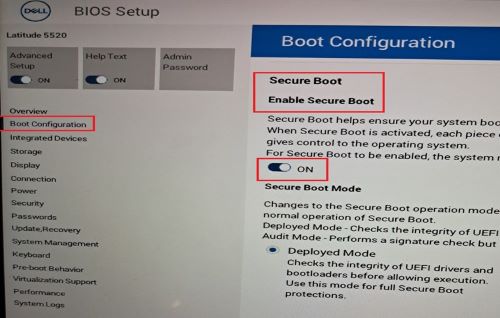
- Click Apply and Exit from UEFI Firmware setting (this process reboots the device).
- Press the F12 key when the Dell logo appears, to enter Boot device selection menu.
- Select USB Key and press Enter key (this initiates the booting from USBkey).
- Start the operating system deployment as per an on-screen instruction.
- Once the device comes to OOB, follow the on-screen instruction, and log in to the desktop.
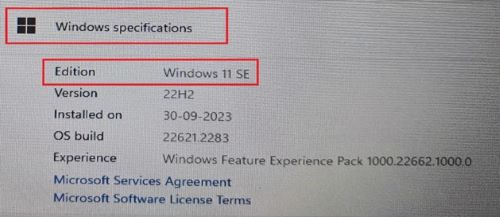
- Open system properties and confirm that the operating system is S-Mode or SE.
- Right-click Windows icon in the start menu > Click System > Click About
- Under Windows Specification, Edition should show as:
- Windows 10 S-Mode
- Windows 11 S-Mode
- Windows 11 SE
Affected Products
Inspiron 5301, Inspiron 13 5310, Inspiron 13 5320, Inspiron 5402/5409, Inspiron 5405, Inspiron 5406 2-in-1, Inspiron 14 5410 2-in-1, Inspiron 14 5410/5418, Inspiron 5415, Inspiron 14 5420, Inspiron 14 5425, Inspiron 7415 2-in-1
, Inspiron 14 7420 2-in-1, Inspiron 14 7425 2-in-1, Inspiron 3501, Inspiron 3502, Inspiron 3505, Inspiron 15 3510, Inspiron 15 3511, Inspiron 15 3515, Inspiron 15 3520, Inspiron 15 3521, Inspiron 15 3525, Inspiron 5502/5509, Inspiron 5505, Inspiron 15 5510/5518, Inspiron 5515, Inspiron 16 5620, Inspiron 16 5625, Inspiron 16 7610, Inspiron 16 7620 2-in-1, Inspiron 3880, Inspiron 3891, Inspiron 3910, Latitude 3120, Latitude 3140, Latitude 3190, Vostro 5301
...
Article Properties
Article Number: 000223620
Article Type: Solution
Last Modified: 15 Apr 2025
Version: 5
Find answers to your questions from other Dell users
Support Services
Check if your device is covered by Support Services.