ECS: License Activation
Summary: This article provides instructions for Customers and Partners when activating software licenses for Elastic Cloud Storage in the Dell Digital Locker and Software Licensing Central.
This article applies to
This article does not apply to
This article is not tied to any specific product.
Not all product versions are identified in this article.
Instructions
Pre-requisite:
Users who require access to the Dell Digital Locker or Software Licensing Central
Internal users who require access to Software Licensing Central
Instructions:
Users can access the Licensing Entitlements from the Dell Digital Locker. Using the Sales Order Number or the Purchase Order Number referenced on the Customer Facing Object (CFO) letter or the License Authorization Code (LAC) letter.
Alternatively, registered End-user Licensing Site Coordinator, Partners, and Internal users can directly access the Licensing Entitlements from Software Licensing Central
Note: Orders which involved a Value-Added Reseller (VAR) may also include a unique 'Registration Code' for the Customer to redeem during the Order Registration Process.
Sample of the Customer Facing Object (CFO) letter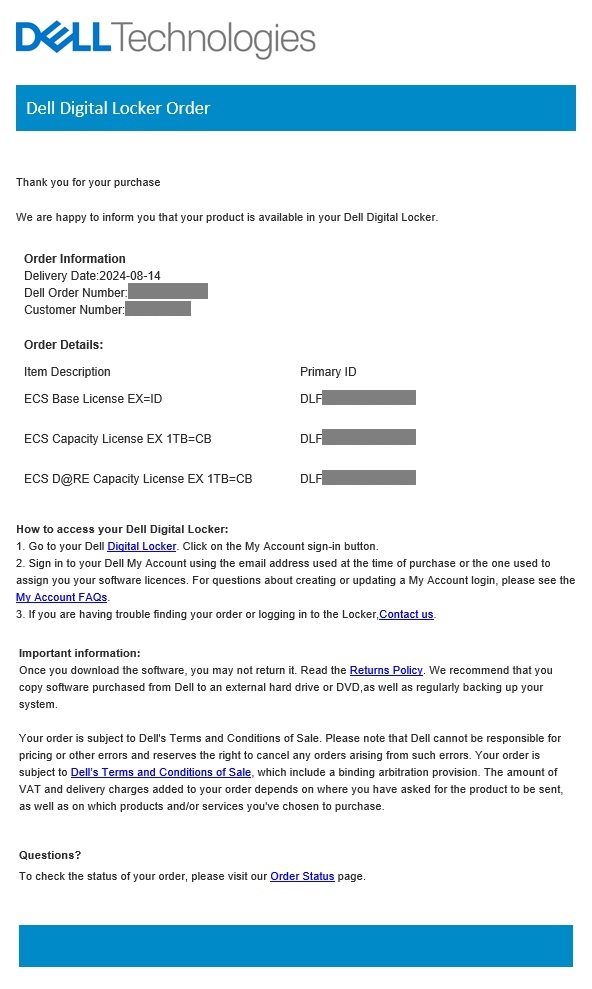
Initiating License Activation from the Dell Digital Locker:
-
Begin by signing into your Dell Digital Locker using your Registered user Account Details:
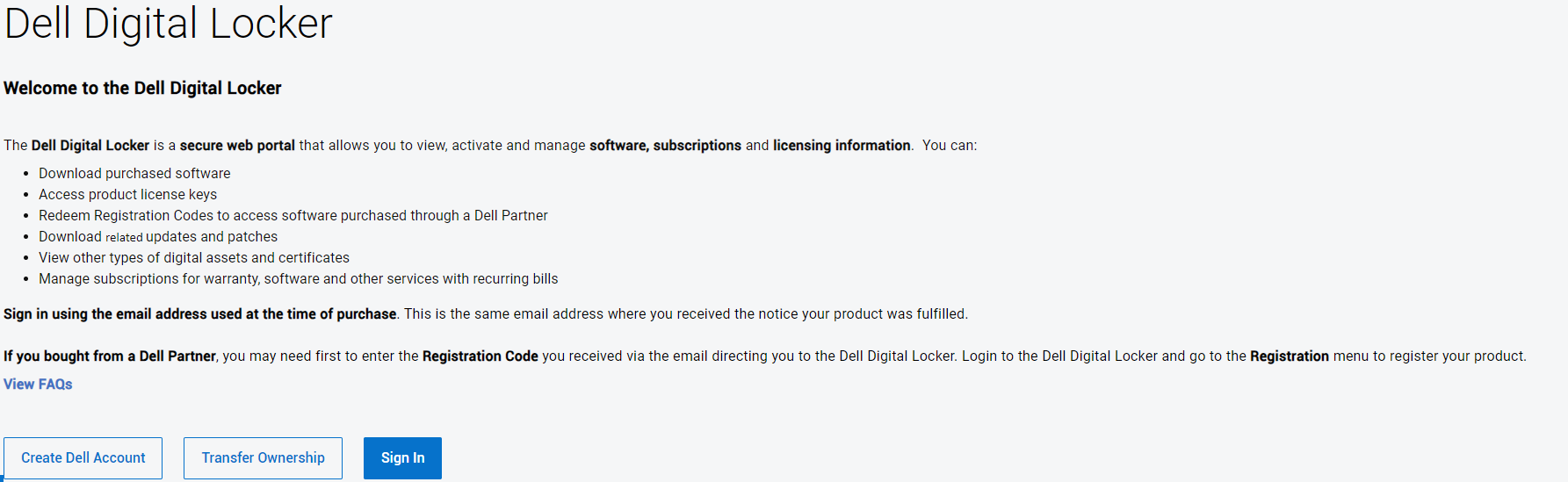
-
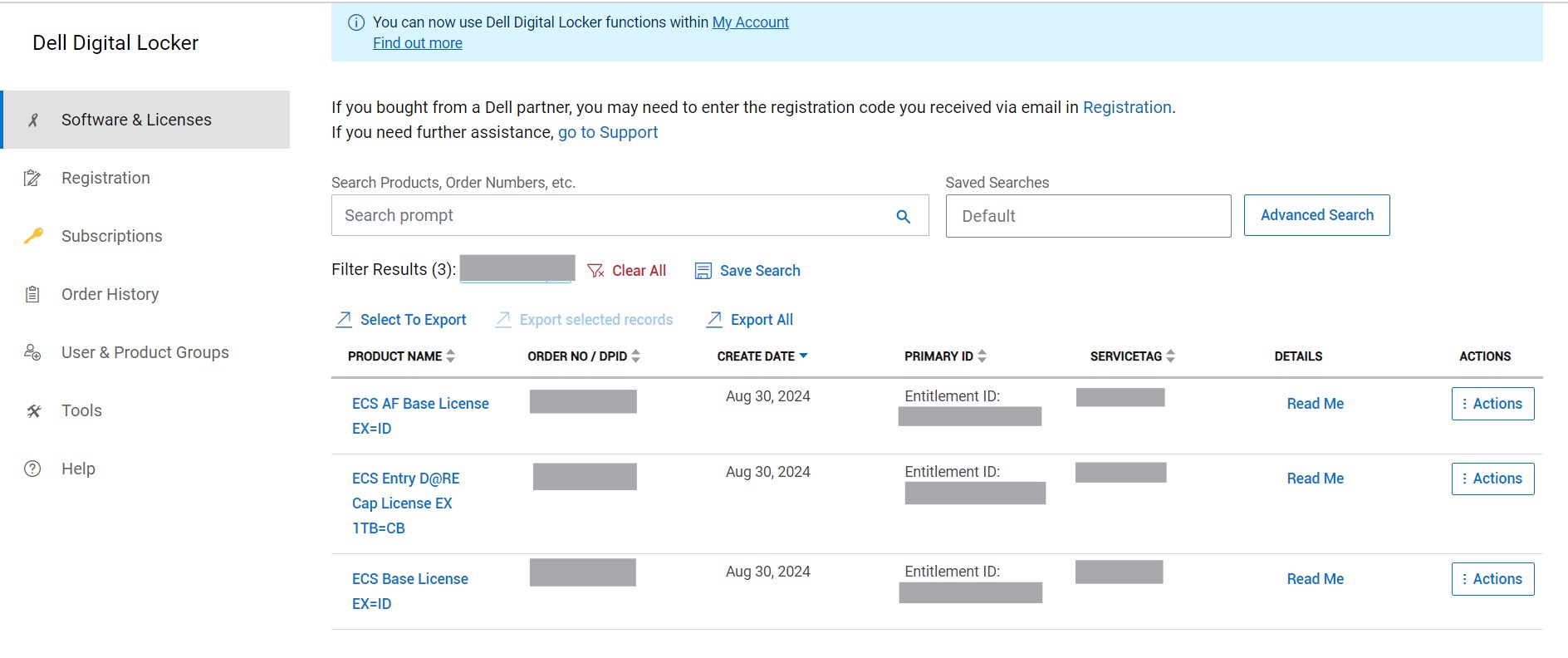
Upon successfully signing in, search the Order Number referenced on the Customer Facing Object (CFO) letter or the License Authorization Code (LAC) letter to retrieve the Licensing Entitlements associated with the Order:
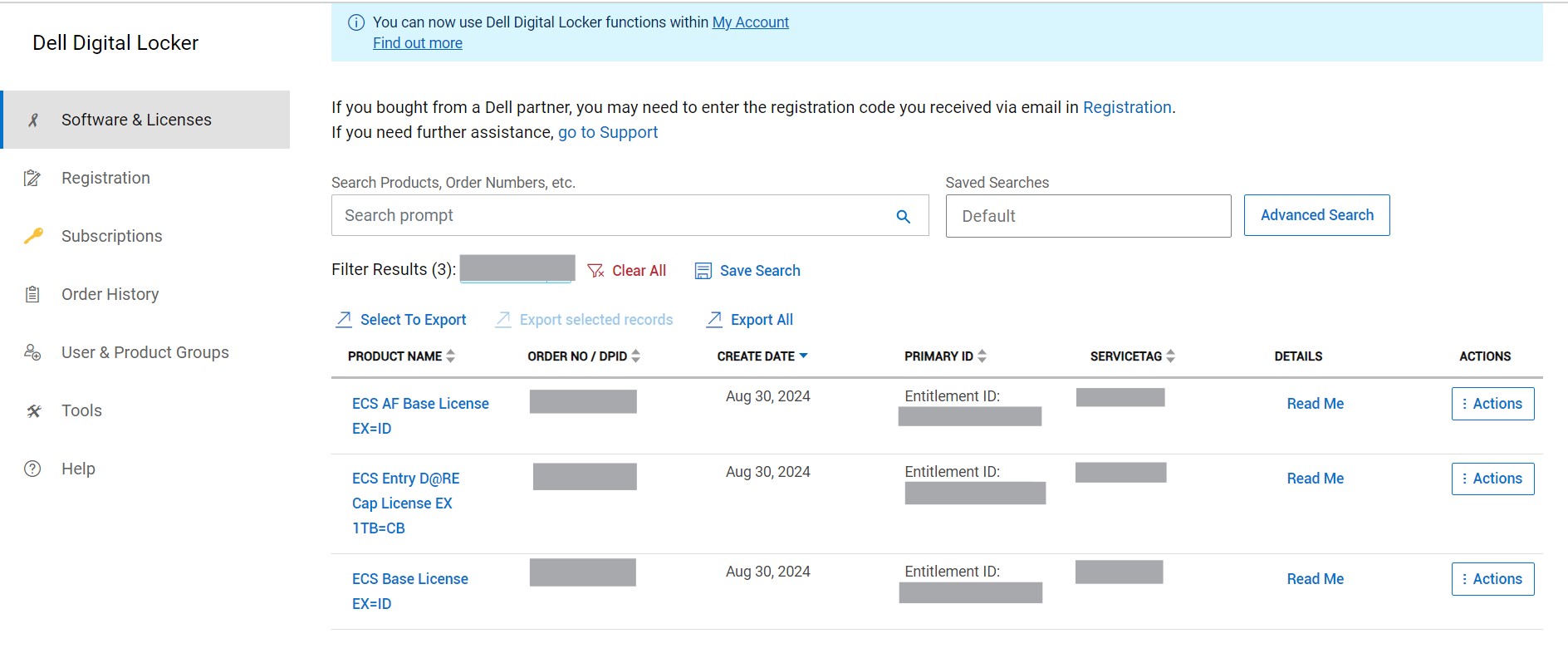 Note: If the search query does not bring up any Results, check the Status of the Registration Code referenced on the Customer Facing Object (CFO) letter. If the Registration Code is unredeemed, complete the Registration Process under the Digital Locker 'Registration' Tab.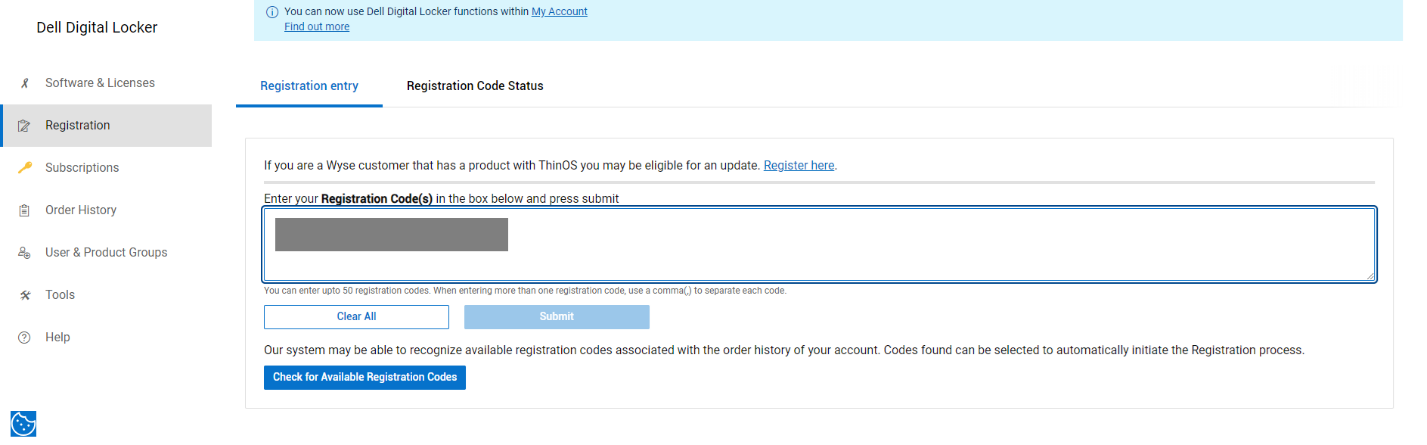
Engage the World-Wide Licensing Support Team for further assistance if the user continues to experience Issues with the Registration Process.
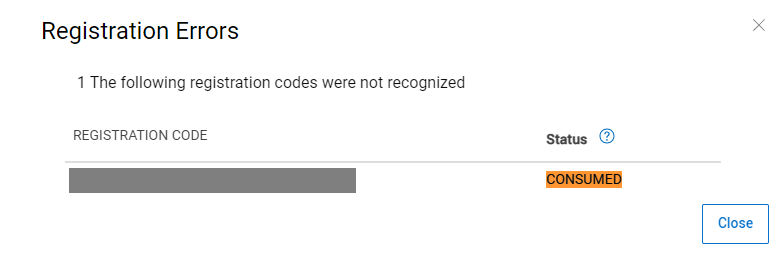
-
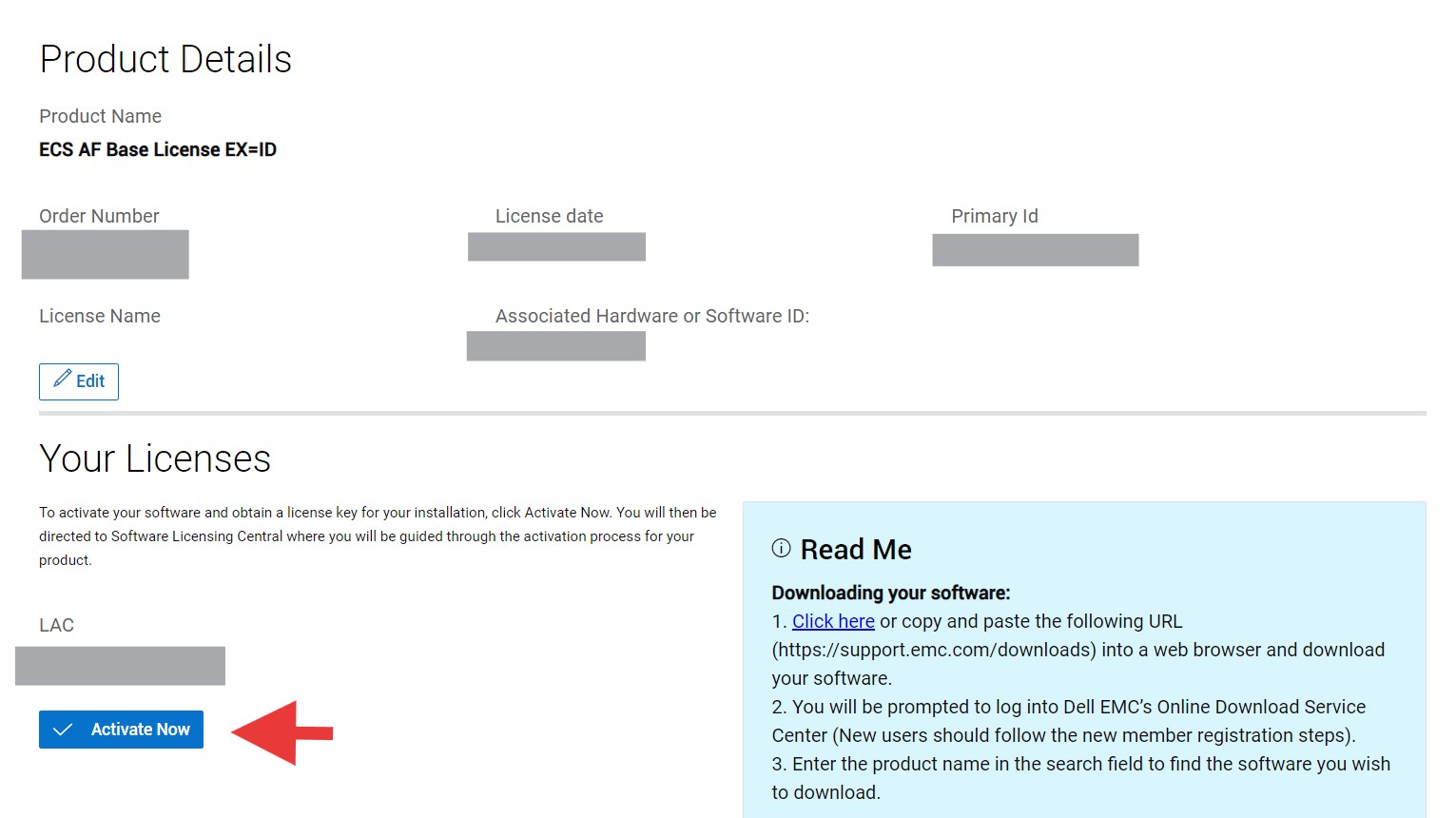
However, if the Search Query presents the Licensing Entitlements associated with the Order, select the 'Product Name' to access the Entitlement which should then open the 'Product Details' Page that contains additional information such as the 'License Authorization Code (LAC)', 'Read Me' Notes, and the 'Activate Now' deep-link to access the Licensing Entitlement on Software Licensing Central.
-
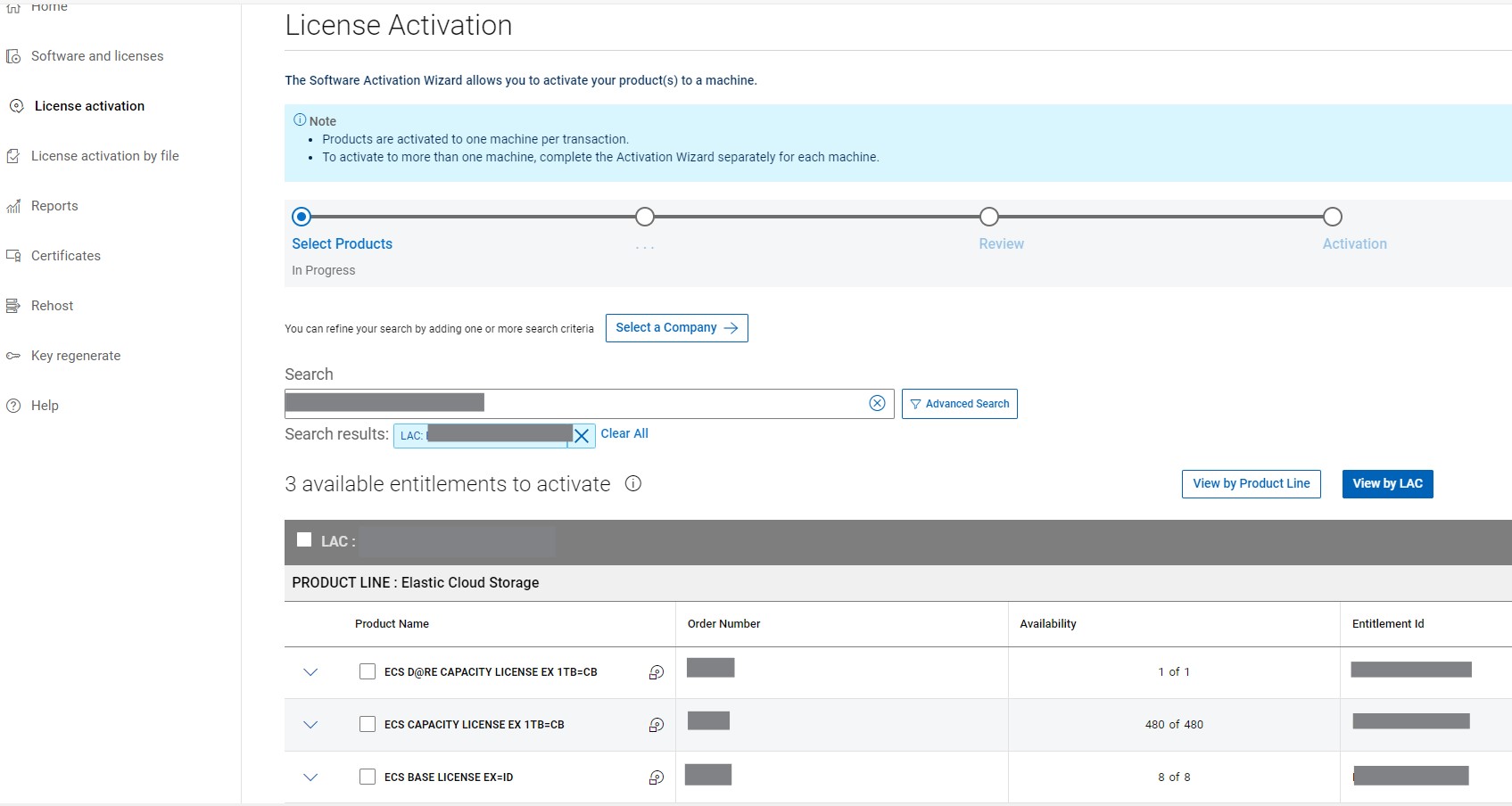
The 'Activate Now' deep-link embedded in the Digital Locker Entitlement should redirect the user to the Software Licensing Central (SLC) 'Activate' page as shown in the image below, and on this page, the user is required to select the Entitlements available for activation.
-
On the preceding pages, the user is required to select a 'Machine Name' for the Activation. Here, the user can either select an existing Machine Name by using the 'Search Machines' section, or the user can choose to 'Add a New Machine' Name as shown in the image below to assign the Activation.
Note: For ECS Activations, the Machine Name is generally the Serial Number of the Appliance, unless the Customer chooses to assign it a preferred name.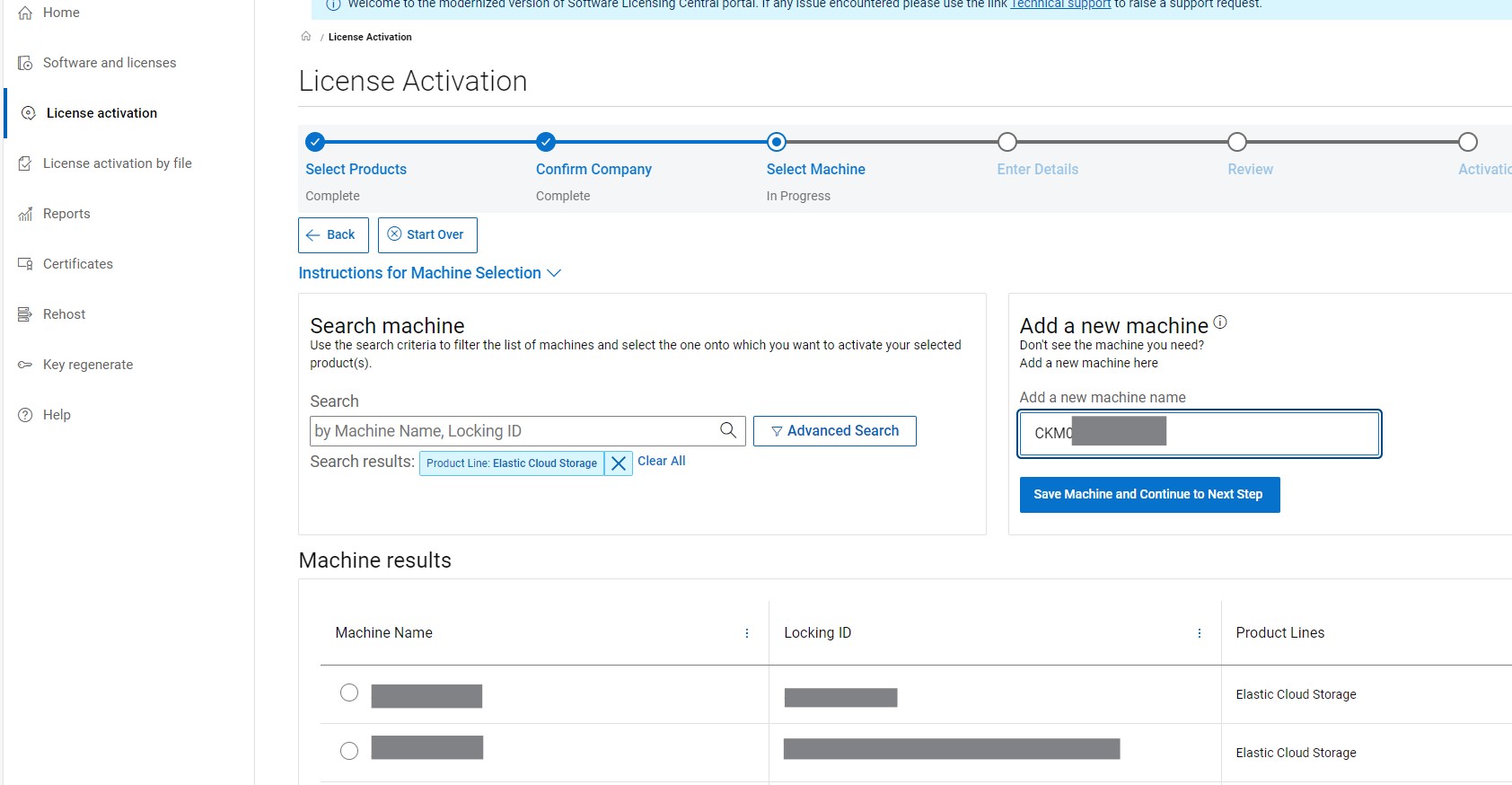
-
On the next page, the user is required to specify the License 'Quantities', the 'Locking ID' (which for Elastic Cloud Storage is the Alpha-Number Serial Number of the Appliance).
Note: License Quantities on certain License Authorization Code (LAC) are configured to be activated-as-a-whole to a Product Serial Number Tag (PSNT) / Serial Number. Therefore, these License Authorization Codes (LAC) are fulfilled with pre-defined Quantities which cannot be edited or modified during the Activation Process.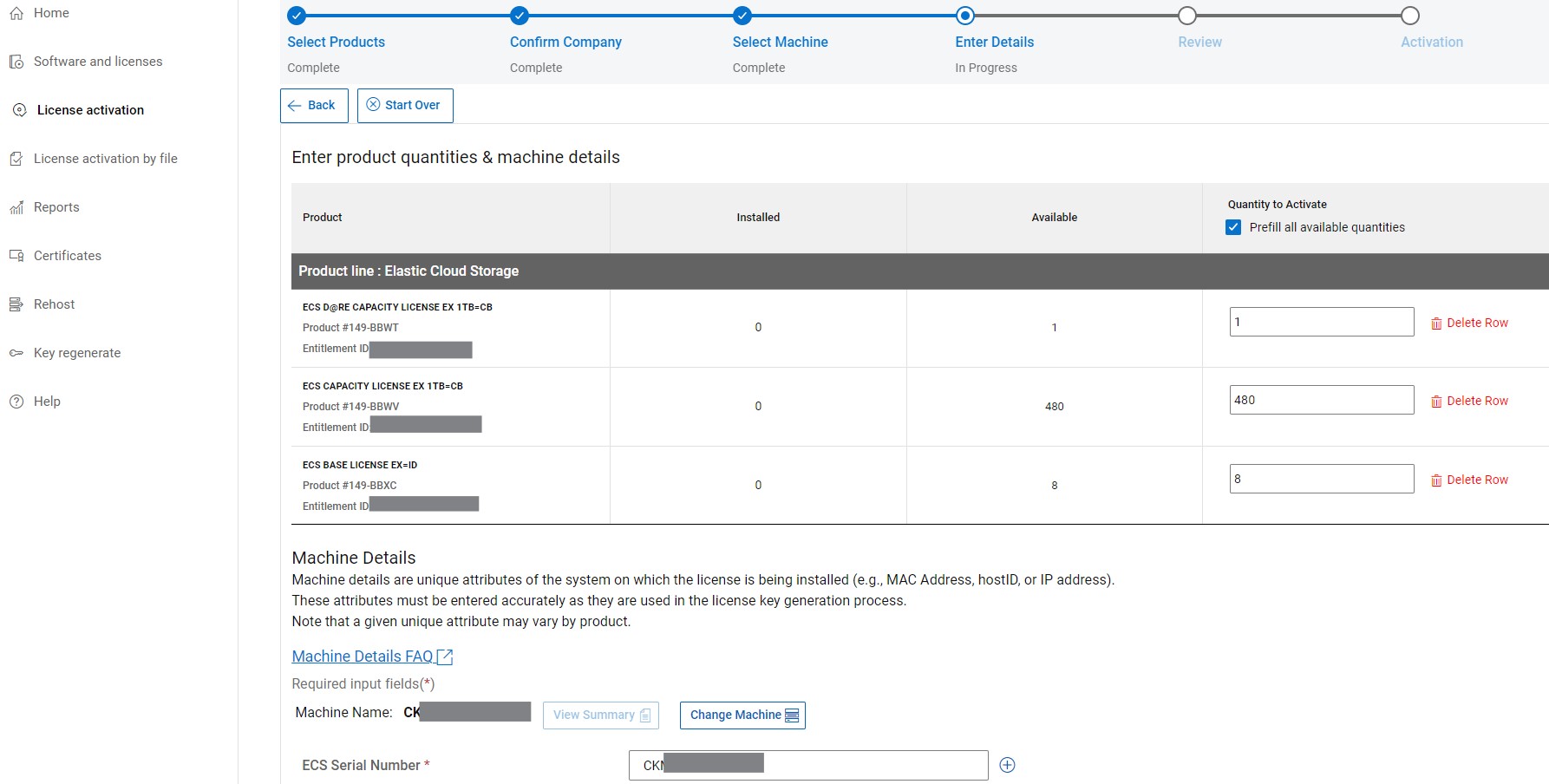
-
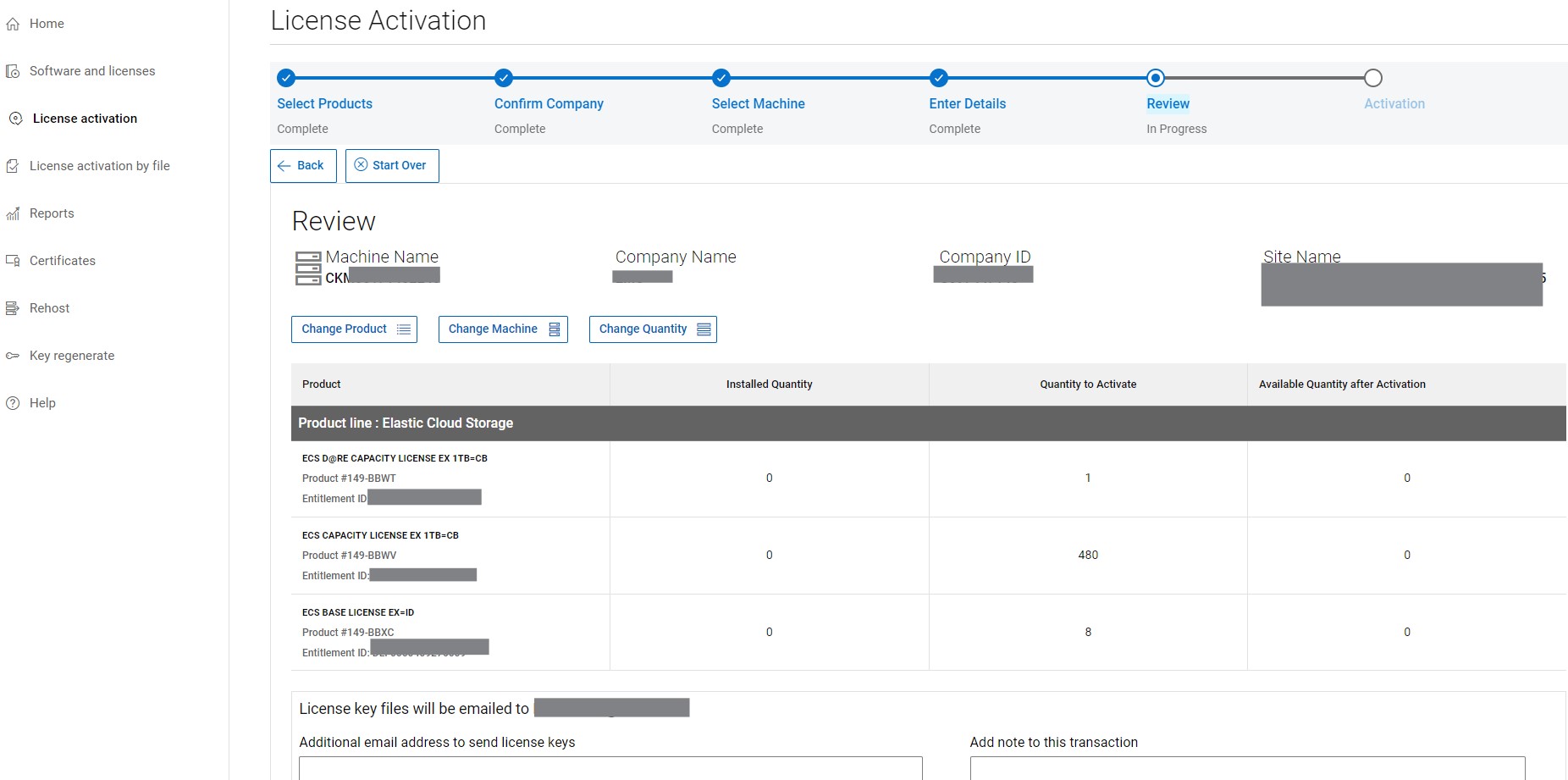
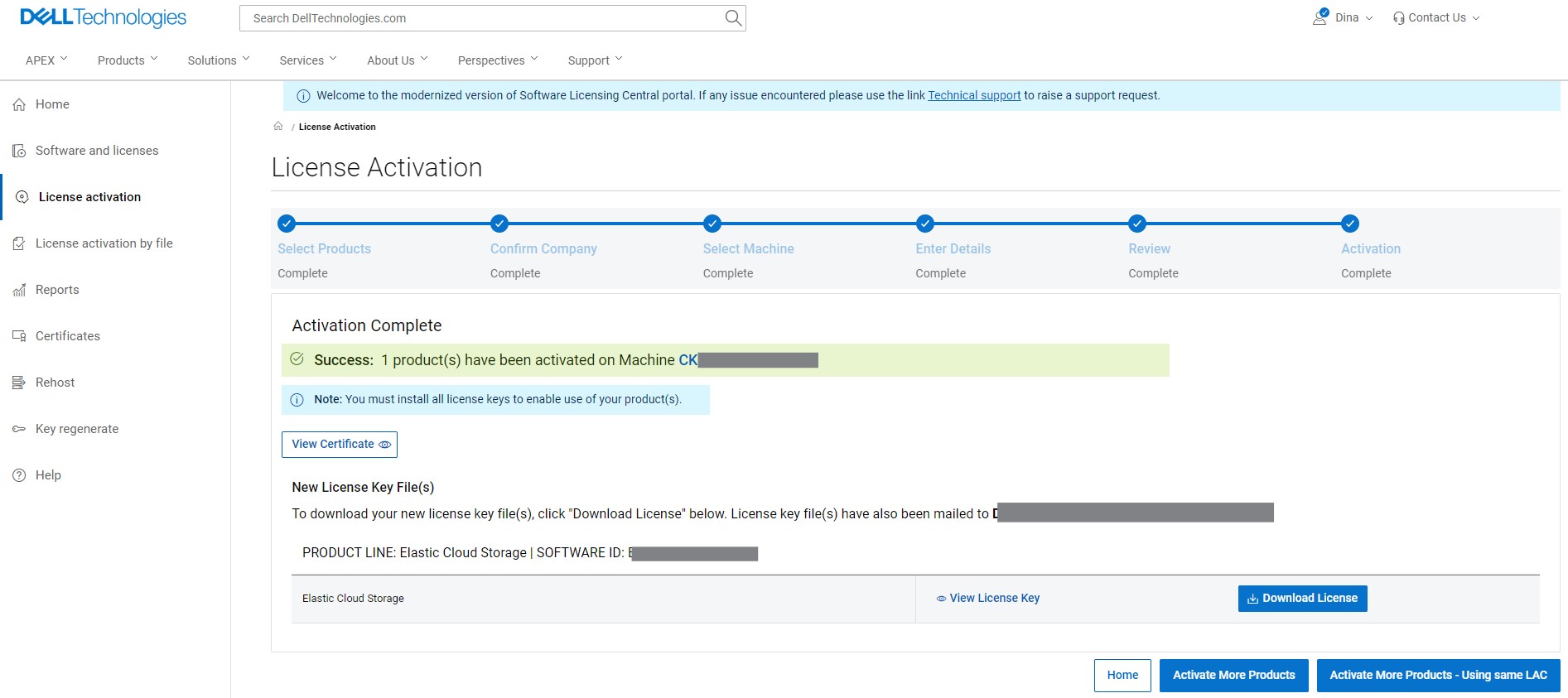
On the next page, the user can review the Transaction before proceeding with the Activation, which should then generate the License File for the Transaction and a copy of the File is also delivered to the user.
Initiating License Activation from the Software Licensing Central
-
Alternatively, Internal users or Partners and registered End-Customer (who have been listed as Licensing Site Coordinators) can also log in directly to process the Activation from Software Licensing Central
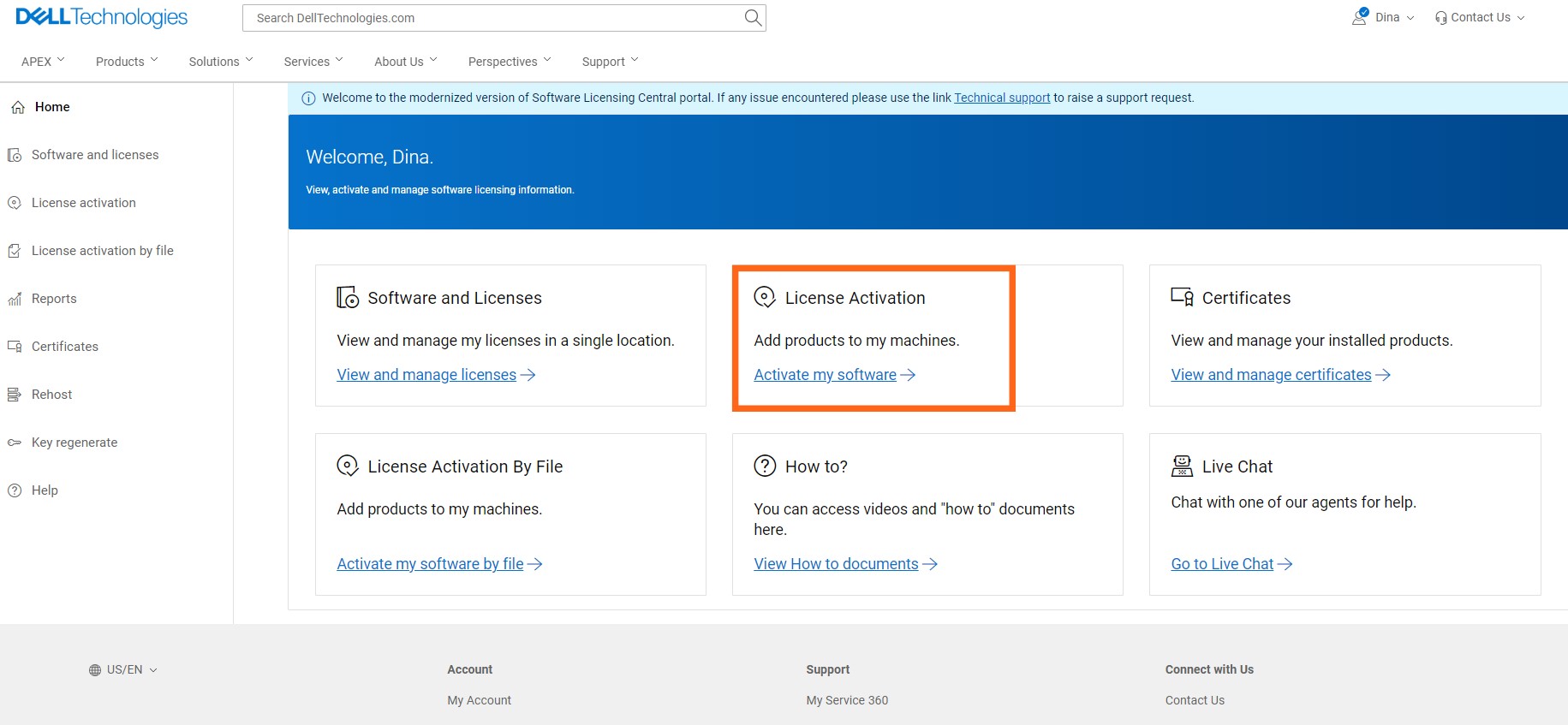
-
On the next page, the user is required to select the Entitlements available for activation, and upon retrieving the corresponding Licensing Entitlements, the user can follow the same Instructions outlined from step 5 through 7 to complete the License Activation Process.
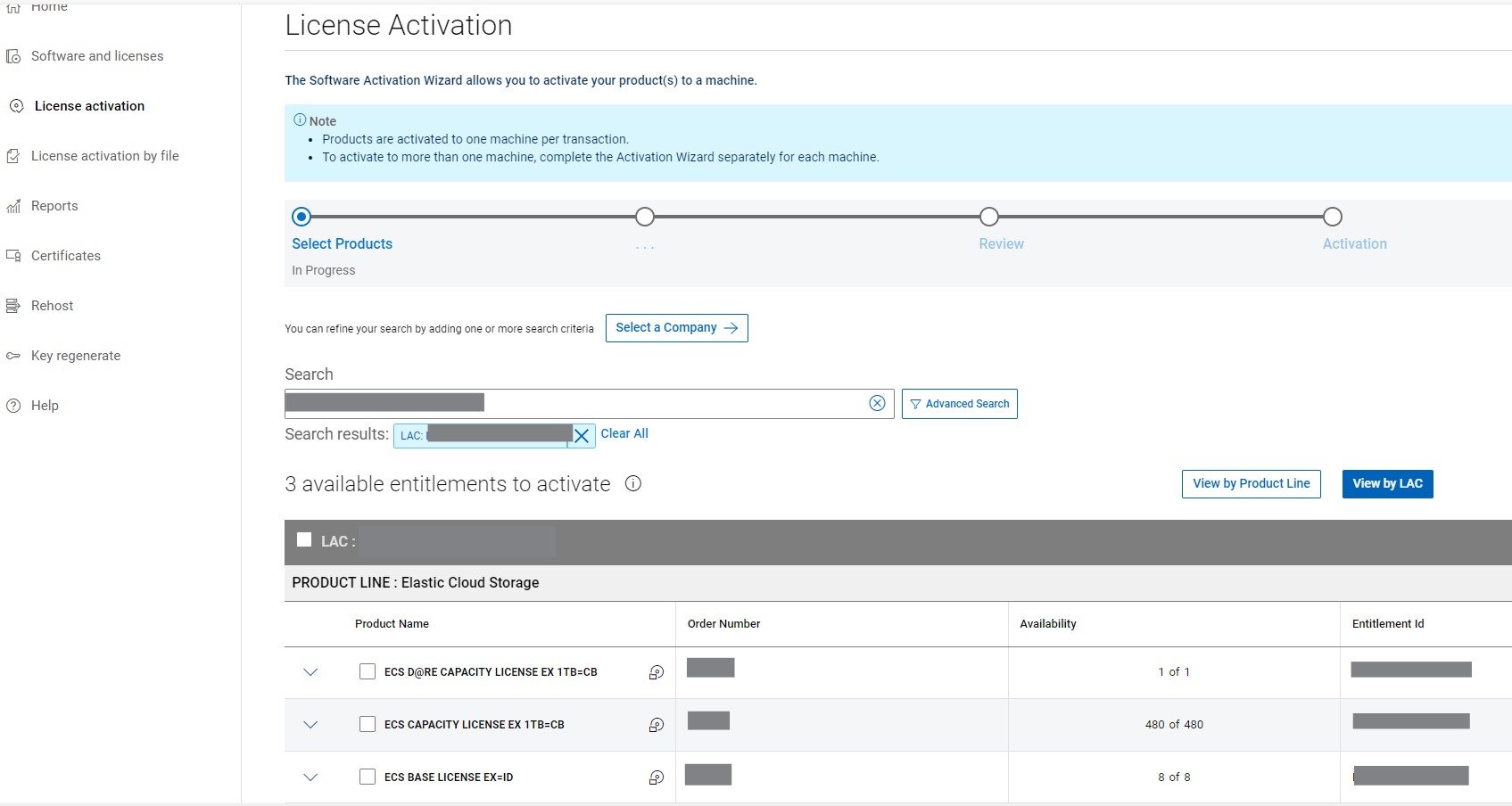 Note: If the user continues to experience any issues with the Activation Process, engage the World-Wide Licensing Support Team for further assistance (Instructions outlined below)
- Contact Dell Technologies Technical Support to use the Live Chat feature between the hours of 12:00 AM EST Monday - 11:59 PM EST Friday or to use the Online Support Feature.
- Contact Dell Live Support by calling 001-800-782-4362 - mention "licensing"
- See the list of Phones Numbers by country or region, CUSTOMER SUPPORT CENTERS.
Affected Products
Elastic Cloud StorageArticle Properties
Article Number: 000227874
Article Type: How To
Last Modified: 07 Nov 2025
Version: 3
Find answers to your questions from other Dell users
Support Services
Check if your device is covered by Support Services.