Avamar: Backup Fails with "Client Backup Disabled"
Summary: This article explains how to re-enable multiple clients on the Avamar server after an upgrade or other issues using the Administrator console or mcdb.
This article applies to
This article does not apply to
This article is not tied to any specific product.
Not all product versions are identified in this article.
Symptoms
A backup is started and immediately fails with "Client Backup Disabled"

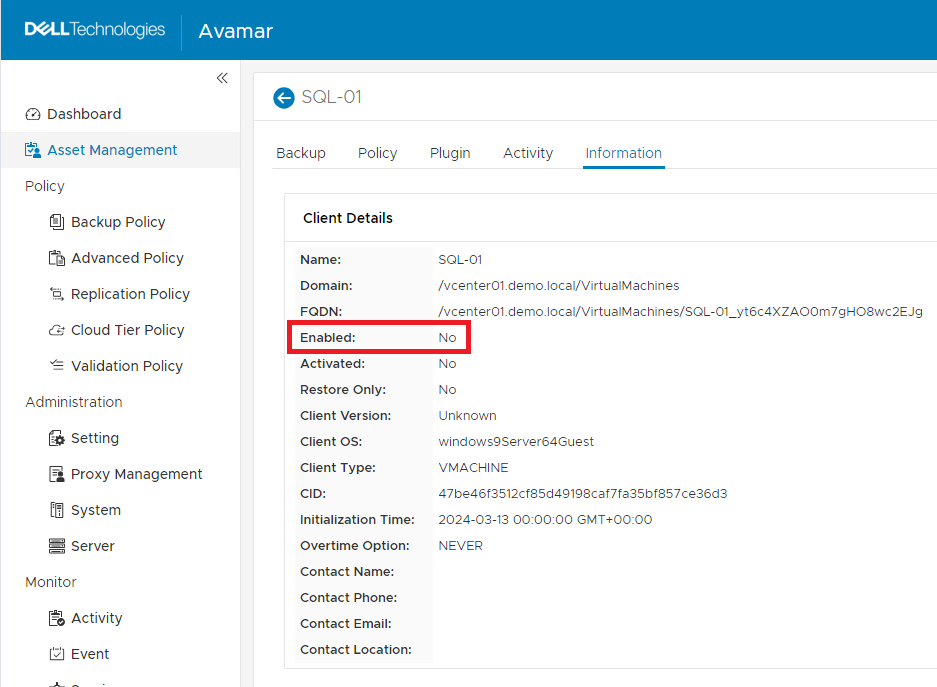
Access Avamar User Interface (AUI) > Asset Management > select the Domain > select the Client > click VIEW MORE > click Information tab.
The Enabled field shows as "No".
Cause
This behavior can be seen for some or all clients after a code upgrade or server reboot with a rollback. The root cause is unknown at this moment.
Resolution
There are three methods to enable the clients:
- Using AUI: Best for enabling a few clients.
- Using the Avamar Administrator Console: Ideal for enabling multiple clients across different domains.
- Updating the Management Console Database (mcdb): Suitable for enabling all clients at once.
1. Using AUI:
- Access Avamar User Interface (AUI)
- Go to Asset Management
- Select the Domain
- Select the Client
- Click the three dots in MORE ACTIONS
- Click Edit Client
- Click the Enabled checkbox

- Click UPDATE
- The Enabled column shows the client as "true"

2. Using the Avamar Administrator Console
- Launch the Avamar Administrator console
- Go to Policy
- In the Policy Management tab, select the domain to enable the clients. In the following example, Lab_Clients is selected.
- There are five clients in this domain. The "Backups Disabled" column shows as "Yes", it means that the clients are disabled.

- Select one client and Ctrl + A to select all clients.

- To select more than one client (not all), select one client and with the Ctrl key pressed, select the other clients

- Click the Edit button
- The following warning appears:

- Click OK to continue:
The "Edit Multiple Clients" window appears. Change the value of "Disable all backups" from Yes to No. Change the drop-down menu from "Don't change" to "Apply change":

- Click OK
- Click the refresh button in the upper right corner
- The "Backups Disabled" column shows as "No", it means that the clients are enabled.

3. Updating the Management Console Database (mcdb)
- This procedure requires a stop and start of Management Console Service (MCS). Ensure that there is a valid MCS flush and a recent checkpoint. The Avamar server must be idle.
- Stop the MCS service and keep the mcdb online:
mcserver.sh --stop && dbmaint.sh --db=on mcdb- Connect to mcdb:
psql -d mcdb -p 5555- Run the following command. The command enables all clients except the clients under MC_RETIRED and MC_SYSTEM domain:
update clients set enabled='t' where descr not like '%MC_SYSTEM%' and descr not like '%MC_RETIRED%';- Exit the mcdb
\qStart the MCS and Backup Scheduler services.
mcserver.sh --start && dpnctl start sched- Confirm if the clients are enabled.
Affected Products
Avamar Client, Avamar ServerArticle Properties
Article Number: 000243306
Article Type: Solution
Last Modified: 16 Apr 2025
Version: 2
Find answers to your questions from other Dell users
Support Services
Check if your device is covered by Support Services.