$28.99
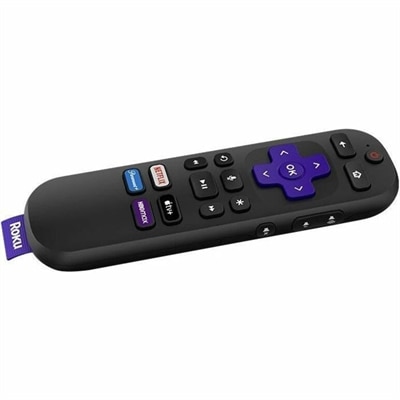
A voice-enabled remote controls compatible TVs, players and audio devices with volume and app shortcuts.
Enhance your work and entertainment setup with device controls designed to streamline your digital experience. Whether you're looking to optimize productivity at your desk or create a more comfortable environment for gaming and media, device controls offer intuitive solutions for managing your technology. Explore options that help you connect, configure, and customize your devices with ease, ensuring seamless interaction every step of the way. Discover how device controls can bring convenience and efficiency to your everyday routine.
A voice-enabled remote controls compatible TVs, players and audio devices with volume and app shortcuts.
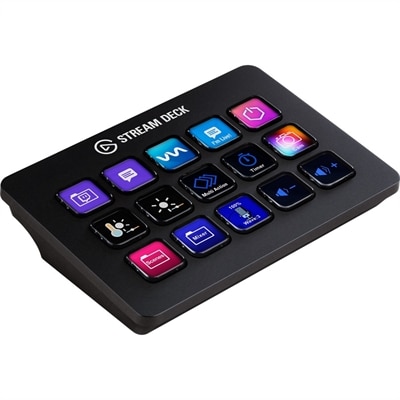
A customizable control pad with 15 LCD keys, programmable actions, and removable black or white faceplates.
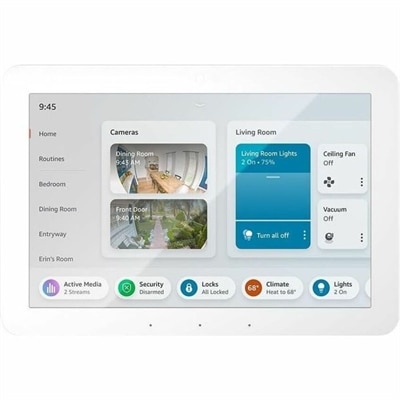
A customizable home control panel with Alexa, Wi-Fi, Zigbee, Bluetooth, Thread, Matter, Sidewalk, and USB connectivity.
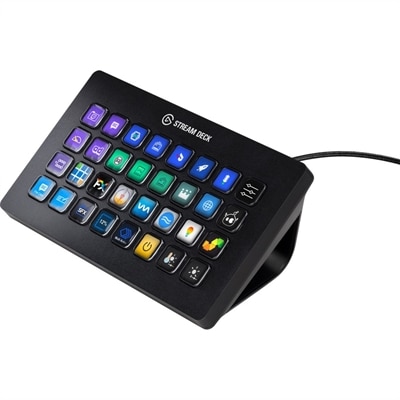
A customizable streaming control pad with 32 LCD keys, dynamic icons, tactile commands, and workflow integrations.
Device controls are the physical accessories and on-screen interfaces that let people direct a computer, adjust its settings, and interact with connected devices. A keyboard shortcut that mutes a microphone, a mouse button that moves between windows, and a remote that advances a presentation all serve the same purpose: putting a useful action within easy reach. In some mobile interfaces, device controls also refer to a panel for managing compatible connected devices through quick settings or a lock screen. That feature is distinct from a physical control accessory, and its functions depend on the operating system, supported software, permissions, and connected equipment. For laptops, desktops, and monitors, the most useful controls often bring everyday tasks closer to the person performing them. During a video meeting, a clearly marked mute button can be easier to locate than a small icon tucked behind another window. At a desk used for photo editing, a dial or programmable button may make repeated adjustments more comfortable, provided the application supports that input. For someone moving between spreadsheets, documents, and browser tabs, familiar key placement and predictable pointer movement can matter more than a large number of extra functions. These accessories suit home offices, shared workspaces, study areas, creative desks, and gaming setups, although the right design depends on the activity rather than the setting alone. Basic controls favor straightforward operation, while configurable options can support shortcuts and application-specific commands. A satisfying setup does not need to be complicated: readable labels, responsive inputs, and controls positioned where hands naturally rest can make a noticeable difference throughout the day. Physical controls also provide tactile reference points, such as the edge of a key or the movement of a wheel, that on-screen buttons cannot always reproduce. Together, hardware and software controls shape how easily someone can move from an intention—lowering audio, selecting text, or changing a display setting—to the action itself.
Compatibility and physical fit determine whether a device control accessory becomes a natural part of a workspace or an extra object to work around. Connection type is an important starting point. A wired accessory needs an appropriate port and enough cable length to reach comfortably without pulling across the desk. A wireless accessory may use a receiver or a supported wireless connection, with battery maintenance and pairing requirements that vary by design. A connector that physically fits does not necessarily guarantee access to every function; programmable inputs, gesture support, and advanced adjustments may require compatible software or a particular operating system. This distinction matters when an accessory will move between a work laptop and a personal desktop, especially if workplace policies restrict software installation. Physical dimensions deserve equal attention. A wide keyboard can leave less room for a mouse on a narrow desk, while a compact layout may place frequently used commands behind additional key combinations. Mouse shape, button reach, handedness, and the force needed to activate an input influence comfort, particularly during repetitive tasks. Someone who works at a kitchen table may value equipment that packs away easily, whereas a dedicated workstation can accommodate a larger layout with separate controls. Materials contribute to that experience without telling the whole story. Textured plastics can provide grip, metal components can add rigidity or weight, and soft-touch surfaces can change how an accessory feels during extended use. None of those characteristics alone guarantees durability or comfort. Stable feet, secure cable connections, legible markings, and consistent button response are practical details worth considering alongside the outer finish. For broader context on the settings and oversight associated with connected equipment, Device Management relates to how devices are configured and maintained, rather than simply how a single command is entered. The distinction is useful in shared spaces, where an easy-to-reach control should still work within the appropriate account permissions. Custom shortcuts and visible controls can improve convenience, but sensitive actions may appropriately remain behind authentication.
Intended use also influences which details remain valuable after the first few days. For presentations, a control that can be identified by touch allows the speaker to keep attention on the room instead of looking down between slides. For detailed desk work, precise pointer movement and a predictable scroll wheel can help with selecting small elements or navigating a lengthy document. In creative applications, supported custom inputs can reduce repeated trips through menus, though the benefit depends on how well the assigned commands match an established routine. Gaming places different demands on button placement and responsiveness, while general household use may favor clear labeling and settings that several people can understand without explanation. Accessibility needs can make input force, control spacing, tactile feedback, and compatibility with assistive features especially important. An alternative control method is most useful when it suits the individual’s range of motion and preferred way of working, not merely when it offers more buttons. Care and durability deserve the same practical attention. Dust and crumbs can collect around moving parts, and tightly wrapped cables can develop stress near their connectors. Routine care generally involves disconnecting or powering down an accessory as appropriate, following its cleaning instructions, and avoiding excess moisture around openings. Surface treatments and printed markings can react differently to cleaning agents, so a method suitable for a desk may not be suitable for the controls sitting on it. Portable accessories benefit from protection against pressure in a crowded bag, particularly where keys, wheels, or projecting connectors could be damaged. Rechargeable and replaceable-battery designs have different upkeep requirements, making the charging routine or battery replacement process part of everyday suitability. As a gift for a student, remote worker, creative hobbyist, or frequent presenter, a control accessory is most thoughtful when it matches equipment already in use and a task the recipient actually performs. A familiar layout may be more welcome than an elaborate configuration that requires substantial adjustment. Whether the goal is a quieter shared desk, more direct access to common commands, or easier interaction with a laptop and monitor, well-matched device controls support the work without continually drawing attention to themselves.
Add the products you would like to compare, and quickly determine which is best for your needs.