$69.99
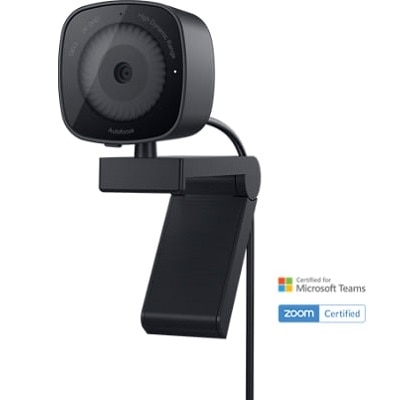
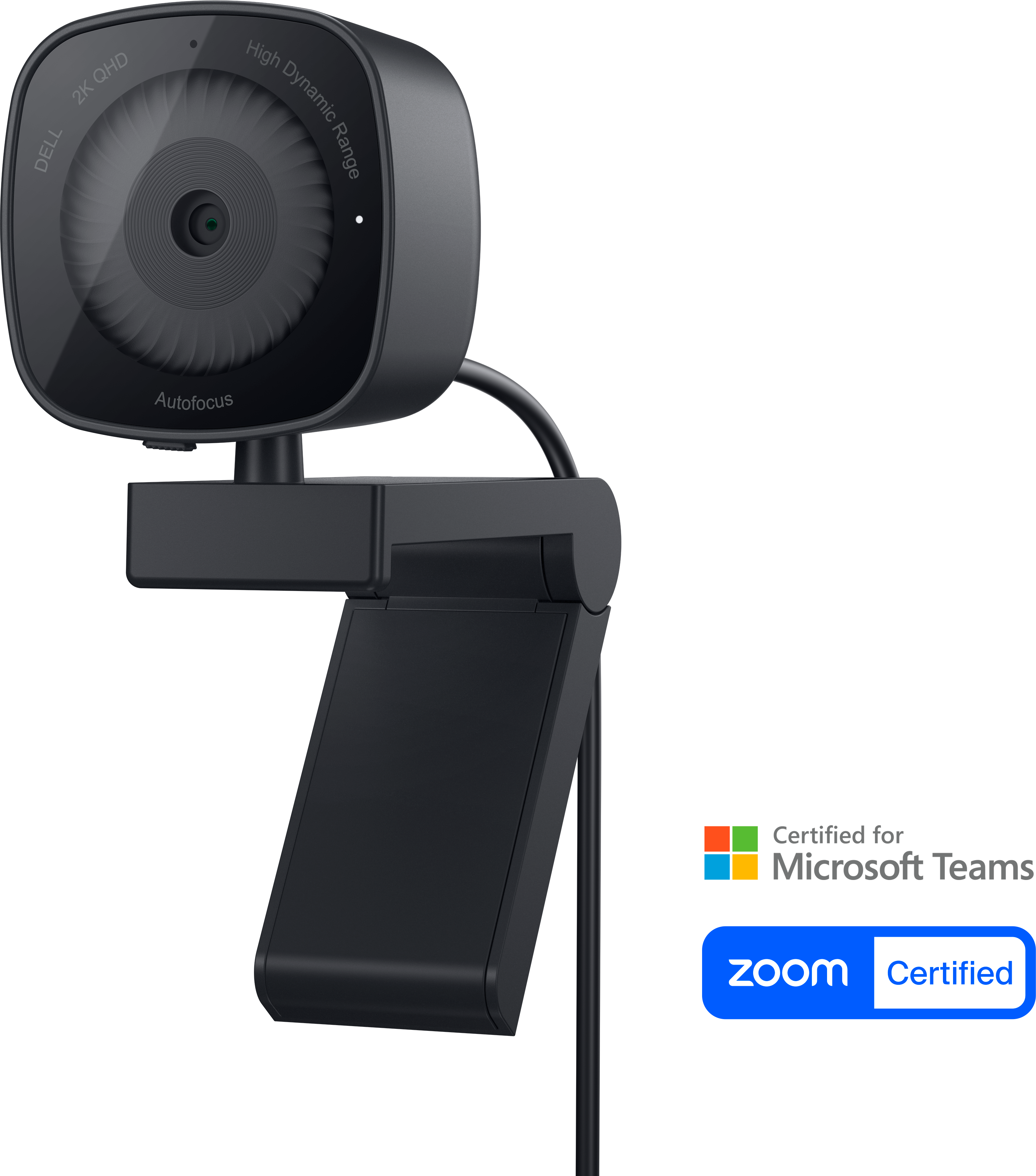
A 2K QHD webcam designed for clear, confident everyday video collaboration.
Laptop camera vs. external webcam for video interviews comes down to convenience, image quality, framing flexibility, and compatibility. Explore laptops with built-in cameras alongside external USB webcams and related accessories to find an option that fits your interview setup, whether you need a simple integrated solution or more control over camera placement.
A 2K QHD webcam designed for clear, confident everyday video collaboration.
Choosing between a laptop camera and an external webcam for video interviews often comes down to the balance between convenience and presentation quality. A built-in laptop camera is always attached, requires no additional setup, and is ready whenever an interview invitation arrives. It can be a practical choice for students, remote workers, frequent travelers, and anyone who moves between rooms or works from more than one location. For a short conversation in a well-lit space, the integrated camera may provide everything needed. However, its position can create limitations: because it sits along the upper edge of the display, it is often below eye level when the laptop rests on a desk. That low placement may produce an upward angle that emphasizes the underside of the face, while the narrow viewing area can make the frame feel cramped. Built-in cameras also tend to use small image sensors that may struggle in rooms with soft window light, overhead shadows, or evening illumination. The result can be grainy video, muted detail, washed-out highlights, or a face that appears darker than the surrounding background. An external webcam is designed to address many of these concerns. It can typically provide sharper 1080p or 4K video, more consistent detail, and improved light handling, helping facial expressions, clothing textures, and natural eye contact appear clearer on the other side of the call. Many models include autofocus, automatic light correction, and a wider field of view, which can be useful when an interview setup includes a second person, a presentation board, or a little more room around the shoulders. For people preparing for remote interviews, virtual career fairs, portfolio reviews, admissions conversations, or recurring team meetings, these differences can make the setup feel more deliberate and polished without requiring a complicated studio.
Placement is one of the most important reasons to consider an external webcam for video interviews. The camera should generally sit close to eye level, with the lens aimed straight across rather than sharply upward or downward. A webcam mounted on top of an external monitor can create a natural angle, while a laptop user can place one on a stand, riser, or stable surface near the top of the display. Raising the laptop itself can also improve posture and frame the face more naturally, though the built-in camera moves with the screen and may still lack the image quality of a dedicated device. Before choosing, consider the available desk space, the height of the display, the distance between the chair and the screen, and whether the camera will remain in one location or travel in a computer bag. A wider field of view can include more of the room, but a narrower view may help keep attention on the speaker and reduce visible distractions. Autofocus is helpful for people who may lean toward notes or hold documents up to the camera, while automatic exposure and light correction can be valuable in spaces where daylight changes throughout the day. Even the quietest room can look unprepared if a bright window sits behind the speaker, so positioning the desk with light in front of the face is often more effective than relying on camera adjustments alone. During the cooler months, when interviews may take place earlier in the morning or later in the afternoon with less natural light, a camera with stronger low-light performance can help maintain a clean, balanced image. Privacy is another practical consideration for shared homes, dorm rooms, and multipurpose workspaces. A physical shutter or cover offers a simple way to block the lens when the camera is not in use and can provide reassurance between calls. For shoppers prioritizing this feature, explore Webcams With Privacy Shutters for Video Interviews.
The right choice also depends on how often the equipment will be used and who will use it. A built-in laptop camera may suit someone who attends occasional interviews, works from changing locations, or values the lightest possible setup. An external webcam may be a better fit for a job seeker preparing for several rounds of remote interviews, a professional who spends much of the day in video meetings, a student taking online classes, or a household sharing one dedicated workspace. It can also be a thoughtful technology gift for a recent graduate, a family member beginning remote work, or anyone building a more comfortable home office during the cooler season. When comparing options, look beyond resolution alone. Check compatibility with the computer and preferred calling applications, connection type, mounting flexibility, microphone performance, privacy features, and the amount of desk space required. A high-resolution camera cannot compensate for a cluttered background, harsh backlighting, or a lens positioned far below eye level, so the best results come from matching the camera to the entire workspace. A simple, uncluttered backdrop keeps attention on the speaker; a chair positioned at a comfortable distance helps the camera frame the head and shoulders; and a few minutes spent checking the preview can reveal glare, shadows, or distracting objects before the conversation begins. For many people, the integrated camera remains an easy and capable starting point. For those who want clearer detail, more flattering placement, dependable performance in uneven lighting, and greater control over the interview frame, an external webcam can be a meaningful upgrade that supports confident communication without adding unnecessary complexity.
Add the products you would like to compare, and quickly determine which is best for your needs.