$16.99
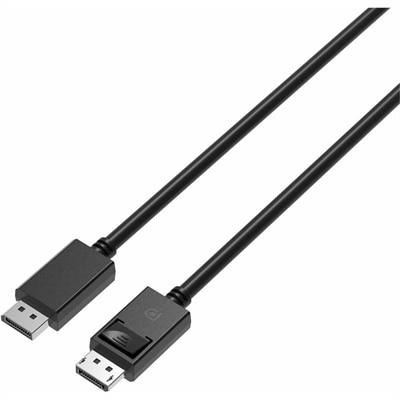
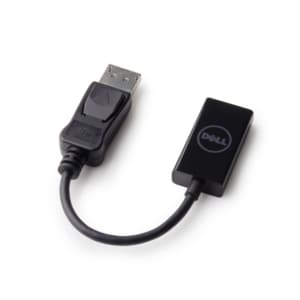
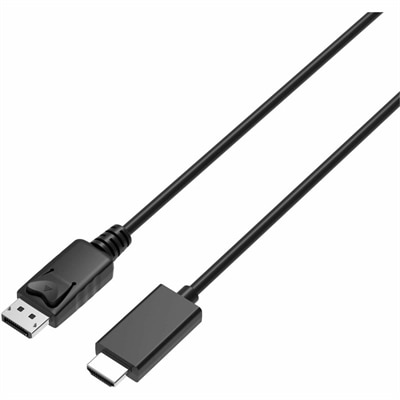
A 2-meter DisplayPort-to-HDMI cable delivering 4K resolution at 60Hz with backward-compatible HDMI support and plug-and-play connectivity.
Unlock the full potential of your home entertainment and office setups with our comprehensive range of video connectivity solutions. Whether you're looking to enhance your streaming experience, connect multiple devices seamlessly, or ensure high-quality video output, our selection caters to all your needs. From HDMI cables and adapters to advanced wireless options, explore the possibilities that video connectivity brings to both personal and professional environments. Elevate your viewing experience and stay connected with the latest tools designed for superior performance and reliability.
A 2-meter DisplayPort-to-HDMI cable delivering 4K resolution at 60Hz with backward-compatible HDMI support and plug-and-play connectivity.
An 80Gbps DisplayPort cable supporting 4K at 240Hz, 8K at 60Hz, HDR, and locking clips.
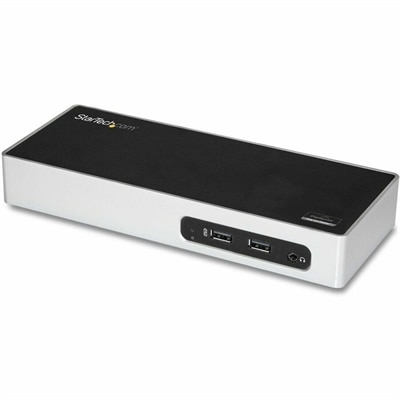
A USB 3.0 docking station with dual-monitor HDMI, DVI/VGA, six USB-A ports, Gigabit Ethernet, and audio.
A genuine OEM replacement cable designed for reliable display connectivity and compatibility with select systems.
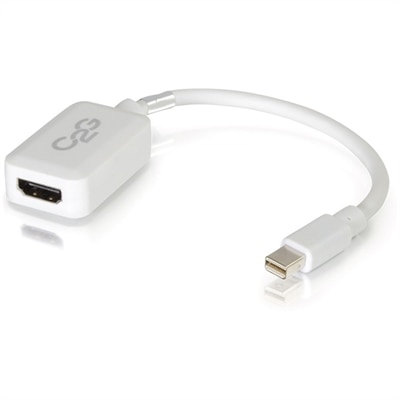
A white adapter converting Mini DisplayPort or Thunderbolt 2 to HDMI audio/video at up to 1080p.
A DisplayPort-to-HDMI adapter delivering seamless 4K resolution at 60 Hz for compatible computers and monitors.
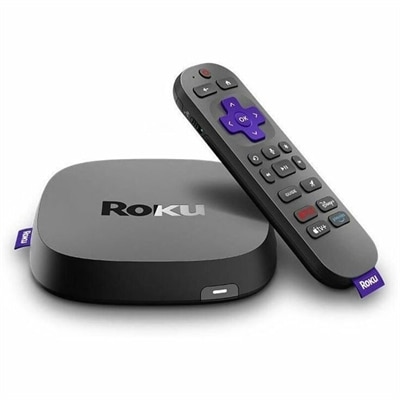
A streaming player delivering 4K HDR10+, Dolby Vision video, Dolby Atmos audio, and Wi-Fi 6 connectivity.
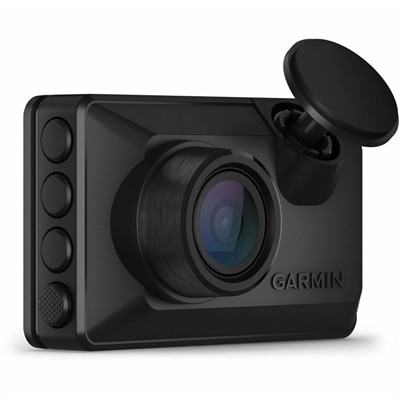
A compact voice-controlled dash camera records crisp 1080p video with a wide 140-degree field of view.
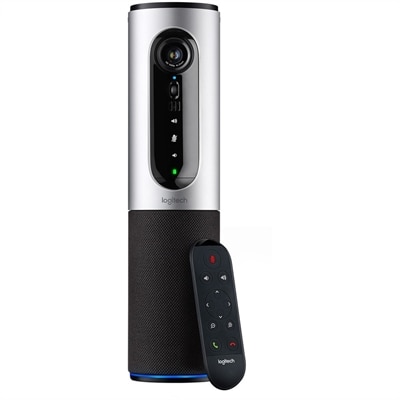
A silver conference camera with 1080p video, 360-degree audio, wireless screen mirroring, and USB plug-and-play connectivity.
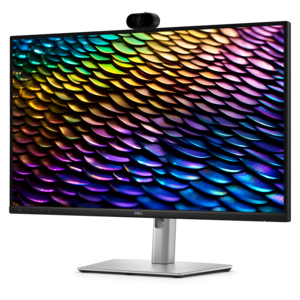
A QHD IPS conferencing monitor with integrated webcam, speakers, microphone, and USB-C connectivity for productive collaboration.
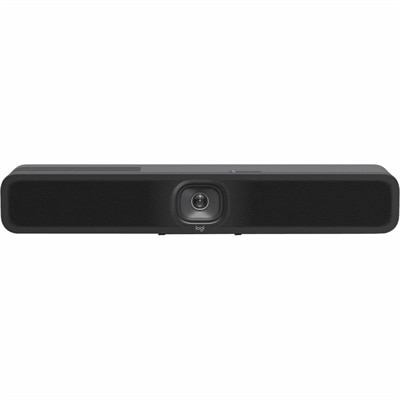
An AI-powered USB conference camera with intelligent audio, video features, flexible mounting, and BYOD compatibility.
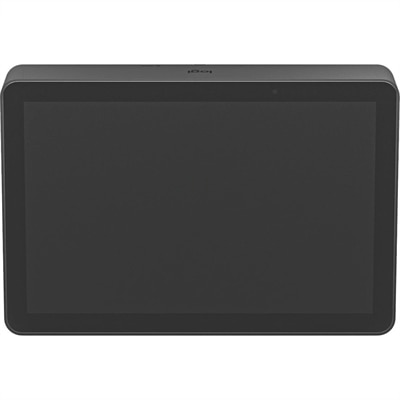
A graphite PoE touch controller offering one-touch meeting joining and secure cable retention for conferencing rooms.
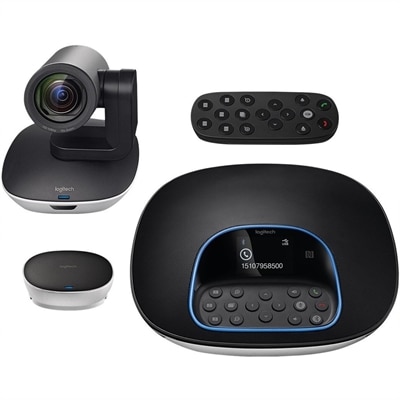
A plug-and-play conferencing system delivering 1080p video, 90-degree viewing, 10X zoom, and clear audio.
Video connectivity brings the picture and sound from one device to another through the right combination of ports, cables, adapters and signal standards. In everyday use, that may mean connecting a laptop to a monitor for a larger workspace, sending a presentation from a desktop computer to a projector, or linking a game console with a television for a more immersive experience. The connection you choose affects more than whether an image appears on screen. It can influence resolution, refresh rate, color depth, audio support, display stability and the features available across the entire setup. HDMI is widely used for televisions, monitors, projectors and game systems because it can carry high-definition or ultra-high-definition video together with multichannel audio through one cable. DisplayPort is common with computers and monitors, particularly when a higher refresh rate, greater resolution or multiple-display arrangement is important. Older equipment may use DVI, which carries digital video but generally does not include embedded audio, or VGA, an analog format that remains useful when working with legacy computers and projectors. For older displays and equipment, VGA Connections may help identify the appropriate connection type before you choose an adapter or cable.
Start by checking the ports on both devices rather than relying on appearance alone. A cable must match the physical connector at each end, but compatibility also depends on what those ports support. An HDMI connection may handle different levels of resolution and refresh rate depending on the devices and cable specification. DisplayPort connections can vary in their support for high-resolution output, high refresh rates and multi-monitor features. DVI and VGA may be suitable for a basic office display or an older projector, but they can be limiting when you need sharp text, modern color formats, audio transmission or smooth motion. Computers with USB-C ports require particular attention because the same connector can support charging, data transfer, video output or only some of these functions. An adapter can change the shape of a connector, but it cannot always add capabilities that the source device does not provide. Before purchasing, compare the output capabilities of the computer or media source with the input requirements of the display, then confirm the desired resolution, refresh rate and audio path. This small amount of planning can prevent the familiar frustration of arriving at a meeting, plugging everything in and finding a blank screen or silent presentation. Cable length matters as well. A short cable can keep a desk tidy and reduce clutter, while a longer run may be necessary for a wall-mounted display or conference-room setup. As distance increases, signal quality and cable construction become more important, especially with high-resolution video. Avoid sharply bending cables, placing them under heavy furniture or routing them beside sources of electrical interference, and leave enough slack to move a laptop without pulling on the connector.
Video connectivity accessories are useful for a wide range of people. Students can use them to connect a laptop to a larger display for research, creative projects or remote learning. Home-office workers may use a second monitor to keep a video meeting, calendar or reference document visible while completing other tasks. Designers, photographers, video editors and gamers often pay closer attention to refresh rate, color support and resolution because the display needs to keep pace with detailed work or fast-moving scenes. Families may use a cable or adapter to share photos and videos on a television, while presenters can keep a compact connection accessory in a laptop bag for unfamiliar meeting rooms. These items can also make practical gifts for someone setting up a first desk, refreshing a home entertainment area or organizing a more flexible study space. A thoughtfully chosen cable is especially helpful when it solves a specific problem: connecting a newer computer to an existing monitor, adding a display to a compact workspace or replacing a worn cable that has begun to loosen at the port. Look for secure connectors, durable strain relief and a length suited to the room instead of choosing based only on appearance. If audio is important, verify that the selected connection carries sound or plan for a separate audio path. If you are using an adapter, check whether it supports one-way conversion or two-way use, whether it requires external power and whether it can deliver the resolution and refresh rate you expect. A reliable connection should fit naturally into the way you work: one clean path from source to display, a stable image when the desk shifts or the room gets busy, and enough flexibility for future equipment changes. With the right match between ports, standards and performance requirements, video connectivity can turn a collection of separate devices into a comfortable, capable workspace or entertainment setup.
Add the products you would like to compare, and quickly determine which is best for your needs.