$39.99
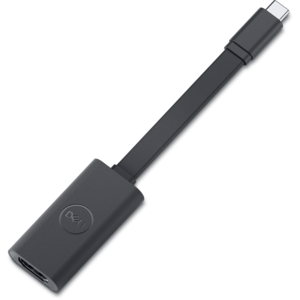
A convenient adapter connecting USB-C video output to HDMI 2.1 displays for high-quality viewing.
Find video output devices to connect your computer to a monitor or other display. Compare options by connection type, supported resolution, and compatibility with your computer and display to choose the right fit for your setup.
A convenient adapter connecting USB-C video output to HDMI 2.1 displays for high-quality viewing.
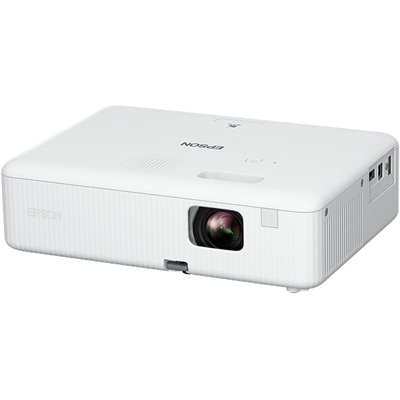
A portable WXGA 3LCD projector delivering 3,000 lumens, 378-inch images, HDMI connectivity, and easy keystone correction.
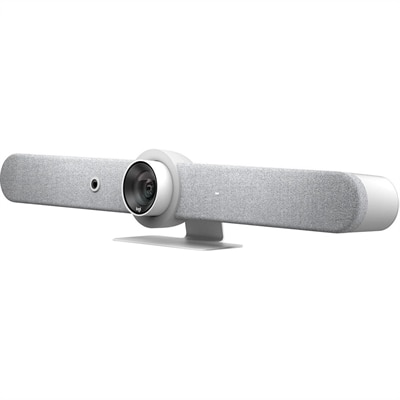
An all-in-one white video bar delivering automated PTZ, brilliant optics, and high-performance audio for medium rooms.
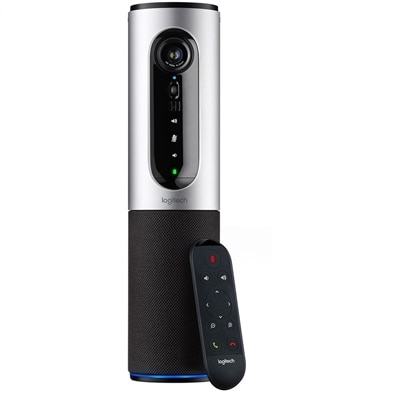
A silver conference camera with 1080p video, 360-degree audio, wireless screen mirroring, and USB plug-and-play connectivity.
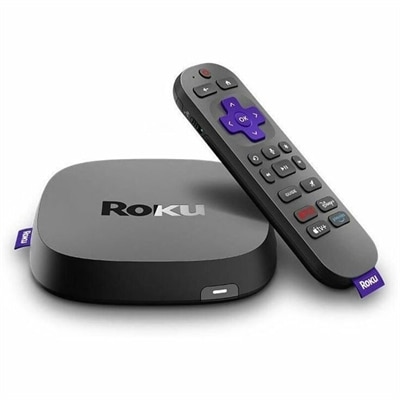
A streaming player delivering 4K HDR10+, Dolby Vision video, Dolby Atmos audio, and Wi-Fi 6 connectivity.
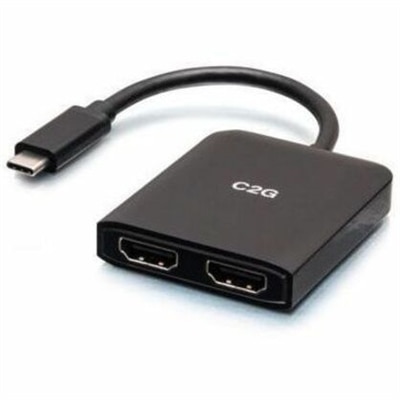
A compact USB-C hub supporting dual HDMI displays, 4K at 60Hz, mirroring, extending, and spanning.
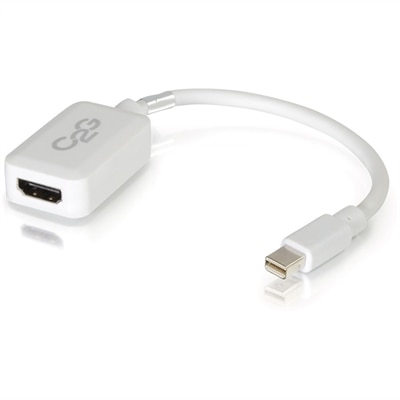
A white adapter converting Mini DisplayPort or Thunderbolt 2 to HDMI audio/video at up to 1080p.
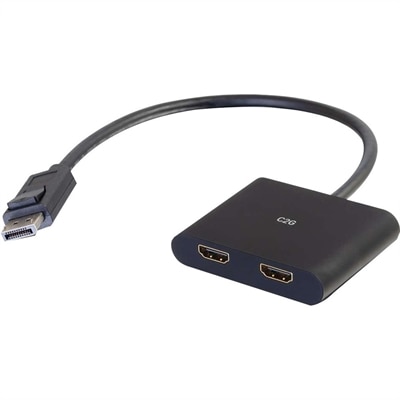
A DisplayPort 1.2 MST hub supporting dual HDMI displays, 4K resolution, mirroring, extending, and spanning.
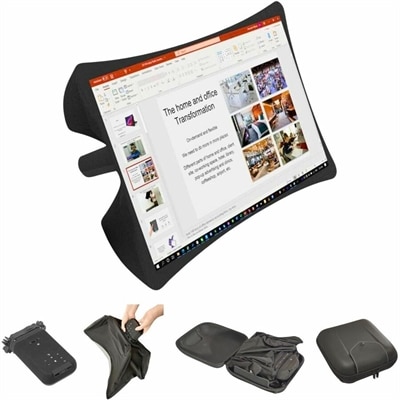
A foldable, rugged projection system with a nanomaterial screen, built-in battery, HDMI and USB-C connectivity.
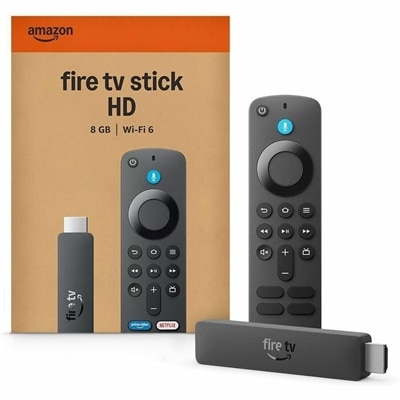
A wireless HD streaming media player with Full HD video, Wi-Fi 6, Alexa+, and 8GB storage.
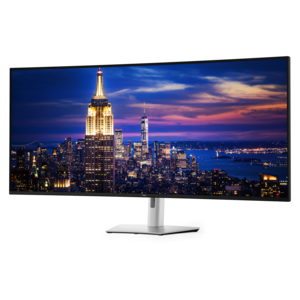
Video output devices turn visual signals from a computer or another source into images that people can see. Monitors and projectors are common examples: a monitor displays an image on its own screen, while a projector casts an image onto a separate surface. These devices make everything from a document on a laptop to a detailed illustration or an evening movie visible at a useful size. Some also include speakers or audio outputs, although sound capabilities vary and are separate from the display’s ability to show video. For a home office, an external monitor can give a spreadsheet room to breathe while keeping a video meeting visible beside it. In a creative workspace, a larger display can make photo adjustments, drawing tools, and editing timelines easier to view together. Portable displays suit people who move between workspaces, while projection can create a larger shared image for presentations or entertainment. Screen size, resolution, and viewing distance shape how each setup feels in everyday use. Resolution describes the number of pixels in the image; a higher pixel count can reveal finer detail, but readable text also depends on screen size and scaling settings. A large screen with limited resolution may make individual pixels more noticeable at close range, while a smaller, high-resolution screen may need larger interface settings for comfortable reading. Refresh rate describes how often the display updates its image, and pixel response time affects how quickly pixels change between states. Both matter for moving content, especially games and fast scrolling, but they describe different characteristics. Color accuracy, contrast, brightness, and viewing angles also influence the picture. For photo work, consistent color may matter more than an especially high refresh rate. For shared viewing, an image that remains clear from an angled seat can be more useful than specifications aimed primarily at a person sitting directly in front. The most suitable balance depends on the content, the room, and the time spent looking at the screen.
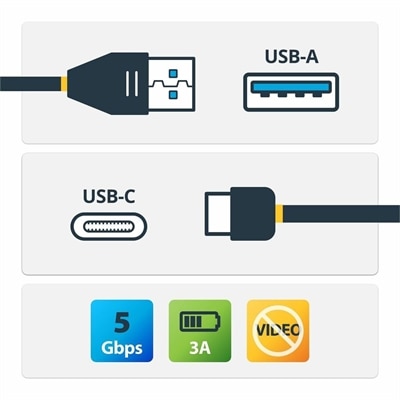
A complete setup pairs video output devices with compatible Video Connectivity hardware so that the source can send an appropriate signal to the screen. HDMI, DisplayPort, and USB-C are common connection types, but a matching connector alone does not establish every capability. Supported resolution, refresh rate, color settings, and audio transmission depend on the computer, display, cable, and any adapter or dock between them. USB-C is especially important to check carefully because not every USB-C port supports video output. Where supported, a single cable may carry video, data, and power, reducing the number of separate connections across a desk. Charging performance still depends on the power supported by the connected equipment and cable; a display connection does not automatically provide enough power for every laptop. Adapters can connect certain combinations of ports, but many work in only one direction, and some conversions require active electronics. A connection intended to send video from a computer to a monitor should not be assumed to work in reverse. Multiple-screen arrangements introduce additional considerations, including how many external displays the computer supports and which resolutions can run simultaneously. A dock adds convenient connection points, but it cannot bypass the computer’s underlying display limits. Cable length and routing matter in practical ways, too. A short, direct cable path can keep a compact desk tidy, while a presentation space may need a longer run selected for the required signal. Cables should reach without pulling against ports, and connectors should remain accessible when a screen is raised, rotated, or moved on an adjustable arm. For projectors, placement also affects image size and clarity: throw distance, room brightness, and the projection surface all influence the result. A bright room with uncovered windows creates different demands from a dim space used for evening viewing. Built-in speakers may cover basic listening, while separate audio equipment can be more appropriate when voices need to carry across a room. Together, these details determine whether the whole setup supports its intended purpose comfortably.
Physical design makes a noticeable difference long after the initial connection. Many displays combine glass viewing surfaces with plastic housings and metal components in the stand or frame, balancing weight, rigidity, and everyday handling. A sturdy base helps a monitor remain steady when typing shakes a lightweight desk, while height, tilt, swivel, and pivot adjustments can make it easier to place the screen comfortably. A display arm can free desk space, provided the mounting pattern, screen weight, and arm capacity are compatible. The usable work surface matters as much as the screen’s diagonal measurement: a deep stand can crowd a shallow desk, and two wide displays can leave little room for a notebook or keyboard. Matte screen finishes can soften distracting reflections, although strong light directly behind the viewer can still interfere with visibility. Portable designs benefit from a protective cover and a stable support, particularly when carried between a kitchen table, an office, and a shared workspace. Durability also depends on treatment. Pressure against a display panel, repeated strain on a connector, or lifting a monitor by its screen can cause damage even when the housing feels solid. Routine care generally means turning the device off before cleaning, using a soft microfiber cloth, and following the manufacturer’s directions for any cleaning solution. Liquid should not be sprayed directly onto a screen, and ventilation openings need enough surrounding space for airflow. Projectors may have additional maintenance requirements, such as filter cleaning or light-source servicing, depending on their design. These practical details help distinguish a screen suited to frequent travel from one intended to stay on a desk for years. Students may appreciate extra room for research and assignments, remote workers may value an orderly workspace, and hobby photographers may prioritize faithful color and fine detail. As a gift, a video output device is most useful when its size, connections, and intended purpose match the recipient’s existing equipment and space. A comfortable fit brings more lasting value than an impressive specification that rarely benefits the way the screen is actually used.
Add the products you would like to compare, and quickly determine which is best for your needs.