SourceOne: Web search restore window fails to display mailbox folders on second attempt after initially displaying folder list for selection
Summary: SourceOne Web Search Restore window fail to load folder list due to timeout errors.
This article applies to
This article does not apply to
This article is not tied to any specific product.
Not all product versions are identified in this article.
Symptoms
If a user is using SourceOne Web Search and selects "Restore" button to restore selected messages to a Microsoft Exchange mailbox folder, in initial attempt restore window will display folder list, subsequent attempts to select "Restore" button will fail to successfully load mailbox folders in the restore window.
Following is example of how the restore window would look like:
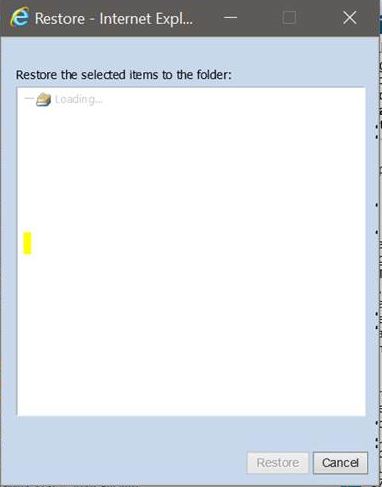
If developer tools within browsers will be used, error messages similar to the following can be found:
Following is example of how the restore window would look like:
If developer tools within browsers will be used, error messages similar to the following can be found:
Navigated to http://localhost/SEARCH/Restore.aspx
favicon.ico:1 GET http://localhost/favicon.ico 404 (Not Found)
ScriptResource.axd?d=78G0Omd0Kv__hpA1m1w13E5yK4XDO9aHSxVcfebeXUMF-eee66VovRG1HcTLFM-bbG2N5Qmv2-XjKMXO-f65ZVHBtcrp4C7DzelHUZZ7c61HePGWecVri7pk-kkp-Xrf1ytMoxWrcOO58uHi-vqbBXBkr1-hHhCRsBNTkUZZMWCfzXRQLmDkvvRCH-thmuva0&t=ffffffffecf19baa:5 Uncaught Sys.WebForms.PageRequestManagerTimeoutException: Sys.WebForms.PageRequestManagerTimeoutException: The server request timed out.
Cause
This problem is caused by software defect cited under SDR 63291.
While trying to get folder listing displayed in subsequent attempts, in some environments time taken to get complete response to the programmatic calls may take longer than hard coded limit of 90 seconds set within Restore.aspx file.
While trying to get folder listing displayed in subsequent attempts, in some environments time taken to get complete response to the programmatic calls may take longer than hard coded limit of 90 seconds set within Restore.aspx file.
Resolution
This issue will be resolved in patches or Service Pack versions of Dell EMC SourceOne Email Management post 7.2.SP10 HF3 (7.2.10.0076). Dell EMC SourceOne Patch and Service Pack kits are available for download via https://support.dell.com.
There is a hotfix available for customers running EMC SourceOne Email Management 7.2.SP9 and 7.2.SP10. Please contact EMC Technical Support, share support note article and SDR number (63291) with your support representative.
Every site may have different reasons for programmatic calls to take longer period of time. Following steps can be followed to increase timeout, allowing folder list to be displayed for selection in case root cause of the delay cannot be identified:
After making the change, save and close web.config file.
Note: Value is in milliseconds. Value set to 180000 allows 180 seconds timeout. It can be changed based on the customer environments e.g. for setting 2 minutes timeout value will be 120000.
There is a hotfix available for customers running EMC SourceOne Email Management 7.2.SP9 and 7.2.SP10. Please contact EMC Technical Support, share support note article and SDR number (63291) with your support representative.
Every site may have different reasons for programmatic calls to take longer period of time. Following steps can be followed to increase timeout, allowing folder list to be displayed for selection in case root cause of the delay cannot be identified:
- Obtain library file from Dell EMC Support team or make sure you are on SourceOne Email Management version containing the fix. If you obtained library file from Dell EMC support team, take backup of existing binary and install new binary provided to you under SourceOne Web Search installation folder containing library file e.g. "E:\Program Files (x86)\EMC SourceOne\Search\WebApp\bin".
- Go to SourceOne Web Search installation directory containing web.config file e.g. "E:\Program Files (x86)\EMC SourceOne\Search\WebApp".
- Make copy of web.config file and save it to another location as backup of original configuration file.
- Edit web.config file and within <appSettings> </appSettings> section add following line:
<add key="SearchWebServiceTimeoutSeconds" value="180000" />
After making the change, save and close web.config file.
Note: Value is in milliseconds. Value set to 180000 allows 180 seconds timeout. It can be changed based on the customer environments e.g. for setting 2 minutes timeout value will be 120000.
- Login to SourceOne Web Search and test Restore operation.
Additional Information
Issue would be found on SourceOne Web Search servers where Microsoft Outlook 2013, 2016 or 2019 is installed. On SourceOne Web Search servers, if Outlook 2010 SP2 is installed, issue gets resolved. Latest updates for Microsoft Outlook version 2013, 2016 or 2019, on the time of writing this KB article (3rd May, 2021) does not resolve the issue.
Affected Products
SourceOne, SourceOne, SourceOne Archiving, SourceOne Email ManagementArticle Properties
Article Number: 000186076
Article Type: Solution
Last Modified: 02 Sept 2025
Version: 9
Find answers to your questions from other Dell users
Support Services
Check if your device is covered by Support Services.