vProxy: NVP VM Backups Fails with: "Unable to open session to target device \"DD_HOSTNAME\."""
Summary: Upgrading to the latest vProxy version causes backups to fail with Error: "Failure," "Description": "Backup has failed: Unable to open session to target device \"DD_HOSTNAME\.""
This article applies to
This article does not apply to
This article is not tied to any specific product.
Not all product versions are identified in this article.
Symptoms
NetWorker VMware Protection (NVP) VM backups fail.
The vProxy's /opt/emc/vproxy/runtime/logs/recycle/vbackupd/DATE/vbackupd-session.log
2025-01-15T14:45:46Z INFO: "State": "Failure",
2025-01-15T14:45:46Z INFO: "Description": "Backup has failed: Backup has FAILED. Unable to open session to target device \"DD_HOSTNAME\".",
2025-01-15T14:45:46Z INFO: "Progress": 0,
2025-01-15T14:45:46Z INFO: "Error": {
2025-01-15T14:45:46Z INFO: "Text": "Backup has FAILED. Unable to open session to target device \"DD_HOSTNAME\".",
The vProxy's /opt/emc/vproxy/runtime/logs/vbackupd/vbackupd-boost.log
2025-01-15T02:05:52Z ERROR: [ 5920:140027409463040] ddp_connect_with_config_internal() failed, Hostname: DD_HOSTNAME, Err: 5040-RPC procedure=SYSTEM_INFO failed, Can't connect to NFS server retval=5
2025-01-15T02:05:52Z ERROR: [ 5920:140027409463040] ddp_connect_with_config() failed, Hostname: DD_HOSTNAME, Err: 5040-RPC procedure=SYSTEM_INFO failed, Can't connect to NFS server retval=5
Cause
The root cause of the backup failure is the incorrect configuration of the vProxy's /etc/hosts file.
For example, the Data Domain management IP 10.130.102.176 was added to the /etc/hosts file on the vProxy, which caused the backup failure.
The environment has a custom Interface Group configured in the Data Domain UI under DD boost - IP Network.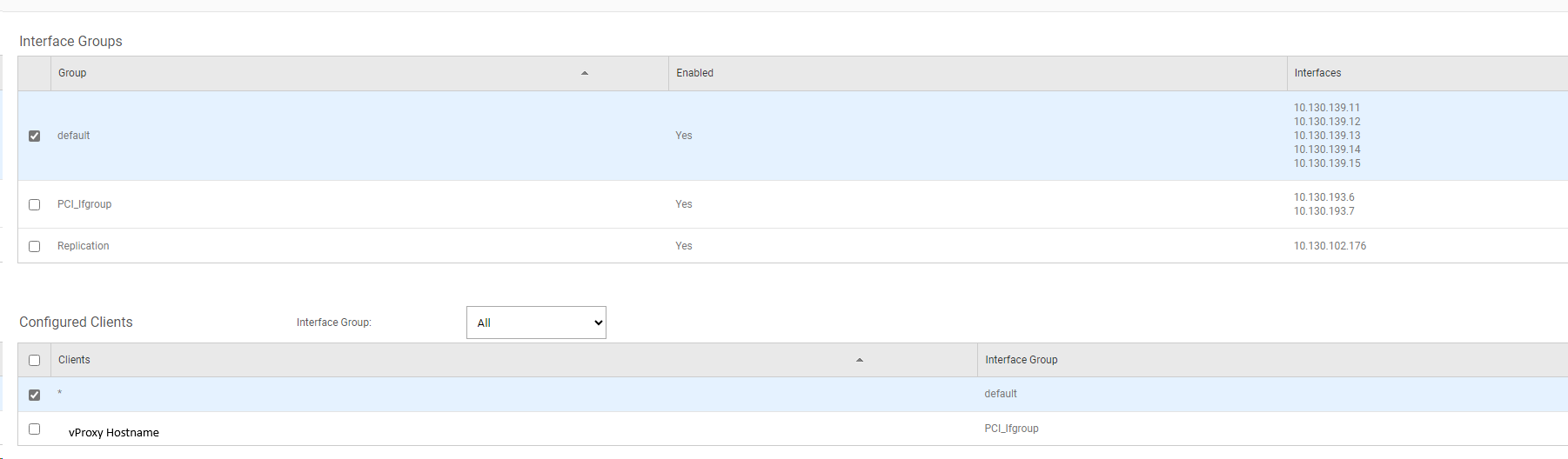
The vProxy host is set to use a different interface group on the Data Domain.
Resolution
To resolve the backup failure issue, follow these steps:
- Log in to the DD user interface.
- Go to Protocols -> DD boost -> IP Network.
- Check the Configured Clients field to confirm which Interface Group the vProxy is configured to use.
- Check the Interface Groups field to see which IP addresses are assigned to the Interface Group.
- Update the vProxy's /etc/hosts file configuration to use the correct IP.
- Perform a VM backup and verify that the backup is successful.
NOTE: It is recommended to use the correct Interface Group IP to avoid any connectivity issues with the Data Domain.
Article Properties
Article Number: 000272927
Article Type: Solution
Last Modified: 16 Jan 2025
Version: 1
Find answers to your questions from other Dell users
Support Services
Check if your device is covered by Support Services.