Dell Optimizer Displays the Message "Dell Optimizer is not running at this time."
Summary: This article provides information about the messages that display upon starting Dell Optimizer.
This article applies to
This article does not apply to
This article is not tied to any specific product.
Not all product versions are identified in this article.
Symptoms
The Dell Optimizer user interface displays a following message, followed by a second message:
- Please wait while services are loading. Dell Optimizer will be available shortly (Figure 1).
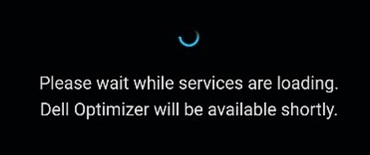
Figure 1. The first message displays upon starting Dell Optimizer - Dell Optimizer is not running at this time. Please close and restart the application later (Figure 2).
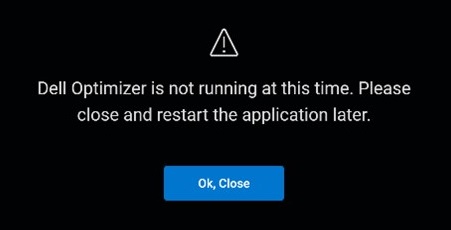
Figure 2. The second message displays upon starting Dell Optimizer
Closing the application and restarting the application later results in the same behavior.
Affected Products:
- Dell Optimizer
Cause
Dell Optimizer 4.0 and later share components with other Dell applications, such as SupportAssist.
In some cases, if these other applications are uninstalled, the shared components may be removed resulting in Dell Optimizer not being able to function.
Resolution
Perform the following steps to resolve the issue:
- Right click on the start button and select Apps & Features.
- Uninstall Dell Core Services.
- Uninstall Dell Optimizer Core. This will also remove Dell Optimizer from the installed apps list.
- Reboot the computer.
- Install Dell Optimizer:
- Browse to https://www.dell.com/support/drivers.
- Identify your Dell computer.
- Click Download & Install SupportAssist to auto-detect your Dell computer. Follow the on-screen instructions to install Dell SupportAssist. For more information, see the Dell knowledge base article Dell SupportAssist (formerly Dell System Detect): Overview and Common Questions.
- Enter the Service Tag of the laptop and click Search.
- Or, click Browse all products and select your Dell computer from the catalog.
- Select the Operating System that is installed on the Dell computer.
- Under Category, select Application.
- Locate the latest Dell Optimizer Application.
- Click Download and save the file to your computer.
- Open File Explorer and browse to the location where the downloaded file is saved.
- Double-click the downloaded Dell Optimizer Application setup file and follow the on-screen instructions to complete the installation process.
Affected Products
Dell OptimizerArticle Properties
Article Number: 000216170
Article Type: Solution
Last Modified: 02 Aug 2023
Version: 1
Find answers to your questions from other Dell users
Support Services
Check if your device is covered by Support Services.