Goodix指紋センサー搭載のInspiron/VostroノートパソコンでWindows Hello指紋認証をセットアップできない
Summary: InspironおよびVostroノートパソコンのGoodix指紋センサー ドライバーによりWindows Hello指紋認証が機能しない問題を解決する方法について説明します。
This article applies to
This article does not apply to
This article is not tied to any specific product.
Not all product versions are identified in this article.
Symptoms
Windows Hello指紋認証が、指紋センサーを使用してセットアップできません。
Cause
原因に関する情報ではありません。
Resolution
Windows Hello指紋認証
Goodix指紋センサー ドライバーの古いバージョンでは、Windows Hello指紋認証のセットアップで正常に完了したと表示されても、セットアップ完了後に、ログイン画面に指紋認証オプションが表示されない問題が発生します。それにより、お客様は指紋認証を使用してログインすることができません。
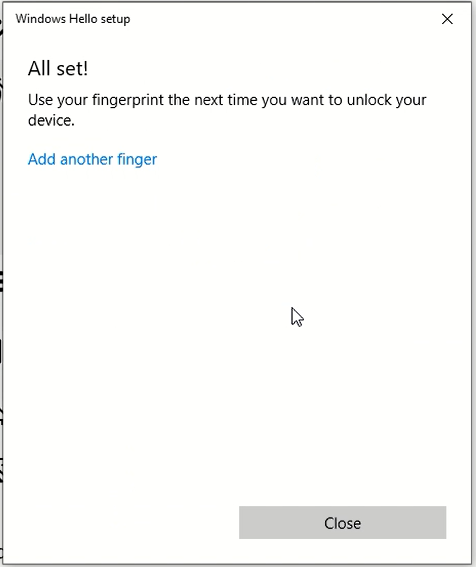
(図1:指紋センサーのセットアップ メッセージ)
対象となるシステム:
| Inspiron | Vostro |
|---|---|
| Inspiron 5490 | Vostro 5490 |
| Inspiron 5493 | Vostro 5590 |
| Inspiron 5494 | Vostro 7590 |
| Inspiron 5498 | |
| Inspiron 5584 | |
| Inspiron 5590 | |
| Inspiron 5593 | |
| Inspiron 5594 | |
| Inspiron 5598 | |
| Inspiron 7390 2-in-1 | |
| Inspiron 7391 2-in-1 | |
| Inspiron 7490 | |
| Inspiron 7590 | |
| Inspiron 7590 2-in-1 | |
| Inspiron 7591 | |
| Inspiron 7591 2-in-1 | |
| Inspiron 7791 2-in-1 |
対処方法
Goodix指紋センサー ドライバーを3.10.30.110以降にアップデートすると、問題が解決します。最新のドライバーをダウンロードしてインストールするには、次の手順に従います。
-
Dell[ドライバーおよびダウンロード]ページにアクセスします。
-
該当するシステム タイプが選択されていることを確認します。
-
オペレーティング システムを選択します
-
[カテゴリー]で、[セキュリティ]を選択します。
-
最新のGoodix指紋センサー ドライバー(A04以降)を探します。
-
[ダウンロード]をクリックして、ファイルをコンピューターに保存します
-
[エクスプローラー]を開き、ダウンロードしたファイルが保存されている場所を参照します
-
センサーのセットアップ ファイルをダブルクリックし、画面の指示に従ってインストール処理を完了します
-
このインストールを完了するには、システムを再起動する必要があります。
Affected Products
Inspiron 7390 2-in-1, Inspiron 7391 2-in-1, Inspiron 5490, Inspiron 5493, Inspiron 5494, Inspiron 5498, Inspiron 7490, Inspiron 15 5584, Inspiron 5590, Inspiron 5593, Inspiron 5594, Inspiron 5598, Inspiron 7590 2-in-1, Inspiron 7590
, Inspiron 7591 2-in-1, Inspiron 7591, Vostro 5490, Vostro 5590, Vostro 7590
...
Article Properties
Article Number: 000135146
Article Type: Solution
Last Modified: 19 Apr 2025
Version: 7
Find answers to your questions from other Dell users
Support Services
Check if your device is covered by Support Services.