带有 Goodix 指纹传感器的 Inspiron 灵越/Vostro 笔记本无法设置 Windows Hello 指纹
Summary: 有关解决 Inspiron 灵越和 Vostro 成就笔记本电脑上 Goodix 指纹驱动程序导致指纹读取器无法用于 Windows Hello 的驱动程序问题的信息。
This article applies to
This article does not apply to
This article is not tied to any specific product.
Not all product versions are identified in this article.
Symptoms
无法使用指纹传感器设置 Windows Hello 指纹。
Cause
无原因信息。
Resolution
Windows Hello 指纹
旧版本的 Goodix 指纹驱动程序中的问题可能意味着 Windows Hello 指纹设置显示设置成功,但是在设置完成后,指纹选项将不会显示在登录屏幕上。这意味着客户无法使用其指纹进行登录。
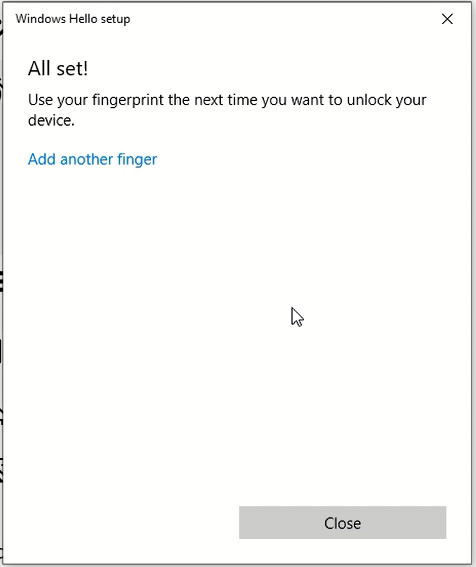
(图 1 指纹传感器设置消息)
受影响系统:
| Inspiron 灵越 | Vostro 成就 |
|---|---|
| Inspiron 灵越 5490 | Vostro 成就 5490 |
| Inspiron 灵越 5493 | Vostro 成就 5590 |
| Inspiron 灵越 5494 | Vostro 成就 7590 |
| Inspiron 灵越 5498 | |
| Inspiron 灵越 5584 | |
| Inspiron 灵越 5590 | |
| Inspiron 灵越 5593 | |
| Inspiron 灵越 5594 | |
| Inspiron 灵越 5598 | |
| Inspiron 灵越 7390 二合一电脑 | |
| Inspiron 灵越 7391 二合一电脑 | |
| Inspiron 灵越 7490 | |
| Inspiron 灵越 7590 | |
| Inspiron 灵越 7590 二合一电脑 | |
| Inspiron 灵越 7591 | |
| Inspiron 灵越 7591 二合一电脑 | |
| Inspiron 灵越 7791 二合一电脑 |
解决方案
将 Goodix 指纹传感器驱动程序更新到 3.10.30.110 或更高版本将解决此问题。要下载并安装最新的驱动程序,请执行以下操作:
-
浏览至戴尔驱动程序和下载页面:
-
确保您的 System Type 正确
-
选择 Operating System
-
在 Category 下,选择 Security
-
找到最新的 Goodix 指纹传感器驱动程序(A04 或更高版本)
-
单击 Download,将文件保存到您的计算机
-
打开文件资源管理器并浏览至保存下载文件的位置
-
双击传感器设置文件,然后按照屏幕上的说明操作,以完成安装过程
-
您将需要重新启动系统才能完成此安装
Affected Products
Inspiron 7390 2-in-1, Inspiron 7391 2-in-1, Inspiron 5490, Inspiron 5493, Inspiron 5494, Inspiron 5498, Inspiron 7490, Inspiron 15 5584, Inspiron 5590, Inspiron 5593, Inspiron 5594, Inspiron 5598, Inspiron 7590 2-in-1, Inspiron 7590
, Inspiron 7591 2-in-1, Inspiron 7591, Vostro 5490, Vostro 5590, Vostro 7590
...
Article Properties
Article Number: 000135146
Article Type: Solution
Last Modified: 19 Apr 2025
Version: 7
Find answers to your questions from other Dell users
Support Services
Check if your device is covered by Support Services.