How to Move the SQL Database for Dell Security Management Server to a Different SQL Server
Summary: This article covers how to move the Dell Security Management Server (formerly Dell Data Protection | Enterprise Edition Server) structured query language (SQL) database to another SQL Server. ...
This article applies to
This article does not apply to
This article is not tied to any specific product.
Not all product versions are identified in this article.
Instructions
Affected Products:
- Dell Security Management Server
- Dell Data Protection | Enterprise Edition Server
Affected Versions:
- v8.0.X and Later
Click the appropriate Dell Security Management Server version. For versioning information, reference How to Identify the Dell Data Security / Dell Data Protection Server Version.
Warning: When moving your SQL Server database to a new version of SQL Server, confirm the SQL Server version is supported with your version of Dell Security Management Server before proceeding. For more information about compatible versions, reference Dell Security Management Server / Dell Data Protection Enterprise Edition Server System Requirements.
v8.0.0 and Later
- Stop all [Product] services.
Note:
- [Product] =
- v8.15 and later = Dell
- v8.14.1 and earlier = Dell Data Protection
- For more information, reference How to Stop and Start Services in Dell Security Management Server.
- [Product] =
- From the existing SQL Server, create a full SQL database backup.
Note: For more information, reference Create a Full Database Backup (SQL Server)
.
- From the new SQL Server, restore the SQL database.
Note: For more information, reference Restore a Database to a New Location (SQL Server)
- Confirm that all expected access rights are applied to the SQL Server and database.
Note: For more information, reference How to Configure SQL for Dell Security Management Server / Dell Data Protection Enterprise Edition Server.
- From the Dell Security Management Server, go to
%ENV:SYSTEMDRIVE%\Program Files\Dell\Enterprise Edition\Server Configuration Tool\Credant.Configuration.exe.

- Optionally, search for Server Configuration Tool within the Start Menu, or it can be manually found under the Dell folder, titled Run Server Configuration Tool.
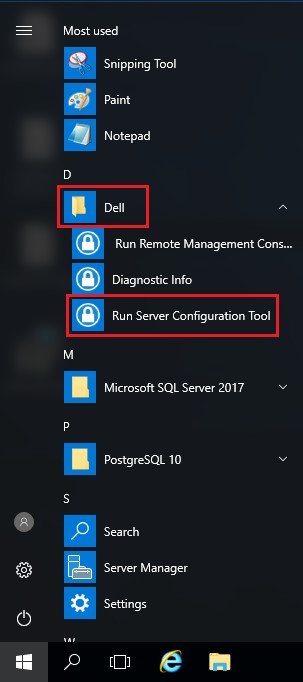
- Optionally, search for Server Configuration Tool within the Start Menu, or it can be manually found under the Dell folder, titled Run Server Configuration Tool.
- Click the Database tab.

- From the Database tab:
- Populate the new SQL Server Name.
- Populate the SQL Server Port.
- Populate the SQL Database name.
- Select a method of Authentication.
- If SQL Authentication is chosen:
- Populate the User Name.
- Populate the User Name Password.
- Go to step 8.
- If Windows Authentication is chosen, go to step 8.
 Note:
Note:- Server Name gets populated by a fully qualified domain name (FQDN) or IP address.
- If an instance is in use, it may be populated beginning with a \ following the Server Name.
- If the Server Port is left blank, it defaults to 1433, or it attempts to communicate to the SQL Server Browser (if available and enabled), which can define a custom or dynamic SQL port.
- If Windows authentication is selected, the active Windows account is used to connect to the Dell Data Protection database.
- The examples used for Server Name, Server Port, Database, Authentication, User Name, and Password may differ in your environment.
- Select Configuration and then click Save.

- Click Yes.

- Select the Actions menu and then click Test Database Configuration.

- Click Next.

- If using Windows Authentication, optionally:
- Check Use different Windows account credentials.
- Populate User Name.
- Populate Password.
- Populate Domain.
- Click Next.
If using SQL Authentication, click Next and then go to step 13.

- Test Connection Settings must show Passed to proceed. If it does not, return to step 7 or use different Windows account credentials (Step 12). Click Finish.

- Select the Configuration menu and then click Save.

- Click Yes.

- Select the Configuration menu and then click Exit.

- Start all [Product] services.
Note:
- [Product] =
- v8.15 and later = Dell
- v8.14.1 and earlier = Dell Data Protection
- For more information, reference How to Stop and Start Services in Dell Security Management Server.
- [Product] =
To contact support, reference Dell Data Security International Support Phone Numbers.
Go to TechDirect to generate a technical support request online.
For additional insights and resources, join the Dell Security Community Forum.
Affected Products
Dell EncryptionArticle Properties
Article Number: 000126174
Article Type: How To
Last Modified: 23 Jul 2024
Version: 7
Find answers to your questions from other Dell users
Support Services
Check if your device is covered by Support Services.