RecoverPoint: 웹 브라우저에서 Adobe Flash가 더 이상 지원되지 않을 때 RecoverPoint 그래픽 사용자 인터페이스를 사용하는 방법
Summary: Adobe Flash가 더 이상 지원되지 않을 때 고객이 RecoverPoint GUI를 계속 사용할 수 있는 방법은 무엇입니까?
This article applies to
This article does not apply to
This article is not tied to any specific product.
Not all product versions are identified in this article.
Symptoms
Adobe Flash Player는 더 이상 사용되지 않으며 2020년 12월 31일에 공식적으로 EOL(End of Life)되었습니다. Adobe Flash 플러그인의 지원은 모든 주요 공개 웹 브라우저에 대해 해당 시점에 종료됩니다.
RecoverPoint GUI(Graphical User Interface)는 Adobe FLEX 및 Flash Player를 사용합니다.
Cause
Adobe Flash는 2020년 12월 31일에 EOL(End of Life)됩니다.
Flash 기반 인터페이스에 대한 브라우저를 지원하지 않습니다.
Flash 기반 인터페이스에 대한 브라우저를 지원하지 않습니다.
Resolution
이 문제를 해결하기 위해 RPClassicUI 유틸리티라고 하는 새 유틸리티가 도입되었습니다.
이 툴은 RecoverPoint Classic 5.1.2(5.1 SP2) 이상에서 지원됩니다.
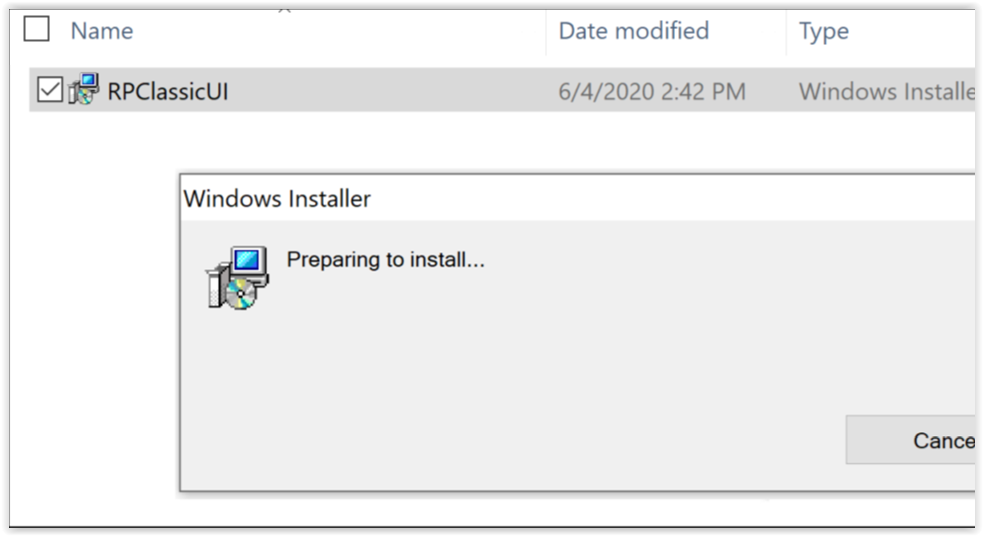
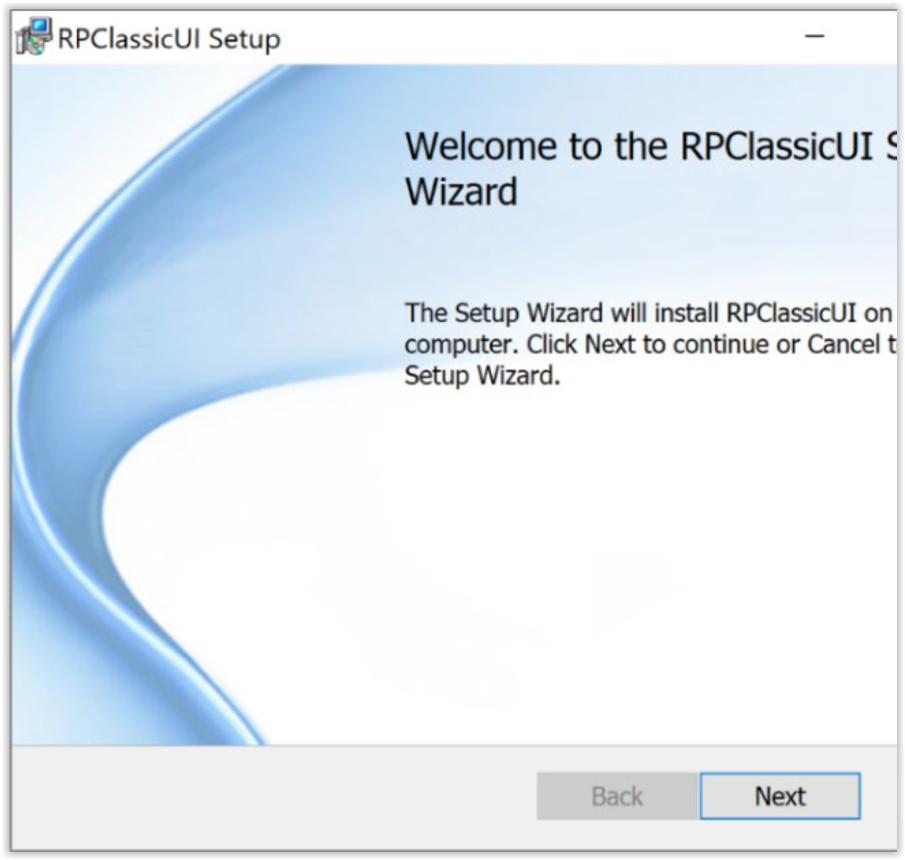

이 툴은 RecoverPoint Classic 5.1.2(5.1 SP2) 이상에서 지원됩니다.
- Dell.com 지원 웹사이트에서 워크스테이션으로 RPClassicUI 유틸리티 소프트웨어를 다운로드합니다.
- https://www.dell.com/support/home/en-us/product-support/product/recoverpoint-cl/drivers
- https://www.dell.com/support/home/en-us/product-support/product/recoverpoint-ex/drivers
- https://www.dell.com/support/home/en-us/product-support/product/recoverpoint-se/drivers
참고: 워크스테이션은 RPA 클러스터의 관리 IP 주소에 연결되어 있어야 합니다.
- Windows 시스템에서 RPClassicUI Windows Installer를 두 번 클릭합니다.
- RP Classic UI 유틸리티를 설치하려면 RPClassicUI 설치 마법사의 지침을 따릅니다.
- 워크스테이션에 RPClassicUI 유틸리티를 성공적으로 설치한 후 RPA 클러스터에 로그인하고 RecoverPoint for Unisphere UI에 연결하려면 이 절차를 사용합니다. 사용자 환경의 각 RPA 클러스터에 대해 이 절차를 별도로 실행합니다.
- Windows 시작 메뉴에서 시작 > RPClassicUI를 선택하여 RP Classic UI 유틸리티를 엽니다.
- RecoverPoint Management IP 대화 상자에서 RPA 클러스터 관리 IP 주소 또는 FQDN(Fully Qualified Domain Name) 주소를 입력하고 Open을 클릭합니다.
- RPClassicUI 유틸리티가 Unisphere for RecoverPoint 시스템 UI에 연결됩니다.
RecoverPoint Dashboard 및 기타 메뉴에 액세스하려면 시스템 자격 증명을 입력합니다.

Affected Products
RecoverPointProducts
RecoverPoint, RecoverPoint CL, RecoverPoint EX, RecoverPoint SEArticle Properties
Article Number: 000180859
Article Type: Solution
Last Modified: 28 Sep 2023
Version: 5
Find answers to your questions from other Dell users
Support Services
Check if your device is covered by Support Services.