Avamar - vSphere ClientでDell EMC Avamarプラグインの導入ステータスが失敗と表示される
Summary: vSphere ClientでDell EMC Avamarプラグインの導入ステータスが失敗と表示されます。
This article applies to
This article does not apply to
This article is not tied to any specific product.
Not all product versions are identified in this article.
Symptoms
Avamar AUI>[Administration]>[System]>[VMware Plugin]メニューでは、VMwareプラグインは登録済みとして表示され、バージョンはAvamar Serverのバージョンと一致しています。
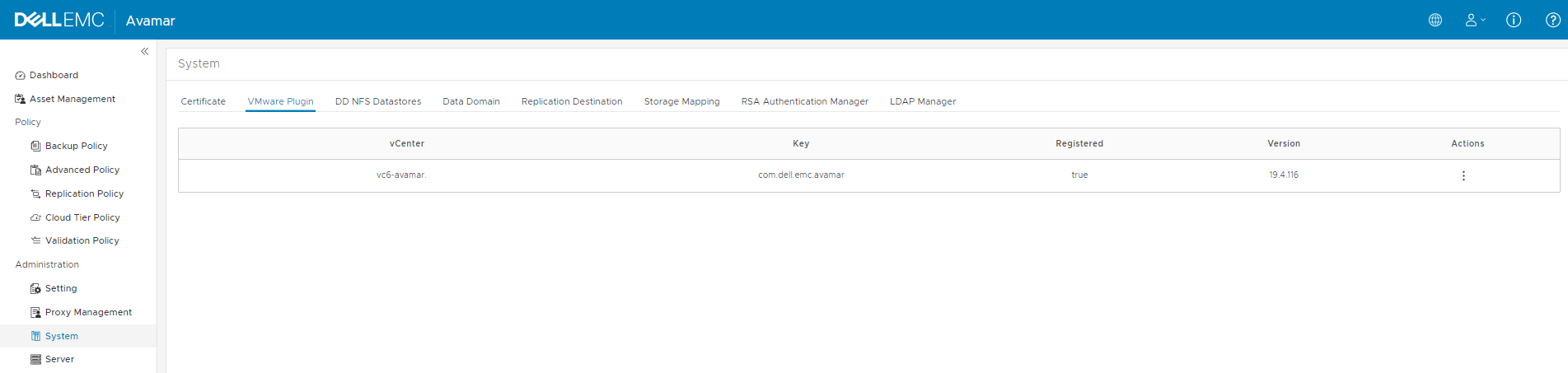
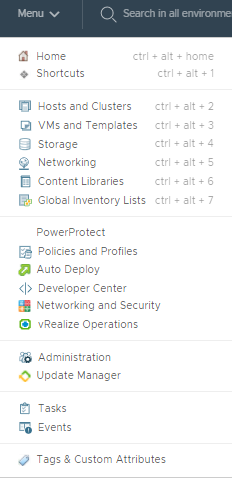
ただし、vSphere Clientでは、Avamarプラグインが[Home]>[Menu]画面に表示されません。
[vSphere Client Administration]メニュー>[Solutions]>[Client Plug-Ins]では、導入に失敗したことが表示されます。
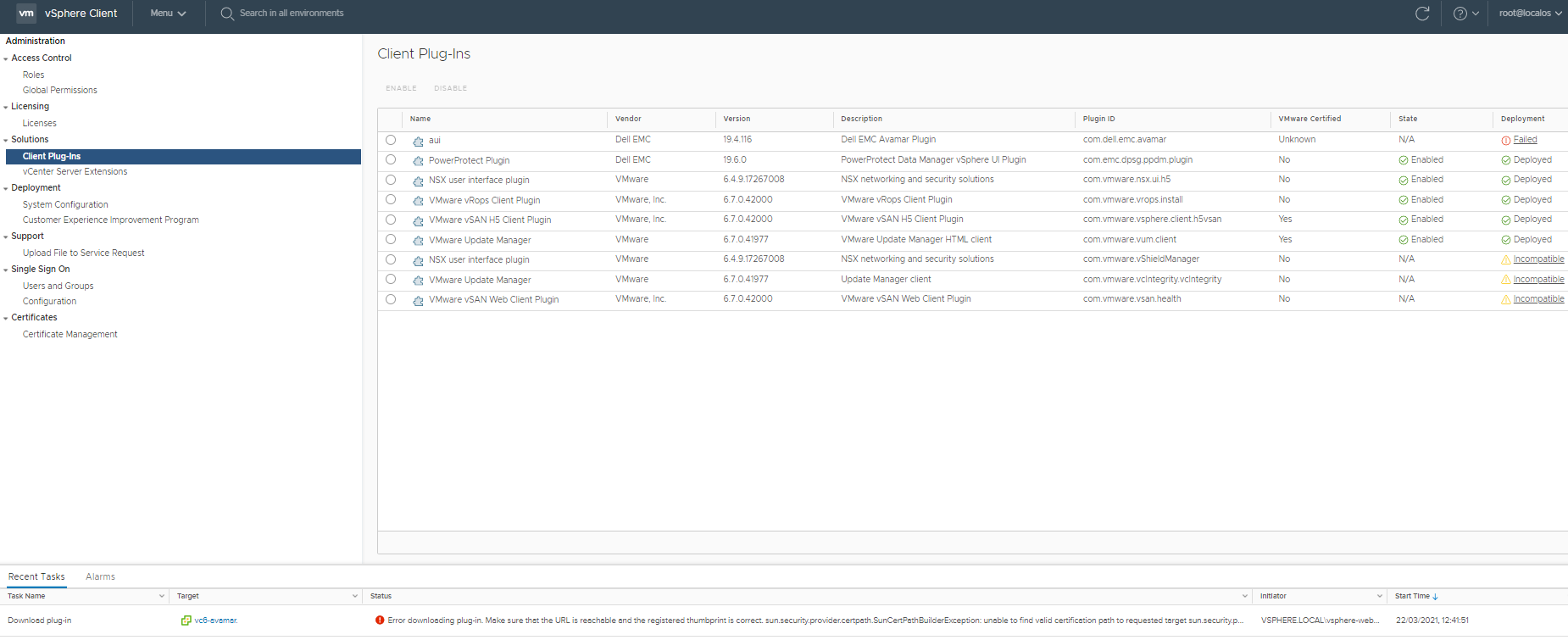
[vSphere Client Administration]メニュー>[Solutions]>[Client Plug-Ins]では、Javaのセキュリティ例外が原因で導入に失敗したことが分かります。
ただし、vSphere Clientでは、Avamarプラグインが[Home]>[Menu]画面に表示されません。
[vSphere Client Administration]メニュー>[Solutions]>[Client Plug-Ins]では、導入に失敗したことが表示されます。
[vSphere Client Administration]メニュー>[Solutions]>[Client Plug-Ins]では、Javaのセキュリティ例外が原因で導入に失敗したことが分かります。
Error downloading plug-in. Make sure that the URL is reachable and the registered thumbprint is correct. sun.security.provider.certpath.SunCertPathBuilderException: unable to find valid certification path to requested target sun.security.provider.certpath.SunCertPathBuilder.build(SunCertPathBuilder.java:141)
Cause
vCenter Serverでは、vSphere ClientのHTML5ログに次のメッセージが表示されます:「Server certificate chain is not trusted and thumbprint doesn't match.」
/var/log/vmware/vsphere-ui/logs/vsphere_client_virgo.log:
このエラーは、証明書の拇印の不一致エラーにより、avamar.example.labからの「aui.zip」パッケージのダウンロードが中止されたことを示しています。
リモートAvamar Server証明書が登録済みプラグインのリモート証明書の拇印/フィンガープリントと一致しない場合、vCenter上のvSphere Clientソフトウェアはクライアント パッケージをダウンロードしません。
1.登録済みvCenter拡張機能のリストと設定をWebブラウザーから表示するには、次の手順を実行します。 (管理者のユーザー名とパスワードが必要です)
2.このページで「Dell EMC Avamar Plugin」を探します。 この拡張機能の「server」セクションを確認します。 その例を以下に示します。
3. 「serverThumbprint」を現在のAvamar Server設定と比較するには、vCenter ServerのSSHセッションで次のコマンドを実行します。 このコマンドは、AvamarへのHTTPS接続を行い、SSLフィンガープリントを取得します。
この例では、フィンガープリント40:79:74:0E:5E:A8:75:F0:9B:1E:59:70:4A:DA:27:A1:E5:9E:61:68が65:E2:B0:FD:2C:F4:6C:B5:C8:57:08:D0:B9:A6:61:EE:4D:84:48:6Eと一致しません。
/var/log/vmware/vsphere-ui/logs/vsphere_client_virgo.log:
[2021-03-22T18:39:59.381Z] [INFO ] vc-extensionmanager-pool-207 70000151 100020 200002 com.vmware.vise.vim.extension.VcExtensionManager Downloading plugin package from https://ave194.example.lab/mc/lib/aui.zip (no proxy defined) [2021-03-22T18:39:59.403Z] [ERROR] vc-extensionmanager-pool-207 70000151 100020 200002 com.vmware.vise.vim.extension.PluginStatusTaskManager DOWNLOAD_FAILED: Error downloading plugin package com.dell.emc.avamar:19.4.116 from https://ave194.example.lab/mc/lib/aui.zip. Reason: Download error. Make sure that the URL is reachable and the thumbprint is correct. javax.net.ssl.SSLHandshakeException: com.vmware.vim.vmomi.client.exception.VlsiCertificateException: Server certificate chain is not trusted and thumbprint doesn't match
このエラーは、証明書の拇印の不一致エラーにより、avamar.example.labからの「aui.zip」パッケージのダウンロードが中止されたことを示しています。
リモートAvamar Server証明書が登録済みプラグインのリモート証明書の拇印/フィンガープリントと一致しない場合、vCenter上のvSphere Clientソフトウェアはクライアント パッケージをダウンロードしません。
1.登録済みvCenter拡張機能のリストと設定をWebブラウザーから表示するには、次の手順を実行します。 (管理者のユーザー名とパスワードが必要です)
https://vcenter.example.com/mob/?moid=ExtensionManager&doPath=extensionList
2.このページで「Dell EMC Avamar Plugin」を探します。 この拡張機能の「server」セクションを確認します。 その例を以下に示します。
| NAME | タイプ | VALUE | ||||||||||||||||||||||||||||
|---|---|---|---|---|---|---|---|---|---|---|---|---|---|---|---|---|---|---|---|---|---|---|---|---|---|---|---|---|---|---|
| server | ExtensionServerInfo[] |
|
3. 「serverThumbprint」を現在のAvamar Server設定と比較するには、vCenter ServerのSSHセッションで次のコマンドを実行します。 このコマンドは、AvamarへのHTTPS接続を行い、SSLフィンガープリントを取得します。
root@vc6-avamar [ ~ ]# keytool -printcert -sslserver ave194.example.lab:443 -rfc | openssl x509 -fingerprint -noout SHA1 Fingerprint=65:E2:B0:FD:2C:F4:6C:B5:C8:57:08:D0:B9:A6:61:EE:4D:84:48:6E
この例では、フィンガープリント40:79:74:0E:5E:A8:75:F0:9B:1E:59:70:4A:DA:27:A1:E5:9E:61:68が65:E2:B0:FD:2C:F4:6C:B5:C8:57:08:D0:B9:A6:61:EE:4D:84:48:6Eと一致しません。
Resolution
ソリューション#1(内線番号の再登録)
1.Avamar AUI>[Administration]>[System]>[VMware Plugin]メニューで、vCenterを選択し、[Actions]>[Unregister]を選択します。
![[Unregister]の選択](https://supportkb.dell.com/img/ka06P000000c3FnQAI/ka06P000000c3FnQAI_ja_1.jpeg)
2.vCenter管理対象オブジェクトのブラウザーを確認して、「com.dell.emc.avamar」拡張機能が表示されていないことを確認します。
引き続き存在する場合は、次のページに移動してキー: com.dell.emc.avamarを入力し、[Invoke method]をクリックします。
3. Avamar AUI>[Administration]>[System]>[VMware Plugin]メニューで、vCenterを選択し、[Actions]>[Register]を選択します。
4. vCenter管理対象オブジェクトのブラウザーを確認して、「com.dell.emc.avamar」拡張機能のserverThumbprintが再追加されていることを確認します。を押します。
5. ログアウトして再度ログインし、プラグインがインストールされていることを確認します。
メモ:この後もまだserverThumbprintが正しくない場合は、vCenterとAvamar間のNATルーター、またはAvamarソフトウェアに関する問題がある可能性があります。
NATが存在しない場合、または問題をさらに調査する必要がある場合は、Dell EMCサポートにお問い合わせの上、KB 000184447をお伝えください。
または、
ソリューション#2:手動によるプラグインのインストール (vCenterへのrootアクセスが必要です)
1.vCenter ServerにSSH接続し、次のコマンドを実行してaui.zipをダウンロードして、適切な権限を持つ正しいvCenterサーバーの場所に配置します。
2.ログアウトして再度ログインし、プラグインがインストールされていることを確認します。
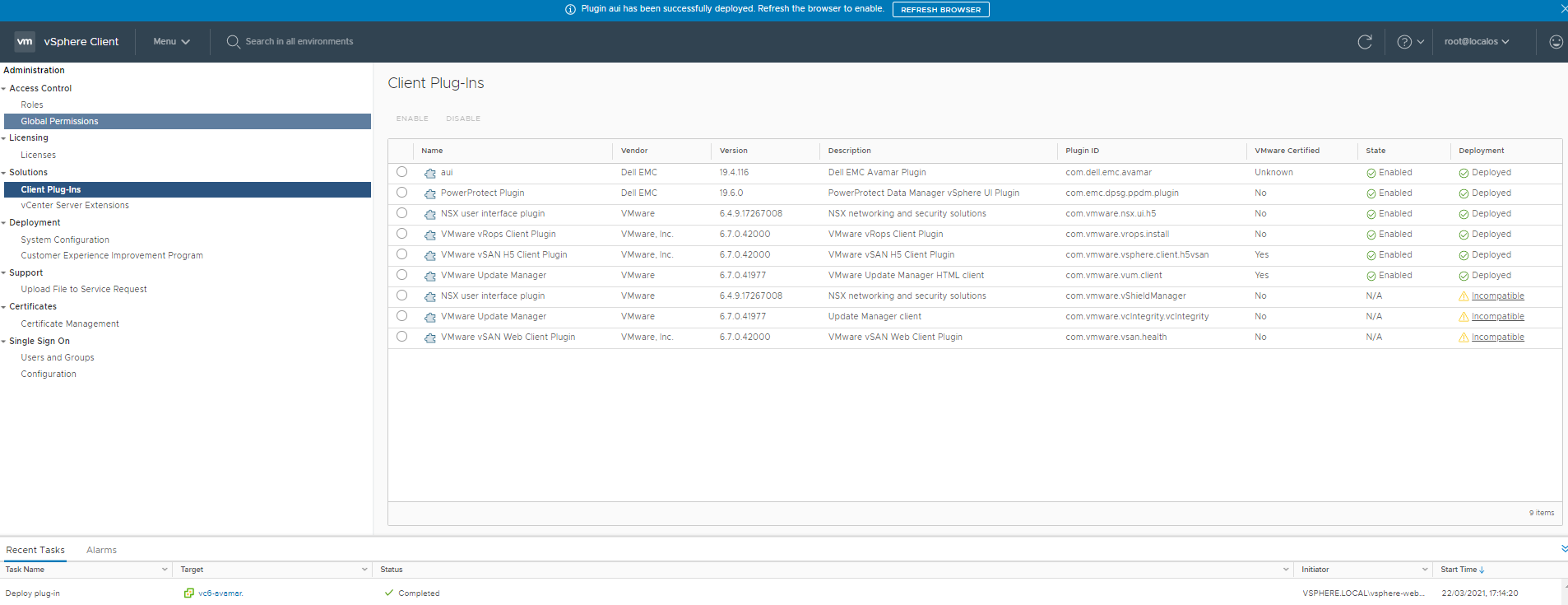
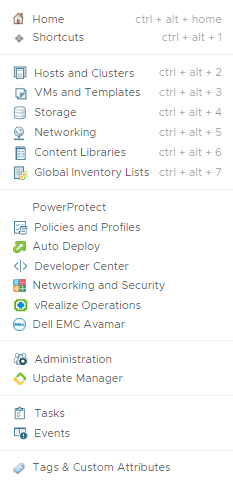
3. [Refresh Browser]をクリックすると、プラグインがホーム メニューに表示されます。
1.Avamar AUI>[Administration]>[System]>[VMware Plugin]メニューで、vCenterを選択し、[Actions]>[Unregister]を選択します。
2.vCenter管理対象オブジェクトのブラウザーを確認して、「com.dell.emc.avamar」拡張機能が表示されていないことを確認します。
https://vcenter.example.com/mob/?moid=ExtensionManager&doPath=extensionList
引き続き存在する場合は、次のページに移動してキー: com.dell.emc.avamarを入力し、[Invoke method]をクリックします。
https://vcenter.example.lab/mob/?moid=ExtensionManager&method=unregisterExtension
3. Avamar AUI>[Administration]>[System]>[VMware Plugin]メニューで、vCenterを選択し、[Actions]>[Register]を選択します。
4. vCenter管理対象オブジェクトのブラウザーを確認して、「com.dell.emc.avamar」拡張機能のserverThumbprintが再追加されていることを確認します。を押します。
https://vcenter.example.com/mob/?moid=ExtensionManager&doPath=extensionList
5. ログアウトして再度ログインし、プラグインがインストールされていることを確認します。
メモ:この後もまだserverThumbprintが正しくない場合は、vCenterとAvamar間のNATルーター、またはAvamarソフトウェアに関する問題がある可能性があります。
NATが存在しない場合、または問題をさらに調査する必要がある場合は、Dell EMCサポートにお問い合わせの上、KB 000184447をお伝えください。
または、
ソリューション#2:手動によるプラグインのインストール (vCenterへのrootアクセスが必要です)
1.vCenter ServerにSSH接続し、次のコマンドを実行してaui.zipをダウンロードして、適切な権限を持つ正しいvCenterサーバーの場所に配置します。
cd /etc/vmware/vsphere-ui/vc-packages/vsphere-client-serenity/ mkdir com.dell.emc.avamar-19.4.116 cd com.dell.emc.avamar-19.4.116 wget --no-check-certificate https://ave194.example.lab/mc/lib/aui.zip unzip aui.zip chown -R vsphere-ui:users ../com.dell.emc.avamar-19.4.116メモ:「19.4.116」を現在のプラグイン バージョンに置き換え、「ave194.example.lab」をAvamar Server名に置き換えます。
2.ログアウトして再度ログインし、プラグインがインストールされていることを確認します。
3. [Refresh Browser]をクリックすると、プラグインがホーム メニューに表示されます。
Affected Products
AvamarProducts
Avamar Client for VMwareArticle Properties
Article Number: 000184447
Article Type: Solution
Last Modified: 11 Aug 2022
Version: 5
Find answers to your questions from other Dell users
Support Services
Check if your device is covered by Support Services.