How to do a clean installation of Versa using USB on a VEP4600
Summary: This article documents detailed steps to performing a clean installation of Versa 21.2.3 on a VEP4600 using USB Pendrive.
This article applies to
This article does not apply to
This article is not tied to any specific product.
Not all product versions are identified in this article.
Instructions
-
Login to below Versa link and choose “Software Download “under “General Tab”.


- Download the right Version of Versa ISO (I am choosing Versa 21.2.3)

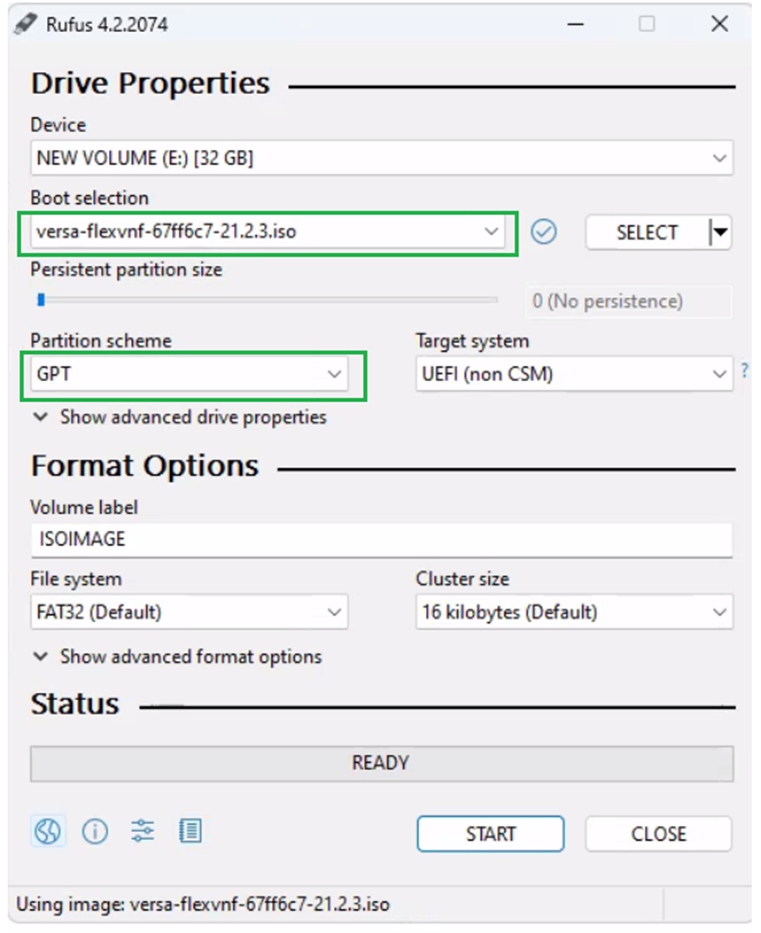
- Prepare a bootable USB using Rufus. Choose the ISO image and ensure the “Partition Scheme” is set to GPT and click Start.
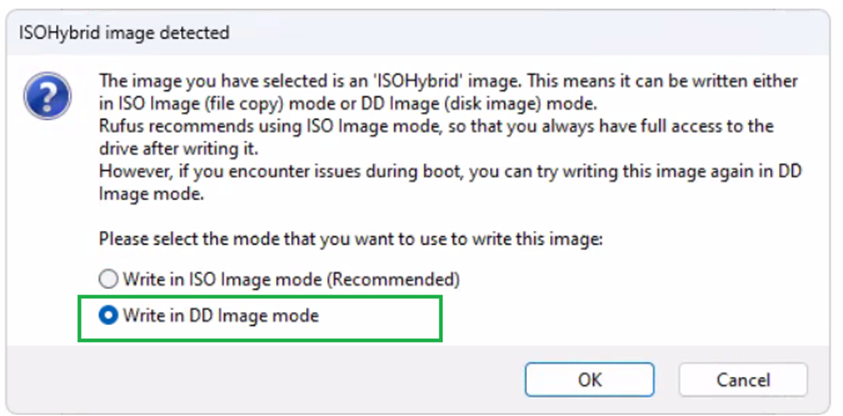
- Choose “Write in DD Image mode” in the next screen and click OK!
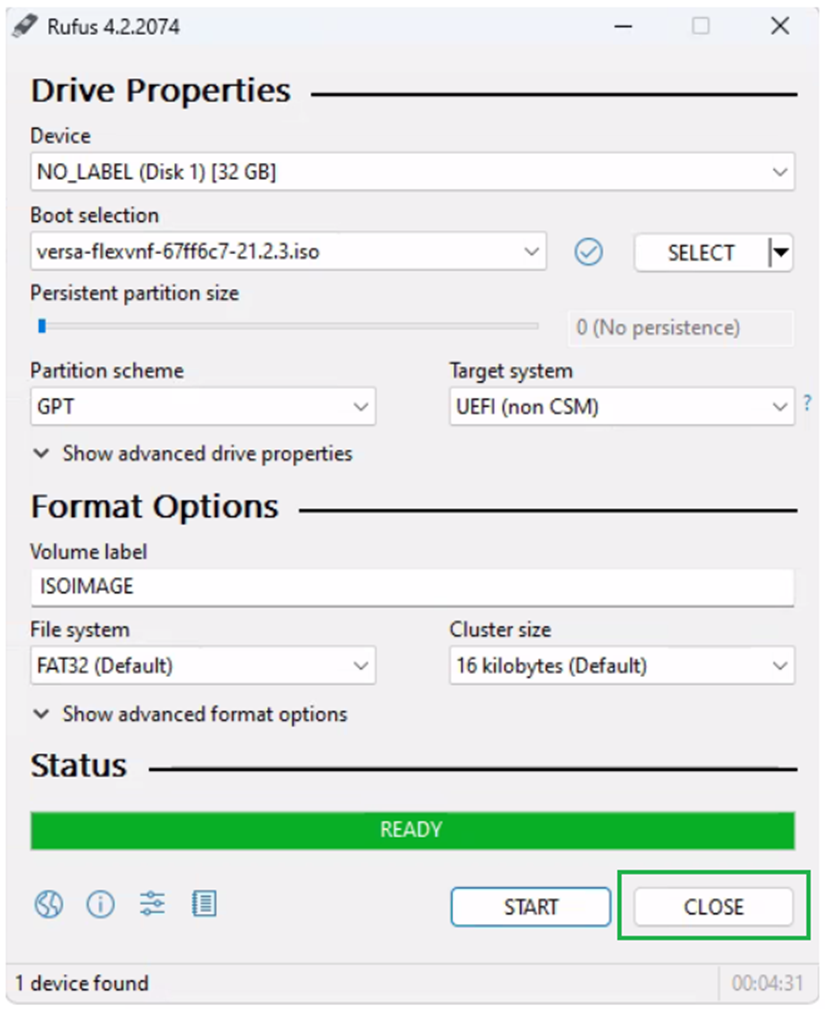
- Once the Status shows “Ready”, click on Close. Do not START the process again.
- Insert the Pen Drive in the VEP Box, Reboot the Box and press DEL to enter BIOS.
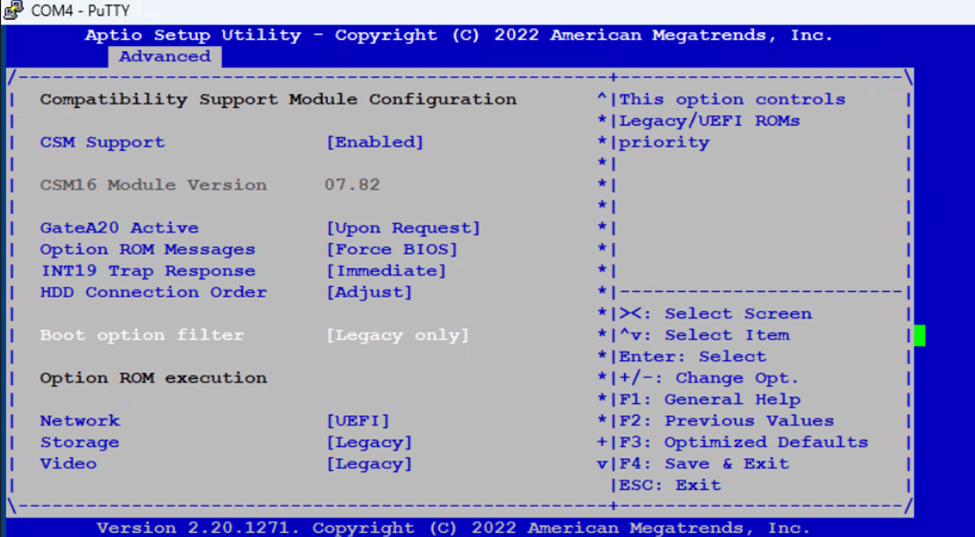
- Navigate to Advance tab and Choose CSM configuration.

- Set “Boot Filter Option” to “Legacy only” and press ESC to come to the Main Menu
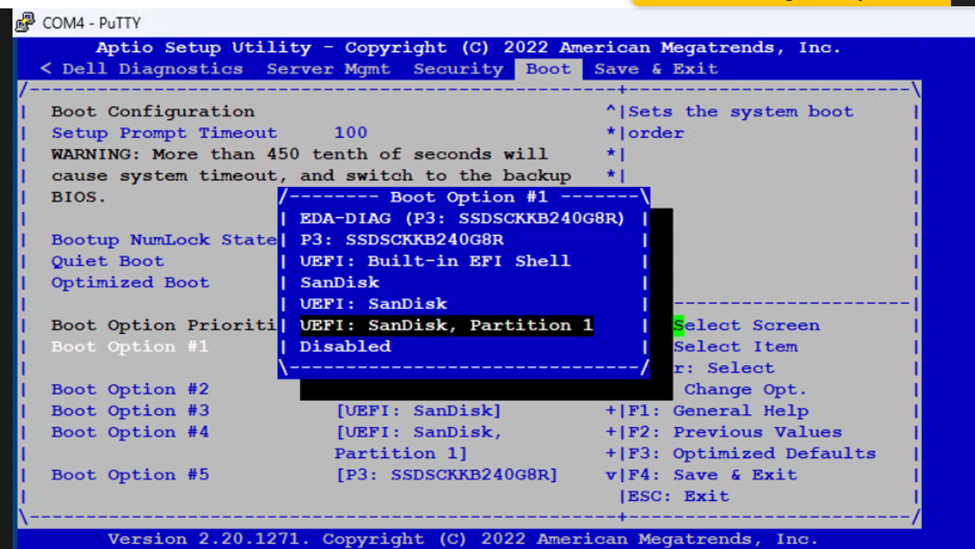
- Navigate to Boot and choose “Boot Option Priorities” and select the USB Pen drive you have inserted.
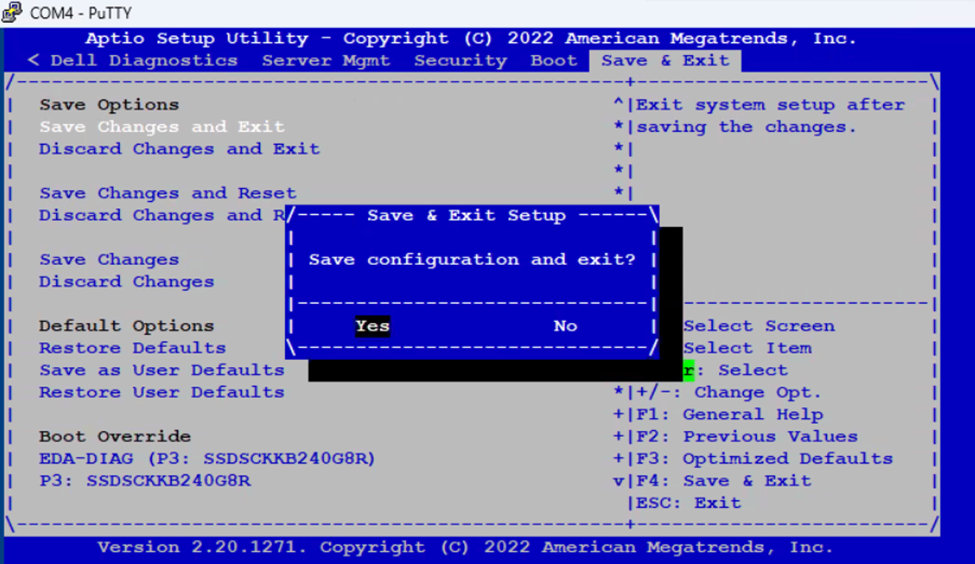
- Navigate to “Save & Exit”. Choose “Save Changes and Exit” and choose “Yes”. DO NOT Press F4. It doesn’t Save changes at times in some of the BIOS versions.
-
It will boot from the USB and throws an error “Error setting up gfxboot”.
Type “versa-branch-usb” and Press Enter twice to see the Video modes available.

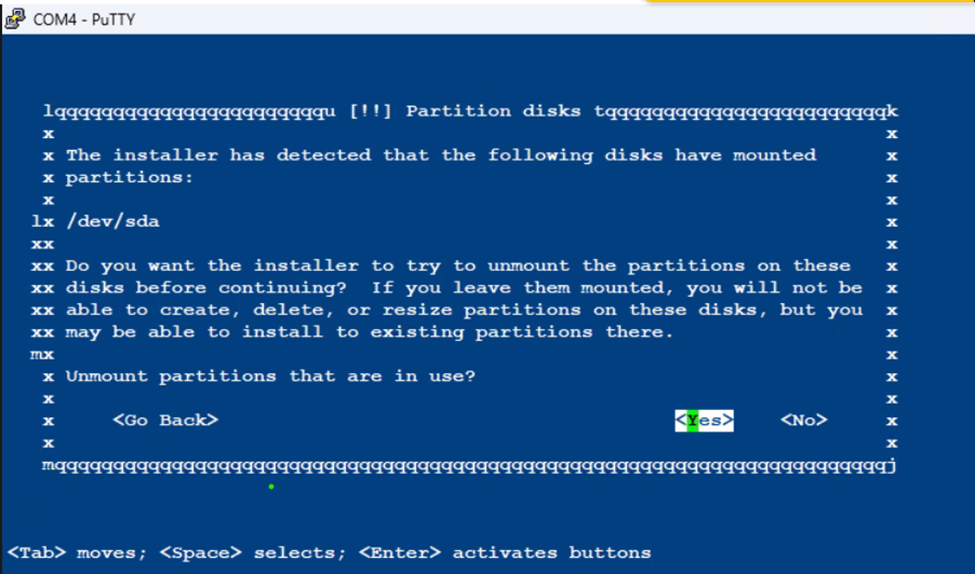
- Use the Tab Key to choose “Cancel” at the below screen and press Enter.

- Select “YES” to Unmount the Partitions that are in use.
- Select the first Option and press Enter.
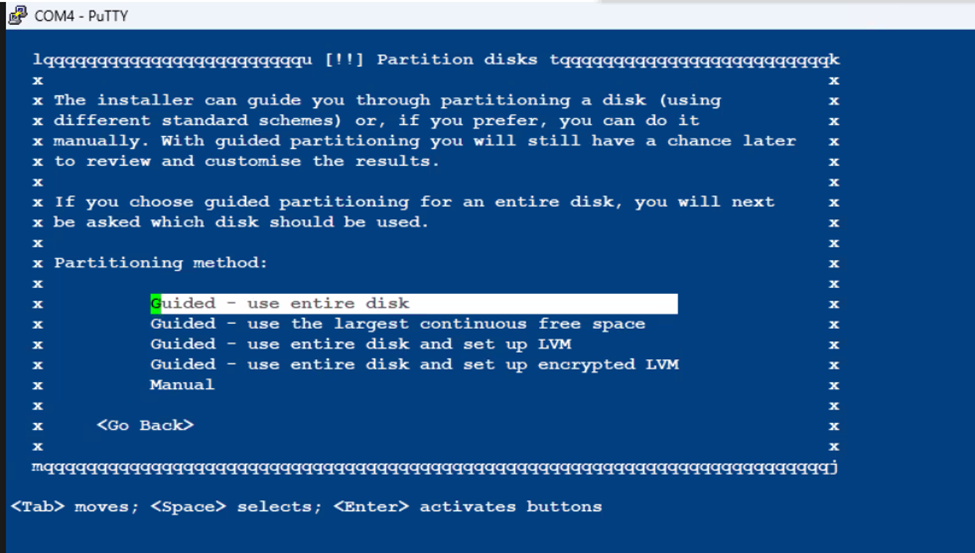
- Choose the Internal SSD drive to install the Versa OS
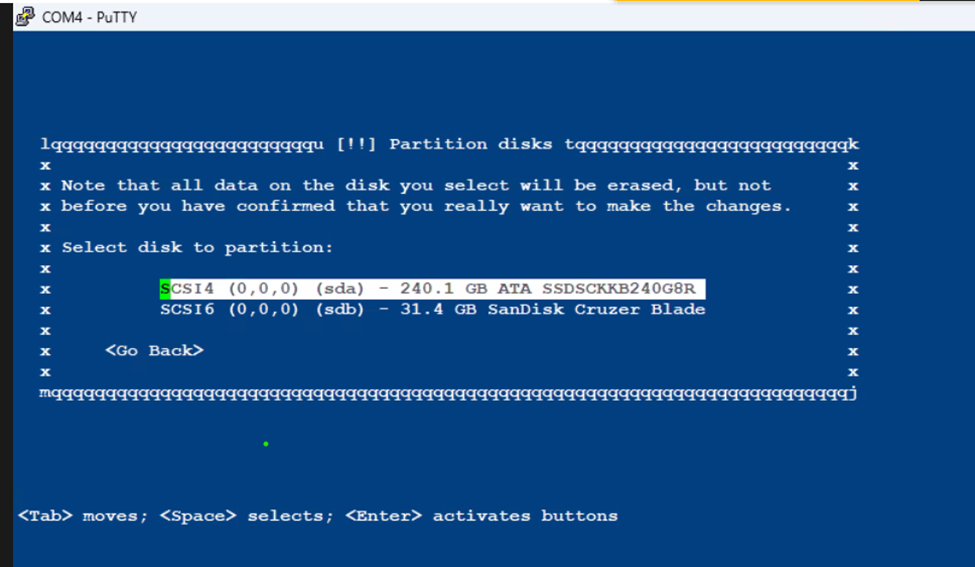
- Installation will take some time and will be stuck at 0% Running Kickseed. This is Normal, DO NOT ABORT the Process
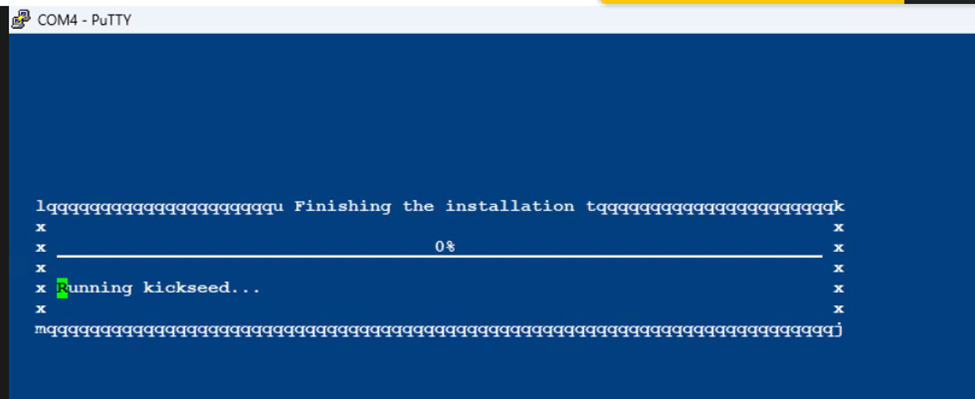
- Once the Installation is completed, VEP Box will automatically reboot and boot to VERSA OS

-
Login using default credentials, admin/versa123
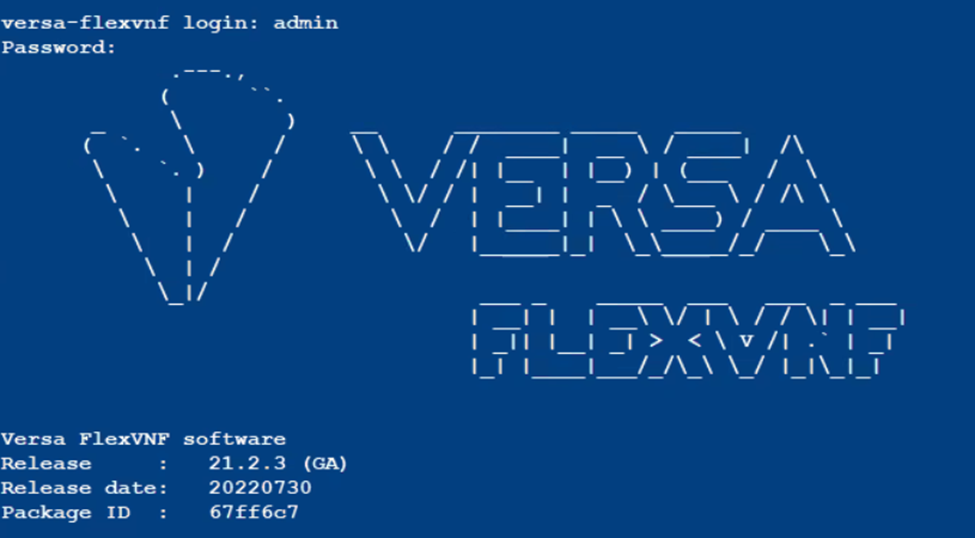
- Type in “cli” to enter the command line mode
show system details to validate the Version of Versa Installed

Additional Information
Affected Products
DELL NETWORKING VEP4600 16-CORE, Dell Networking VEP4600 4-CORE, DELL NETWORKING VEP4600 8-COREArticle Properties
Article Number: 000218067
Article Type: How To
Last Modified: 10 Nov 2023
Version: 2
Find answers to your questions from other Dell users
Support Services
Check if your device is covered by Support Services.