Avamar: Avamar Virtual Edition OVA Deployment in vSphere Reports Invalid Certificate for Entrust Code Signing Certificate
Summary: Avamar Virtual Edition OVA Deployment in vSphere Reports Invalid Certificate for Entrust Code Signing Certificate due to stringent certificate verification starting with vCenter 7.0 U2. This article provides a combined certificate file and instructions to add it to the VMware Endpoint Certificate Store to resolve the warning. ...
This article applies to
This article does not apply to
This article is not tied to any specific product.
Not all product versions are identified in this article.
Symptoms
Avamar Virtual Edition OVA Deployment in vSphere Reports (Invalid Certificate) for Entrust Code Signing Certificate.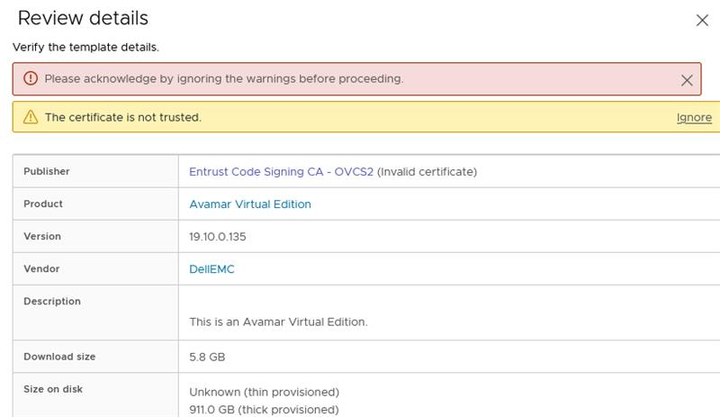
Cause
Starting with vCenter 7.0 U2, vSphere performs more rigorous certificate verification on OVA/OVF packages. The OVF signing certificates are verified for their expiry, validity, and whether the signing certificate is trusted. This verification process requires the entire chain of the signing certificate to be trusted against the vSphere VMware Endpoint Certificate Store (VECS) store.
For more information about this vSphere behavior, see VMware KB 336085
Resolution
Workaround:
Despite the warning, the deployment can proceed by clicking "Ignore."
Resolution:
To resolve the certificate warning, add the signing certificate chain to the vCenter VECS store, and deploy the OVA in secure environments, follow these steps:
-
Download the Entrust Certificates:
-
Root CA:
Browse the "Entrust Root Certificate Downloads" page and search for "Entrust Root Certification Authority (G2)" with the Fingerprint:8C F4 27 FD 79 0C 3A D1 66 06 8D E8 1E 57 EF BB 93 22 72 D4. -
Code Signing (Certificate Authorities) CAs:
Browse the "Entrust Certificate Services Subordinate CA's" page and search for "Entrust Code Signing CA - OVCS2" with the Fingerprint:A6 1D C5 D9 0A 06 00 3E B4 DD 35 99 B7 A0 52 FC 3F 70 D7 CC. This file contains two CA certificates in a single file.
-
-
Add the Combined CA Certificates to the VECS Store:
- Connect to the vSphere Client.
- Go to
Administration > Certificates > Certificate Management. - Next to
Trusted Root Store, click "Add." - Browse and select the location of the downloaded Root CA certificate file and click "OK."
- Repeat the process to add the Code Signing CA certificate file by clicking "Add" again, browsing, and selecting the appropriate file.
- Now three Entrust CA certificates (Root CA, Intermediate Code Signing CA, and Code Signing CA) should now be listed in the
Trusted Root Certificates.
-
Verification:
- During deployment, the "Publisher" column should display "Trusted certificate" for the Avamar Virtual Edition OVA and other Dell-issued OVA files.
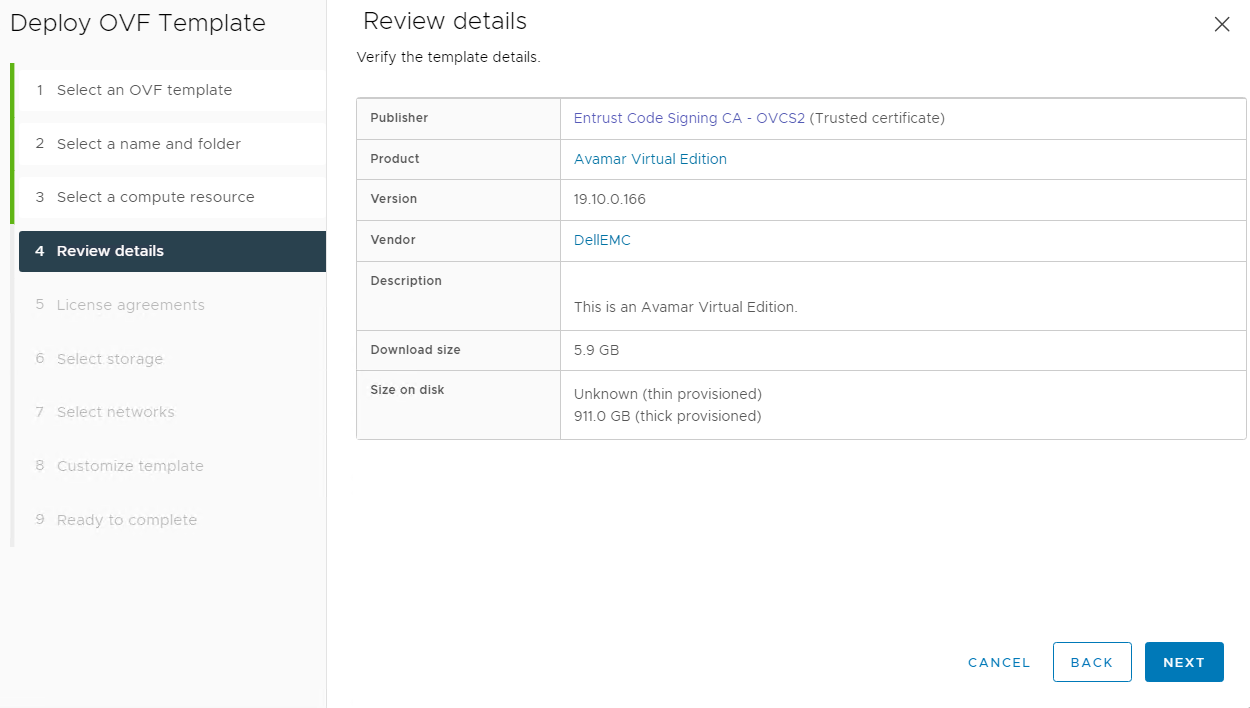
- During deployment, the "Publisher" column should display "Trusted certificate" for the Avamar Virtual Edition OVA and other Dell-issued OVA files.
Affected Products
AvamarArticle Properties
Article Number: 000227285
Article Type: Solution
Last Modified: 30 Jul 2024
Version: 2
Find answers to your questions from other Dell users
Support Services
Check if your device is covered by Support Services.