WiFi Access Points
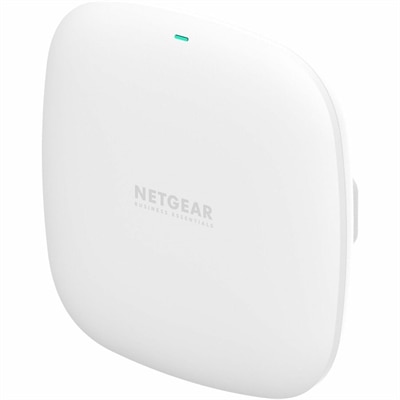
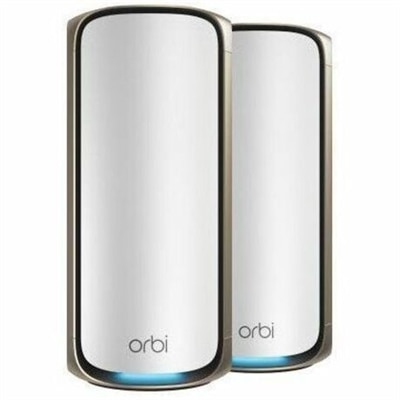
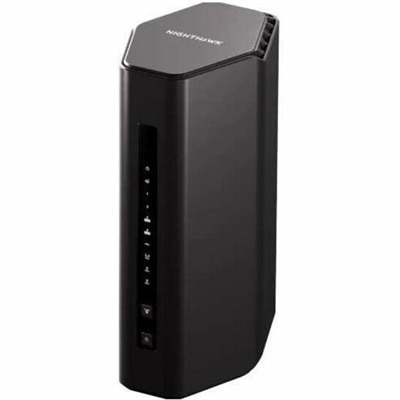
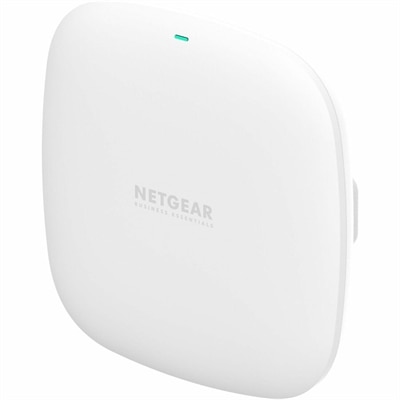
WiFi access points offer a reliable way to expand and strengthen your wireless network coverage at home or in the office. Whether you're looking to eliminate dead zones or support more connected devices, WiFi access points provide flexible solutions to enhance your connectivity. Explore a variety of options designed to help you create a seamless and efficient wireless experience across your space.
This product is not available
Check out the following recommendations.
Related Products
WiFi Access Points
Wi-Fi connectivity helps laptops, desktops, and compatible accessories support everyday work, learning, and entertainment without keeping every device tethered to a desk. A reliable wireless experience makes a difference in familiar moments: joining a video meeting from a spare bedroom, submitting an assignment at the kitchen table, or streaming a movie while someone else downloads a large game. The experience depends on more than the speed of an internet plan. A computer’s wireless capabilities, its distance from the signal source, the building’s construction, and the number of active devices all influence performance. Brick walls, concrete floors, metal cabinets, and even the layout of adjoining rooms can affect how consistently a connection reaches a particular workspace. An open living area may present very different conditions from an upstairs office behind several closed doors. For laptops and desktops, the supported Wi-Fi generation and frequency bands provide useful context, but they do not guarantee a particular speed in every room. Compatibility with WiFi 7 Access Points is one consideration for computers equipped with Wi-Fi 7; taking advantage of newer capabilities also depends on compatible hardware, software, and configuration throughout the connection. Older computers can remain useful for everyday browsing and email, although they may not support the same wireless features as newer systems. Peak advertised wireless rates are not the same as typical download speeds, and a faster wireless connection cannot exceed the limits of the internet service carrying an online task. Local activities, such as transferring files between compatible devices, can behave differently from streaming or downloading over the internet. For households with several people online at once, consistent responsiveness often matters more than a headline speed. Clear audio during a call, a stable connection through a remote lesson, and uninterrupted access to shared documents are practical measures of how well a wireless workspace fits daily life.
The right computer for a wireless setting starts with its intended use and the places where it will spend the most time. A lightweight laptop suits someone who moves between a desk, a couch, and a campus study area, while a desktop provides a stationary foundation for a dedicated workspace. Screen size, keyboard comfort, battery life, processing performance, and wireless capability all contribute to that fit. A compact laptop is easier to carry in a padded sleeve, but a larger display can feel more comfortable when comparing documents or working across several windows. An external monitor can give a laptop a more spacious desktop setup, though its connection requirements should be checked separately rather than assumed to be wireless. Likewise, keyboards, mice, headsets, and other accessories may use Bluetooth, a dedicated receiver, or a cable instead of Wi-Fi. Those distinctions matter when planning ports, charging arrangements, and desk space. Materials and construction also influence everyday durability. A rigid chassis, well-supported hinges, and a protective carrying case can help a frequently transported laptop stand up to routine handling, although no material makes a device immune to drops or pressure inside an overfilled bag. For stationary computers, sufficient clearance around ventilation openings helps maintain airflow, particularly in a small home office where a tower might otherwise be squeezed between furniture. Metal furniture and enclosed work areas can also affect wireless reception, so a tidy-looking arrangement is not always the most practical one. A desktop placed beneath a desk against a dense wall may experience different signal conditions from a laptop used in the open on the desktop above it. Where a computer includes adjustable external antennas, their positioning should follow the manufacturer’s directions. For students, remote workers, and households sharing a multipurpose room, these physical details can be just as important as the wireless specification. A workspace should accommodate the person using it, the tasks performed there, and the actual conditions of the room rather than an idealized open-space performance figure.
Day-to-day care and realistic expectations help wireless-capable computers remain dependable over time. Operating system updates and manufacturer-supported wireless drivers can address compatibility issues, while current security settings help protect everyday activity. Cleaning should follow the device manufacturer’s instructions, generally with the computer powered down and liquids kept away from openings. Dust around vents, a charging cable stretched across a walkway, or a laptop resting on a soft blanket can create problems unrelated to Wi-Fi that still interrupt a work session. A firm surface, accessible charging, and enough space for comfortable typing make a mobile computer easier to use for extended periods. Battery-saving settings may also influence wireless behavior, so performance can differ between a laptop running on battery and the same device connected to power. In a busy household, the pattern of use matters: several simultaneous video calls place different demands on a connection than occasional browsing, and a large background download can compete with time-sensitive activity. Online gaming and live conversations depend on latency and consistency as well as throughput. Moving from room to room adds another variable, because a computer’s decisions about maintaining or changing its wireless connection depend on its hardware, software, and the surrounding setup; uninterrupted movement should not be assumed. Students attending virtual classes, professionals sharing presentations, and families keeping in touch across distances all benefit from equipment that matches those real routines. For someone receiving a laptop or desktop as a gift, practical fit includes the software they use, the space available at home, and the accessories they already own. Wireless specifications are part of that picture, not a substitute for it. A comfortable keyboard, an appropriately sized screen, sufficient memory for everyday applications, and dependable battery life can have a more noticeable effect on daily satisfaction than an unused advanced feature. Together, thoughtful device selection, sensible placement, and regular care support a flexible workspace where wireless connectivity serves the activity at hand.
FAQs:
A WiFi access point is a device that connects to a wired network and provides wireless connectivity for devices such as laptops, smartphones, and tablets. It acts as a bridge between your wired network and wireless devices, allowing them to communicate with each other and access the internet.
While both WiFi access points and wireless routers provide wireless connectivity, an access point typically connects to an existing wired network to extend its coverage, whereas a router combines routing functions with wireless access. Access points are often used in larger networks to improve coverage in areas where the main router's signal is weak.
Yes, multiple WiFi access points can be installed within a single network to expand wireless coverage across larger spaces or multiple floors. This helps eliminate dead zones and ensures consistent connectivity throughout the area.
When selecting a WiFi access point, consider features such as dual-band or tri-band support, maximum supported speeds, range capabilities, compatibility with your existing network equipment, security protocols like WPA3, and ease of management through software or cloud-based platforms.
Most modern WiFi access points are designed for easy setup, often featuring user-friendly interfaces or mobile apps for configuration. However, some advanced settings—such as SSID naming, security options, and VLAN support—may require additional configuration depending on your network needs.