Dell FluidFS: Unable to access shares after updating to Windows 10 v1903, using SMB 3.1.1
Summary: Clients Unable to access shares after updating to Windows 10, version 1903 using Server Message Block (SMB) 3.1.1.
This article applies to
This article does not apply to
This article is not tied to any specific product.
Not all product versions are identified in this article.
Symptoms
Windows clients using SMB 3.1.1 lose access to SMB Shares after updating to Windows 10, version 1903.
Cause
This issue is due to two negotiation contexts found in SMB 3.1.1 that FluidFS version 6.0.300135 and lower does not support.
Resolution
Identifying the error
The error can be identified from the following error messages:
- The client sees the following error message while accessing the SMB share:
Windows cannot access "\\servername" check the spelling.... Error code 0x80004005 Unspecified error - The following error message appears in the Windows event viewer:
The server does not support any dialect that the client is trying to negotiate, such as the client has SMB2/SMB3 disabled and the server has SMB1 disabled. - If using Universal Naming Convention (UNC) path:
0x80070043 Network name cannot be found - Error message in Network traces:
STATUS_INVALID_PARAMETER
Note: The SMB clients must disconnect all the SMB server shares in order to negotiate the appropriate dialect according to the parameter value.
FluidFS version MR640 addresses this problem. Contact support and reference This article.
The alternate workaround is available by following the steps below to disable SMBv3 and use SMB v2 instead.
This can be accomplished using the Dell Storage Manager or using CLI.
To modify the SMB version In the latest MR630 - using Dell Storage Manager (DSM)
- Access the Dell Storage Manager.
- Go to Client Accessibility
- Select the Protocols tab
- Select Edit SMB Protocol Settings
- Untick the box next to SMBv3 Protocol
- Click OK to save settings
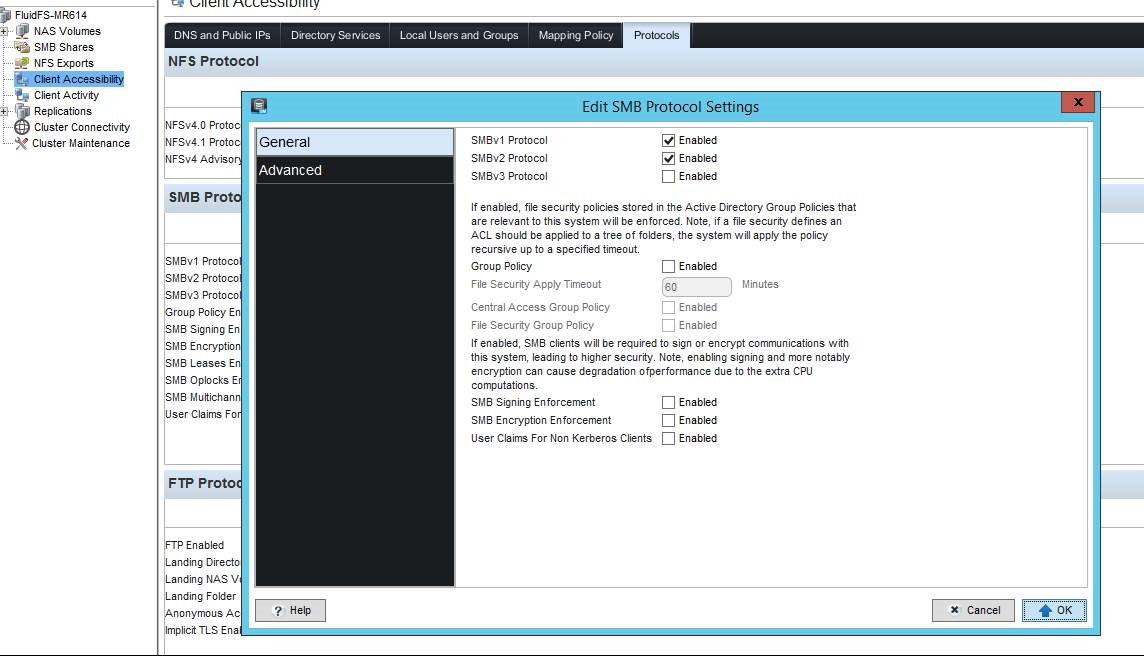
Figure 1: Dell Storage Manager DSM - SMB Protocol Settings
To modify the SMB version In the latest MR630 using cli:
Input the commands as shown below:
CLI/client-access/authentication/protocols/SMB-settings> view
SMBv1 Enabled                               = Yes
SMBv2 Enabled                               = Yes
SMBv3 Enabled                               = Yes
Is Required Message Signing                 = No
Is Required Message Encryption              = No
Multichannel Enabled                        = No
Leases Enabled                              = Yes
Oplocks Enabled                             = Yes
Disconnect Idle Sessions                    = No
Idle Sessions Timeout (minutes)             = 720
Idle Sessions Scan Interval (minutes)       = 720
Enable User Claims for Non-Kerberos Clients = No

CLI/client-access/authentication/protocols/SMB-settings> edit
Usage: edit [Options]


    Options:
    -EnableSMBv1 <EnableSMBv1>
    -EnableSMBv2 <EnableSMBv2>
    -EnableSMBv3 <EnableSMBv3>
    -RequireMessageSigning <RequireMessageSigning>
    -RequireMessageEncryption <RequireMessageEncryption>
    -EnableMultichannel <EnableMultichannel>
    -EnableLeases <EnableLeases>
    -EnableOplocks <EnableOplocks>
    -DisconnectIdleSessions <DisconnectIdleSessions>
    -IdleSessionsTimeout <IdleSessionsTimeout>
    -IdleSessionScanInterval <IdleSessionScanInterval>
    -EnableUserClaimsForNonKRBClients <EnableUserClaimsForNonKRBClients>
Note: If max dialect SMB 3.1.1 is required, back-rev the Windows 10 version 1903 or Windows Server version 1903 installations to the previous Generally Available (GA) version (1803).
Affected Products
Dell Compellent FS8600Article Properties
Article Number: 000130252
Article Type: Solution
Last Modified: 29 Jul 2025
Version: 6
Find answers to your questions from other Dell users
Support Services
Check if your device is covered by Support Services.