Dell EMC Unity: Not an EMC storage device or you do not have access to device
Summary: Vsphere is showing storage capacity under " Summary" but in " Storage System" and " Storage Device" it displays " Not an EMC storage device or you don not have access to storage"
This article applies to
This article does not apply to
This article is not tied to any specific product.
Not all product versions are identified in this article.
Symptoms
We need to register the Storage with the VSI application so it can manage the storage.
.
EMC Datastore reports under its summary tab Not an EMC Storage device or you do not have access to device under Storage system.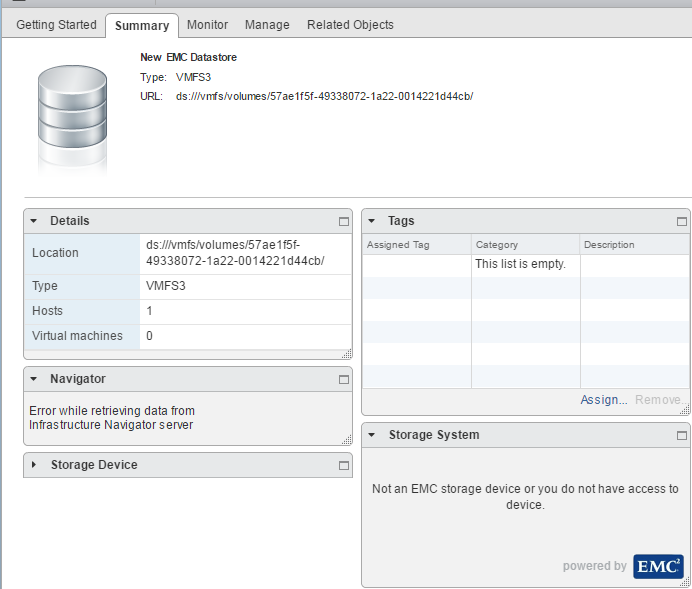
Cause
- The vCenter is integrated with VSI.
- The LUN belongs to an array that is not registered with VSI.
- The array is not registered with the VSI user.
Resolution
Steps:
1. Ensure that the EMC VSI Plugin is installed on the vCenter.
Found under Home -> vCenter.
2. Ensure that the user is registered with VSI. You will see VSI server = Online under
Home -> vCenter -> EMC VSI -> Solutions Integration Service.
If it is NOT registered, follow steps A & B.
If registered go to step 3.
A. If Solutions integration Service reports No registered Solutions Integration Service.
Click Actions and choose Register Solutions Integrations Service.
B. If the registration is successful but does not show up under:
Home -> vCenter -> EMC VSI -> Solutions Integration Service. (Refer 000018454) 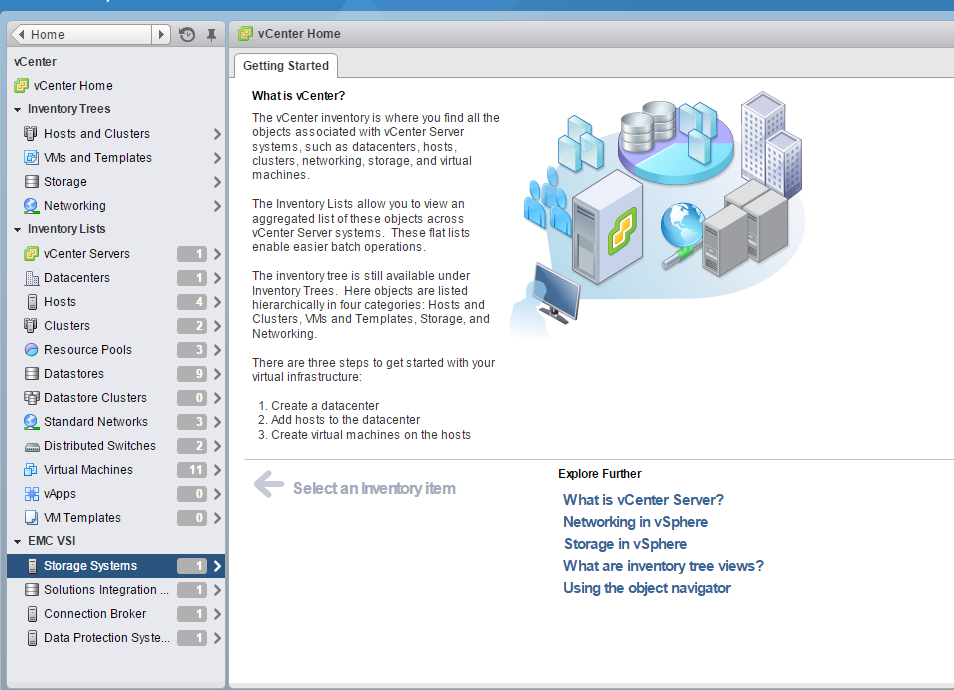
3. Go to Home -> vCenter -> EMC VSI -> Storage Systems.
In this screen click on " Actions".
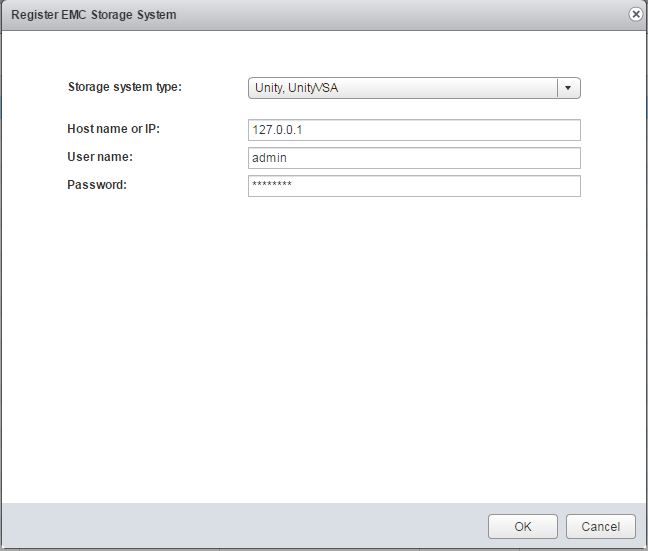
Then select "Register Storage Systems".
EXAMPLE:
- Select the drop down "Storage system type" [ Unity ]
- Check [ ] for block ( VMFS or RDM) storage
or for file ( NFS ) storage
- Complete
- Storage Processor or Control Station IP ( 127.0.0.1 )
- Unisphere or Control Station user name ( XXXX )
-Unisphere or Control Station password (XXXXX)
- click ( OK )
Once the registration is successful you should see the following:
- You should now see the array Name " APM000XXXXXXXX"
- You should now see the array Model " UNITYXXXX"
- You should now see Management IP " 127.0.0.1
- You should now see More Info " Block or File = xxxxxxxxx"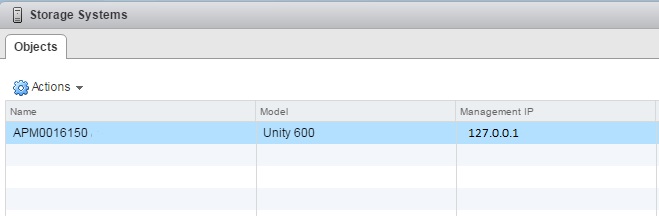
4.Once the storage system is successfully registered go back to the datastore and verify the message has been replaced with proper array information.
Home -> vCenter -> Datastore -> click on the datastore name
EXAMPLE OF OUTPUT: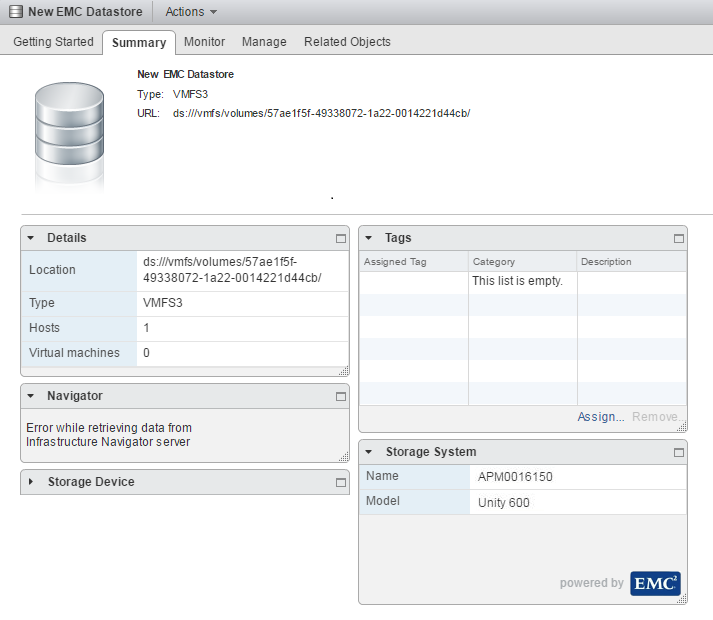
Affected Products
Dell EMC Unity FamilyProducts
Dell EMC Unity Family |Dell EMC Unity All Flash, Dell EMC Unity Family, Dell EMC Unity Hybrid, VNX1 Series, VNX2 SeriesArticle Properties
Article Number: 000052069
Article Type: Solution
Last Modified: 11 Nov 2024
Version: 3
Find answers to your questions from other Dell users
Support Services
Check if your device is covered by Support Services.