Dell Unity: Unable to add vCenter to Unisphere due to alert "Already exists in Unisphere" (User Correctable)
Summary: Unable to add vCenter to Unisphere due to alert "Already exists in Unisphere"
This article applies to
This article does not apply to
This article is not tied to any specific product.
Not all product versions are identified in this article.
Symptoms
Changes to the environment prior to receiving the error:
Alert Received:
Already exists in Unisphere
- The vCenter environment was managed by a malware-compromised Windows workstation.
- The customer staged a new vCenter environment.
Alert Received:
Already exists in Unisphere
Cause
Dell Unity already has a vCenter IP Address attached to Unisphere.
Possible Cause:
Possible Cause:
- A new vCenter was created and the old vCenter IP address is still associated with Unisphere.
Resolution
Before 5.3 Code
-
Remove the current vCenter credentials from Dell Unity.
-
Access > VMware > vCenter select the vCenter then select the Trash Icon to remove
-
Hosts will automatically be moved to Access > Hosts
-
-
Add the new vCenter IP and authentication and select the hosts
-
Register VASA provider if you are using VASA
-
Any hosts that were in Access > Hosts should now be listed under Access > VMware > ESXi Hosts
-
Verify Datastores and Hosts are accessible
5.3 Code and Above
As of 5.3 code and above this process is now disruptive. Maintenance/downtime window is advised!
See Dell Unity: Error Code: 0x5c0010b-User Correctable
Unity Engineering added an enhancement to 5.3 OE software code, which adds prevention to removing vCenter when there are ESXi hosts still reporting in the inventory. This enhancement is to prevent Data Unavailability from occurring when attempting to remove vCenter from Unisphere.
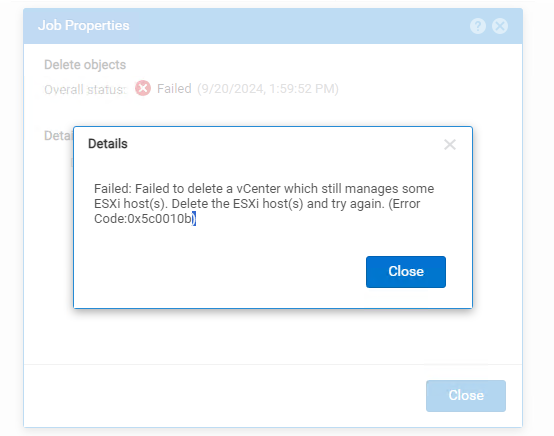
Trying to remove vCenter results in the following error
"Failed: Failed to delete a vCenter which still manages some ESXi host(s). Delete the ESXi host(s) and try again. (Error Code:0x5c0010b)":
Option 1:
If a customer has a second vCenter they can failover their hosts to the second vCenter then remove/re-add the vCenter as needed.
Option 2:
The summary and order of steps is as follows:
-
Remove host access to storage resources
-
Remove hosts
-
Remove vCenter
-
Re-add vCenter
-
Re-add hosts
-
Present storage resources to hosts
Remove host access to storage resources.
-
Go to Access > VMware > ESXi Hosts, select the host to modify (this can only be done one at a time)
-
Select the host and click the edit pencil
-
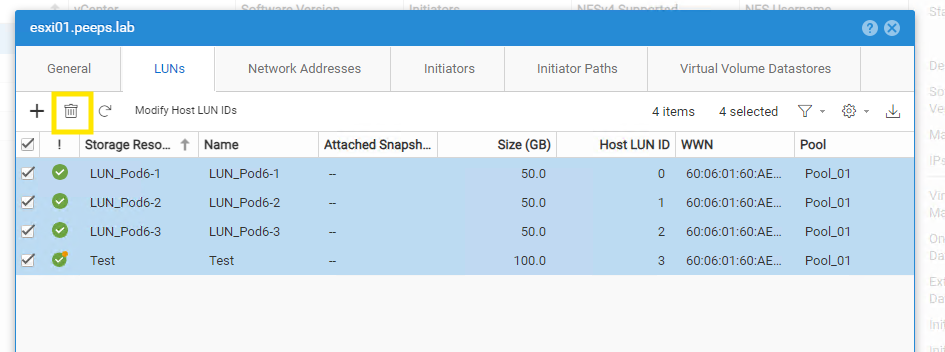
Navigate to LUNs tab to select all of the LUNs and Datastores and click on the trash icon
-
if vVOLs are in use select the Virtual Volume datastores tab and do the same
-
Repeat process for each individual host
-
-
-
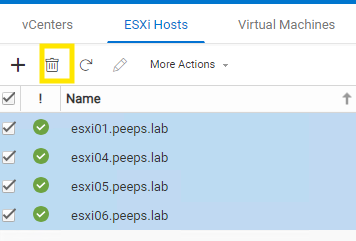
Once access to storage resources has been removed navigate to Access > VMware > ESXi Hosts
-
Select all of the hosts and select on the Trash can to remove.
-
-
If you have not removed access to all of the storage resources you will receive error
"Failed: The system could not delete the host because there are storage resources associated with it. (Error Code:0x6000115)"
-
-
Once all hosts have been removed navigate to Access > VMware > vCenters
-
Select the vCenter you wish to remove and select the Trash icon
-
Once old vCenter has been removed you can now proceed with re-adding the vCenter.
-
Navigate to Access > VMware > vCenters
-
Select the "+" icon to add vCenter
-
Add vCenter using IP address or FQDN
-
NOTE: whichever option you use here, it cannot be updated without removing the vCenter again and re-adding it. Example: if you configure vCenter using the IP address but at a later time decide you wish to change it so that the vCenter displays the FQDN instead, you will need to follow the steps above to remove the existing vCenter and re-add using the FQDN
-
-
Select hosts you wish to add with vCenter
-
Register VASA provider if you are using VASA
-
Click Finish
After vCenter and hosts have been re-added it is time to present storage resources back to the hosts.
-
Navigate to Access > VMware > ESXi Hosts
-
Select Host you wish to modify and select the edit pencil
-
Navigate to the LUNs tab to add access to Luns or Datastores
-
Select Virtual Volume Datastores to add access to vVOLs
-
-
Select the "+" icon to add LUNs
-
In the add LUNs window select the "+" icon again and select the Add existing LUNs option then select the Luns you wish to add access to.

To present datastores to host
-
Navigate to Storage > VMware > Datastores
-
Select datastore you wish to present (can only be done one at a time) and select the Edit properties pencil
-
In the Datastore Properties Window select the Host Access tab
-
Click on the "+" icon
-
In Select Host Access window select the hosts you wish to have access to the datastore
-
Repeat for any other datastores you need to present to the storage
Once all of the storage resources has been presented to the hosts verify that storage (Luns, Datastores, vVols) are all accessible from the host side.
Affected Products
Dell EMC Unity FamilyProducts
Dell EMC Unity FamilyArticle Properties
Article Number: 000052598
Article Type: Solution
Last Modified: 23 Sep 2024
Version: 3
Find answers to your questions from other Dell users
Support Services
Check if your device is covered by Support Services.