E2E Connectivity: Secure Connect Gateway Disconnected
Summary: This article explains how to address the error: Secure Connect Gateway is Disconnected.
This article applies to
This article does not apply to
This article is not tied to any specific product.
Not all product versions are identified in this article.
Instructions
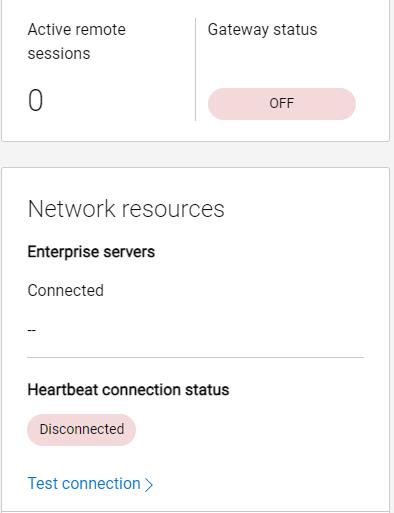
If a Secure Connect Gateway displays a "disconnected" status in SCG WebUI, then Support cannot establish dial-in connections to devices managed by that gateway. While the Secure Connect Gateway is missing, data transfer from devices (such as call-homes, CloudIQ data, device telemetry, and logs) to Dell EMC will be disrupted.
What this looks like:
From SCG WebUI:
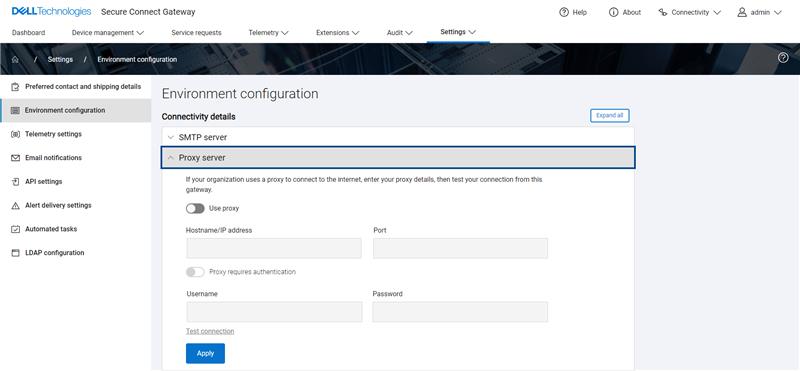
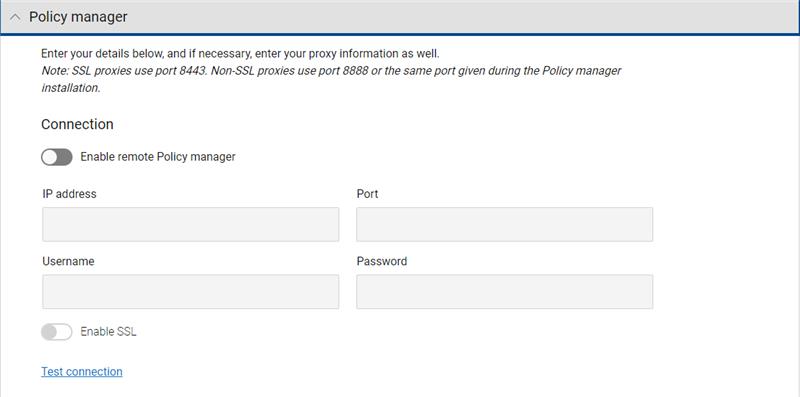
- If applicable, check the proxy server and Policy Manager configurations in settings > Environment Configuration
Click "Test Connection"
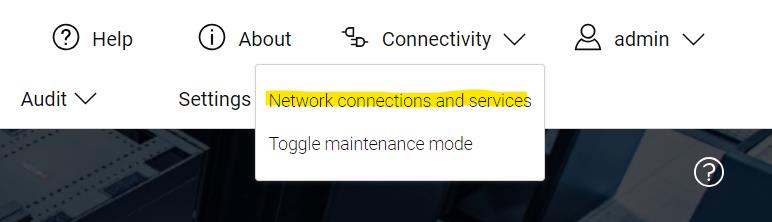
2. Run the network and services tests from the web interface. Connectivity > Network Connections and Services > Scroll down and click "Test Connection"
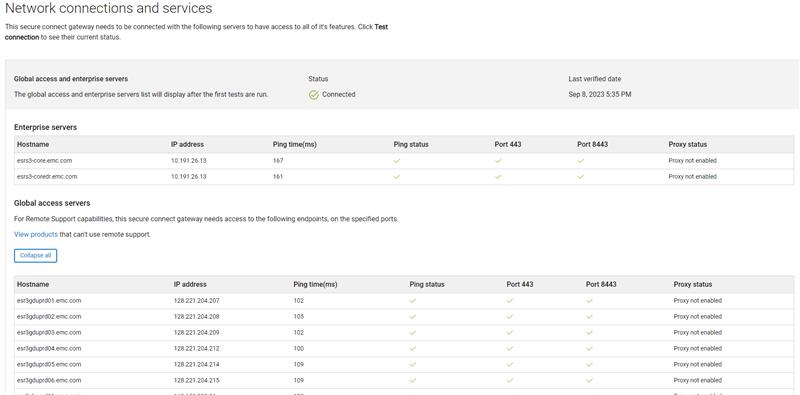

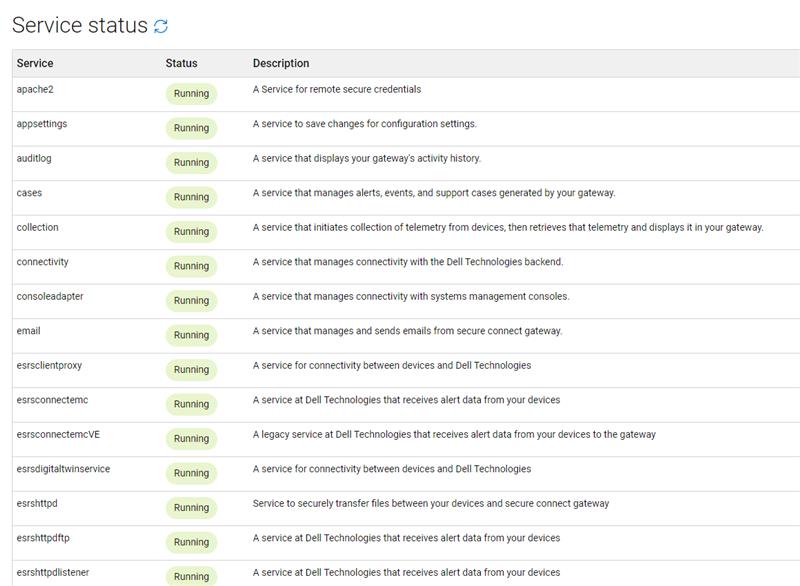
3. If any of the services are in a "failed" state, then start by rebooting the Secure Connect Gateway. From the SCG CLI issue the command - reboot
Once the gateway is back online, log in to the webUI again and check the service status.
4. If the network test failed any of its pings to Dell Enterprise and GAS Servers, then open a command-line session to SCG and telnet the hosts that failed their ping.
Log in to your SSH client of choice (ie, Putty) using root credentials. Then run a telnet on the hosts/ports that failed their ping in the Network Test above.
For example:
telnet esrs3-core.emc.com 443
Or
telnet esrs3-coredr.emc.com 8443
You can also telnet the Dell server IP addresses, ie.
telnet 10.191.26.13 443
Tip: If telnet refuses the connection when targeting the server hostname, but connects successfully when targeting the server IP address, then the issue lies with the customer's DNS configuration.
You can check the DNS configuration in the yast2 menu.
type yast2 > navigate to system > network settings > Hostname/DNS
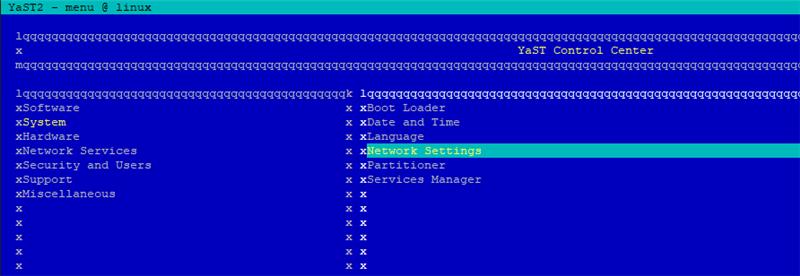
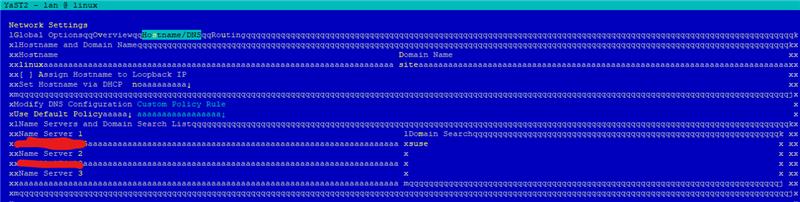
Ensure that the correct DNS IP(s) entered in the field above. Have the customer validate the status of their DNS.
In addition to telnet, TSEs can use the:
curl -kv
Command to test the SSL/TLS connection to a specified endpoint and to display detailed information about the SSL certificate being used.
See the following examples where the Dell Enterprise servers are targeted over ports 443 and 8443:
curl -kv https://esrs3-core.emc.com:443

curl -kv https://esrs3-coredr.emc.com:443

curl -kv https://esrs3-core.emc.com:8443

curl -kv https://esrs3-coredr.emc.com:8443
Potential outputs of the
curl -kv
command and what they mean:
- If the SSL/TLS connection is successful, the output displays the SSL certificate information and the HTTP response from the server. The HTTP response should be a 200 OK status code, indicating that the connection was successful.
- If the SSL/TLS connection fails, the output displays an error message indicating the reason for the failure. This could be due to an invalid SSL certificate, a mismatch between the hostname and the certificate, or other SSL/TLS configuration issues such as SSL decryption on the customers network (SSL checking is incompatible with SCG and will cause the network traffic to be refused by Dell backend).
- If the server is not reachable, the output will display an error message indicating that the connection could not be established.
Affected Products
Secure Connect Gateway, Secure Connect Gateway, Secure Connect Gateway - Virtual EditionArticle Properties
Article Number: 000217652
Article Type: How To
Last Modified: 19 May 2026
Version: 8
Find answers to your questions from other Dell users
Support Services
Check if your device is covered by Support Services.