Dell Unity: How to Activate and Regenerate a Unity License
Summary: This KB instructs how to activate a Unity license within Software License Central and to regenerate a Unity license to a new software version. For example, to convert a license from .lic to xml, see the section titled "Regeneration of a Unity License to a new Software Version" below. ...
This article applies to
This article does not apply to
This article is not tied to any specific product.
Not all product versions are identified in this article.
Instructions
TABLE OF CONTENTS
2. Activate directly in Software Licensing Central
3. Regeneration of a Unity License to a new Software Version
The Unity License Activation Code (LAC) is available to activate within Software Licensing Central (SLC). SLC is now part of MyAccount at Dell.
Note: A support profile is required to access SLC. If a support profile does not already exist, a new profile can be created within the Dell support website.
To access the Unity LAC, the deeplink option can be used directly from the Customer Facing Object (CFO) or License Authorization Code (LAC) letter. Alternatively, enter the Sales order number or LAC number directly into SLC. Note that the location of Software Licensing Central has changed; the direct link in your CFO or LAC letter may not work. You may need to use the links above to go directly to MyAccount or to the Software Licensing Central website, and then manually enter your Sales order number or LAC number.
1. CFO/License Authorization Code (LAC) letter
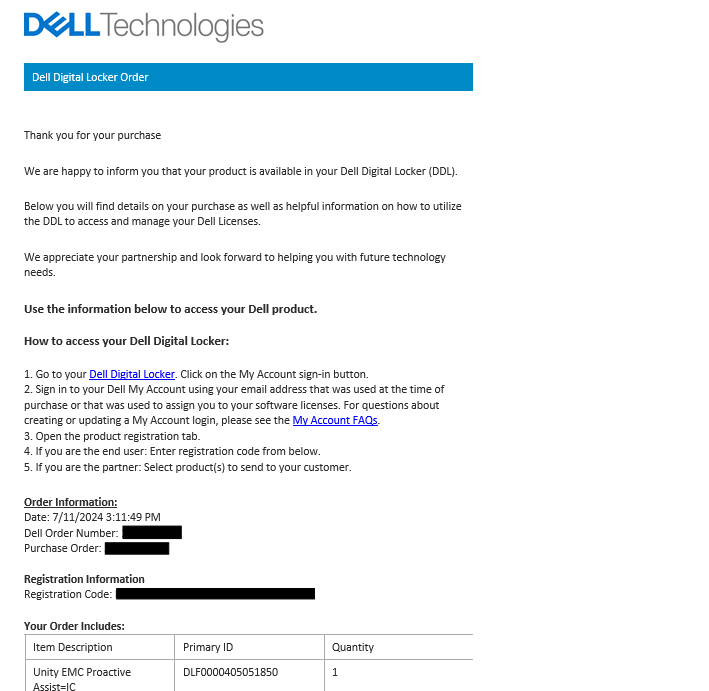
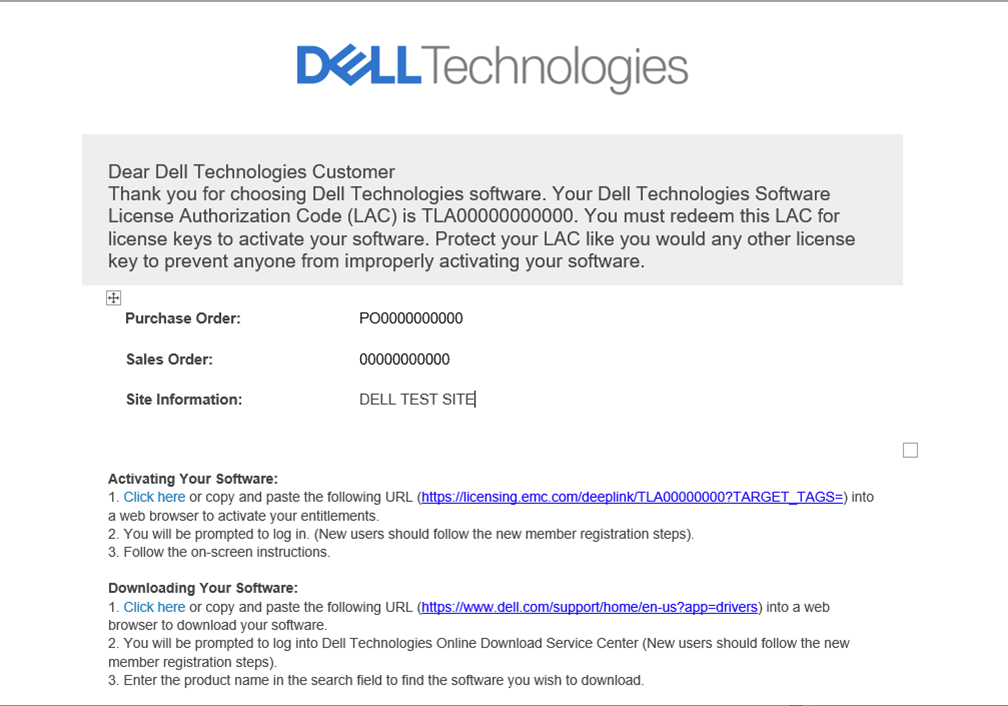
The CFO/LAC letter has information such as your LAC number, Sales order number, PO number, and products purchased. A deeplink is also available which leads directly into the 'activate' page within SLC.
Sample CFO letter
Sample LAC letter
2. Activate directly in Software Licensing Central
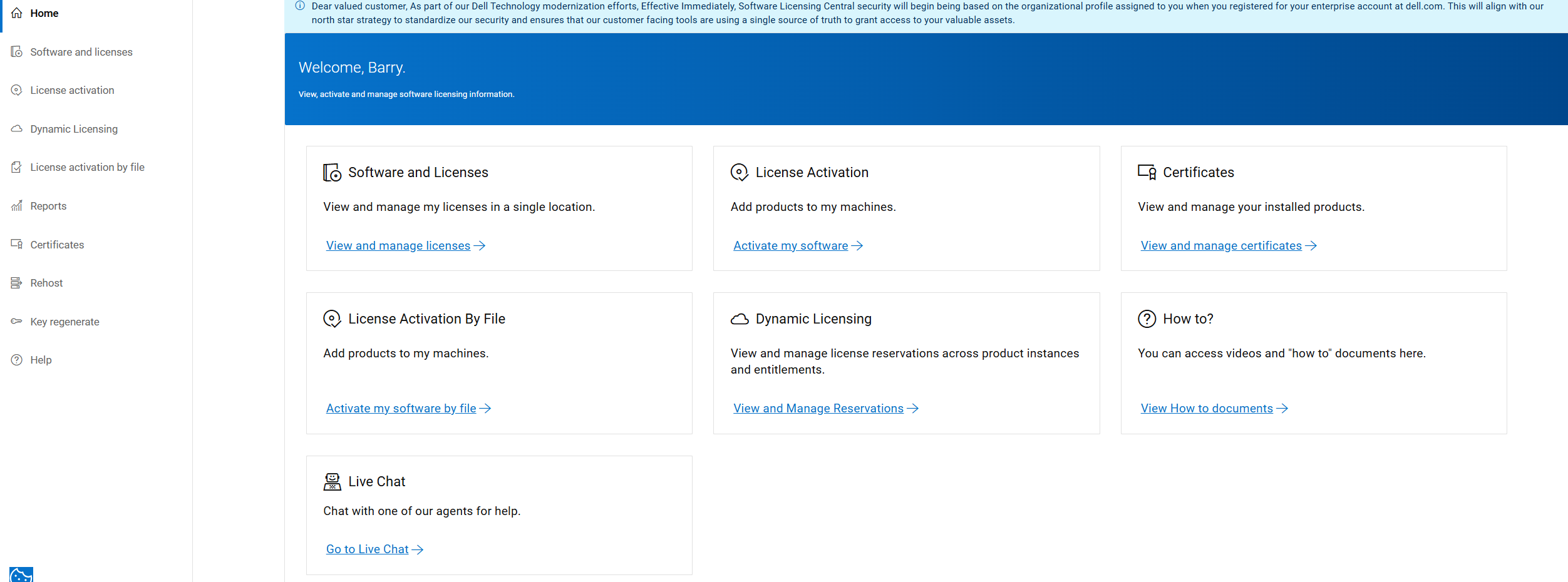
Access Software Licensing Central (SLC) directly. Under Quick Links, click the "License Activation" button and enter your LAC number or Transformational License Agreement order number.
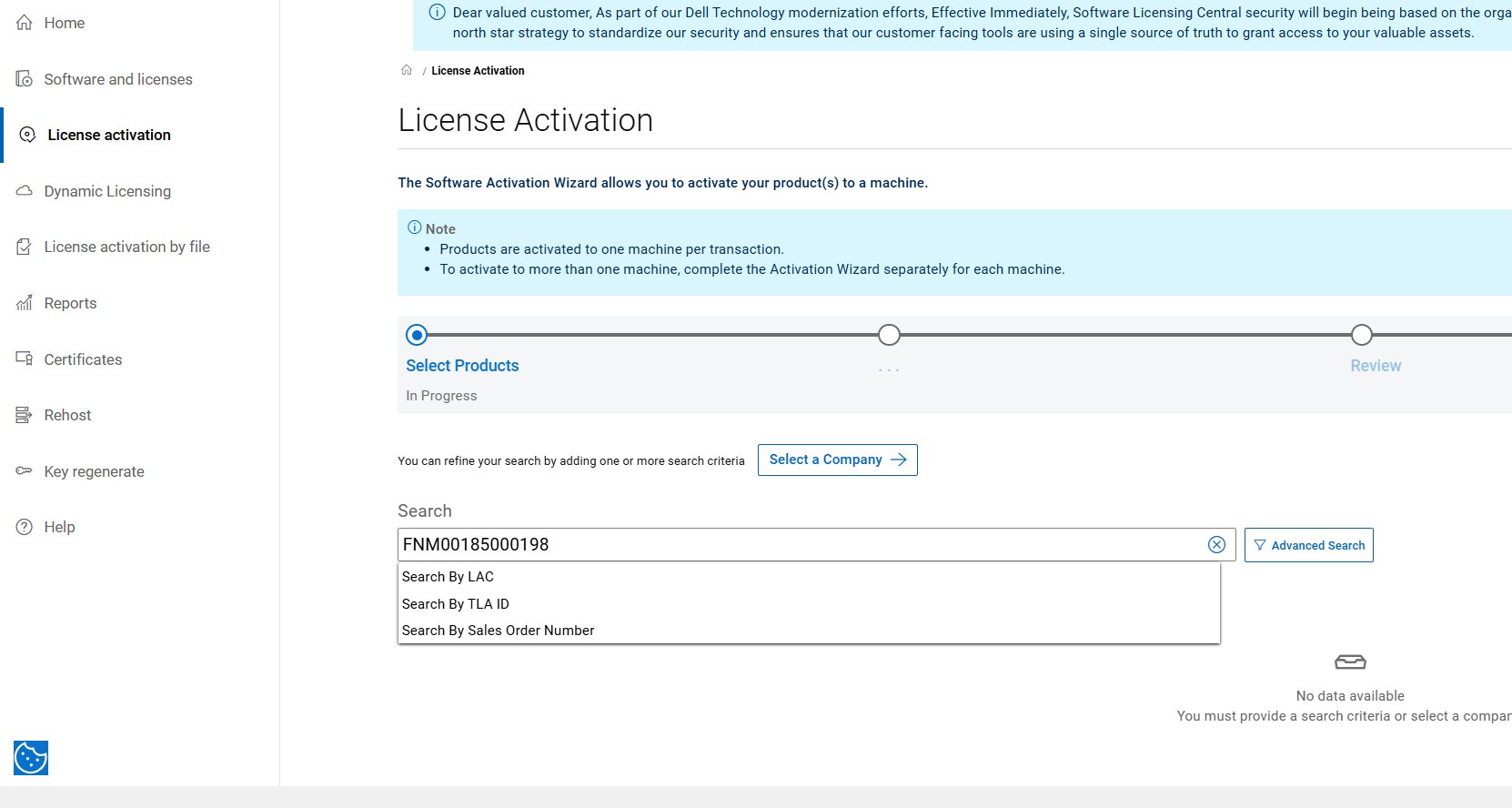
Go to the License activation page, enter your LAC number, product serial number (TLA ID number), or order number into the search box, and click the search button. The system will search the licensing portal for the entitlements.
Follow the Steps to complete your activation.
STEP 1: SELECT AVAILABLE PRODUCTS TO ACTIVATE
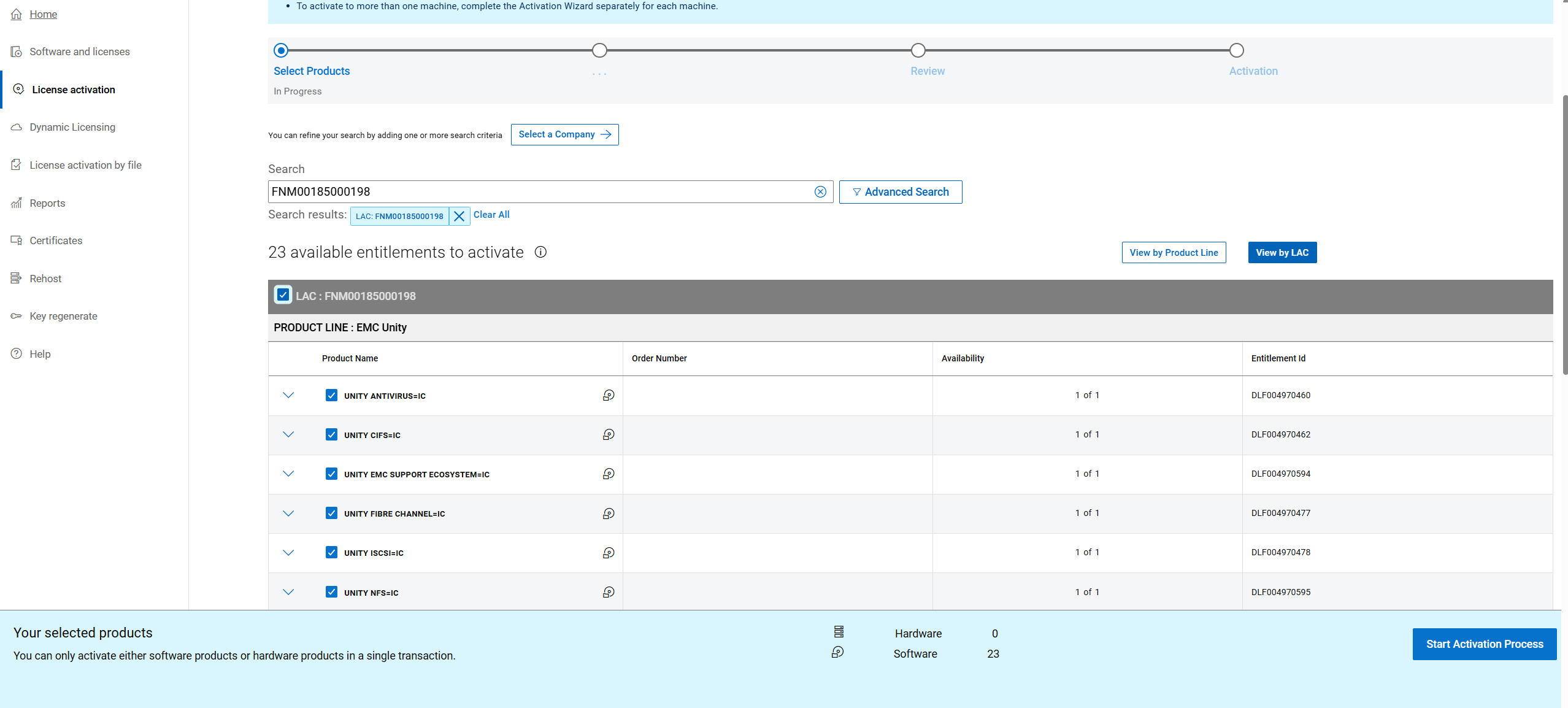
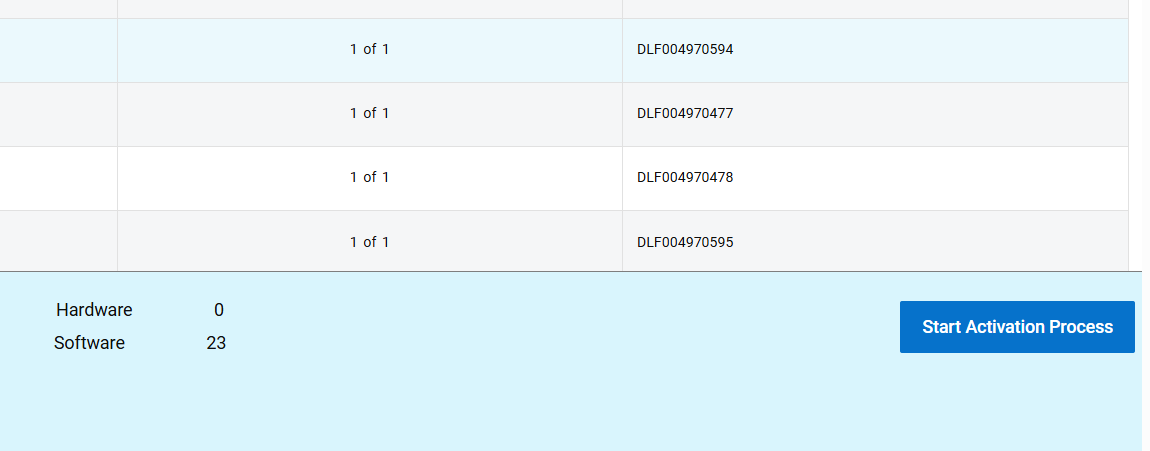
At the bottom of the page, click the "START ACTIVIATION PROCESS BUTTON."
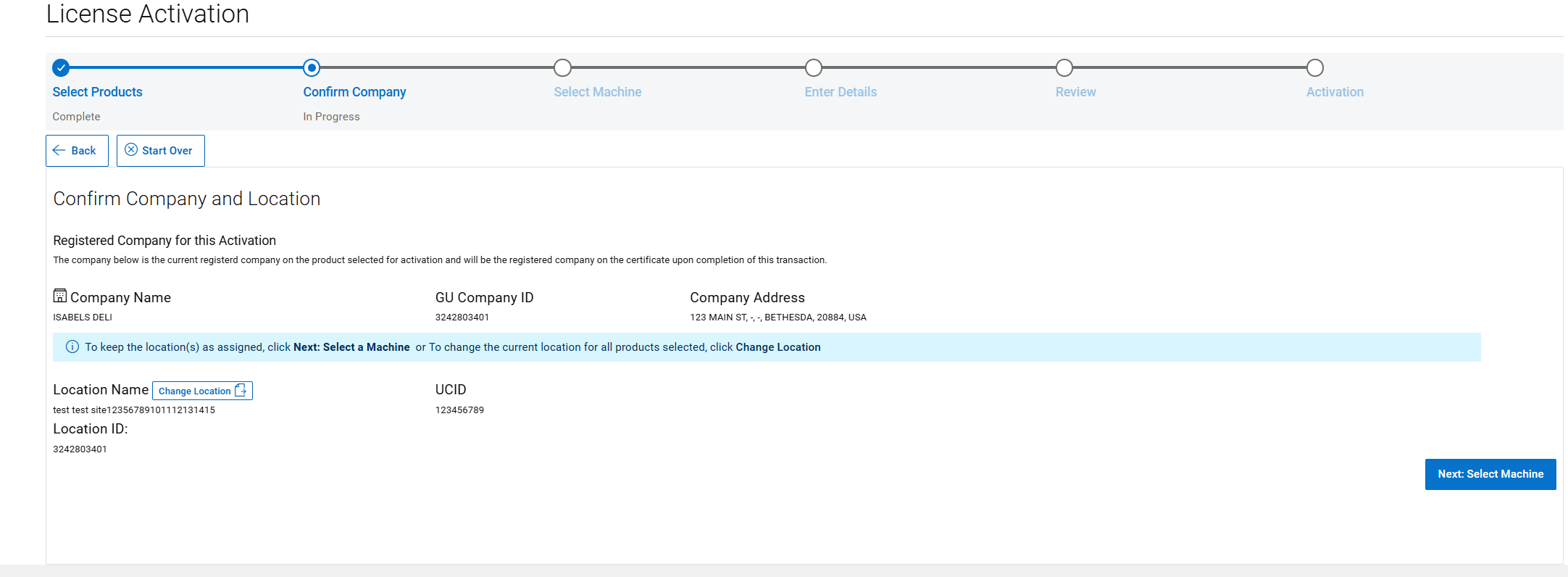
STEP 2: CONFIRM COMPANY and SITE
Click "NEXT:SELECT A MACHINE."
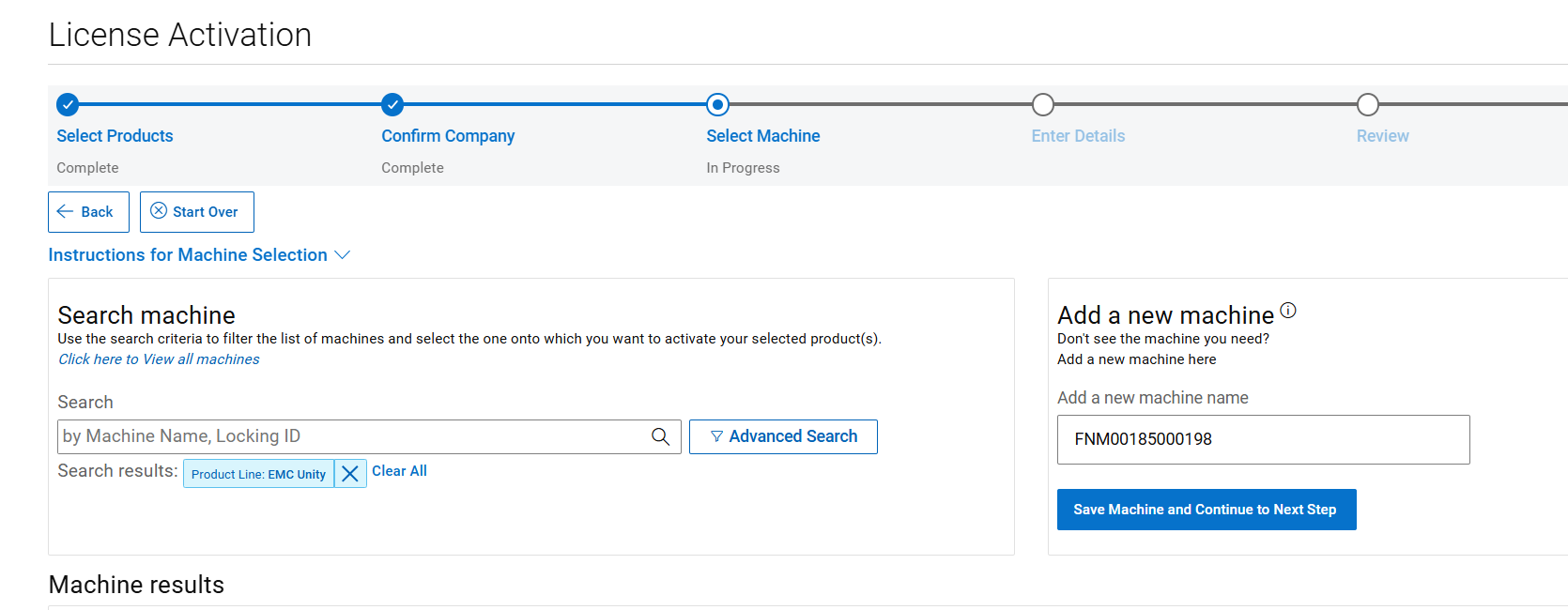
STEP 3: SELECT A MACHINE
Copy and paste the Array serial number in to Add a New Machine and then click "SAVE MACHINE & CONTINUE TO NEXT STEP"
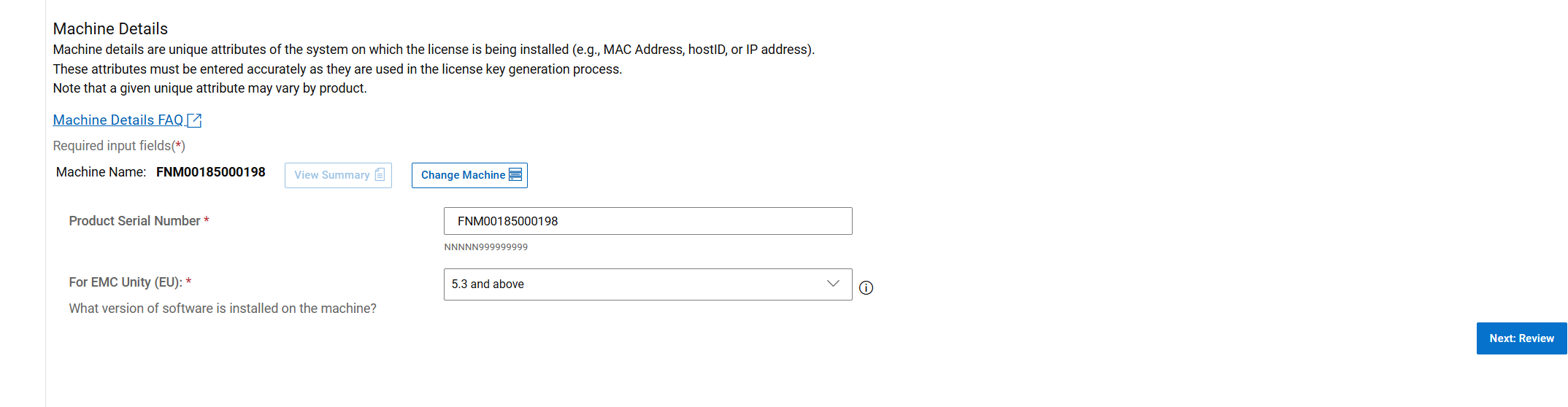
STEP 4: ENTER PRODUCT QUANTITIES and MACHINE DETAILS
Scroll to the bottom of the page where the Array serial number is added into the Product serial number box as the locking Id.
Select the correct Software Version that the Unity is running. The two options are 5.2 and below and 5.3 and above, after entering all details correctly click the "NEXT:REVIEW" Button.
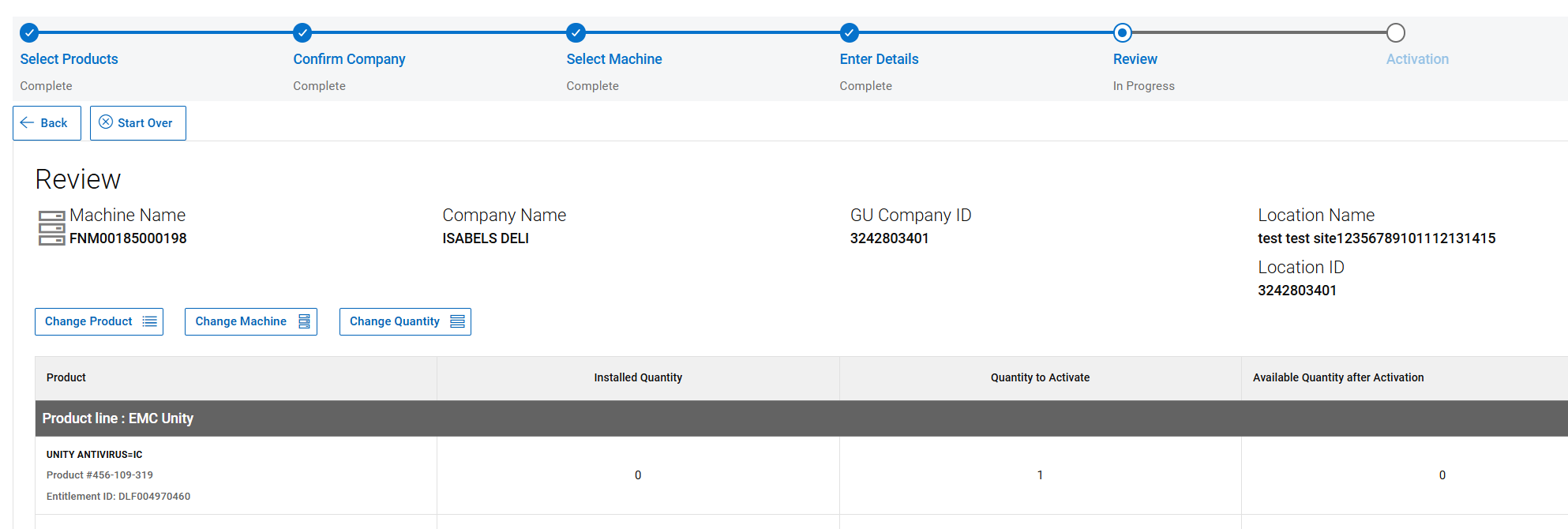
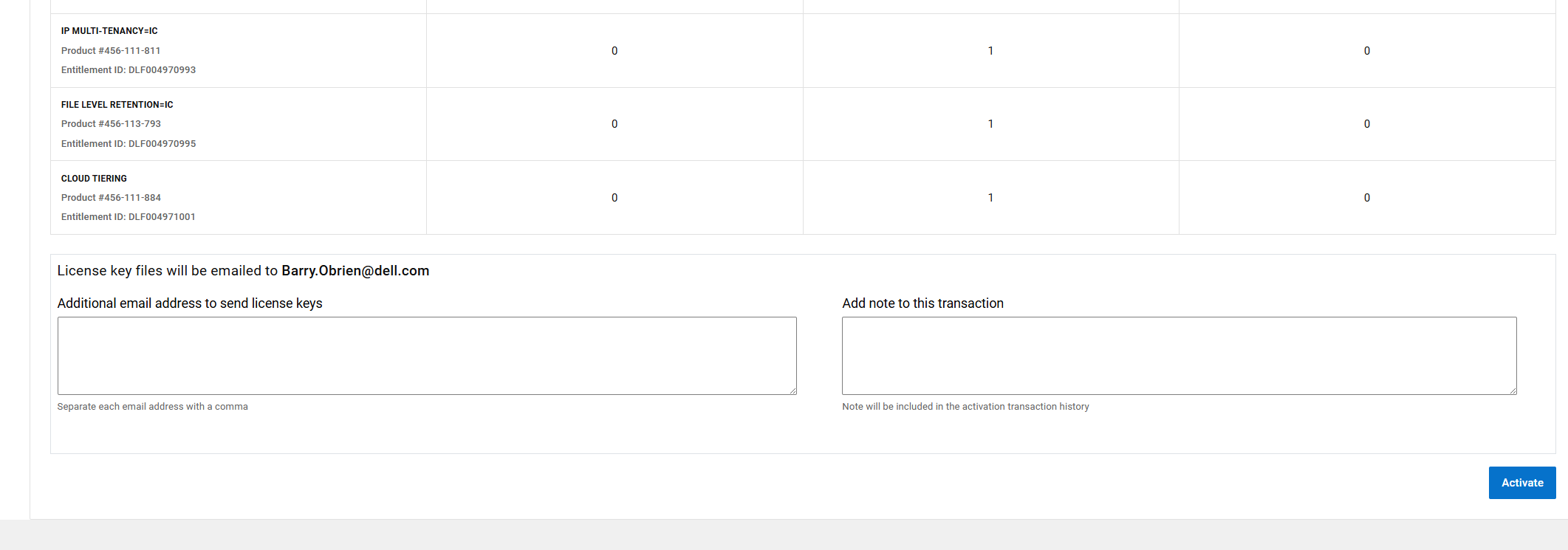
STEP 5: REVIEW YOUR SELECTIONS
Review your entitlement selection and navigate at the Bottom of the page and click activate.
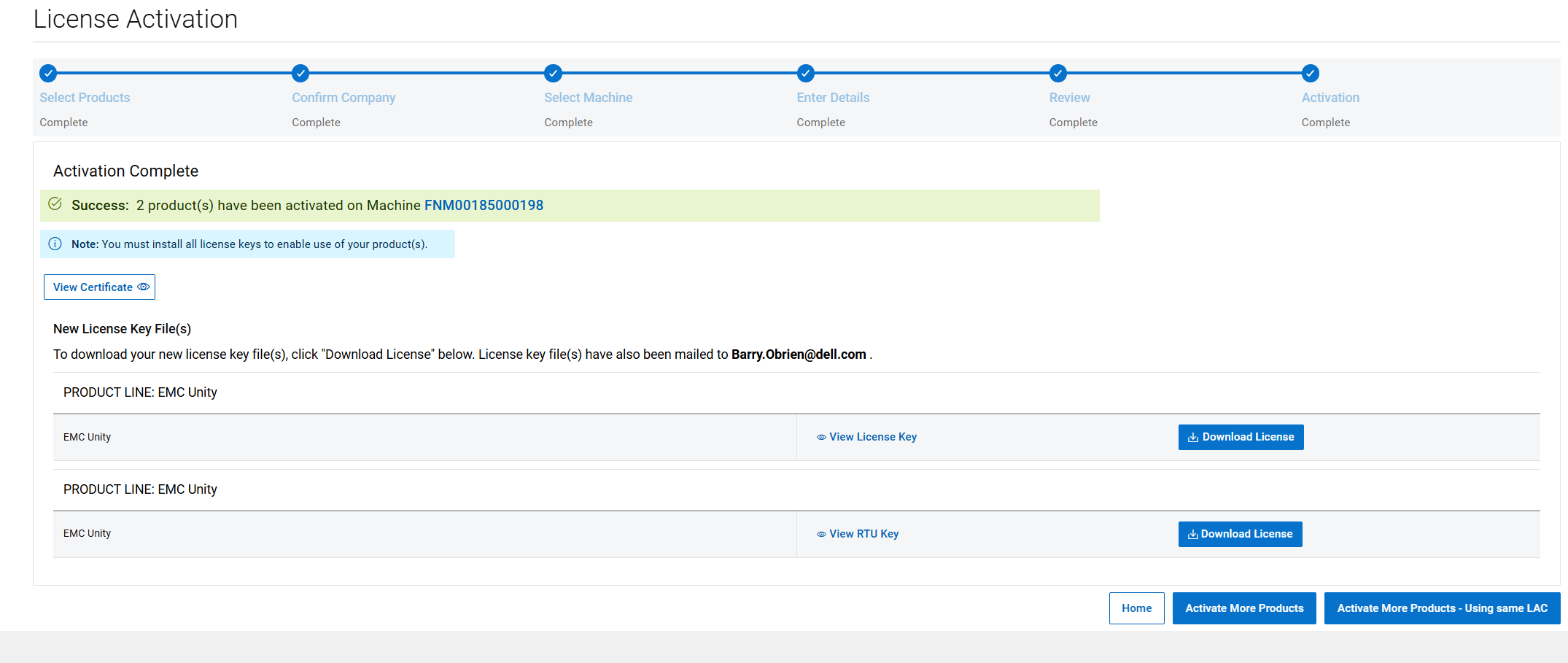
STEP 6: ACTIVATION COMPLETE
This is the final Step of the activation process. This page confirms that the license was activated.
The license file is automatically sent to the person that is logged in to the Software license central.
On this page, the license file can be manually download by clicking the Downlaod License Button.
3. Regeneration of a Unity License to a new Software Version
The license regeneration process allows one to obtain a new license file for the correct software version.
This is helpful if upgrading the current license file or if the wrong version was selected during activation.
Follow the steps below to regenerate your Unity license.
STEP 1: FIND YOUR SYSTEM
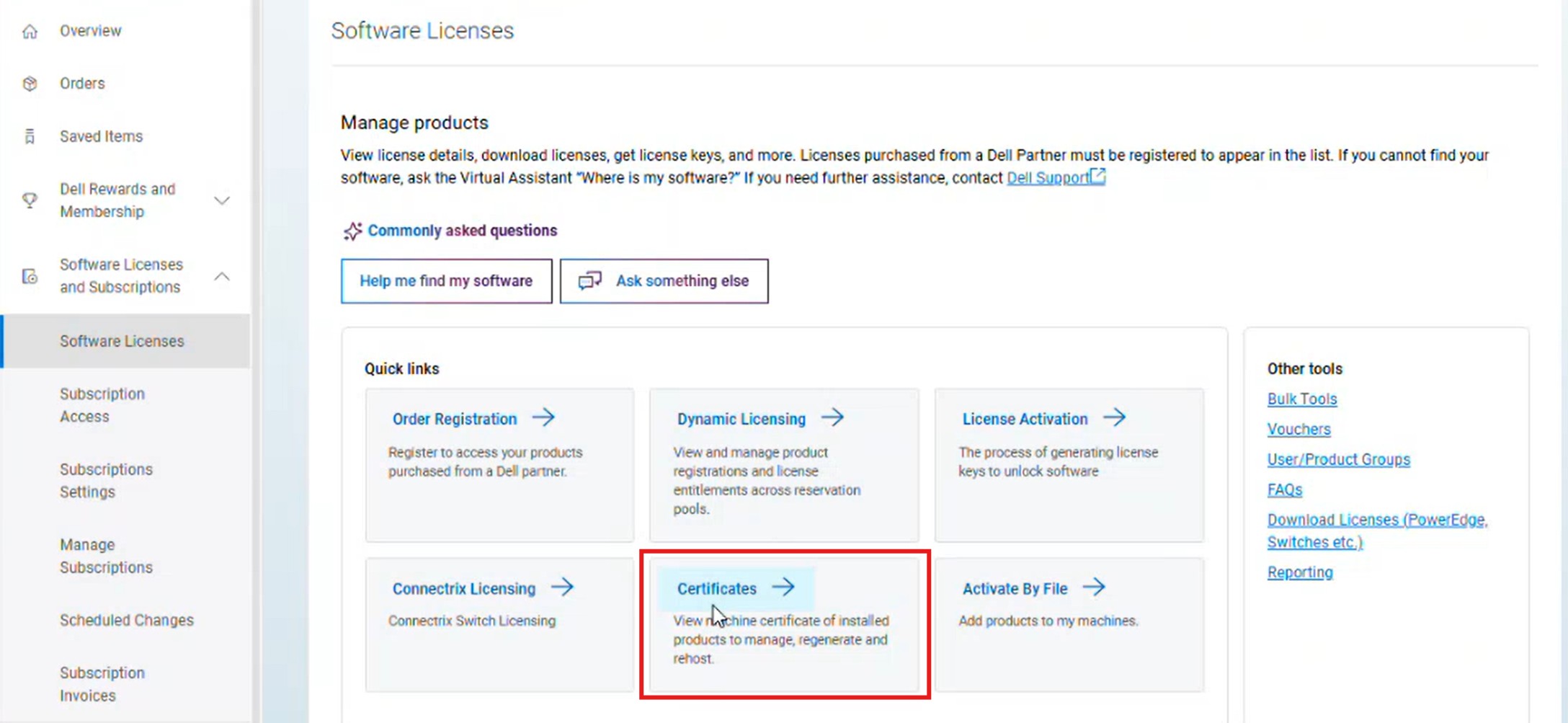
1. Click the Software Licenses option and click the "Certificates" tile. DO NOT go to the "Dynamic Licensing" page.
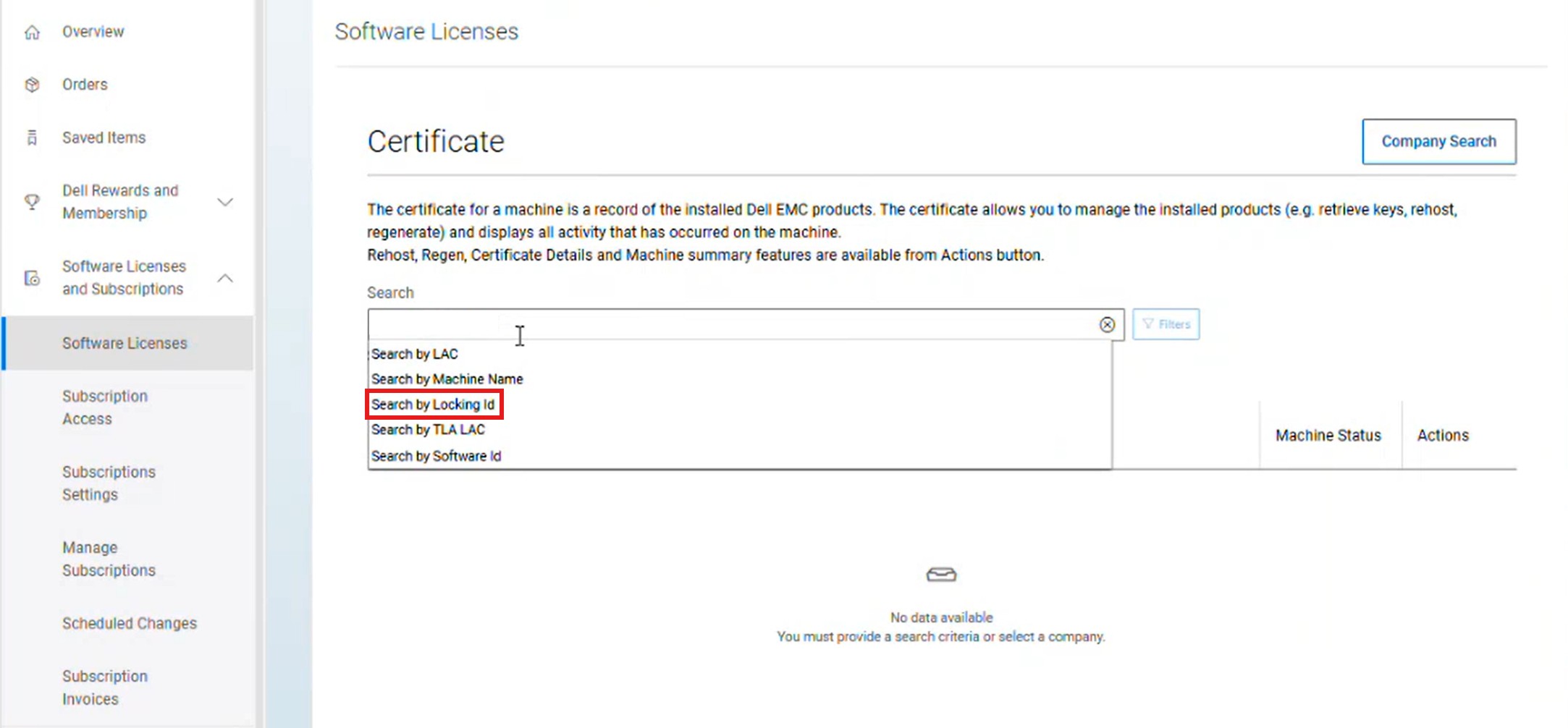
2. Search by "Locking ID" and use the array serial number or the PSNT and click the "Search" button. (NOTE: "Locking ID" is the preferred search method)
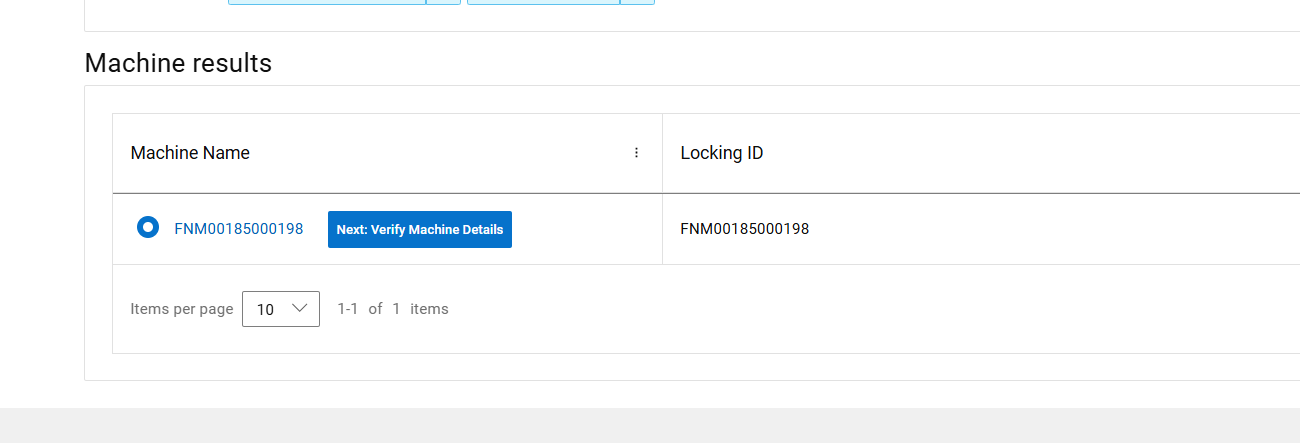
STEP 2: SELECT A MACHINE TO REGENERATE
Select the correct system and click Next: Verify Machine Details.
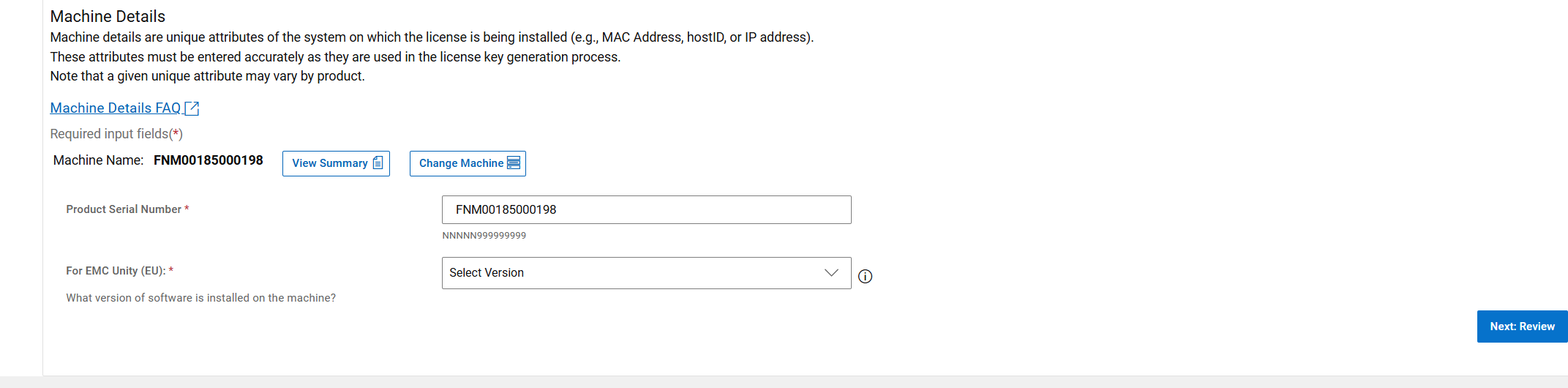
STEP 3: VERIFY MACHINE DETAILS
Ensure the Product Serial Number is correct. In the "Select Version" dropdown, choose the software version of the Unity to generate a license for the appropriate version: "5.2 and Below" or "5.3 and Above". At the bottom of the page and, click Next Review after the Version of Software has been chosen.
Caution: Select "5.3 and above" to get a license file in XML format. If a Pre-Upgrade Health Check warning directed you to this process, ensure that you have selected "5.3 and above." If you know you need a .LIC file (rare), select "5.2 and below." Most users on currently supported code versions will need to select "5.3 and above" here.
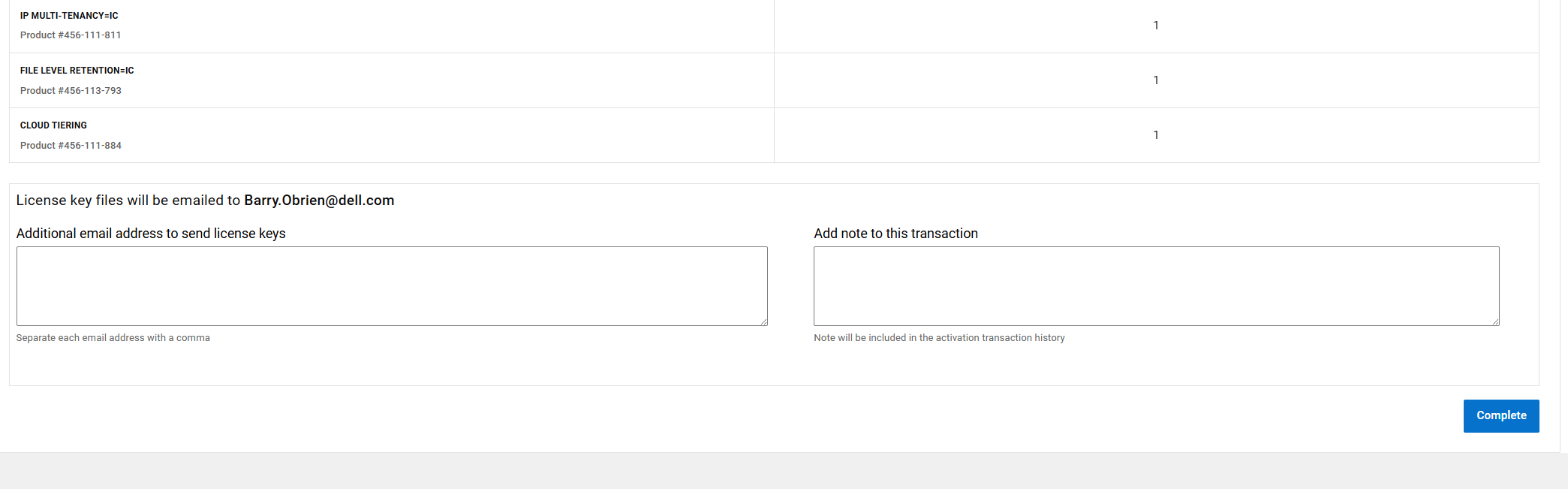
STEP 4: REVIEW YOUR SELECTIONS
Review your selection and then at the Bottom of the page and click Complete.
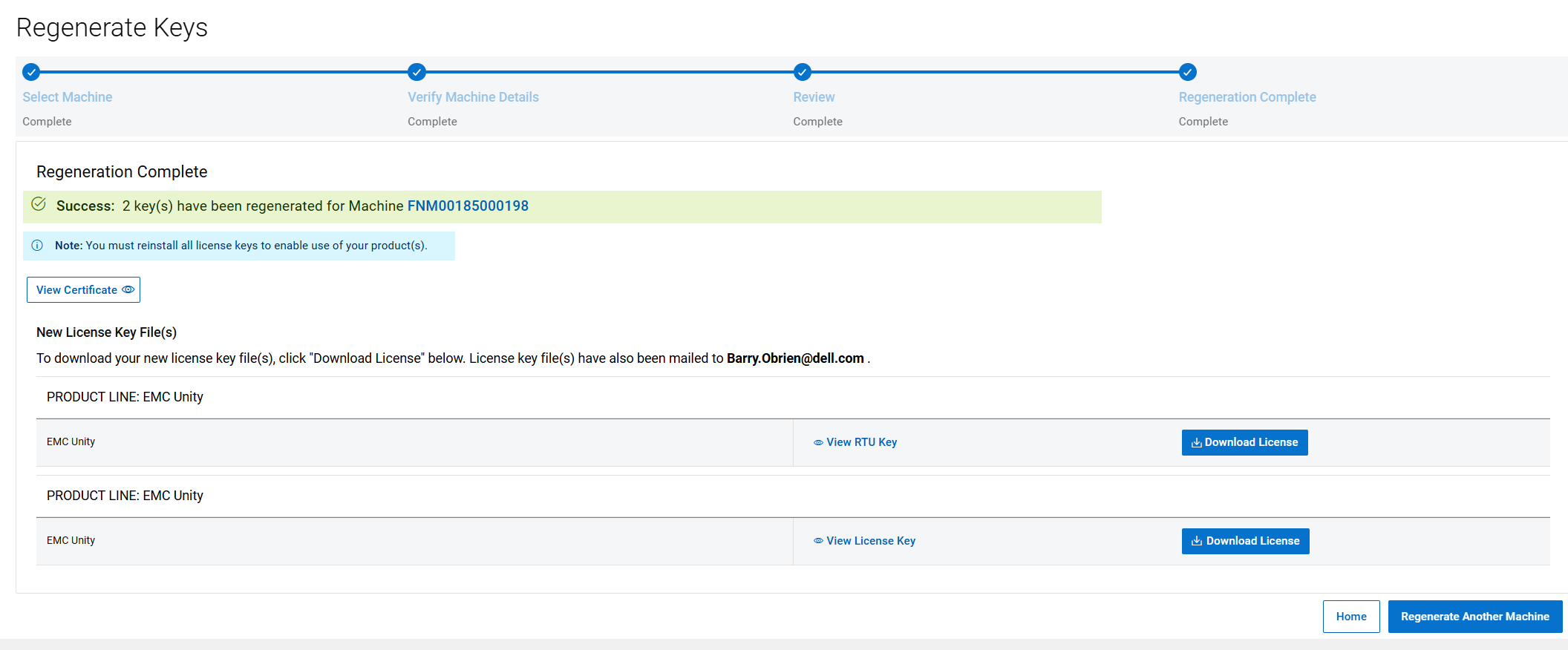
STEP 5: REGENERATION COMPLETE
This is the final Step of the regeneration process. This page confirms that the license was regenerated. The license file is automatically sent to the person that is logged in to the Software license central. On this page, the license file can be manually download by clicking the Download License Button.
Affected Products
Dell EMC UnityArticle Properties
Article Number: 000225584
Article Type: How To
Last Modified: 13 Nov 2026
Version: 7
Find answers to your questions from other Dell users
Support Services
Check if your device is covered by Support Services.