Intel E823-C LOM unable to link up at 25 Gbps
Summary: This article guides user through resolving link option issues available with this integrated LOM. This LOM is typically shipped with XR4000 chassis nodes and used in Telco, Mixed IP, and Azure Local (AX, MC) nodes like 4520C/4510C compute sleds. ...
This article applies to
This article does not apply to
This article is not tied to any specific product.
Not all product versions are identified in this article.
Symptoms
Intel E823-C LOM is a versatile and flexible LOM solutions that offer multiple interfaces and support both copper and optical interfaces and specifically depending on each platform.
Dell XR4510C and XR4520C00 nodes use this four-port LOM (25G 4P E823-C LOM) with optical interface and can support DAC, QSFP28 to 4x SFP28 breakout and other active optical cables. Refer to the latest Dell Server Adapter Matrix for validating the support cables and optics.
This article focuses on XR4510C/XR4520C available link options. This LOM can be configured to support the following options: 4 x 25G and 4 x 10G
If a customer is using 25Gb supported optics/DAC cables between ports and still cannot get 25Gb link, then you have most likely selected the wrong option.
Cause
If you collect TSR, you see that the port speed is 10Gbps.
Case 1: Issue caused by wrong link speed selection
Solution: Select the correct link speed as per your environment/requirement.
On reboot- Select F2 BIOS-Device Settings-Select PORT 1 of the E823-C LOM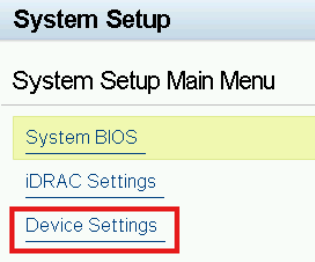
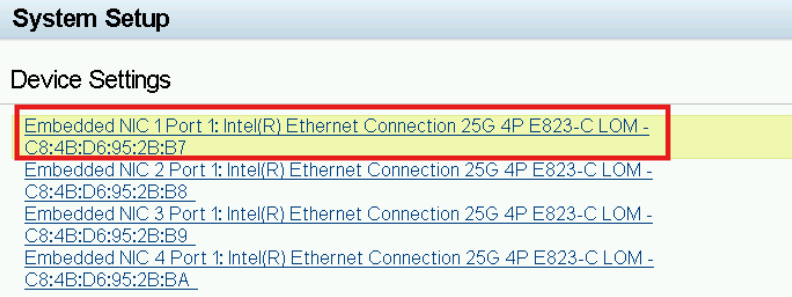
Select the Device level configuration of port 1.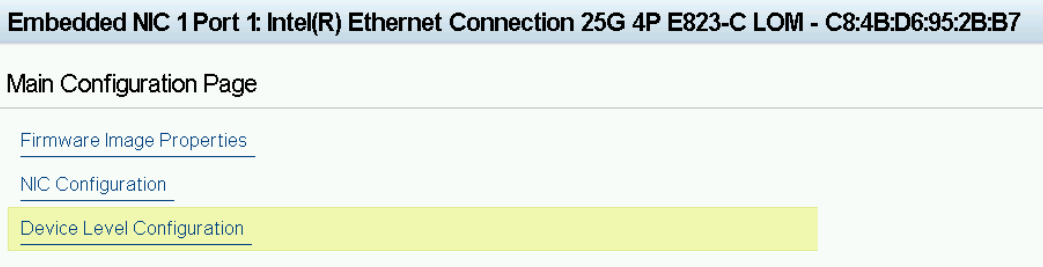
Click port option configuration to choose the wanted link speed option.
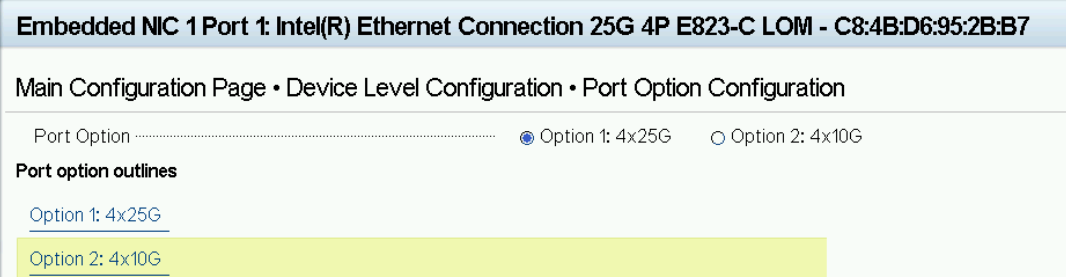
If you select option 1 for 25Gbps, you can connect at 25 Gbps.
If you have not selected this option, all four ports are limited to 10 Gbps speed and when you go to any port to choose the speed the option of 25 Gbps is missing. See the screenshot below.
Selecting this option impacts all the four ports on the LOM and hence it is important to select the correct option in settings on Port 1.
It is important to note that this option to change port link speeds for all the four ports is available only on the device level configuration of PORT 1 only and not other ports.
For example, if you go to port 2 -Device Level Configuration- no such option is available.
This behavior is slightly different from other LOM/NIC cards settings that we are used to and hence it is important to note that settings of all ports are configurable only from port 1 under device level configuration.
Case 2:
If you have selected the correct link speed for all ports and if your ports are still unable to link at the wanted speed, then verify:
-
If the cables/optics used are validated in Dell Server Adapter Matrix
-
You have the latest NIC firmware and BIOS along with the correct drivers.
-
Ensure that switch ports have supporting uplink speeds.
-
Ensure that each port has been correctly configured under its NIC configuration main page.
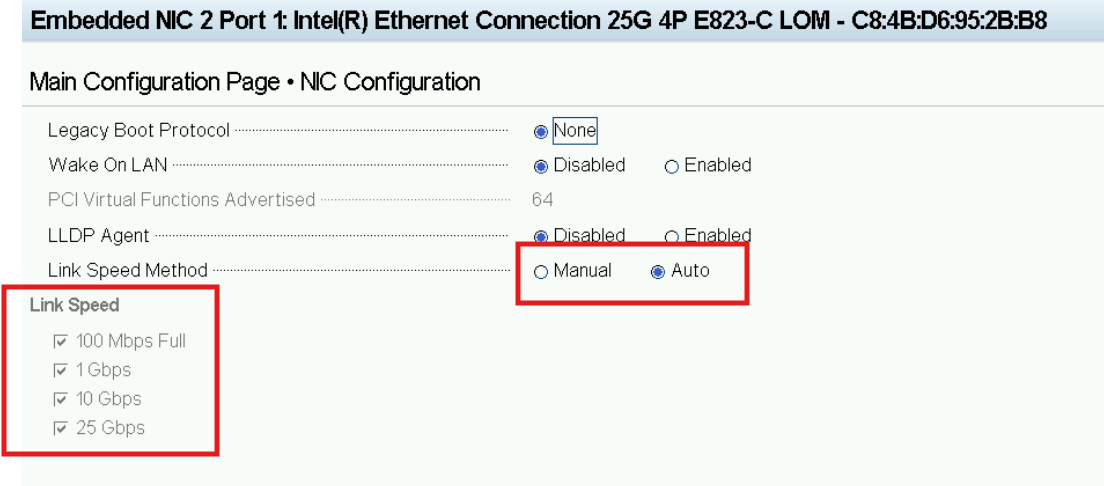
-
Ensure that FEC has been correctly selected under the main configuration page.
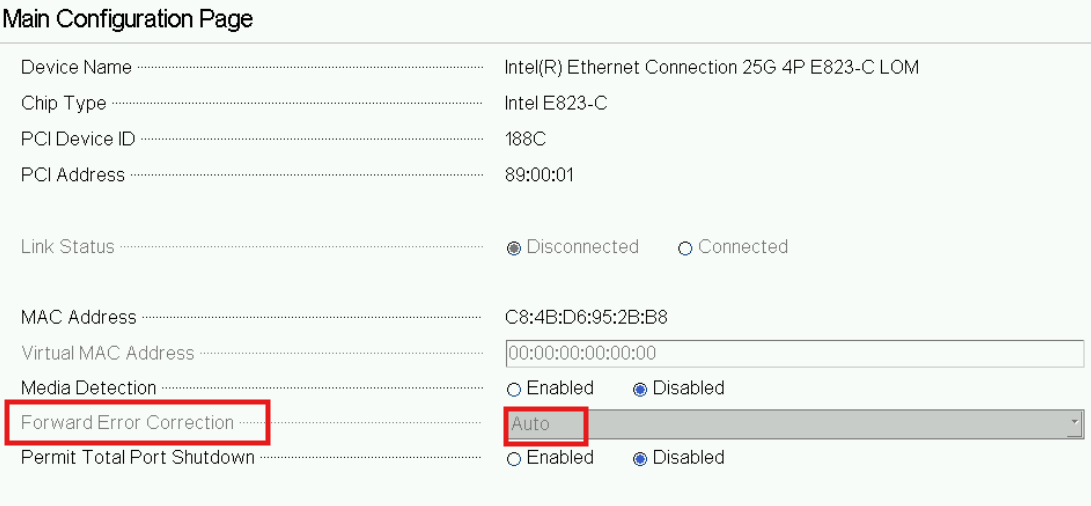
-
Some switches support a specific type of FEC mode and the option to change FEC mode will be available only after you selected the link speed to manual mode
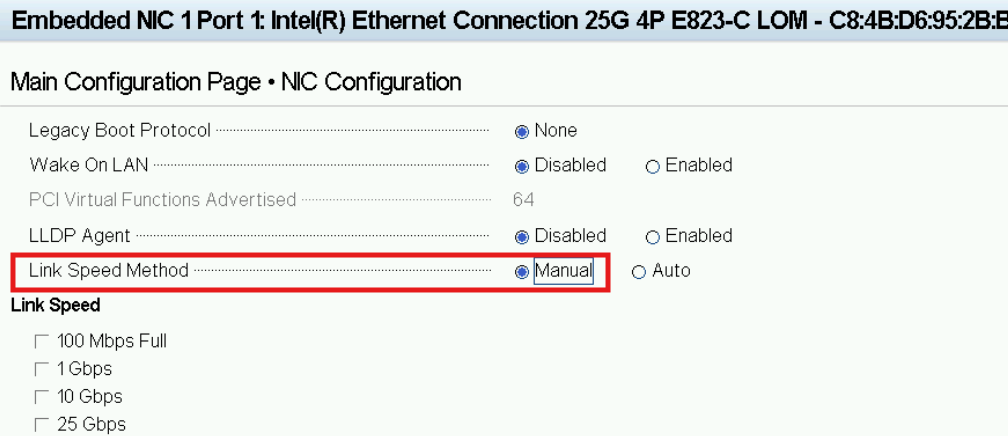
Choose the wanted FEC mode for NIC port and SWITCH port after selecting the link speed to manual mode.

- If the issue persists, check what works best for you- some OS must force auto negotiation at OS level, even if you have selected the Auto mode for link speed.
- Force the link speed with the correct FEC mode at both OS level and BIOS level.
The above steps should help and isolate and resolve the issue. As a thumb rule, the NIC port settings should ideally match the Switch port settings for the best results.
Resolution
Correct Speed link settings in the BIOS and at OS level and ensuring correct switch port configuration is key to resolving this type of issues.
Affected Products
XC Core Systems, AX-4000R, AX-4000Z, AX-4510C, AX-4520C, Dell XC Core XC4510C, Dell XC Core XC4520C, OEMR XR4510c, OEMR XR4520c, PowerEdge XR4510c, PowerEdge XR4520c, VxRail VD-4510C, VxRail VD-4520C, VxRail VD Series NodesArticle Properties
Article Number: 000353158
Article Type: Solution
Last Modified: 12 Sep 2025
Version: 4
Find answers to your questions from other Dell users
Support Services
Check if your device is covered by Support Services.