Data Domain: Forcing Replication Traffic Over a Specific Network Interface (NIC)
Summary: This article explains how to force Data Domain replication traffic over a specific Ethernet port.
This article applies to
This article does not apply to
This article is not tied to any specific product.
Not all product versions are identified in this article.
Symptoms
This article explains how to force replication traffic over a specific Ethernet port.
Cause
It is best practice to have Replication activities to through a dedicate network.
By failing to adhere to this practice the network can become congested and affect the performance of both Replication and Backup/Recovery activities
Resolution
For Directory, Mtree and Collection replication, modify the replication context to adopt a different Connection Host value.
Steps:
- From the Source Data Domain graphical user interface (GUI), once logged in, go to Protocols>Replication
- Select the Replication context
- Click on the Modify Settings Button

- In the Modify Connection Settings dialog, select Use Non-default Connection Host and give the new destination IP or hostname you want to use for the destination Data Domain.

- Click Next
- You will be given a warning of the context being disabled and re-enabled. If you have an active Mtree replication context currently active, it will re-start the replication of the current snapshot.
- Once pressed OK, watch the task progression to its completion to make sure the change has occurred.
- The same change can be performed on the Data Domain CLI using the command "
"replication modify <destination> connection-host <new-host-name>
Note: Make sure that the connection host is only reachable (for example by ping) by a specific network interface that you have devised as a replication interface. If this is not possible, you would have to create a static route on the source Data Domain.
Steps:
- From the Source Data Domain graphical user interface (GUI), once logged in, go to Hardware, Ethernet, Routes
- Select the network interface you have decided to be the replication Source IP and click Next
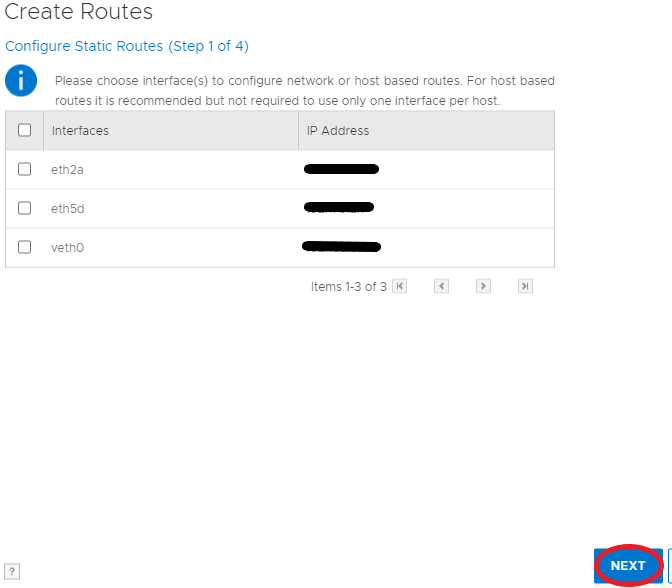
- In the next step, select Host and give the interface IP or hostname if resolvable by the Source DataDomain (Note if the subnet of the Source interface is different from the Destination Data Domain you will have to specify the gateway)
- Click Next, review the settings and click finish.
- Watch the task completion to the end to make sure it has completed.
- The same can be accomplished through the command line interface using the command "
"net route add
For DDBOOST Replication and as an alternative for all other Replication methods, we can resolve the Destination hostname as an alternative Destination IP by modifying the Source Data Domain hosts entries (again if other network interfaces can resolve and connect to our designated Destination IP address a static route will have to be created on the source).
Steps
- From the Source Data Domain graphical user interface (GUI), once logged in, go to Hardware, Ethernet, Settings.
- In the Host Mapping section, click the ADD button

- In the dialog select a host name if already presented or click the + button to add the hostname.
- Once the hostname is added or if it already present, select the hostname and fill-in the IP address
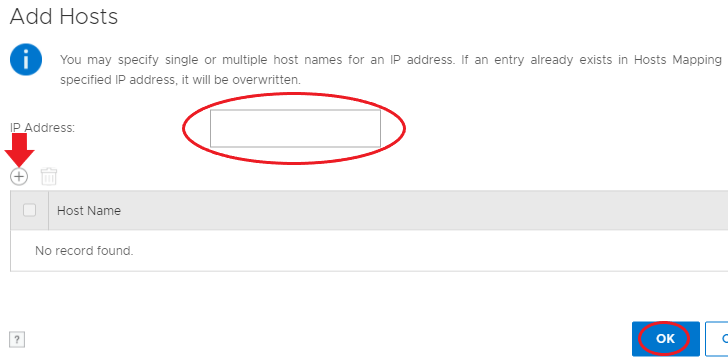
- Once done, press OK and check the Host Mapping table has updated
For DDBOOST, it is also available the Replication Ifgroup feature.
This feature will work by sending DDBOOST replication traffic on specific ifgroup members that have been added to the replication ifgroup group.
For more information on this feature, please consult the Dell EMC DD OS Administration Guide, under "Using interface groups for Managed File Replication (MFR)"
Additional Information
Affected Products
Data DomainProducts
Data DomainArticle Properties
Article Number: 000042112
Article Type: Solution
Last Modified: 12 Dec 2024
Version: 6
Find answers to your questions from other Dell users
Support Services
Check if your device is covered by Support Services.