PowerStore: Adding another appliance to the existing cluster fails
Summary: Adding another appliance to the existing cluster may fail if a user tries to log in to the new appliance's PowerStore Manager before adding it to the cluster.
This article applies to
This article does not apply to
This article is not tied to any specific product.
Not all product versions are identified in this article.
Symptoms
Adding an appliance to the existing cluster may fail with error codes:
As seen from PowerStore Manager:
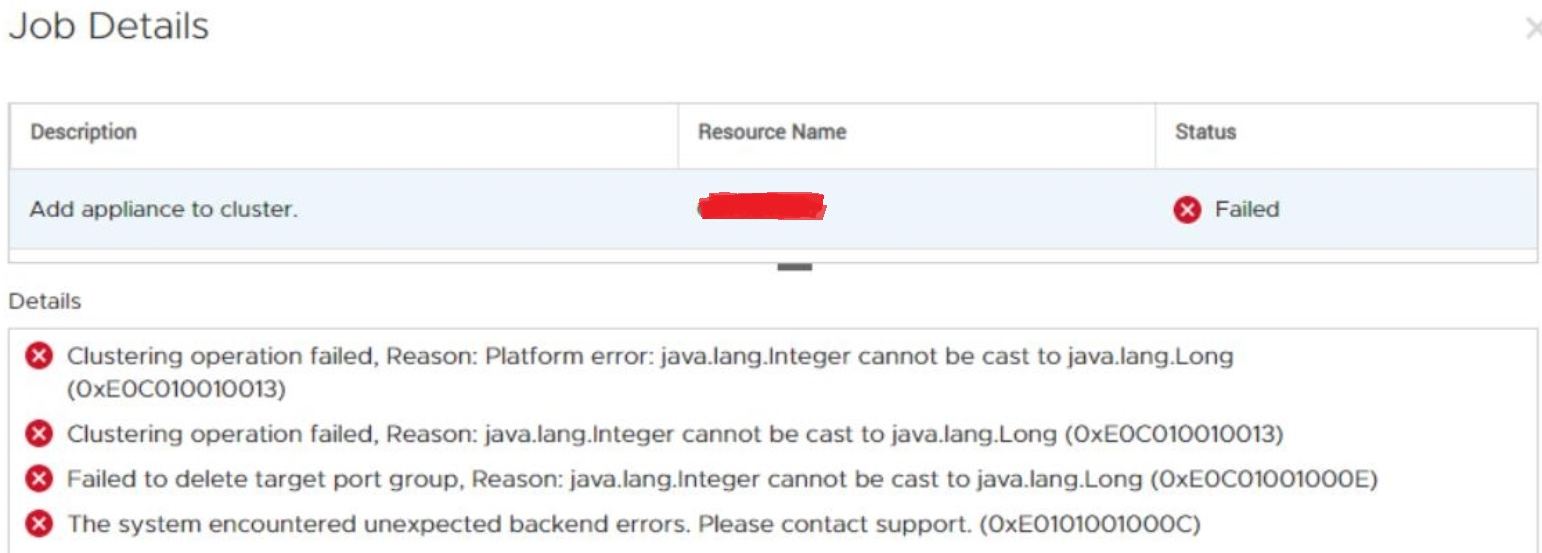
- Clustering operation failed, Reason: Platform error: java.lang.Integer cannot be cast to java.lang.Long (0xE0C010010013).
- Clustering operation failed, Reason: java.lang.Integer cannot be cast to java.lang.Long (0xE0C010010013).
- Failed to delete target port group, Reason: java.lang.Integer cannot be cast to java.lang.Long (0xE0C01001000E).
- The system encountered unexpected backend errors. Please contact support. (0xE0101001000C).
As seen from PowerStore Manager:
Cause
This issue is caused by an attempt to access the PowerStore Manager (UI) of the new appliance through the service port, before adding the appliance to the cluster.
Even if the user clicks cancel and does not change anything, a new lockbox is created. The issue occurs when the timestamp of the lockbox creation is before the joinCluster event timestamp.
Even if the user clicks cancel and does not change anything, a new lockbox is created. The issue occurs when the timestamp of the lockbox creation is before the joinCluster event timestamp.
Resolution
Fix
This issue is addressed in PowerStoreOS 2.1.0.0 and later.For versions before PowerStoreOS 2.1.0.0:
The new appliance must be returned to a clean factory state before it can be added to the cluster again:- Return the new appliance to its factory state by reinitializing it. See Dell KB article 180964: PowerStore: How to reinitialize a PowerStore system to factory state using the svc_factory_reset command.
- Wait at least one hour before trying to add the new appliance to the cluster.
- Do not try to log in the UI of the new appliance.
- Run the Add Appliance Wizard from the existing cluster.
If the appliance is not found, then you may log in to the new appliance over SSH only to check its status (example command: svc_diag list --icw_hardware). If you are unable to add the new appliance, contact Dell Technical Support or your Authorized Service Representative, and quote this knowledge base article ID.
Additional Information
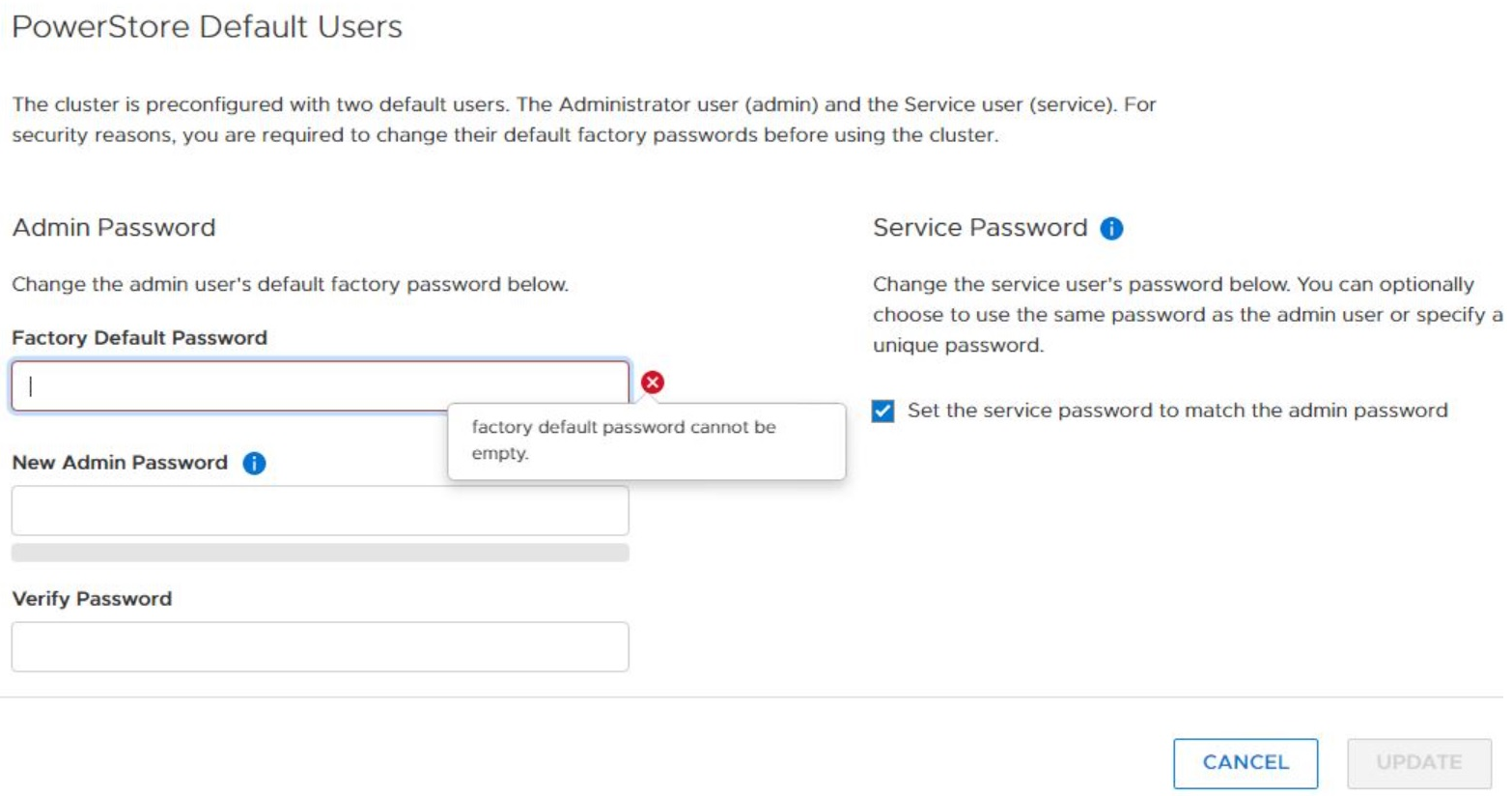
This is the first screen that the user sees after logging in, which is the screen to ask for changing a password.
Affected Products
PowerStoreArticle Properties
Article Number: 000185006
Article Type: Solution
Last Modified: 15 Sep 2022
Version: 4
Find answers to your questions from other Dell users
Support Services
Check if your device is covered by Support Services.