PowerEdge: Update Firmware over HTTPS Using iDRAC 9-10
Summary: This article provides information about how to update firmware using the online Dell catalog over HTTPS.
This article applies to
This article does not apply to
This article is not tied to any specific product.
Not all product versions are identified in this article.
Instructions
How to update firmware over HTTPS from the IDRAC
The IDRAC can be used to download all available updates for the detected hardware in the system using Dells online catalog located at: https://downloads.dell.com
Table of Contents:
Steps to update over HTTPS from IDRAC9:
- After logging into the iDRAC web interface, select Maintenance -> System Update -> Manual Update
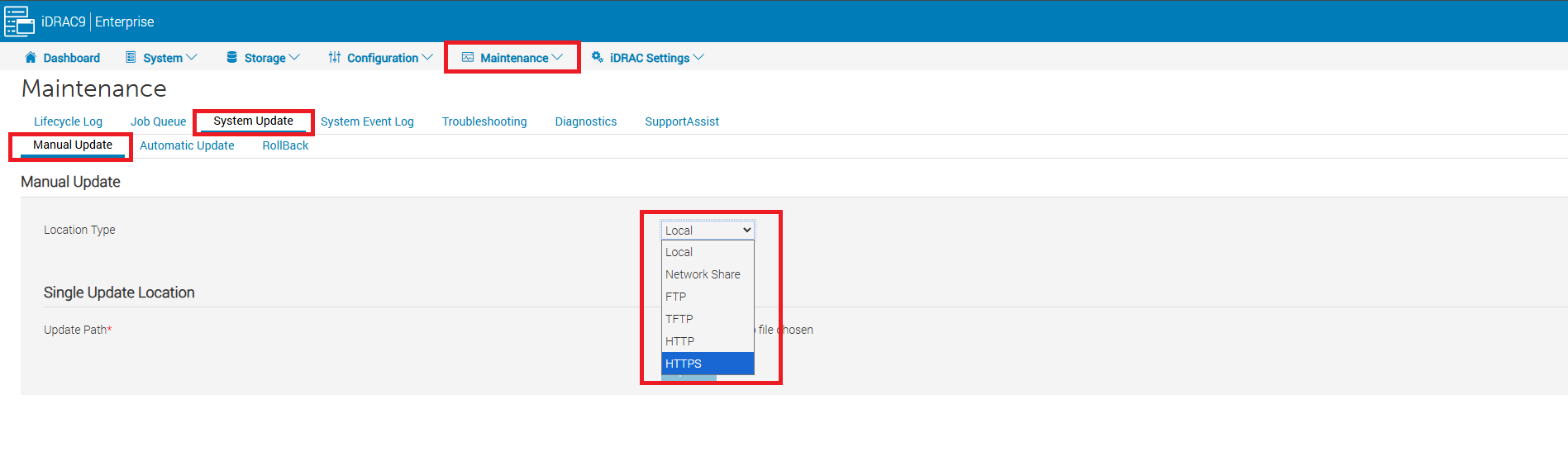
Figure 1: Select HTTPS for Location Type.
- On the update page, select HTTPS from the Location Type drop-down menu.
- Then under HTTPS Server Settings for HTTPS Address enter:
downloads.dell.comand then select Check for Update.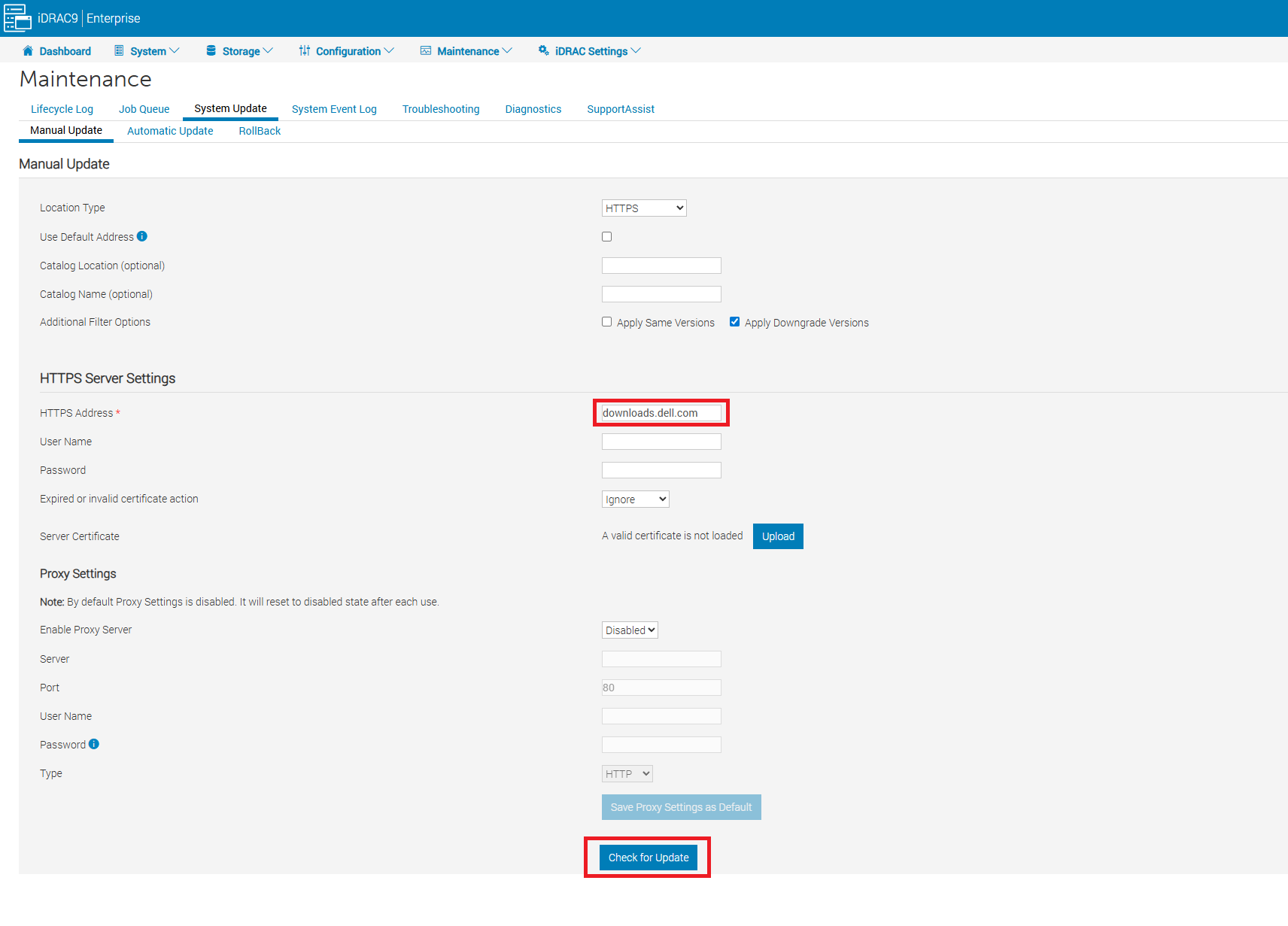
Figure 2: Manual Update page
- Once the list of available updates are shown, it is then possible to select individual or all the available updates.
- After selecting the desired update to install, you can then choose the desired installation option.

Figure 3: List of available firmware updates. - The install options available depend on the type of update selected, such as Install, Install and Reboot, or Install Next Reboot.
- Install: This option begins to install the update immediately without any reboot.
- Install and Reboot: This option schedules the update to start on boot and initiates a soft reboot request to the Operating System.
- Install Next Reboot: This option schedules the update to start on boot, but does not initiate any reboot. The reboot is initiated by the user when ready.
Steps to update over HTTPS from IDRAC10:
- After logging into the iDRAC web interface, select Maintenance -> System Update -> Manual Update
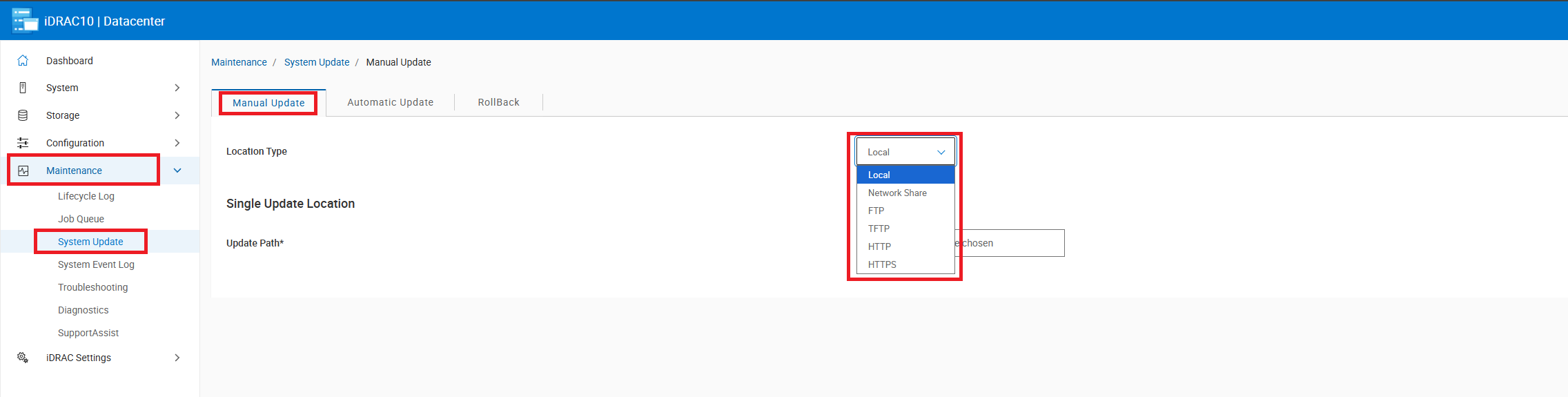
Figure 4: Select HTTPS for Location Type.
- On the update page, select HTTPS from the Location Type drop-down menu.
- Then under HTTPS Server Settings for HTTPS Address enter:
downloads.dell.comand then select Check for Update.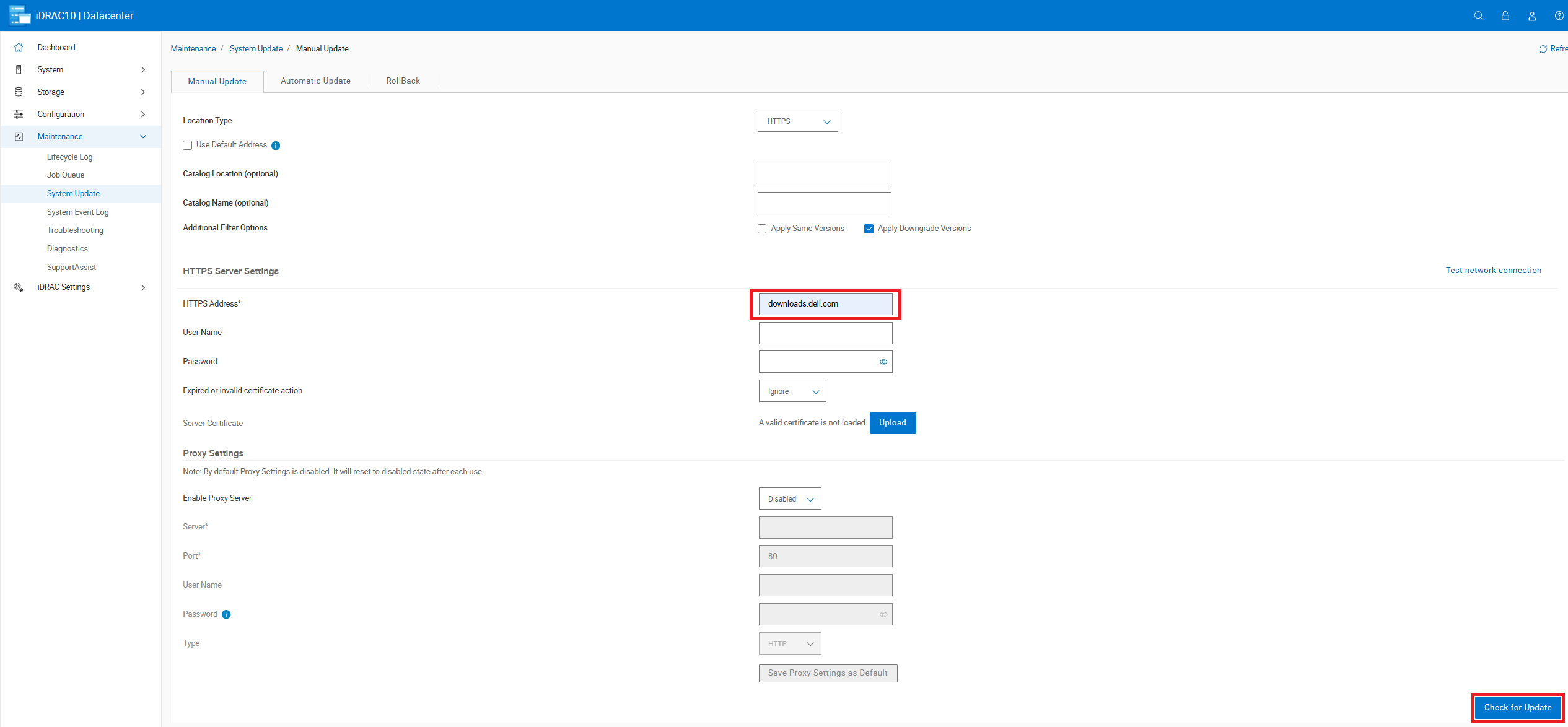
Figure 5: Manual update page
- Once the list of available updates are shown, it is then possible to select individual or all the available updates.
- After selecting the desired update to install, you can then choose the desired installation option.
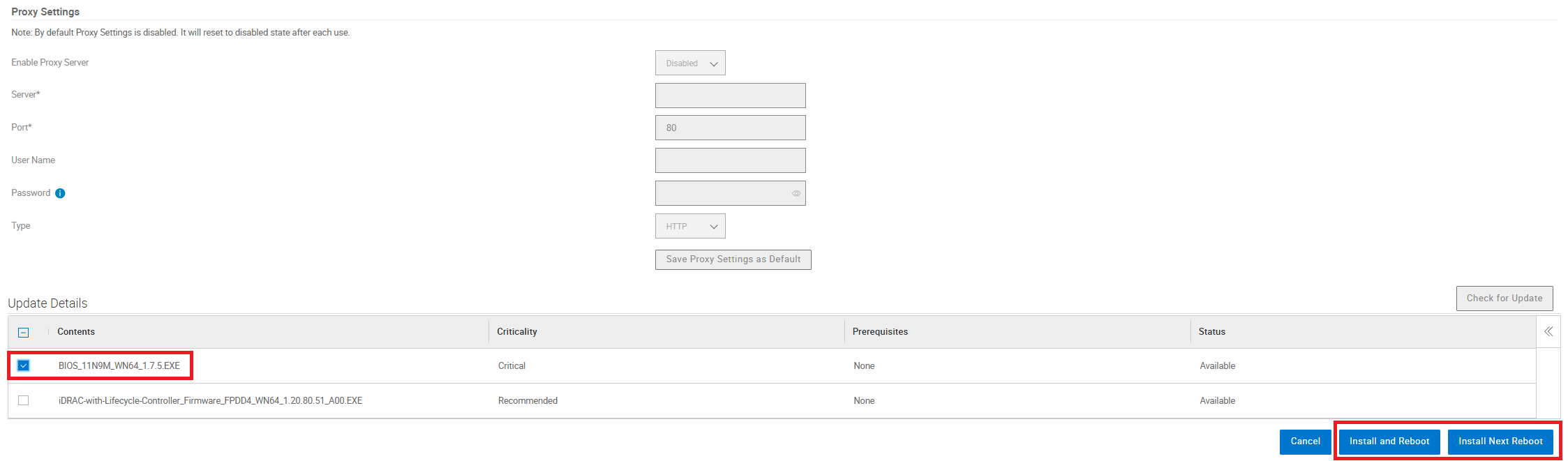
Figure 6: List of available updates.
- The install options available depend on the type of update selected, such as Install, Install and Reboot, or Install Next Reboot.
- Install: This option begins to install the update immediately without any reboot.
- Install and Reboot: This option schedules the update to start on boot and initiates a soft reboot request to the Operating System.
- Install Next Reboot: This option schedules the update to start on boot, but does not initiate any reboot. The reboot is initiated by the user when ready.
Affected Products
iDRAC9, iDRAC10 - 1.10.xx Series, iDRAC10 - 1.20.xx Series, iDRAC10 - 1.30.xx SeriesArticle Properties
Article Number: 000435817
Article Type: How To
Last Modified: 13 Mar 2026
Version: 2
Find answers to your questions from other Dell users
Support Services
Check if your device is covered by Support Services.