Dell Unity: Health check fails for Error: check_peer_management_port_link_2 (User Correctable)
Summary: During Health Check, the peer Storage Processor (SP) loses communication with the management network.
This article applies to
This article does not apply to
This article is not tied to any specific product.
Not all product versions are identified in this article.
Symptoms
Health check fails with the message:
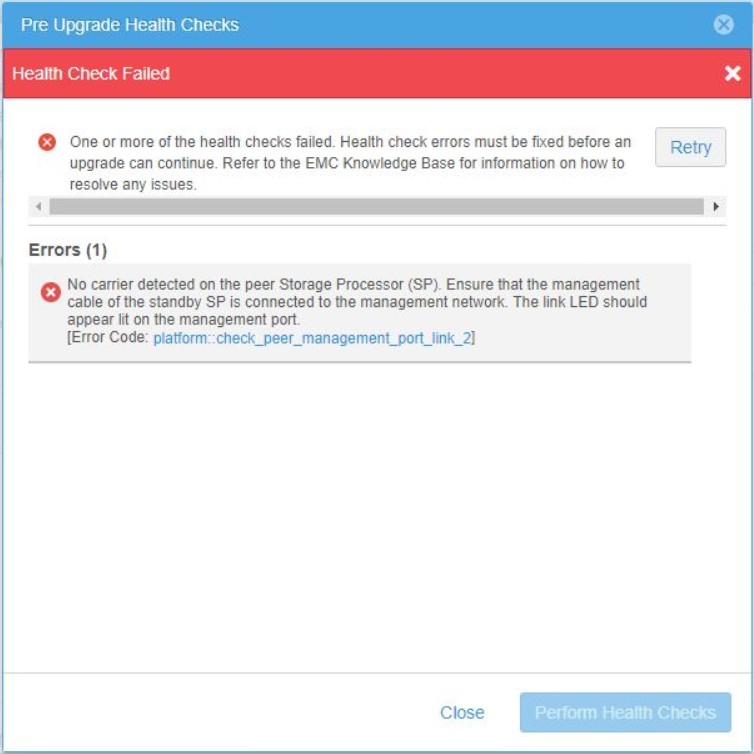
No carrier was detected on the peer Storage Processor (SP). Ensure that the management cable of the standby SP is connected to the management network.
The link LED should appear lit on the management port.
[Error code: platform::check_peer_management_port_link_2]
Cause
The peer (non-primary) SP has lost connection to the management network. Unity management access (UI and CLI) becomes inaccessible in the event management services are failed over to the peer SP.
In Unisphere from System View > Enclosures (Rear View) > Peer (non-primary), SP reports "The port link is down" for Management port.
Example in Unisphere:
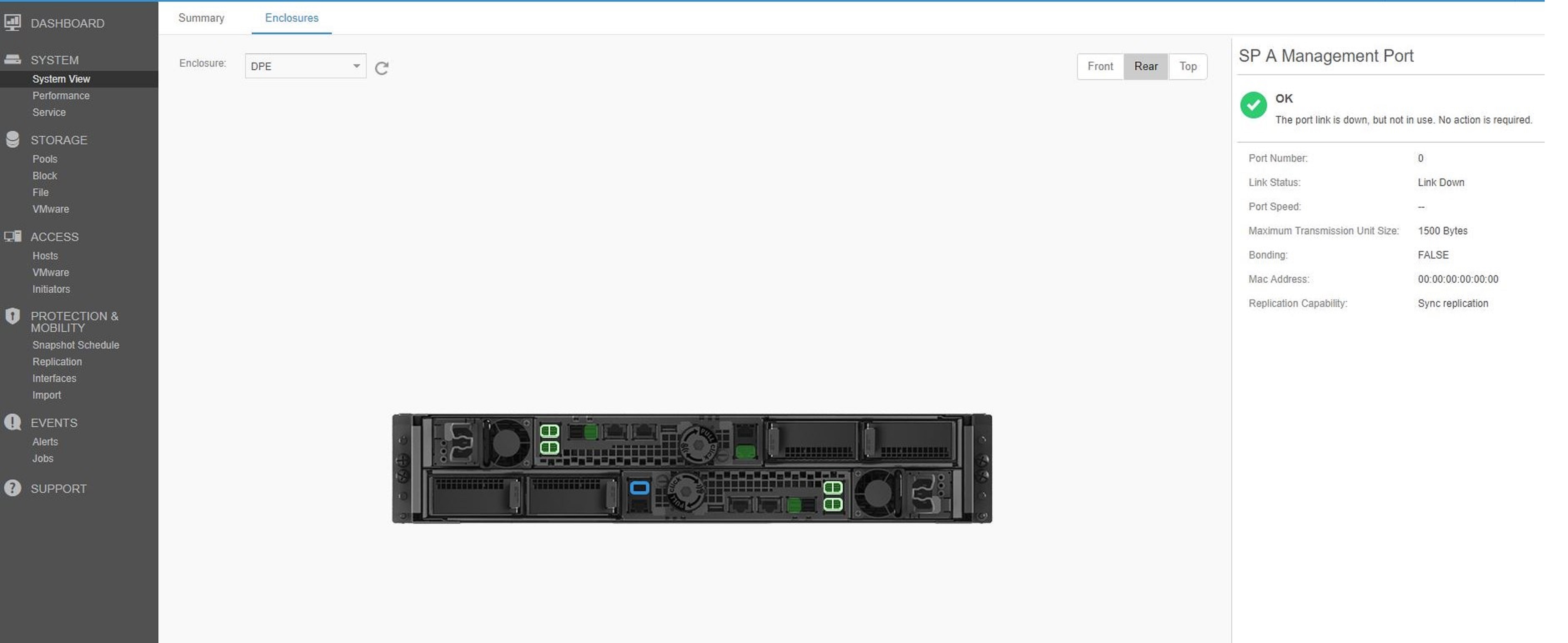
In Unisphere from System View > Enclosures (Rear View) > Peer (non-primary), SP reports "The port link is down" for Management port.
Example in Unisphere:
Resolution
Use the below checks to determine where the issue is. After each check, verify in Unisphere if the link came up.
- Check Management Network cables.
- Ensure that there is a cable connected to the peer (non-primary) SP to the network switch.
- Verify both sides of the cable are secure in the ports.
- Replace the cable if it is defective or damaged.
- Check the switch to determine if the port is down or if there is an issue on the switch side.
- If there are no issues with the cable, and it is secure in the Unity and switch ports, perform the below steps.
- Unplug the cable from the management port on the peer (non-primary) SP.
- Use compressed air to clear any debris or dust from the port and end of the cable.
- Plug the cable back into the management port on the peer (non-primary) SP.
- Trace the cable to the Network Switch.
- Unplug the cable from the switch port.
- Use compressed air to clear any debris or dust from the port and end of the cable.
- Plug the cable back into the switch port.
- Once it is verified in Unisphere that the link is up, perform a new Health Check to verify the error is no longer reported.
Affected Products
Dell EMC Unity FamilyProducts
Dell EMC Unity Family |Dell EMC Unity All Flash, Dell EMC Unity Family, Dell EMC Unity HybridArticle Properties
Article Number: 000061985
Article Type: Solution
Last Modified: 27 Jun 2024
Version: 6
Find answers to your questions from other Dell users
Support Services
Check if your device is covered by Support Services.