Reinstalling Microsoft Office on a Dell Computers
Summary: Learn how to reinstall Microsoft Office on your Dell computer after reinstalling the operating system and how to recover your Office license.
This article applies to
This article does not apply to
This article is not tied to any specific product.
Not all product versions are identified in this article.
Instructions
Affected Products:
- Microsoft Office
The reinstallation method for Microsoft Office on a computer depends on the type of license that was delivered with your computer.
Note: Office 2024 and Office 365 are the current versions Dell supports.
There are two types of installations:
- Microsoft Account (MSA) Based
Note: This is the most common license type and should be the method used by most customers.
- Device Based
Note:
- Digital Authentication for Business: This method is only used when Office is ordered in Japan
- Academic orders purchased with a Letter of Eligibility
Note: If you are unsure about the type of license that came with your computer, contact Dell support for assistance.
MSA License:
To reinstall Office, after an operating system reinstallation, follow these steps:
- Go to https://accounts.microsoft.com
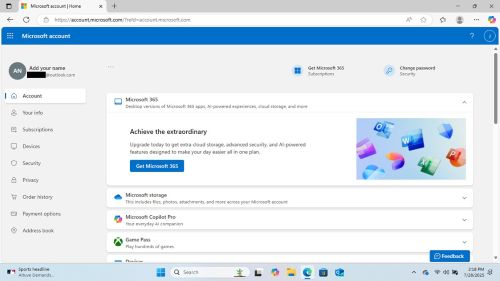
- Go to Subscriptions and click Install

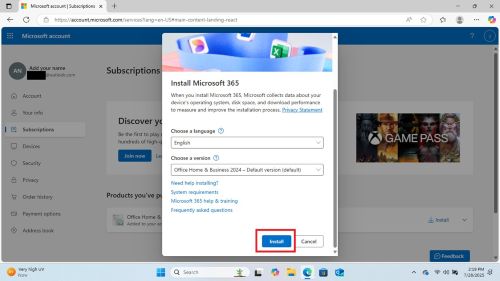
- Choose the appropriate options and click the Install button
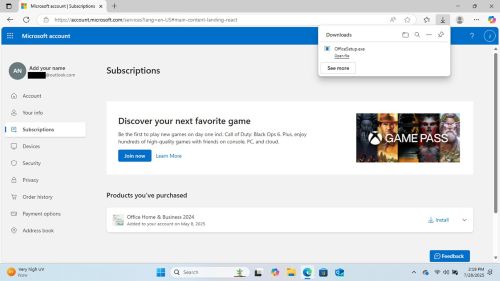
- Once the download has been completed, click Open File to begin installation.
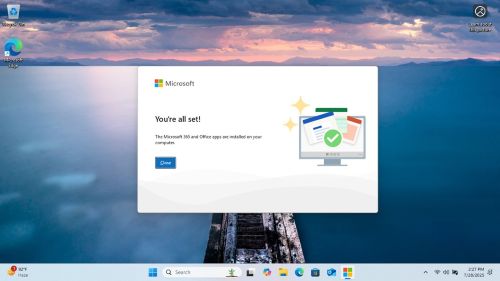
- The installer runs and lets you know when it is complete
- Open any Office application (for example, Word, Excel, Power Point, and so on), and it informs you a license is waiting.
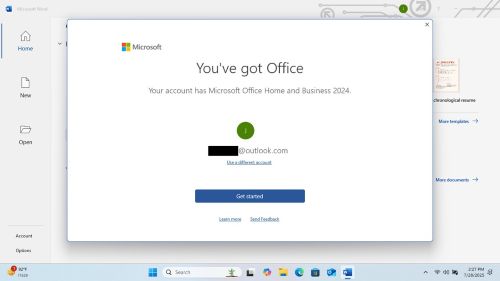
- Accept the license agreement to begin using Office.
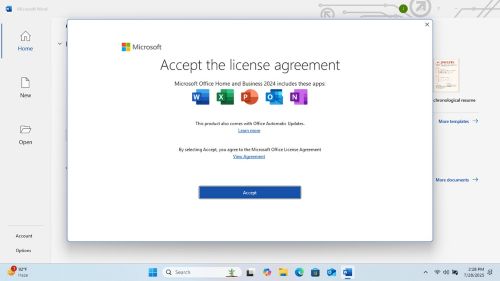

Microsoft Office is activated and ready to use.
Device-Based License:
If your computer came with a Device-Based License, you could reinstall Office without using an MSA.
Note: Device-Based Licenses are not available in all regions and countries.
To reinstall Office using a Device-Based License:
- Go to the Microsoft Office installation file or download it from the Microsoft website.
- Run the installation file and follow the prompts to install Microsoft Office.
- During the installation process, you are asked to enter the product key:
- Enter the product key that was provided with your Dell computer or is printed on the Certificate of Authenticity (COA) label on the computer.
- Once the installation is complete, open any Microsoft Office application (for example, Word, Excel, Power Point, and so on) and it automatically activates using the Device-Based License.
Related Articles:
Device-based licensing for Microsoft 365 Apps for enterprise
Article Properties
Article Number: 000362515
Article Type: How To
Last Modified: 23 May 2026
Version: 3
Find answers to your questions from other Dell users
Support Services
Check if your device is covered by Support Services.