DPA: How to create a custom dashboard and increase the table size of each report in dashboard
Summary: How to create a custom dashboard and increase the table size of each report in dashboard
This article applies to
This article does not apply to
This article is not tied to any specific product.
Not all product versions are identified in this article.
Instructions
1. Select Create custom Dashboard Template
In GUI--> Reports--> Dashboard Templates--> Custom Dashboard Templates-- >Create custom Dashboard Template
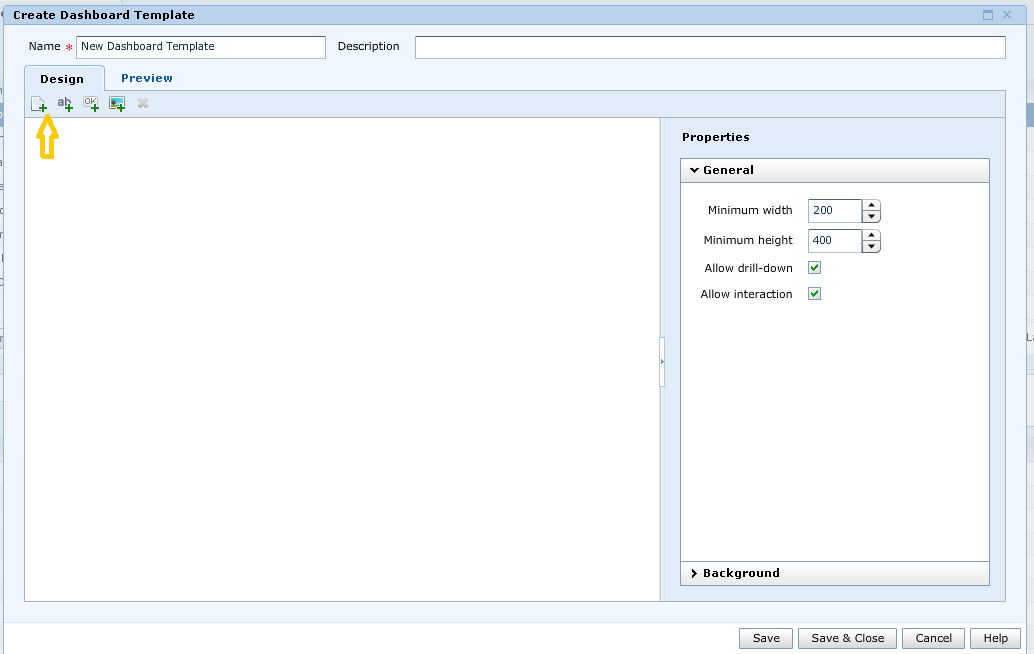
2. In the Create Custom Dashboard Template Wizard as shown above click on add report option to add the report template.
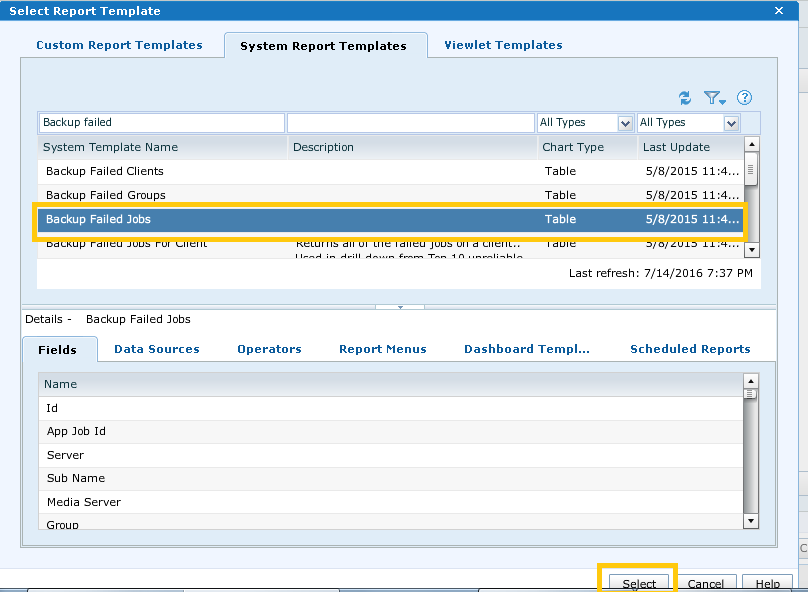
3. For example i selected Backup Failed Jobs and then click on select.
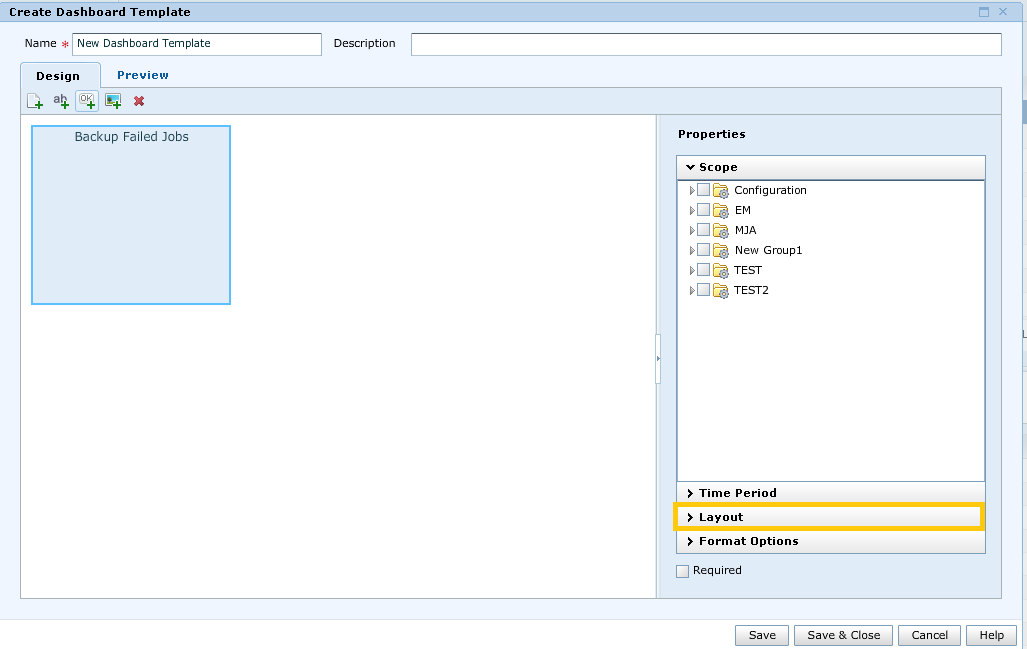
4. In the above we will see the Failed jobs report template has been added, to increase the report table Width and height select Layout.
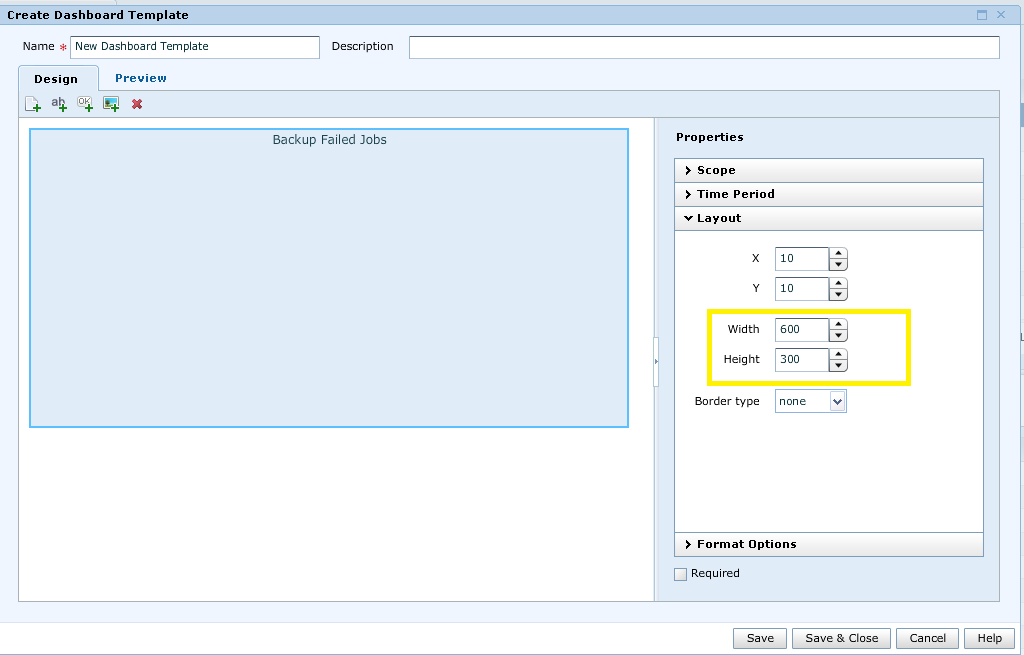
5. As shown in the above i changed the Width=600 and height= 300.
6. Now to add one more report template, click on add report again.For example I selected Backup Job Summary report. After adding the second report it will be as follows:
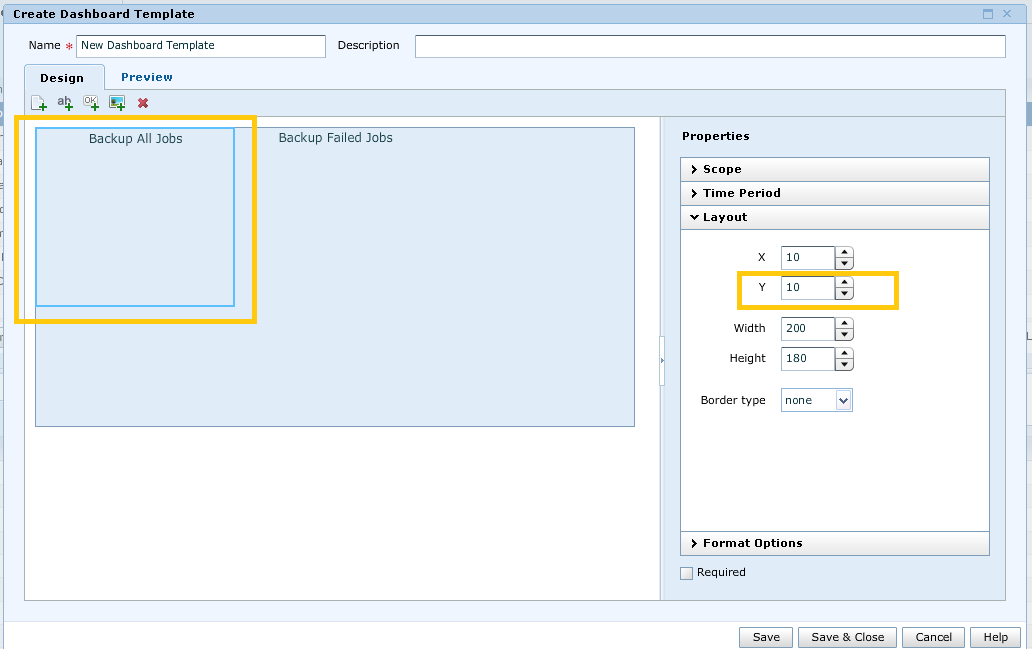
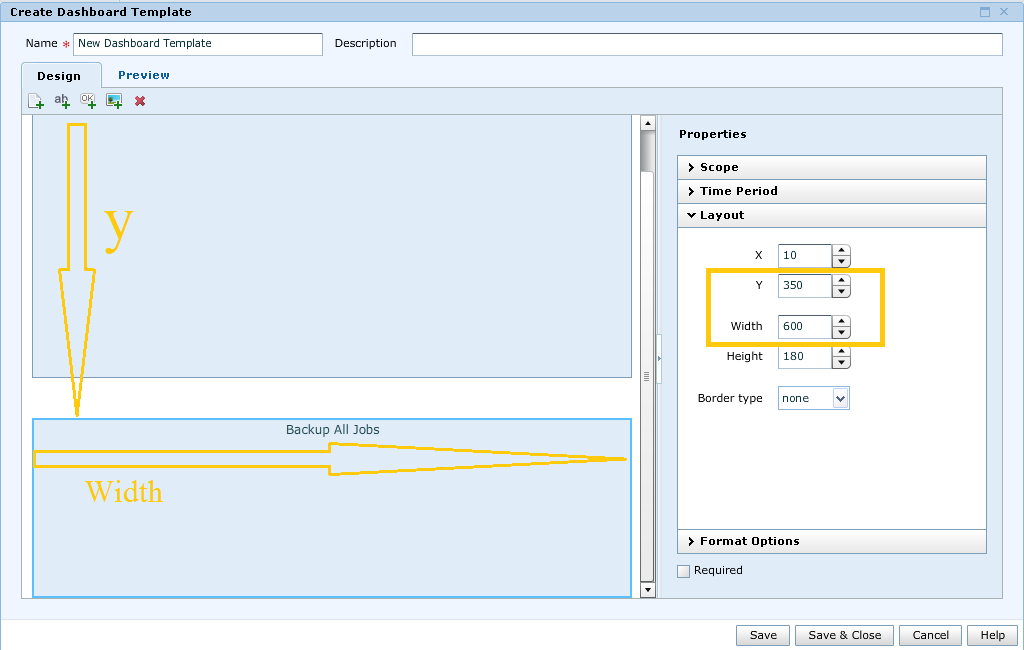
7. Now we see the second report has the overlap with the first report template. So in order to change the position and the Width of the second report template, we have to increase the Y and Width as shown:
8. The same way we can add multiple report templates to a Dashboard and save it.
9. After adding the required report templates to Dashboards , click on Save and close.
In GUI--> Reports--> Dashboard Templates--> Custom Dashboard Templates-- >Create custom Dashboard Template
2. In the Create Custom Dashboard Template Wizard as shown above click on add report option to add the report template.
3. For example i selected Backup Failed Jobs and then click on select.
4. In the above we will see the Failed jobs report template has been added, to increase the report table Width and height select Layout.
5. As shown in the above i changed the Width=600 and height= 300.
6. Now to add one more report template, click on add report again.For example I selected Backup Job Summary report. After adding the second report it will be as follows:
7. Now we see the second report has the overlap with the first report template. So in order to change the position and the Width of the second report template, we have to increase the Y and Width as shown:
8. The same way we can add multiple report templates to a Dashboard and save it.
9. After adding the required report templates to Dashboards , click on Save and close.
Affected Products
App Direct File System AgentArticle Properties
Article Number: 000022422
Article Type: How To
Last Modified: 06 May 2025
Version: 5
Find answers to your questions from other Dell users
Support Services
Check if your device is covered by Support Services.